After Effects Error Code 512: Quick Diagnosis and Fixes
Diagnose and fix After Effects error code 512 quickly with practical steps: identify symptoms, explore common causes, follow a step-by-step repair, and apply prevention tips for stable rendering.


Error 512 in After Effects usually signals a resource or GPU acceleration fault within the Mercury Playback Engine. The fastest fix is to free memory, purge caches, and, if needed, switch to software rendering while you troubleshoot. Follow this guide to identify triggers, apply proven fixes, and restore stable playback quickly.
What Error Code 512 Means in After Effects
In After Effects, error code 512 is a general failure reported by the Mercury Playback Engine (MPE). It usually surfaces when the render pipeline runs out of memory, or when GPU acceleration encounters a driver or hardware fault. This is not always a single-cause problem; it often reflects a resource clash or a configuration issue that appears only under heavy loads. The practical implication for professionals is: treat 512 as a sign to reduce load, verify the environment, and methodically test each potential trigger. By understanding that E512 is a resource/compatibility signal, you can move quickly from guesswork to a targeted fix.
What matters most is a disciplined troubleshooting approach: reproduce the error under controlled conditions, isolate the trigger, and apply fixes in a logical order. This mindset helps you maintain momentum during urgent production work and minimizes downtime when rendering complex compositions with many effects or 3D layers.
Symptoms and Scope: When E512 Shows Up
Error 512 often appears during preload, scrubbing, or rendering, sometimes with little warning and a generic dialog. You might see: “After Effects error 512,” a crash report, or stuttering playback that abruptly stops before the frame completes. The problem tends to be reproducible under heavy scenes—large resolutions, many layers, intense effects, or 3D work. However, it can also occur after a software update or cache purge if resource allocation changes. In short, E512 is a reliability signal: something in the resource chain (RAM, GPU, or disk cache) is under pressure or misconfigured. This makes it important to test with simpler compositions to confirm the trigger.
Root Causes: Prioritized List for Fast Troubleshooting
- Memory pressure and cache bloat (high). Large comps, multiple layers, and long timelines can exhaust available RAM and VRAM, triggering E512 under load.
- GPU acceleration conflicts or driver issues (medium). An unstable driver or incompatible GPU features can cause the Mercury Playback Engine to fail during effects processing.
- Corrupted disk cache or media cache (medium). Stale cache files can crash or stall renders.
- Conflicting plugins or effects (low). Outdated or incompatible third-party plugins can destabilize rendering paths.
- Hardware overheating or driver power management settings (low). Thermal throttling can reduce available resources unexpectedly.
- File paths or assets with access issues (low). Missing media or network-mapped drives can surface during render.
Quick Fixes You Can Try Right Now
- Close nonessential applications to free RAM and GPU memory.
- Purge memory and disk cache from Edit > Purge > All Memory & Disk Cache, then restart After Effects.
- Temporarily enable Software Only rendering (Mercury Playback Engine > Software Only) to isolate GPU-related faults.
- Reduce composition load: render at lower resolution, disable heavy effects temporarily, or work with a smaller test project.
- Update After Effects to the latest patch and verify driver compatibility for your GPU.
- Restart the workstation to clear memory state and thermal limits affecting performance.
- Check project file paths for missing assets or disconnected network drives.
Step-by-Step Fix: RAM Allocation and Disk Cache Management
- Update After Effects to the latest version and reboot the system to ensure all components load cleanly.
- Increase RAM available to After Effects: Preferences > Memory, set a higher RAM reserved for games/other apps to a smaller value and leave more RAM for After Effects.
- Purge and relocate disk cache: Preferences > Media & Disk Cache, Empty Disk Cache, then move the cache to a fast drive with ample space.
- Purge memory and perform a fresh render with a smaller preview to verify stability.
- Test Mercury Playback Engine with Software Only to determine if GPU acceleration is the root cause.
- If stability returns, gradually reintroduce effects and resolutions, watching memory and GPU usage closely.
Deeper Fixes: GPU Drivers, Plugins, and Media Cache
- Update GPU drivers from the manufacturer’s site; if problems persist, roll back to a known-good driver version temporarily.
- Ensure the Mercury Playback Engine is configured for the right hardware path: try CPU-only or GPU-accelerated paths to compare stability.
- Disable suspect plugins or third-party effects; update or reinstall those plugins if available.
- Clear and rebuild the media cache periodically; corrupted cache files often trigger hard errors during render passes.
If you still encounter 512 after exploring these avenues, consider testing the project on a different machine to confirm whether the issue is project-specific or system-wide.
Safety, Pitfalls, and When to Call a Pro
- Always back up projects before heavy fixes; avoid irreversible changes to the system or application settings.
- Do not disable essential OS or security updates during troubleshooting; instability from unknown sources can worsen fixes.
- If your workstation is under a tight deadline and the scene is critical, professional help may be justified. Typical service ranges for diagnostic and RAM/GPU tuning can run from roughly $50–$300 per hour depending on location and expertise; full hardware diagnostics may cost more.
- If the issue recurs across multiple projects or machines, escalate to a support professional with a detailed log of steps you’ve taken.
Prevention and Best Practices to Avoid E512
- Maintain a dedicated cache drive with ample free space and configure a reasonable cache size for your typical project.
- Keep GPU drivers current and verify compatibility with After Effects and your OS; run driver cleanups when updating.
- Work with optimized compositions: pre-compose heavy effects, limit 3D layers, and render in passes for lengthy timelines.
- Regularly monitor RAM usage and GPU memory in the Task Manager/Activity Monitor during heavy previews to anticipate bottlenecks.
- Establish a project workflow that includes baseline test renders at lower resolutions to catch E512 early in the edit cycle.
Data to Collect When Contacting Support
- System specs: CPU, GPU model, installed RAM, OS version, After Effects version.
- Project details: composition resolution, FPS, number of layers, effects used, any 3D work, and total duration.
- Reproduction steps: exact sequence that triggers E512, whether it occurs on render or playback, and any error dialogs.
- Environment: cache locations, disk space, external drives, and whether the issue replicates on another workstation.
- Attempts to fix: a list of fixes you have tried and their outcomes.
- Screenshots or logs: error messages, crash dumps, or AE log files to help identify the fault path.
Steps
Estimated time: 60-120 minutes
- 1
Prepare and back up your project
Save a copy of your current project and close nonessential apps to free memory. A clean baseline is essential before making changes. Confirm you have recent autosaves and a working backup.
Tip: Enable auto save and set a short interval for critical projects. - 2
Increase RAM for After Effects
In After Effects, go to Preferences > Memory. Reserve less RAM for other applications and leave more for AE to prevent memory starvation during heavy renders.
Tip: If you’re on 16GB RAM or less, consider reducing background apps further or upgrading RAM. - 3
Clear and relocate disk cache
Open Preferences > Media & Disk Cache and Empty Disk Cache. Move cache to a fast drive with ample space to reduce I/O bottlenecks during heavy renders.
Tip: Place the cache on an SSD if available for best performance. - 4
Test with Software-only rendering
Switch Mercury Playback Engine to Software Only to determine if the GPU path is the fault. If 512 disappears, the GPU path is the likely culprit.
Tip: Do not rely on Software Only as a permanent solution; use it to isolate the issue. - 5
Update drivers and plugins
Update GPU drivers to the latest stable version; update or temporarily disable plugins to test stability. Re-enable one by one to identify culprits.
Tip: Note the exact driver version that produces best stability for your project. - 6
Rebuild and test with a smaller comp
Before reintroducing the full scene, render a small precomp or a reduced-res version to confirm stability before scaling back up.
Tip: Avoid jumping back to full-res renders until you confirm baseline stability.
Diagnosis: Error 512 appears during render or playback in After Effects
Possible Causes
- highMemory pressure from large comps, layers, and high-res assets
- mediumGPU acceleration conflicts or driver issues
- mediumCorrupted disk cache or media cache
- lowConflicting plugins or effects
Fixes
- easyPurge memory and disk cache, then restart After Effects
- easySwitch Mercury Playback Engine to Software Only for testing
- easyIncrease RAM allocation and move cache to a faster drive
- easyUpdate GPU drivers and verify GPU settings in AE preferences
- mediumDisable or update problematic plugins; rebuild cache and test with a smaller precomp
- hardIf issue persists, consider professional hardware diagnostics or upgrade
Frequently Asked Questions
What is After Effects error code 512?
Error 512 is a general Mercury Playback Engine failure typically caused by memory pressure, GPU acceleration problems, or corrupted caches. It signals a resource or driver fault rather than a missing asset.
Error 512 in After Effects is a general engine failure caused by memory or GPU issues, not a missing file. Start by freeing memory and clearing caches, then test GPU settings.
Can I fix error 512 without updating drivers?
Yes, many fixes involve memory management and cache handling. Updating drivers is helpful but not always required for a successful resolution. Use GPU tests and cache cleanups first to narrow down the cause.
You can fix it without updating drivers first by cleaning caches and freeing memory, then testing the GPU path to see if drivers are the culprit.
Is hardware upgrade required for E512?
Often not required, but if you consistently hit 512 on large projects, upgrading RAM or a GPU with more VRAM can provide a long-term fix. Start with software-based fixes before investing in hardware.
Upgrading hardware may be needed for big projects, but try software fixes first to confirm the root cause.
Will software rendering help with E512?
Yes. Switching to Software Only rendering helps determine if the issue is GPU-related. If 512 vanishes under software rendering, focus on GPU drivers and acceleration settings.
Software rendering can help you confirm whether the issue is tied to the GPU path.
How long should I troubleshoot E512 before escalating?
If fixes don’t resolve the problem within 1–2 hours of methodical testing, escalate to support or a local professional with a detailed log of steps taken.
If it doesn’t get fixed in an hour or two, consider getting professional help with logs ready.
Watch Video
Top Takeaways
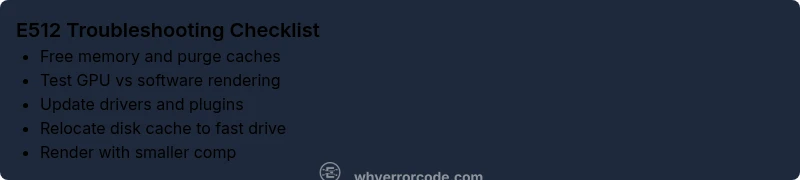
- Free memory and purge caches first
- Test GPU vs CPU rendering to locate root cause
- Update drivers and disable conflicting plugins
- Work with smaller comps to confirm fixes
- Document steps and monitor performance during renders