Blue Screen of Death 0xc00000e9: Urgent Troubleshooting Guide
Learn how to diagnose and fix the blue screen of death error code 0xc00000e9. This urgent guide covers meaning, diagnostic steps, quick fixes, step-by-step repairs, safety tips, and prevention to minimize downtime.


The blue screen of death error code 0xc00000e9 indicates a boot-time I/O failure, typically due to a failing drive, corrupted boot sector, or loose cables. Quick fixes start with safe power-down, reseating drives and RAM, and running built-in diagnostics. If the BSOD persists, use Windows recovery to repair the boot configuration, check disk health, and consider professional help for hardware replacement.
What the blue screen of death error code 0xc00000e9 actually means
The blue screen of death (BSOD) error code 0xc00000e9 is a boot-time failure that interrupts the system startup. Unlike many runtime BSODs, this code points to a problem the PC detects before Windows finishes loading. In most cases, 0xc00000e9 signals an I/O fault at boot, which can be caused by a failing hard drive or SSD, a corrupted boot sector, or a loose data/power cable. The root cause is often hardware-oriented, but software corruption in the boot configuration data (BCD) can also trigger this error. For developers and IT pros, understanding that this is a boot-cycle symptom helps prioritize checks on storage health, firmware state, and boot configuration rather than chasing post-boot software issues. Why Error Code analysis (2026) notes that drive reliability remains the leading predictor of 0xc00000e9, with boot-sector integrity as a close second. Addressing the issue promptly reduces the risk of data loss and extended downtime.
Quick context for troubleshooting
- 0xc00000e9 commonly accompanies a message like "A disk read error occurred" or "Operating system not found" at boot.
- It often indicates the system cannot access the boot volume or boot records.
- Practical approach: confirm hardware connections, run diagnostics, then repair boot data if needed.
How to interpret the error in real-world scenarios
In laptops or desktops with aging drives, 0xc00000e9 frequently appears after a sudden power loss, a drive SMART warning, or a failed Windows update. On systems with multi-drive configurations, the error may point to the primary boot drive or misconfigured BIOS boot order. Differentiating between a physical disk failure and a boot configuration issue is critical, because the remedies are very different: hardware replacement versus software repair.
Prioritize data protection before repairs
If you can, back up important data first. When the boot drive may fail, data recovery priorities shift from performance optimization to data preservation. Use external storage or cloud backups if the system allows. If the drive is inaccessible, consider professional data recovery services to avoid permanent loss, especially for irreplaceable files. Why Error Code suggests having a fallback plan in place as part of standard IT practice.
Tools and utilities you should know
There are built-in tools you can leverage without opening the case: BIOS/UEFI diagnostics, Windows Recovery Environment (WinRE), and command-line tools like bootrec, chkdsk, and sfc. Running SMART data checks via third-party utilities can also reveal if a disk is deteriorating. When you combine these tools with methodical hardware checks, you can typically determine whether the issue is drive-related, boot-related, or cable-related.
Understanding the risk and impact
A 0xc00000e9 error can indicate looming disk failure that may lead to data loss. If you delay repairs, persuading the system to boot might become impossible, leading to longer downtimes and higher repair costs. The recommended approach is to perform conservative fixes first—reseat cables, verify BIOS settings, and run diagnostics—before engaging in disk replacement or Windows reinstallation. This minimizes risk and cost while preserving data integrity.
Steps
Estimated time: 60-120 minutes
- 1
Back up data if possible
If the system boots intermittently or you can access a secondary drive, copy critical files to external storage. Use reliable media and verify file integrity. If access is entirely blocked, prepare for data recovery services.
Tip: Prioritize irreplaceable data before proceeding. - 2
Check hardware connections
Power down completely, unplug, and reseat all cables to the boot drive and motherboard. Re-seat RAM modules and ensure power connectors are secure. Loose connections are a common cause of 0xc00000e9.
Tip: Handle components with anti-static precautions. - 3
Run built-in diagnostics
Boot into the BIOS/UEFI diagnostics menu or use a vendor utility to test storage health and memory. Note any SMART warnings or RAM errors that appear during tests.
Tip: Document any error codes for reference during repairs. - 4
Repair boot configuration data (BCD)
Boot from Windows installation media or a recovery drive. Open Repair options and run commands like bootrec /fixmbr, bootrec /fixboot, and bootrec /rebuildbcd. Reboot to test if Windows starts normally.
Tip: If /rebuildbcd fails, you may need to manually recreate BCD entries. - 5
Check disk health and file system
Run chkdsk /f /r on the boot drive from WinRE to fix filesystem errors and relocate bad sectors. This helps resolve read errors that trigger 0xc00000e9.
Tip: Ensure you run the command on the correct drive letter in WinRE. - 6
Test RAM and storage separately
If diagnostics indicate RAM issues, test with MemTest86 or memory diagnostics in the BIOS. If the storage reports SMART failures, plan for replacement.
Tip: Only swap one component at a time to isolate the fault. - 7
Decide on drive replacement or OS repair
If tests show a failing drive, replacement is often required. If diagnostics point to boot configuration, OS repair or reinstallation may suffice. In some cases, a clean Windows install is the last resort.
Tip: Consider cloning the drive before replacement to preserve data.
Diagnosis: System shows BSOD with 0xc00000e9 during boot or when loading Windows.
Possible Causes
- highFailing or failed hard drive/SSD
- highCorrupted boot configuration data or boot sector
- mediumLoose or damaged SATA/Power cables
- lowRAM or memory module issues
- lowBIOS/UEFI misconfiguration or outdated firmware
Fixes
- easyRun hardware diagnostics and check SMART data
- easyReseat all cables and power connectors to the boot drive
- mediumRepair BCD and boot records via Windows Recovery
- hardTest/replace boot drive (SSD/HDD)
- easyTest RAM with memtest or built-in memory diagnostics
Frequently Asked Questions
What does error code 0xc00000e9 mean on boot?
This BSOD code signals a boot-time I/O failure, usually due to disk issues or boot sector corruption. It prevents Windows from starting because the boot volume cannot be accessed. Diagnosing requires checking drive health, boot configuration, and connections.
0xc00000e9 means the computer can’t access the boot drive, so Windows can’t start. Check cables and boot records to fix it.
Is a failing hard drive the only cause?
No. It can also be caused by a corrupted boot configuration, loose cables, RAM problems, or BIOS misconfigurations. A structured diagnostic flow helps distinguish between hardware and software causes.
Not just the drive—boot configuration, cables, RAM, or BIOS can also trigger 0xc00000e9.
Can I fix this myself without professional help?
yes, many fixes are user-friendly, such as reseating cables, running built-in diagnostics, and repairing the boot records via Windows Recovery. If data is at risk or the drive shows SMART failures, professional help is advised.
You can try the basic checks, but if the drive looks failing, seek pro help.
What data risk exists with 0xc00000e9?
There is a real risk of data loss if the boot drive fails. Prioritize backups and consider data recovery services if the drive becomes unreadable. Preserving data is the primary concern before replacement or reinstallation.
Data loss is possible; back up first and consider recovery services if needed.
Should I replace the hard drive or reinstall Windows first?
If diagnostics show drive failure, replace the drive and clone data if possible. If boot records are corrupted but the drive is healthy, repairing boot data or reinstalling Windows may suffice without a full replacement.
Replace the drive if it's failing; otherwise repair boot data or reinstall Windows.
How long does a fix usually take?
A typical repair sequence can take 60–120 minutes, depending on hardware accessibility and data backup status. If data recovery is needed, expect longer timelines and potential costs.
Most fixes take about an hour, data recovery can take longer.
Watch Video
Top Takeaways
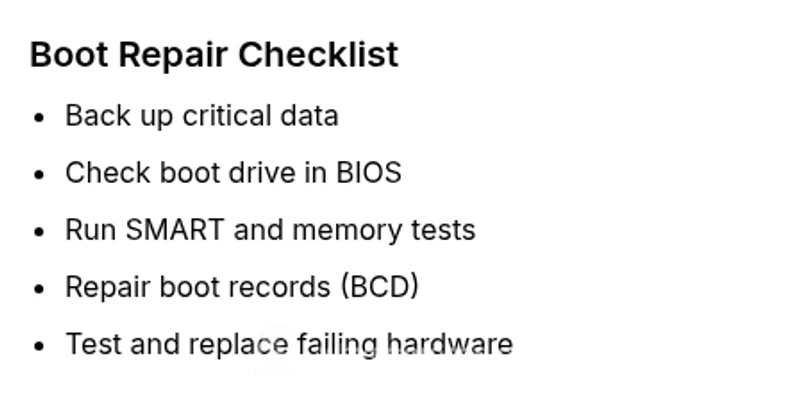
- Back up data before major repairs
- Prioritize boot-drive health and boot configuration
- Use Windows Recovery to repair boot records
- Replace failing hardware promptly to prevent data loss