What Causes Error Code 0xc00000f and How to Fix It
Urgent guide to diagnosing and repairing error code 0xc00000f—boot failures, BCD corruption, and drive issues. Learn quick fixes, a diagnostic flow, step-by-step repairs, and when to call a professional.


Error code 0xc00000f is a Windows boot-time failure indicating a problem with the boot configuration data or the boot drive. It commonly appears when the Boot Configuration Data (BCD) is corrupted, a disk is unreadable, or BIOS/UEFI settings are misconfigured. Quick fixes include using Startup Repair, rebuilding the BCD, and verifying disk health before proceeding with deeper repairs.
What Causes Error Code 0xc00000f
Understanding what causes error code 0xc00000f helps triage quickly. This boot-time failure stops Windows from loading before the operating system begins, so the problem lies in the boot path rather than user-space applications. Most cases boil down to boot configuration data issues, a problematic boot drive, or firmware settings. Specifically, a corrupted or missing Boot Configuration Data (BCD) can prevent the boot manager from locating the system partition. Hardware changes such as adding or moving drives, or a failing disk with bad sectors, can also trigger the error. Safety and data protection require you to work through a controlled recovery sequence rather than guessing. According to Why Error Code, the most reliable fixes start with non-destructive repairs that preserve data. The key is to assess boot-readiness, confirm drive readability, and verify firmware priorities before attempting deeper repairs. If the disk shows signs of failure, plan data backup and a possible restore strategy rather than leaping into reinstallations. This disciplined approach minimizes data risk while restoring boot reliability.
Why This Happens: Common Scenarios
In practice, 0xc00000f surfaces when Windows cannot access the required boot files. Common triggers include a corrupted BCD due to failed updates or abrupt shutdowns, unreadable boot volume from bad sectors, or a boot drive that has degraded. BIOS/UEFI misconfigurations, such as incorrect boot order or legacy mode settings, can also cause the error. Recently installed drives or controller changes can interfere with normal boot sequencing. Based on Why Error Code Analysis, 2026 shows boot file integrity and disk health as the top culprits, so starting diagnosis with those areas is wise. Always collect a recent backup before making changes, as some fixes involve disk rewriting or data relocation.
Diagnostic Approach: Symptoms to Causes
The pattern is symptom → probable cause → fix. If you see 0xc00000f, note the exact message, the hardware changes, and recent software updates. Your next steps typically involve verifying boot order, testing drive health with SMART data, and inspecting cables. If the system reports an unreadable boot volume, the drive may be failing; if it reports BCD problems, repairs will focus on boot configuration. This flow helps you prioritize fixes and avoids unnecessary reinstallations.
Quick Fixes You Can Try First
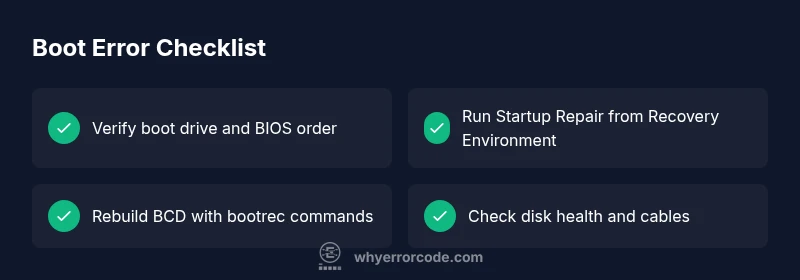
Before diving into deeper repairs, try these non-destructive options: restart with a known-good boot drive, boot into the Windows Recovery Environment and choose Startup Repair, and use the automated tools to rebuild BCD. Check external devices and disable any USB boot overrides. If the error recurs, move to more robust steps such as rebuilding BCD and validating disk health. These steps are designed to be safe and reversible whenever possible.
Safe Steps for Data Safety and Hardware Checks
While repairing, ensure critical data is backed up. If you can access the OS drive via another computer or a live environment, copy important files first. Inspect SATA/Power cables for looseness and reseating. Run disk health checks to confirm there are no lurking bad sectors. If you encounter hardware defects or repeated boot failures, this is a sign you should prepare for professional intervention or a hardware replacement plan.
When to Seek Professional Help
If data loss risk remains high or you are uncomfortable with BIOS changes, contact a professional. A technician can run a full disk health assessment, confirm firmware updates, and perform safe repairs with specialized tools. Expect variable costs based on region and service scope; typical DIY fixes save money, while professional repairs range broadly depending on complexity.
Steps
Estimated time: 60-90 minutes
- 1
Boot into Windows Recovery Environment
Insert Windows installation media or use the built-in recovery options to boot into Troubleshoot > Advanced options. Choose Startup Repair when available or open Command Prompt for manual fixes.
Tip: Have installation media ready or know how to access recovery options via F8/Shift+F8 or the sign-in screen. - 2
Run Startup Repair
From the Recovery Environment, select Startup Repair. Allow the tool to scan for problems and automatically fix boot-related issues. If it reports problems it cannot fix, proceed to manual repairs.
Tip: If Startup Repair completes with a message that it fixed problems, reboot and confirm behavior. - 3
Rebuild the BCD (bootrec)
Open Command Prompt and run: bootrec /fixmbr, bootrec /fixboot, and bootrec /rebuildbcd. Follow the prompts to add the Windows installation to the boot list.
Tip: If bootrec cannot rebuild BCD, try creating a new BCD store with bootrec /rebuildbcd after backing up the old one. - 4
Check Disk for Errors
Run CHKDSK /F /R on the system drive to locate and repair bad sectors. This helps ensure the boot volume is readable before attempting further fixes.
Tip: If CHKDSK reports unreadable sectors, plan data backup and drive health assessment. - 5
Verify BIOS/UEFI Boot Order
Enter BIOS/UEFI setup and confirm that the correct boot drive is selected. Disable legacy boot if your system uses UEFI, or enable it if required by your hardware.
Tip: Make a note of your configuration before changing settings. - 6
Restore Data or Reinstall if Needed
If boot issues persist after BCD repair and disk checks, consider restoring from a backup or performing a clean reinstall of Windows. Ensure backups are current before proceeding.
Tip: Reinstallation may alter partitions; back up data and ensure product keys are available.
Diagnosis: PC won't boot; 0xc00000f appears during startup
Possible Causes
- highCorrupted or missing Boot Configuration Data (BCD)
- highUnreadable or failing boot drive (disk health issues)
- mediumBIOS/UEFI settings misconfigured or outdated
- mediumFaulty SATA cables or loose connections
Fixes
- easyRun automatic Startup Repair from Windows Recovery Environment
- easyRebuild the BCD with bootrec commands
- easyCheck disk integrity with CHKDSK /F /R
- hardTest and reseat SATA cables or replace the boot drive
Frequently Asked Questions
What does error code 0xc00000f mean on startup?
0xc00000f is a boot-time error indicating a problem with the boot configuration data or boot device. It prevents Windows from loading and requires boot repairs or disk checks.
0xc00000f is a boot-time error that blocks Windows startup due to boot files or disk problems.
Can I fix this without reinstalling Windows?
In many cases you can repair the boot configuration data, rebuild the BCD, and verify disk health without reinstalling Windows. If repairs fail, a reinstall might be necessary.
Usually you can fix it without reinstalling; try boot repairs first.
What are the most common causes?
The leading causes are corrupted or missing BCD, unreadable boot drive, or BIOS/UEFI misconfiguration. Hardware changes and power issues can also trigger the error.
Common causes are BCD corruption, disk issues, and firmware settings.
How long does a repair take?
A typical DIY repair can take 30-90 minutes, depending on hardware and skill. Professional service may take 1-3 hours plus diagnostics.
Most repairs take under a couple of hours, depending on the problem.
Should I call a professional?
If you have irreplaceable data or are uncomfortable with BIOS changes, seek professional help to minimize risk.
If you’re unsure, it’s wise to get professional help.
Will this affect my data?
Repair procedures aim to preserve data, but there is always some risk. Backups reduce potential loss if a fix goes wrong.
Data can be at risk; back up what you can before starting.
Watch Video
Top Takeaways
- Back up data before fixes
- Start with automated recovery tools
- Rebuild BCD before reinstall
- Check disk health and cables
- Know when to call a pro