Call of Duty Modern Warfare 3 Error 0x1: Quick Fix Guide
Learn how to diagnose and fix Call of Duty Modern Warfare 3 error code 0x1 fast. Urgent, practical steps from Why Error Code to restore login and matchmaking.


Error code 0x1 in Call of Duty Modern Warfare 3 commonly signals a connection or authentication handshake failure during login or matchmaking. The quickest fix is to check your network (NAT type, firewall, and router settings), confirm game version and server status, and apply the recommended fixes outlined here. If problems persist, escalate to professional support or official channels.
What 0x1 Means in COD MW3
In Call of Duty Modern Warfare 3, error code 0x1 is not a failure of your disc or installation by itself. It is a session-layer signal that the game cannot successfully establish a secure connection with the official servers, or that the authentication handshake between your client and the servers cannot complete. For players, this typically shows up as a login failure, a stuck progress bar during matchmaking, or an abrupt drop back to the main menu with the 0x1 message. Because this is often a network or session issue rather than a corrupt game file, the fastest way back into a match is to diagnose connectivity, verify your software versions, and check server status. According to Why Error Code, understanding that 0x1 is primarily a connection/auth problem helps you prioritize fixes and avoid unnecessary file reinstalls. The urgency comes from the fact that online play is time-sensitive, and repeated failures can disrupt progression, especially during weekend events or new-season launches.
Why 0x1 Occurs: Common Scenarios
Error 0x1 can pop up in several scenarios, and the underlying causes are not always the same across platforms. The most common is strict or modulated NAT type, which hinders the game’s ability to traverse your router and reach the multiplayer servers. A misconfigured firewall or antivirus on your PC, console, or network can block the handshake packets required for login. Server-side issues—such as regional maintenance, capacity limits, or temporary outages—can also surface as 0x1 errors for users who try to connect at peak times. Occasionally VPNs or proxy services, or even a poorly configured parental control, will interfere with the authentication flow. Finally, corrupted game data or a stale cached session can trigger an unexpected 0x1 message even when your network is fine. Why Error Code analysis emphasizes that while the exact path varies, most 0x1 incidents trace back to a network/session barrier rather than a fault in the game binary.
Quick Fixes You Can Try Now
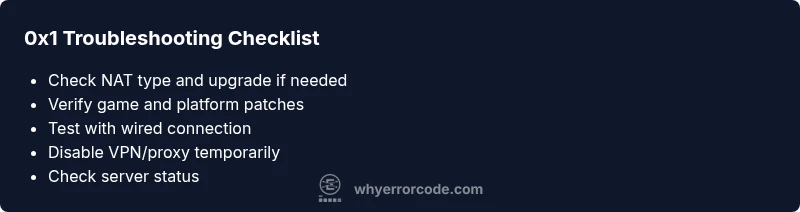
Start with the fastest checks first, because time-to-fix matters. First, restart your router and modem to refresh your home network, then reboot the console or PC. Check that you are on the latest game patch and platform firmware; if not, update immediately. Temporarily disable any VPNs, proxies, or firewall rules that could be blocking the game’s ports, then re-launch the title. If you are on a console, run a network test to confirm NAT type is open or moderated; if not, adjust UPnP or port forwarding as needed. Try connecting to a different network, such as a mobile hotspot, to determine if the issue is your ISP or home network. Lastly, verify that the Call of Duty servers are not in maintenance by checking official status pages. If the error persists, capture the exact error message and timestamps to compare with the troubleshooting guides here.
Deeper Causes Behind Error 0x1
When basic fixes fail, it’s time to drill into the deeper causes. A mismatch between your in-game region and the server you are attempting to reach can trigger 0x1. This is why you may see different error codes across regions, even for the same game build. Another frequent culprit is session cookies or cached data stored by the game's launcher or the platform’s digital storefront; those stale tokens can cause a failed handshake. Security software, such as antivirus real-time scanning or firewalls with aggressive outbound rules, may block the critical handshake packets if not configured for gaming. Hardware-level issues like failing routers or intermittent Ethernet cables can also produce sporadic 0x1 messages. Where applicable, ensure your network hardware is healthy and that you have tested with a wired connection to isolate wireless-specific problems. Why Error Code notes that systematically ruling out the network path yields the clearest picture of the root cause.
Step-by-Step Fix (Most Common Cause: NAT/Firewall)
If NAT type is strict or firewall blocks are suspected, follow these practical steps to restore a stable connection without reinstalling the game. First, enable UPnP on your router and reboot the device. Next, set up port forwarding for the game’s required ports (check platform guides for exact ports, and apply both TCP and UDP where applicable). Confirm that the console/PC is allowed through the firewall for both outbound and inbound traffic. If you are using wireless, try a wired Ethernet connection to eliminate interference. Disable any VPNs or proxies temporarily to see if the 0x1 issue clears. After making changes, relaunch the game and attempt login again. If the problem persists, assign a static IP to your device and re-test. Maintain a log of changes and test results for future reference. Estimated time for this fix ranges from 20 to 40 minutes depending on your network setup.
Other Causes and How to Address Them
Beyond NAT and firewall issues, server-side maintenance or regional routing problems can produce 0x1 errors for specific territories. Check official COD MW3 server status pages to confirm if the problem is on the provider’s end. Corrupted game data or incomplete installations can masquerade as network problems; running a repair or verification can reveal and fix these discrepancies. If you share your platform (PC, Xbox, PlayStation) and whether you use a VPN or proxy, you’ll be better positioned to tailor a fix. Finally, if all else fails, contacting official support with details such as timestamps, system specs, and recent changes will accelerate resolution. Why Error Code stresses never skipping a server-status check and always testing basic connectivity first to avoid unnecessary reinstallation.
Prevention, Safety, and When to Call a Pro
To prevent 0x1 reoccurrence, keep your firmware and game patches up to date, maintain a stable network with a wired connection when possible, and monitor NAT type regularly. Ensure your security software is gaming-friendly and not overly restrictive. Document any persistent patterns (time of day, region, platform) to aid precise diagnosis if you must seek professional help. If you encounter repeated 0x1 failures after all home-network steps are exhausted, it’s prudent to contact customer support or a local IT professional. The urgency remains high during peak gaming hours, so act quickly and systematically.
Steps
Estimated time: 30-60 minutes
- 1
Verify network connectivity
Check your internet connection speed and stability. Run a basic ping test to your router and then to a trusted server. Ensure there is no packet loss and that latency is within playable ranges. If you notice instability, address local network issues before deeper fixes.
Tip: Use a wired Ethernet connection to remove Wi‑Fi variables. - 2
Check account and game patch status
Confirm you are logged into the correct account and that Call of Duty Modern Warfare 3 is up to date. Apply any pending patches or updates, as mismatched versions can trigger authentication failures. Reboot the game after updates apply.
Tip: Keep a note of your game version for future troubleshooting. - 3
Test alternate network path
If possible, connect via a mobile hotspot or alternate network to determine whether the issue is with your ISP or home network. This can quickly identify whether the fault is local or provider-wide. If the problem disappears on a different network, focus your NAT/Firewall adjustments on the original network.
Tip: Take screenshots of network tests for reference. - 4
Adjust NAT and firewall settings
On your router, enable UPnP and consider manual port forwarding for COD MW3 ports. On PC, temporarily disable security software that might block traffic and re-test. On consoles, run the built-in network diagnostic and adjust NAT type accordingly.
Tip: Restore firewall rules after testing to keep protection intact. - 5
Clear cache and repair game data
Use the platform’s repair/verify function to scan for corrupted files. Clear the game's cache if the platform supports it and relaunch the game. This helps remove stale tokens that can cause 0x1 handshakes to fail.
Tip: Always back up save data before major repairs. - 6
Reattempt login and monitor behavior
Launch COD MW3 and attempt to log in or join a match. If 0x1 persists, collect the exact error wording and timestamps and consult official status pages or support forums for any known outages.
Tip: Document recurrence patterns to speed up support response.
Diagnosis: Cold boot or login fails with 0x1 during COD MW3 matchmaking
Possible Causes
- highNAT type is strict or firewall blocks game traffic
- mediumServer region mismatch or maintenance
- lowCorrupted game data or cached tokens
Fixes
- easyEnable UPnP and forward necessary ports on the router
- easySwitch to a different server region or wait for maintenance to complete
- mediumVerify game files and clear cached data, then relaunch
Frequently Asked Questions
What does error code 0x1 mean in Call of Duty Modern Warfare 3?
Error 0x1 typically indicates a connection or authentication handshake failure preventing login or matchmaking. It is usually network-related rather than a corrupted game file.
Error 0x1 means a network or login handshake problem; start with network checks and server status before deeper fixes.
Can I fix 0x1 without reinstalling the game?
Yes. Most 0x1 issues are resolved by adjusting network settings, verifying patches, and clearing cached data rather than reinstalling. If problems persist, seek professional help.
Often you can fix it with network tweaks and updates, not a full reinstall.
Does 0x1 affect consoles and PC differently?
The symptoms are similar across platforms, but consoles may show more clearly with NAT or server status messages, while PC users may encounter firewall prompts or antivirus blocks.
Platforms differ in how they present the error, but the underlying cause is usually network-related.
Should I use a VPN to bypass 0x1?
VPNs can sometimes help bypass regional blocks, but they often worsen NAT issues or trigger other protections. Use VPN as a last resort and only if you know what you’re doing.
VPNs aren’t a guaranteed fix and can complicate things further.
How long should I expect a fix to take?
Most home-network fixes resolve within 30-60 minutes, depending on complexity and ISP interactions. If a server outage is involved, you may need to wait for maintenance to finish.
Fix times vary, but many players see results within an hour when following the steps.
Watch Video
Top Takeaways
- Check network first; server status matters.
- Prioritize quick fixes (UPnP, port forwarding) before reinstalling.
- Test across networks to isolate local vs provider issues.
- Document errors for faster support.
- Keep software and patches up to date.