Call of Duty PC Error 0x1: Quick Diagnosis & Fix Guide
Diagnose and fix Call of Duty PC error code 0x1 quickly with our step-by-step guide. Learn quick fixes, diagnostic flow, and when to call a professional for help.


Error code 0x1 in Call of Duty PC usually signals a general initialization failure. It’s commonly caused by outdated drivers, corrupted game files, or software conflicts like overlays. The fastest way to regain access is with a quick fix: update graphics and chipset drivers, verify game files, disable overlays, and run the game as administrator. If the issue persists, review system requirements and consider a clean reinstall.
What error code 0x1 means in Call of Duty
Error code 0x1 is a generic startup fault in Call of Duty on PC. It often appears when the game attempts to initialize modules (graphics, audio, input) and encounters an unexpected condition. While the exact internal flag isn’t publicly documented, most players experience it as a blocker to launch or a crash at startup. The root causes are typically material rather than magical: out-of-date drivers, corrupted game assets, conflicting software, or improper permissions. Understanding that 0x1 is a broad signal helps you prioritize fixes rather than chasing a single culprits. In practice, treating 0x1 as a symptoms-first issue—start with broad, safe fixes and progressively narrow to hardware checks—reduces downtime. As you follow the diagnostic flow, you’ll see how each fix eliminates a chunk of potential causes, supported by the Why Error Code team’s analysis of common patterns.
When you’re likely to see 0x1 in Call of Duty
You’ll most often encounter 0x1 when launching COD on PC after a system update or a GPU driver update. It can also appear after anti-cheat updates, new PC security software, or background applications that inject overlays into the game. If you recently installed a new headset, game capture tool, or recording software, these can introduce conflicts during the initialization phase. In many cases, players who boot the game without administrator privileges or with antivirus interference will see 0x1 as a startup roadblock. Recognizing these moments helps you apply targeted fixes quickly and avoid unnecessary reinstallations.
Quick checks you can do before diving deeper
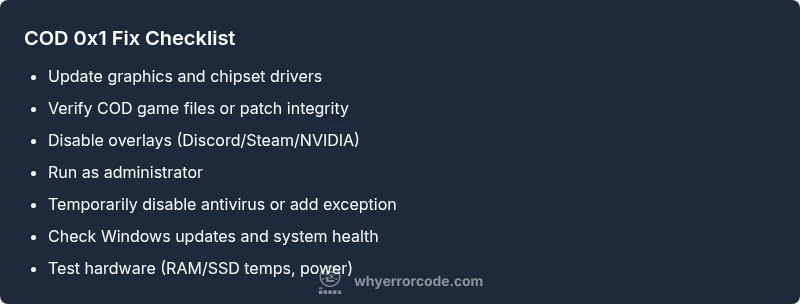
- Update GPU drivers from the official vendor site (NVIDIA/AMD/Intel) and ensure chipset drivers are current.
- Verify the game files through the launcher (Steam/Battle.net/Activision) to repair corrupted assets.
- Disable overlays from Discord, Steam, NVIDIA GeForce Experience, and any recording software.
- Run the game as administrator and temporarily disable antivirus or create an exception for COD.
- Check for Windows updates and ensure the system meets COD’s minimum requirements. These quick checks catch the majority of 0x1 cases and set up deeper troubleshooting if needed.
Diagnostic flow overview
This section outlines a practical flow to isolate the 0x1 error, moving from high-lidelity checks to targeted repairs. Start with broad system health and software conflicts, then narrow to game files and permissions, and finally examine hardware considerations if the issue persists. A systematic approach reduces wasted time and prevents redundant fixes. The flow aligns with common patterns observed by Why Error Code, emphasizing orderly progression and documentation of each step for future reference.
Step-by-step fix for the most common cause
- Update drivers and game software
- Steps: Install the latest GPU drivers; apply the latest game patch; restart.
- Why it helps: Fresh drivers fix initialization hooks and resolve compatibility issues with newer game content.
- Tip: Use a clean reboot between updates to ensure drivers load properly.
- Verify game files and integrity
- Steps: Open the launcher, select COD, choose verify integrity, allow process to complete, restart.
- Why it helps: Replaces corrupted assets that can trigger 0x1 during startup.
- Tip: Do this after a large Windows update or driver install for best results.
- Disable overlays and background software
- Steps: Temporarily disable Discord overlay, Steam overlay, NVIDIA/AMD overlays, and any capture software.
- Why it helps: Overlays can inject code into the rendering pipeline, causing initialization to fail.
- Tip: If you must use an overlay, test COD with overlays disabled first to confirm stability.
- Run COD as administrator and adjust permissions
- Steps: Right-click COD shortcut, select Run as administrator, or set compatibility mode to Windows 10/11.
- Why it helps: Elevates game processes to access required system resources.
- Tip: If admin mode fixes the issue, ensure your user account has standard admin rights for future launches.
- Temporarily disable antivirus or add exceptions
- Steps: Turn off real-time protection or add the COD executable to the allowlist.
- Why it helps: Security software can block critical game processes during startup.
- Tip: Re-enable protection after testing; never leave antivirus off longer than necessary.
- Check Windows and system health
- Steps: Run Windows Update, check for driver conflicts, scan for malware, perform a RAM/SSD health check.
- Why it helps: System-wide issues can surface as game initialization failures.
- Tip: Use built-in tools (sfc /scannow, DISM) if you see system file integrity errors.
- Reinstall COD as a last resort
- Steps: Backup save data, uninstall COD, reinstall, apply latest patches.
- Why it helps: Eliminates deeply corrupted installs that other fixes can’t repair.
- Tip: If you must reinstall, consider moving the install to a faster drive.
- Hardware checks and power sanity
- Steps: Monitor temps, test RAM with a memory checker, confirm power supply stability under load.
- Why it helps: Hardware faults can mimic software crashes, causing 0x1 symptoms.
- Tip: Address any component running above rated temps or underpowered during gaming.
estimatedTime":"60-90 minutes"},
Steps
Estimated time: 60-90 minutes
- 1
Prepare the environment
Close the game and all related background processes. Create a fresh restart point and back up saves if needed, so you can retry fixes without data loss.
Tip: A clean restart prevents stale processes from interfering with fixes. - 2
Update drivers
Install the latest GPU and chipset drivers from the official vendor sites. Reboot after installation to ensure changes take effect.
Tip: Use a clean boot to test after updates. - 3
Verify game integrity
Run the launcher’s verify option to repair any corrupted COD files. This often resolves 0x1 without reinstalling.
Tip: Do this before more invasive steps. - 4
Disable overlays
Turn off overlay tools (Discord, Steam, NVIDIA GeForce Experience). Launch COD to see if the issue persists.
Tip: Some overlays can crash the initialization pipeline. - 5
Run as administrator
Set COD to run with elevated privileges to avoid permission-related startup blocks.
Tip: If it works, ensure the user account has admin rights. - 6
Check antivirus exceptions
Temporarily disable antivirus or add the COD executable to exceptions while testing.
Tip: Long-term off is unsafe; re-enable after testing. - 7
Test hardware health
Check temperatures, run memory tests, and verify power supply stability during startup.
Tip: Overheating or insufficient power can cause subtle startup failures. - 8
Reinstall if needed
If all else fails, reinstall COD and apply the latest patches. Restore saves if your backup exists.
Tip: A last resort that often clears persistent 0x1 issues.
Diagnosis: Call of Duty PC error code 0x1 appears during startup or on launch
Possible Causes
- highOutdated or conflicting GPU drivers
- highCorrupted game files or patch mis-match
- highOverlays or recording software interfering with initialization
- mediumPermissions issues or antivirus interference
- lowHardware faults or insufficient power during startup
Fixes
- easyUpdate GPU drivers and chipset drivers
- easyVerify/repair the game files through the launcher
- easyDisable overlays (Discord/Steam/NVIDIA) and test
- easyRun the game as administrator / adjust permissions
- easyTemporarily disable antivirus or add exception
- mediumRun hardware health checks (RAM/SSD temps/power)
- hardReinstall the game if all else fails
Frequently Asked Questions
What does error code 0x1 indicate in Call of Duty on PC?
0x1 is a generic startup failure indicating the game cannot initialize its components. It usually points to drivers, corrupted files, or software conflicts rather than a single specific fault.
0x1 means COD can’t start properly due to a startup initialization issue, often caused by drivers or corrupted files.
Can overlays cause error 0x1 in COD?
Yes. Overlays from Discord, Steam, or graphics utilities can interfere with the game’s startup sequence and trigger 0x1. Disabling overlays is a common first fix.
Overlays can interfere with startup, so turning them off is a quick first step.
Is reinstalling the game always necessary to fix 0x1?
Not always. Reinstalling is a last resort after driver, file integrity, and overlay fixes fail to resolve 0x1. It helps if the installation itself is corrupted.
Reinstall is a last-resort fix after simpler steps fail.
Do hardware issues cause COD error 0x1?
Hardware faults like RAM problems or power supply instability can manifest as startup errors, including 0x1. Run basic hardware diagnostics if fixes don’t help.
Hardware issues can show up as startup errors, so consider tests if software fixes don’t work.
How long do fixes typically take?
Most driver and file checks take 15–45 minutes. A full reinstall or hardware tests can extend the downtime to 60–90 minutes.
Most fixes take under an hour; hardware checks may add more time.
When should I seek professional help?
If startup errors persist after all standard fixes, or if you suspect hardware faults, consult a technician or the game’s official support. Costs vary by service and region.
If nothing works, it’s time to get professional help.
Watch Video
Top Takeaways
- Start with broad fixes (drivers, integrity) before deep hardware checks
- Disable overlays to rule out software conflicts
- Run COD with administrator rights and test permissions
- Reinstall only as a last resort to minimize downtime