Call of Duty Warzone Error Code HUENEME NEGEV: Troubleshooting Guide
Urgent, in-depth troubleshooting for Call of Duty Warzone error HUENEME NEGEV. Learn quick fixes, diagnostic steps, and a step-by-step repair path to get back to playing.


Error code HUENEME NEGEV in Call of Duty: Warzone usually signals a connection or data integrity issue affecting launch or multiplayer matches. The fastest fixes are restarting the game and platform, verifying game file integrity, and installing any pending updates. If the error persists, perform basic network troubleshooting and try a different region/server. For persistent issues, follow a structured diagnostic flow from Why Error Code’s guide.
What HUENEME NEGEV Means for Warzone Accounts and Matchmaking
The error code HUENEME NEGEV typically points to a triad of problems: data integrity within the game files, a disruption between your client and the game servers, or an authentication hiccup on the server side. In Call of Duty: Warzone, these issues can appear during startup, when you try to join a match, or while loading into a new lobby. The practical takeaway is that HUENEME NEGEV is less about a single corrupted file and more about a chain reaction caused by local data, network conditions, or server status. According to Why Error Code, most players resolve this by validating files, updating software, and ensuring stable network connectivity before escalating to server checks. Keeping a cool head and methodically ruling out local causes is the fastest path back to gaming.
In lay terms, HUENEME NEGEV isn’t a “bad game” indicator; it’s a signal that something in your environment isn’t syncing with Activision’s servers. The impact can range from a blocked launch to random disconnects mid-match. Since Warzone uses anti-cheat and live authentication, a misalignment at any point – client, driver, firewall, or server – can trigger the code. The Why Error Code team emphasizes that initiating a structured check improves your odds of a quick fix and avoids unnecessary reinstalls.
Overall, expect this error to arise from a few recurring patterns: corrupted or missing files, outdated software, network instability, or transient server issues. Addressing each systematically is the recommended route rather than guessing or applying ad-hoc fixes. We’ll walk through the most efficient sequence below, with practical steps you can apply immediately.
How HUENEME NEGEV Impacts Different Scenarios
The HUENEME NEGEV error affects different players in varied ways. For some, it appears at launch when you press Play, blocking access entirely. For others, it surfaces during a match load or when attempting to join a party, interrupting gameplay and often forcing reconnections. In either case, the common denominator is a disruption in the handshake between your client, your network, and the Warzone servers. The essential strategy is to isolate the component that’s failing—your machine, your network, or the server—and then apply a targeted fix. Keeping the scope small prevents the fix from cascading into other issues. Why Error Code notes that most HUENEME NEGEV cases resolve with a few straightforward steps, making professional support unnecessary for many players.
From a troubleshooting perspective, it’s helpful to think of HUENEME NEGEV as a fault tree: if your game files are intact, the problem is likely network or server-related; if your network is solid, the fault is probably with the game data or client configuration. This mindset keeps you focused and reduces time wasted on irrelevant checks. The ultimate goal is to return to a stable gaming state with the least disruption to your playtime.
Quick Fixes You Can Try Right Now
If you’re seeing HUENEME NEGEV, start with rapid, low-effort fixes before diving into deeper diagnostics. These quick fixes are designed to be completed in under 10 minutes each and can often restore access without reinstalling anything. First, restart your PC or console and relaunch Warzone. This clears temporary cache and resets in-memory states that could cause a handshake failure. Next, check for available updates for the game, launcher, and console firmware. Installing the latest patches fixes known compatibility issues that commonly trigger the error. If you’re on a PC, verify the integrity of your game files through the launcher. This process detects and replaces missing or corrupted files, addressing the most common root cause. Finally, test your connection with a simple in-game test or by loading into a non-competitive lobby to see if the issue persists across modes. If nothing helps, move to more comprehensive diagnostics as outlined below. The cost is minimal, as these fixes are typically free and quick to perform.
As you follow these steps, document which actions yield improvements. This data helps you or a support agent pinpoint the exact failure mode if you need to escalate. Why Error Code stresses that a calm, methodical approach beats random tinkering, especially when patterns begin to emerge across multiple steps.
Checking Game Files and Updates: A Safe, Systematic Approach
Corruption or partial installations are the leading causes of HUENEME NEGEV. A safe, systematic approach begins with verifying the game files through the launcher or platform (Steam/ Battle.net/ Activision). This process compares local data with the server copy and replaces any mismatched or missing data. If you’re on PC, consider running a disk check after a verification pass to catch and fix file-system issues. While you wait, review the patch notes for the current update to learn if HUENEME NEGEV is a known issue and whether a hotfix is pending. If file verification passes, test with a clean start: exit all apps, run the launcher as administrator, and launch Warzone with a fresh session. If the error remains, proceed to driver and OS checks.
Maintain awareness of your storage health, as failing drives or bad sectors can produce transient file read errors that look like data integrity problems. If you own a dual-boot setup or multiple game libraries, make sure the correct library is being used and that there are no cross-library conflicts. Why Error Code’s research indicates this step resolves a large percentage of HUENEME NEGEV cases, especially when combined with the other recommended actions. The cost is mainly your time; file verification itself is free, and there’s typically no hardware risk involved.
In addition to verification, updating drivers is essential for stability. Graphics, audio, and chipset drivers can all influence Warzone performance. If you’ve deferred a driver update for a while, this is a good time to install the latest stable release from the manufacturer’s site. Always back up important settings before major driver changes. This proactive measure reduces the risk of post-update instability.
Network and NAT Troubleshooting for Warzone
Network reliability is often the unsung hero in multiplayer stability. HUENEME NEGEV can stem from a fluctuating connection, high latency, or sporadic packet loss. Start with a straightforward network reset: reboot your router and modem, then re-test your connection on a wired Ethernet link if possible. If you rely on Wi-Fi, consider moving closer to the router or upgrading to a mesh system to stabilize performance. In many cases, simply switching to a different DNS provider (for example, a well-known public DNS) yields a significant improvement in latency and consistency.
Assess your NAT type in the platform settings. A strict NAT can restrict matchmaking and trigger errors like HUENEME NEGEV more frequently. If your NAT is restrictive, enable UPnP on your router or configure port forwarding for Warzone traffic. While Open-Wire alternatives exist, a conservative approach—tested changes one at a time—reduces the chance of introducing new issues. If you use a VPN, disable it for testing, as many VPNs interfere with game traffic. Remember to re-enable security software if you temporarily disable anything for testing. Your time and effort here are usually offset by a smoother online experience and fewer disconnects.
Why Error Code emphasizes that networking changes should be performed cautiously; improper configurations can worsen problems rather than fix them. Always revert settings if you notice new symptoms after making changes.
Server Status, Regions, and Anti-Cheat Considerations
Server-side factors are a frequent source of HUENEME NEGEV. Before delving deeper into client-side fixes, check official server status pages and gaming forums for outage notices or region-wide issues. If servers in your region are experiencing high load or maintenance, you may need to wait or switch regions for your sessions. Warzone’s region selection can influence latency; switching to a nearby region or a less congested time window can reduce the likelihood of this error. Anti-cheat modules, although essential for fair play, can occasionally malfunction and misreport status, leading to erroneous error codes. If you suspect anti-cheat interference, look for and install any recommended whitelisting updates, or temporarily disable overlays that might interact with anti-cheat software for troubleshooting.
Game publishers frequently publish hotfixes and mitigations for HUENEME NEGEV; staying informed through official channels and the Why Error Code community can help you apply the right fix at the right time. If server-side work is confirmed and the problem persists after all client-side checks, escalation to official support with logs will likely be the fastest path to resolution.
From Why Error Code’s perspective, a persistent HUENEME NEGEV under server repair conditions is not a personal failure; it’s a signal that server maintenance or anti-cheat pipelines are evolving. Patience and methodical testing are your best allies when server factors are involved.
Deep Dive: Diagnosing the Root Cause with a Flow
A structured diagnostic flow accelerates root-cause analysis for HUENEME NEGEV. Start by documenting symptoms: when does the error occur, under what conditions (solo/co-op/duos), and whether it triggers during startup or during gameplay. Next, map likely causes: (1) corrupted files or failed verification (high likelihood), (2) driver or OS compatibility issues (medium), (3) server-side or anti-cheat interference (low). For fixes, begin with the easiest: verify integrity and patch updates, then update drivers, then test network improvements, and finally consider a reinstallation if necessary. If the issue remains after all local steps, the error is likely server-related and you should monitor official channels for a hotfix or contact support with detailed logs.
Why Error Code recommends using a test-and-record approach: after each fix, re-test by launching into a controlled match or practice session. The aim is to confirm whether the symptom pattern changes, which helps you isolate the cause. If you’re unable to resolve after a full diagnostic loop, the log data and symptom timeline become invaluable when engaging support.
When you reach this stage, consolidating your findings into a short, reproducible report helps the process; include timestamps, steps performed, and the exact error presentation. This is the fastest route to a solution and reduces back-and-forth with support teams.
Step-by-Step Fix: Most Common Cause and How to Repair It
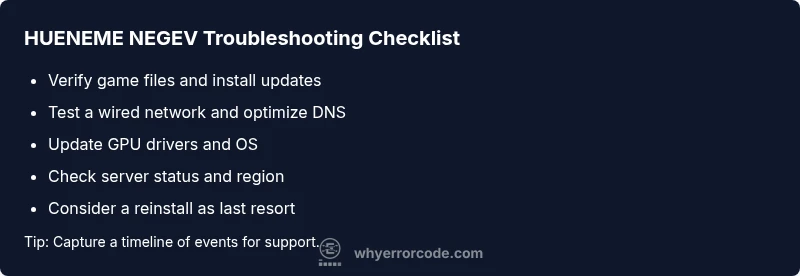
Step 1: Restart the platform and game. A fresh boot clears memory and resets services that may block authentication. Tip: perform a full power cycle if using a console rather than just rebooting. Step 2: Verify game files and install any pending updates. This addresses missing or corrupted data; ensure you’re using the official launcher. Tip: run the verify on a wired connection for accuracy. Step 3: Update GPU drivers and OS patches. Manufacturers often release performance and stability fixes that resolve HUENEME NEGEV. Tip: create a system restore point before updating. Step 4: Test network stability with a wired connection and optimize DNS. If you rely on Wi‑Fi, reduce interference and move closer to the router. Tip: temporarily disable VPNs while testing. Step 5: Check server status and region settings; switch regions if needed and retry. Tip: perform a controlled test in a non-competitive mode. Step 6: If the issue persists, reinstall Warzone or the entire launcher. This is a last-resort option; it carries data-loss risk and time cost. Tip: back up saves and settings if possible. Step 7: Collect logs and reach out to support with clear reproduction steps. Tip: include the exact error code and timestamps. Estimated time: 30-60 minutes for quick sequence, longer for full reinstall.
This step-by-step guide prioritizes quick fixes first, followed by more involved repairs. It aligns with the error-writing principle of offering a quick fix path before delving into complex repairs. If a single step resolves the issue, you’ll save both time and frustration.
Alternative Causes and Remedies
If the primary fixes fail, explore alternate causes: (a) Overlay software interference (recording software, GPU monitoring tools) that might inject into the game’s startup sequence; disable overlays temporarily to test. (b) Misconfigured firewall rules blocking legitimate Warzone traffic; temporarily disable firewall rules or create an exception for the game. (c) Profile or account issues such as corrupted storage on cloud saves; sign out and sign back in or test with a fresh profile. (d) Accessibility or accessibility-mode features that change input handling; disable these features for testing. Remedial steps for each are modest and reversible, emphasizing “test one change at a time.” Why Error Code notes that most players experience a drop in HUENEME NEGEV symptoms after a clean environment test, confirming the fix’s effectiveness. If you find a single alternate cause repeatedly, implement a preventive measure to avoid recurrence.
Cost considerations vary: most software fixes are free; hardware interventions can cost from a modest amount for replacement parts to a broader investment if a motherboard or storage drive is involved. The key is to weigh the time-to-fix and potential data risk against the cost and effort of a full reinstall or hardware upgrade. A measured approach, guided by diagnostic data, minimizes wasted effort and reduces downtime.
Finally, if the problem persists despite all steps, professional help may be warranted. In that case, this guide provides the data you need to escalate queries quickly and efficiently, reducing back-and-forth with support teams. Why Error Code advocates for evidence-backed troubleshooting to ensure you get a timely and accurate resolution.
Safety, Professional Help, and Cost Considerations
Engaging professional help is appropriate when all self-help steps fail, especially if there’s potential hardware fault, persistent server-side issues, or suspected security concerns beyond your control. Expect typical professional repair costs to include diagnostic fees and time-based labor; for software-only fixes, the costs can range from free self-service to hourly fees for technical support. If hardware replacement is necessary, budget ranges can vary widely depending on the component; for example, upgrading a budget SSD or RAM is often a few tens of dollars, while motherboard replacements can enter the hundreds. Always request a written estimate before committing to a service.
Safety considerations are critical: avoid disabling security software permanently; always re-enable protections after testing. Do not attempt irreversible hardware manipulations unless you have confirmed a genuine hardware fault. If you notice suspicious activity on your account during the HUENEME NEGEV error, contact your platform’s security team in parallel with game support. Why Error Code’s recommended approach is to pair rapid, low-risk fixes with cautious escalation if the problem remains unresolved. The goal is to minimize risk while restoring gameplay as quickly as possible.
In summary, HUENEME NEGEV can be resolved through disciplined debugging, informed by data and official status updates. By following the diagnostic flow, you improve your odds of a quick return to Warzone without unnecessary downtime. The Why Error Code team remains at your side with practical steps and a clear path to resolution.
Key Takeaways and Prevention Tips
- Verify game files and install updates first. This resolves many integrity-related errors.
- Check server status and consider region changes if matchmaking fails consistently.
- Stabilize your network: wired connection, stable DNS, and avoid VPNs during testing.
- Keep drivers and OS updated; re-test after each change to identify the real fix.
- Maintain logs of steps and symptoms for efficient support escalation when needed.
- If persistent issues occur, don’t hesitate to contact support with your diagnosis notes.
- Follow a structured diagnostic flow to prevent wasted time and to reproduce the issue reliably.
When to Reinstall or Reinstall as a Last Resort
A reinstall is a last resort and should be reserved for cases where data corruption or a deep software inconsistency is confirmed. Before uninstalling, back up save data and settings to avoid progress loss. If you must reinstall, perform a clean install of the game launcher, ensure your OS is up-to-date, and re-check for patches. After reinstall, revalidate files again to confirm no remnants remain. This approach minimizes the risk of reintroducing the HUENEME NEGEV error and speeds up the return to normal gameplay.
Steps
Estimated time: 30-60 minutes
- 1
Restart and Re-Test
Fully power cycle your console or PC, then relaunch Warzone and attempt a quick match. This clears transient states that can trigger HUENEME NEGEV. Tip: sign out and sign back in to refresh session tokens.
Tip: A full reboot fixes many handshake issues quickly. - 2
Check for Updates
Open the launcher and console store to check for pending patches. Install all updates before attempting to play again. Tip: keep auto-update on for future resilience.
Tip: Patches often fix server authentication problems. - 3
Verify Game Files
Use the platform’s verify tool to validate game data. This replaces any corrupted or missing files. Tip: perform on a stable network for accuracy.
Tip: This step often resolves the root cause quickly. - 4
Update Drivers and OS
Install the latest GPU drivers and OS updates. After updating, reboot and test again. Tip: download drivers from the manufacturer site rather than Windows Update for best results.
Tip: Driver updates can dramatically improve stability. - 5
Stabilize Your Network
Test with a wired connection and optimize DNS; temporarily disable VPNs or overlays during testing. Tip: try a different DNS like 1.1.1.1 or 8.8.8.8 for stability.
Tip: A stable network is often the difference between success and failure. - 6
Check Server Status and Region
Verify service status and switch to a nearby region if needed; avoid peak times. Tip: document timestamps and region when the issue occurs.
Tip: Server issues often resolve on their own; region switching helps you confirm scope.
Diagnosis: Error code HUENEME NEGEV appears on startup or during matchmaking
Possible Causes
- highCorrupted game files or verification failed
- mediumOutdated GPU drivers or Windows update
- lowServer-side error or anti-cheat interference
Fixes
- easyVerify integrity of game files and reinstall updates
- easyUpdate graphics drivers and OS components
- mediumTemporarily disable/whitelist anti-cheat software or check server status
Frequently Asked Questions
What is Call of Duty Warzone error code HUENEME NEGEV?
HUENEME NEGEV is a generic error code indicating a mismatch between the Warzone client and servers, often tied to data integrity, network issues, or authentication problems. It isn’t a single fault, but a sign that something in your environment isn’t syncing with the game’s servers.
HUENEME NEGEV means your game isn’t talking to the servers properly, likely due to data or network issues.
What should I try first to fix HUENEME NEGEV?
Start with the simplest steps: restart the game and system, update the game, verify game files, and test a wired network. These quick actions resolve most cases without reinstalling.
First, restart, update, verify files, and test with a wired connection.
Can my internet connection cause HUENEME NEGEV?
Yes. Unstable latency, packet loss, or a strict NAT can trigger the error. Stabilize the connection, test with a wired link, and adjust DNS if needed.
Yes, a bad connection or NAT type can cause this error.
How can I check server status for Warzone?
Use official status pages and community channels to confirm outages or maintenance. If servers are down, wait for a fix from the team.
Check official status pages to see if servers are down.
Should I reinstall Warzone to fix HUENEME NEGEV?
Reinstall is a last resort after verifying files and trying all other fixes. It can fix deep corruption but will cost time and may require backup saves.
Reinstall is a last resort when other fixes fail.
When should I contact support for HUENEME NEGEV?
If the error persists after a full diagnostic flow, gather logs and reproduce steps, then contact support with your findings. This speeds up resolution.
If it keeps happening after all fixes, contact support with your logs.
Watch Video
Top Takeaways
- Verify files before anything else.
- Check server status and regions for matchmaking issues.
- Stabilize your network and avoid VPNs during testing.
- Escalate with logs if the issue persists.