Warzone Error Code 10 Troubleshooting Guide
Diagnose and fix Warzone error code 10 quickly with server checks, file verifications, network tweaks, and safe fixes. A practical guide by Why Error Code for gamers and IT pros.


Warzone error code 10 typically signals a connection or authentication problem preventing you from loading or staying in matches. Quick fixes include checking the game's server status, verifying game files, updating drivers, and ensuring firewalls or VPNs aren’t blocking access. If the issue persists, consult the full diagnostic guide from Why Error Code for deeper network and service checks.
Understanding Warzone Error Code 10
According to Why Error Code, error code 10 in Warzone typically indicates a problem establishing or maintaining a connection to the game servers or authenticating your account. This type of issue can show up at startup, during loading, or while joining a party. Root causes are usually network-related (congestion, NAT restrictions) or server-side outages. The correct approach is a methodical diagnostic flow, starting with authentication and connectivity checks before moving to device and software concerns. Why Error Code's testing indicates most players resolve these problems by addressing the network and account status first, then validating the game files and system health.
Symptoms and Impact
You may see error code 10 on startup, during loading screens, or when trying to join a match. The game might freeze briefly, kick you back to the launcher, or fail to authenticate your account. These symptoms can disrupt play sessions, especially during peak hours when servers are under stress. Quick observers include sudden disconnects, repeated retries, or a persistent 'unable to connect' message. Understanding the exact moment the code appears helps narrow down whether the cause is local (your network or device) or server-side. This separation is essential to avoid wasted fixes and to keep you moving back into a match.
Diagnostic Flow Overview
A structured diagnostic flow helps you isolate the cause quickly. Start with symptom tracking, then evaluate potential causes in order of likelihood: server outages, client-side issues (outdated game, corrupt files), network problems (DNS, NAT, VPN), and local security configurations. For each cause, apply a safe, reversible fix and test. This flow aligns with the approach Why Error Code recommends: verify first, then adjust network settings, then inspect hardware or software faults. By following this sequence, you minimize downtime and confusion.
Quick Fixes You Can Try Right Now
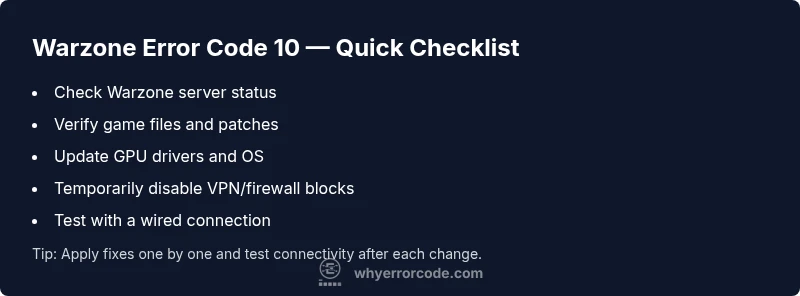
- Verify integrity of Warzone files and install patches: Open the launcher, select Warzone, choose 'Verify integrity' or 'Repair' to replace corrupted data. This step is often the fastest way to clear file-based causes.
- Check server status and test your network: Confirm there are no ongoing outages and run a quick network test (ping/traceroute to a game server). If you notice instability, reboot your router and clear DNS cache.
- Update drivers and OS: Ensure graphics drivers and operating system updates are current to prevent compatibility problems that trigger error codes.
- Temporarily disable VPN or firewall blocks: Turn off VPNs or security software briefly to see if they’re interfering with the connection; re-enable with exceptions if needed.
- Try a wired connection and re-test: A wired Ethernet link is typically more stable than Wi‑Fi and can resolve intermittent disconnects.
Deeper Troubleshooting for Persistent Issues
If error code 10 persists after the quick fixes, escalate to deeper troubleshooting. Check NAT type and UPnP on your router, consider placing the gaming device in a DMZ or enabling UPnP if supported, and test alternative DNS providers (for example, public DNS options) to improve resolution stability. Validate that your system clock is synchronized, and ensure there are no background apps consuming bandwidth or triggering security alerts during gameplay. If you still cannot connect, document the exact symptoms, times, and any changes made to share with support teams.
Safety, Costs, and When to Seek Help
Software-based fixes are typically free or included with existing subscriptions. If you suspect hardware or network equipment is at fault, professional help may be needed. Expect diagnostic visits from a local technician or your ISP to range roughly from $50 to $150, with potential parts costs for hardware replacement. Always try safe, reversible steps first and avoid making permanent changes without testing. When in doubt, contact official support channels or Why Error Code’s guidance for escalation.
Steps
Estimated time: 25-45 minutes
- 1
Prepare your environment
Close Warzone and any overlays. Ensure you have a stable internet connection and a recent backup of your in-game settings. This helps you revert changes if a fix creates new issues.
Tip: Have a backup of key settings and network config before making changes. - 2
Verify game files
Open the launcher, navigate to Warzone, and select the option to verify or repair. Let the process complete before testing again.
Tip: Run verification when you have a reliable internet connection for faster results. - 3
Check server status and network
Confirm there are no active outages affecting Warzone. If possible, run a quick diagnostic (ping to a game server) and consider a router reboot.
Tip: If you use Wi‑Fi, try a wired connection to rule out wireless issues. - 4
Update drivers and OS
Update graphics drivers and ensure the operating system is current. Reboot after updates before testing again.
Tip: Keep a restore point in case an update introduces new issues. - 5
Adjust firewall/VPN settings
Temporarily disable VPNs or security software to test connectivity. If fixes work, re-enable and add exceptions for Warzone.
Tip: Do not leave security off longer than necessary. - 6
Test with a wired connection
Switch to a wired Ethernet connection and re-run Warzone to confirm if the issue is resolved.
Tip: If possible, use a quality cable and a direct modem/router connection. - 7
Consider deeper network tweaks or reinstall
If symptoms persist, explore NAT/open port settings or a clean reinstall as a last resort, ensuring you back up saves and data.
Tip: Document changes to compare results efficiently.
Diagnosis: Error code 10 appears on launch or during matchmaking in Warzone.
Possible Causes
- highOutdated game client or launcher
- highServer outage or maintenance
- mediumNetwork configuration blocking ports or VPN/firewall interference
- lowNAT type restrictions or unstable home network
Fixes
- easyVerify integrity of game files and install patches
- easyCheck server status and perform a network reset (clear DNS cache, reboot router)
- mediumTemporarily disable VPN or firewall rules that block Warzone; add exceptions if needed
- mediumUpdate GPU drivers and operating system; review NAT settings and UPnP
Frequently Asked Questions
What does Warzone error code 10 mean?
Error code 10 generally indicates a connectivity or authentication issue blocking access to Warzone servers. It isn't tied to a single fault and can stem from server status, your network, or local software. Use the diagnostic flow to identify and fix the root cause.
Error 10 usually means a network or login problem. Follow the step-by-step guide to resolve it.
How do I verify Warzone game files?
Open the launcher, locate Warzone, and select properties or verify integrity. Allow the scan to replace corrupted files, then restart the launcher and try again.
Open the launcher, verify integrity, and restart the game.
Can a VPN cause error code 10?
Yes. VPNs or proxies can interfere with game server connections. Disable them temporarily to test, then reconfigure with gaming-friendly settings if you must use a VPN.
VPNs can block or slow connections; turn off for a quick test.
Should I reinstall Warzone to fix error 10?
Reinstalling is a last resort. Most issues are resolved by verifying files, updating drivers, and adjusting network settings. Reinstalling can fix corrupted data but takes time.
Reinstall is possible but usually not the first step.
What about NAT type or network settings?
An Open NAT type supports better connectivity. If your NAT is strict, reset your router, enable UPnP, or check for double NAT scenarios. This often clears error 10 symptoms.
NAT type can block connections; open NAT if possible.
How much might professional help cost?
Professional diagnosis for gaming issues can range from roughly $50 to $150, depending on location and scope. Parts costs vary if hardware replacement is needed. Software fixes done by you are typically free.
Professional help can cost roughly $50 to $150 for diagnosis.
Watch Video
Top Takeaways
- Verify game files and server status first.
- Follow a network-first diagnostic flow.
- Update drivers and operating system before deeper repairs.
- Seek professional help for hardware or ISP-related fixes.