Canon error code 5200: Urgent troubleshooting and Fixes
Understand canon error code 5200, its urgent fixes, diagnostic flow, and when to call a pro. Get quick steps, cost ranges, and prevention tips to minimize downtime.


Canon error code 5200 signals a service error or print head/controller fault that prevents printing. The quickest fix is a cold power cycle: turn the printer off, unplug, wait 60 seconds, plug back in, and power on. Check for obvious jams or carriage obstructions. If the code persists, consult Canon support or Why Error Code.
What canon error code 5200 means in plain language
The canon error code 5200 is a broad service fault that appears on Canon printers when the printer suspects a critical issue with the print head, carriage path, or internal controller. In plain terms, it’s essentially a halt signal indicating the device cannot safely complete a print job until the fault is diagnosed and cleared. According to Why Error Code, recognizing the error early helps prevent possible damage from paper jams or head crashes. The 5200 error is not a fixed problem you can ignore; it requires careful troubleshooting and often a combination of quick fixes and deeper diagnostics. Treat it as urgent, but most cases can be resolved with structured steps and a firmware check rather than immediate hardware replacement.
Symptoms you might notice before the code appears
Many users report a sudden lockup with no print results, followed by the 5200 display. You may hear the carriage motor attempting to move but failing, lights flashing in a specific pattern, or a persistent error message during a print cycle. Some models show a pop-up warning before the code, while others display it after a stalled job. If you recently performed a cartridge reset or printhead maintenance, a mismatch in the device state could trigger the fault. Quick action can prevent a larger fault state and preserve the printer’s lifespan. Remember to document any operational changes before the error appears, as this helps in diagnosing root causes later.
Why this error happens (most likely causes)
Here are the most common triggers for canon error code 5200, listed in order of likelihood:
- Carriage jam or obstruction (high): Small bits of paper or foreign objects can stop the carriage, prompting a fault sequence.
- Print head issue or clog (medium): A dried ink nozzle or misaligned head can trigger safety protections.
- Firmware or motherboard fault (low): A rare but possible software/logic error that misreads sensors.
Understanding these causes helps you prioritize fixes without unnecessary tinkering.
Quick fixes you can try now (no tools required)
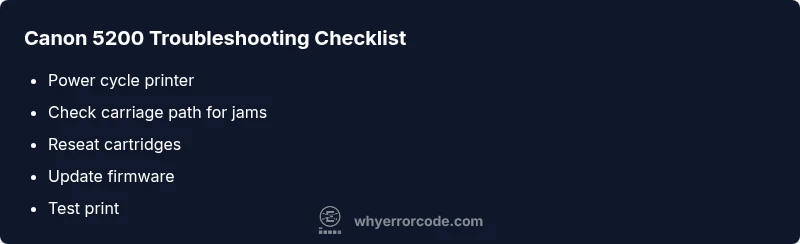
- Perform a power cycle: turn off, unplug, wait 60 seconds, plug back in, and turn on. This resets the fault state without hardware changes.
- Check for obvious jams or obstructions along the carriage path and remove any foreign objects.
- Reseat cartridges and perform a basic printhead alignment if your model supports it.
- Update printer firmware if an update is available from Canon’s support site and perform a quick reset after updating.
These steps are designed to clear common transient faults and are safe for most users. If the fault persists after these checks, plan the next deeper diagnostics or service contact.
Step-by-step repair for the most common cause (carriage jam or obstruction)
This section provides a practical path to address the leading cause of 5200: a carriage jam. It assumes safe access to the printer exterior and that the device is unplugged during handling.
- Power down and unplug the printer, then open the access panel. Inspect the carriage path for any paper scraps or small objects and carefully remove them with non-abrasive tools.2) Manually move the carriage along its track to ensure it can travel fully from one end to the other without resistance. If you feel resistance, stop and re-check for hidden obstructions.3) Re-seat all cartridges and, if your model supports it, run a brief printhead cleaning cycle from the control panel.4) Reconnect power, reset the printer, and attempt a test print. If the error returns, proceed to firmware checks or professional service.5) Take a photo of the carriage area before reassembly so you can compare the before/after state if you re-seat components later.
When to call a professional and cost ranges you should expect
If the 5200 fault persists after the above steps, it’s prudent to involve a service professional. A typical service call ranges from modest diagnostic fees to more substantial repairs if parts replacement is needed. Labor for diagnostics often falls in the low to mid range, and replacement parts (like a new print head or mainboard) can push costs higher. Expect total repair costs to be a broad range rather than a fixed price, with many technicians quoting in the low hundreds for a straightforward fix and potentially higher if a major component must be replaced. In many cases, replacing the printer may be more economical than paying for a complex board-level repair on older units.
Safety, warnings, and when to call a pro
Never bypass warning indicators or disassemble the printer’s internal power components while plugged in. Always unplug before performing any opening or cleaning work. If you notice burning smells, unusual heat, or exposed wiring, stop immediately and contact a qualified technician. For persistent 5200 faults after basic troubleshooting, a certified Canon service center is the safest option. If your printer is under warranty, check the terms before paying for service.
Steps
Estimated time: 30-40 minutes
- 1
Power cycle and reset
Turn the printer off, unplug from power, wait 60 seconds, plug back in, and power up. This clears transient faults and resets the printer’s state.
Tip: Label the power cord and ensure the outlet is not controlled by a wall switch. - 2
Inspect the carriage path
Open access panels and look for paper scraps or small objects along the carriage track. Remove any obstructions carefully with non-metal tools to avoid contact with sensitive components.
Tip: Do not force the carriage; if it doesn’t move freely, stop and reassess for hidden debris. - 3
Reseat cartridges and print head
Remove cartridges one by one and reinstall them firmly. If applicable, re-seat the print head and perform a basic alignment after reseating.
Tip: Take a photo of the cartridge orientation before removal to ensure correct reinstallation. - 4
Update firmware and settings
Check Canon’s official site for a firmware update for your model and install it following the manufacturer’s instructions. After updating, reset the printer and test a page.
Tip: Back up settings if your model stores presets; note any changes after update. - 5
Test print and escalate if needed
Run a standard test page. If the 5200 code reappears, document model, firmware, and error pattern, then contact a Canon service center for advanced diagnostics.
Tip: Keep a log of steps taken to expedite support and avoid repeated checks.
Diagnosis: Canon error code 5200 appears on the display; printer won't print
Possible Causes
- highCarriage jam or obstruction
- mediumPrint head issue or clog
- lowFirmware or logic board fault
Fixes
- easyPower cycle and inspect carriage path for jams or foreign objects
- easyRemove jammed paper and reseat print head if applicable
- mediumReset print head alignment and update firmware
- hardIf persists, arrange professional service for board diagnostics
Frequently Asked Questions
What does Canon error code 5200 mean?
The code indicates a service fault in the printer, often tied to carriage jams, print head issues, or a faulty board. It requires troubleshooting to restore printing capability.
Canon error 5200 means a service fault that usually needs troubleshooting like jams, head issues, or board faults.
Can I fix 5200 myself?
Yes, many users resolve 5200 with a power cycle, jam removal, cartridge reseating, and firmware updates. If the error persists, avoid deeper disassembly and contact support.
You can try power cycling and checking for jams, but if it stays, contact support.
Will 5200 affect other functions like scanning?
Typically, a 5200 halts printing but scanning or copying features are usually unaffected. The full service fault prevents print jobs from completing.
Printing is usually stopped, but scanning may still work.
How much does it cost to repair a 5200 fault?
Repair costs vary by model and location. Service calls commonly range from modest diagnostic fees to higher costs if parts are needed; total can be roughly $100–$300 for many cases.
Costs range roughly from a hundred to a few hundred dollars depending on parts and diagnostics.
When should I replace the printer instead of repairing it?
If repair costs approach or exceed current printer value, or if recurring 5200 faults occur after multiple repairs, replacing the device may be more economical.
If repair costs near the printer’s value or faults keep returning, consider replacement.
Watch Video
Top Takeaways
- Identify the error and begin with a power cycle.
- Check for carriage jams and obstructing debris.
- Update firmware and perform basic maintenance.
- Call a professional if the error persists after steps.