What is Error Code 5100 Canon Printers: Urgent Troubleshooting Guide
Urgent guide to understanding what is error code 5100 canon printers and how to troubleshoot quickly. Learn symptoms, quick fixes, diagnostic steps, and when to seek professional help.


Definition: Error code 5100 on Canon printers signals a carriage or print head fault that halts output. The most common fixes are a power cycle, reseating cartridges, and running a basic print head cleaning, followed by a firmware check if available. If the code persists after these steps, professional service may be required. This guidance applies across Canon PIXMA, imageCLASS, and MAXIFY lines. Acting quickly helps prevent head damage or ink waste.
What is Error Code 5100 Canon Printers?
When users search for what is error code 5100 canon printers, they expect a clear cause and fix. In most Canon printer families—PIXMA, imageCLASS, and MAXIFY—5100 is a general fault that blocks printing due to a mechanical or sensing issue. Canon firmware maps a variety of problems to this single code, so the root cause can differ by model and recent activity. According to Why Error Code, the issue is most often linked to the carriage or print head seating, but it can also reflect dirty contacts, a sensor misread, or a paper-path obstruction. The urgency is real: continuing to print without addressing 5100 can aggravate the problem or cause ink to smear. A structured repair path minimizes downtime and avoids expensive service calls.
Immediate Quick Fixes You Can Try Now
If you’re facing 5100 on a Canon printer, start with fast, low-risk actions. These quick fixes often resolve the issue without professional help:
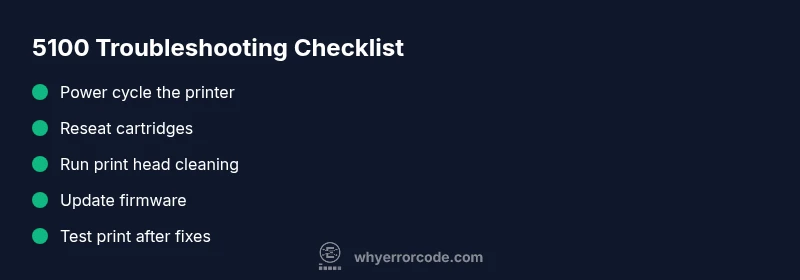
- Power cycle the printer: turn it off, unplug from the outlet, wait 60 seconds, plug back in, and power on.
- Reseat all consumables: remove and reinsert ink cartridges or toner, ensuring proper seating and alignment.
- Check for obvious jams: clear any paper jams in the paper path and ensure media feeds correctly.
- Run a printer head cleaning via the maintenance menu and print a test page.
- Update firmware if a new version is available on Canon’s support site.
- Inspect the print head and carriage area for obstructions or misalignment and perform a gentle realignment if the option exists.
Diagnostic Roadmap: Symptoms, Causes, and Fixes
Typical symptoms accompany 5100, such as a halted print job, a blinking error light, or a displayed warning on the LCD. The probable causes are varied and model-dependent. The most common culprit is a carriage jam or print head seating fault (high likelihood). Less frequent but possible causes include dirty contact points or a sensor fault (medium likelihood) and firmware issues (low likelihood). Corresponding fixes range from quick resets and reseating to cleaning contacts or updating firmware. A systematic approach helps you confirm the root cause before committing to hardware replacement.
Step-By-Step Fix: Most Common Cause (Carriage/Print Head Issue)
Follow this sequence to address the most common cause of 5100:
- Power off and unplug the printer; wait 60 seconds. 2) Open the printer access panel and carefully reseat the print head and cartridges, ensuring they click into place. 3) Manually move the carriage along its track to verify smooth movement; remove any debris. 4) Reconnect power, run a head-cleaning cycle, and print a test page. 5) If available, perform a firmware update and reboot. 6) If the error persists, consider professional calibration or head replacement, as recommended by the service guide.
Other Causes and How to Confirm Them
If reseating and cleaning do not resolve 5100, explore alternative problems. A dirty contact point between the print head and carriage can trigger sensor faults; a misaligned carriage can block movement; a firmware glitch may misreport status. Confirm by cleaning contact points with approved tools, running alignment tests, and checking for firmware advisories. If hardware wear is suspected, testing with a different cartridge or print head may help isolate the fault. In persistent cases, professional diagnostics are advised to avoid further damage.
Safety Warnings and When to Call a Professional
Working inside a printer exposes you to moving parts and electrical components. Always unplug before handling cartridges, print heads, or internal covers. Do not force-carrier the carriage or pull connectors you are unsure how to detach. If you are uncomfortable with electronics repair, or if the printer is under warranty, contact Canon support or an authorized service center. Service costs can vary widely, typically ranging from a basic inspection to several hundred dollars for head replacement.
Prevention: Best Practices to Minimize 5100 Recurrence
Proactive care reduces the odds of recurring 5100. Implement routine maintenance, such as regular print head cleanings, using the correct paper type, and avoiding forced power cycles during print jobs. Keep firmware up to date, store cartridges in stable conditions, and monitor for unusual printer noises or slow carriage movement. Clear any jams immediately and run alignment checks after cartridge replacements to maintain reliable operation.
Steps
Estimated time: 20-40 minutes
- 1
Power down and unplug
Shut the printer off, unplug from the wall, and wait a full minute to discharge capacitors. This minimizes electrical hazards and resets microcontrollers.
Tip: Label power cords to simplify future disconnections. - 2
Open access panel and inspect cartridges
Remove all cartridges and reseat them firmly in their slots. Ensure they are the correct type for your model and sit evenly.
Tip: Wipe any ink around cartridge ports with a lint-free cloth. - 3
Check the print head carriage
Gently move the carriage along its track to confirm smooth motion. Remove any visible obstructions and verify the head is seated correctly.
Tip: Do not force movement; if it sticks, stop and recheck for jams. - 4
Reconnect power and run maintenance
Plug the unit back in, power it up, and run the built-in head cleaning and alignment tools. Print a test page afterwards.
Tip: Run multiple cleaning cycles only if the test page still shows lines. - 5
Update firmware and reset if needed
Check Canon’s support site for the latest firmware for your model. Install it and perform a soft reset if the model supports it.
Tip: Back up settings if the printer supports a factory reset. - 6
Evaluate the results and plan next steps
If the 5100 error persists after these steps, decide on service options like head replacement or calibration with a professional.
Tip: Document steps taken and dates to share with a technician.
Diagnosis: Printer displays 5100 and stops printing
Possible Causes
- highCarriage jam or misaligned print head
- highPrint head not seated properly after cartridge change
- mediumDirty contact points or sensor fault
- lowSoftware/firmware glitch
Fixes
- easyPower cycle and reseat print head/cartridges
- easyRun printer head cleaning and alignment
- mediumInspect and clean contact points; reseat cables if applicable
- easyUpdate firmware and reset settings, then test print
- hardConsult service for print head replacement or professional diagnostics
Frequently Asked Questions
What does error code 5100 mean on Canon printers?
Error 5100 is a general fault indicating a carriage or print head issue that stops printing. It can be caused by jams, misalignment, or sensor faults. Start with a power cycle, reseat cartridges, and run a head-cleaning cycle.
5100 means a carriage or head fault stopping printing. Begin with a reset, reseat cartridges, and run the printer’s head cleaning.
Is 5100 usually hardware or software related?
5100 often points to hardware issues like carriage jams or misaligned print heads, but firmware glitches can also trigger the code. Start with hardware checks and then update firmware if needed.
Usually hardware like the carriage or head, but sometimes software. Start with hardware checks, then update firmware if needed.
Can I fix 5100 myself, or must I go to a service center?
Many 5100 issues can be resolved with simple resets and maintenance. If the error persists after quick fixes and a firmware update, contact Canon support or a certified technician.
Many times you can fix it with resets and maintenance. If it stays after quick fixes, call Canon support.
What costs should I expect if I hire a technician?
Service calls typically range from a basic inspection to several hundred dollars for parts like a replacement head. Costs vary by model and location.
Service costs vary, usually from a basic inspection up to several hundred dollars depending on parts and labor.
Will a firmware update always fix 5100?
Firmware updates can resolve misreporting and certain glitches, but they won't fix hardware faults like a jammed carriage. Use updates as part of a broader fix strategy.
Firmware can fix glitches but not hardware jams. Use it as part of a complete fix.
What precaution should I take before opening the printer?
Always unplug the printer first. Avoid touching internal components beyond user-accessible panels and wear minimal static protection if available.
Always unplug first and avoid opening deep inside the printer.
Watch Video
Top Takeaways
- Identify whether 5100 is carriage or head-related and start with quick fixes
- Follow a safe, stepwise diagnosis to avoid hardware damage
- Firmware updates can resolve misreporting issues
- If unresolved, seek authorized service to prevent further harm