Dell Laptop Error Code 0155: Urgent Troubleshooting Guide
This urgent, practical guide helps you diagnose and fix Dell laptop error code 0155 quickly. Learn BIOS/CMOS checks, safe fixes, step-by-step repairs, and when to call a pro to minimize downtime.


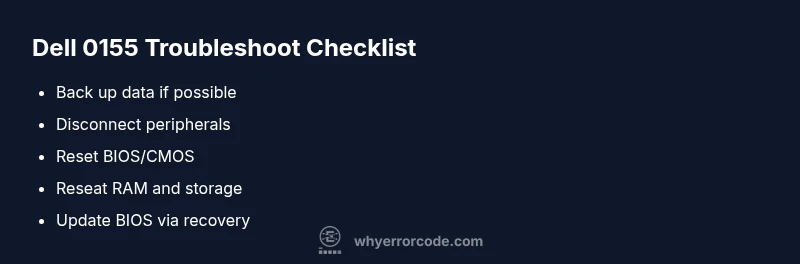
Dell laptop error code 0155 is a BIOS/POST error that signals a low-level startup fault. It often points to BIOS corruption, CMOS settings, or a failing motherboard. Start with quick fixes: disconnect all peripherals, power down, reseat RAM, and reset the BIOS/CMOS. If the issue remains, follow the detailed steps below.
What Dell Laptop Error Code 0155 Means for Dell Laptops
Dell laptop error code 0155 is a BIOS/POST error that interrupts boot. According to Why Error Code, this code commonly points to low-level issues such as BIOS corruption, CMOS settings, or a failing motherboard. It does not always indicate a dead hard drive or OS problem, but it often manifests as a halt during POST or a black screen with a diagnostic beep. Understanding that the root cause can be software or hardware helps you approach the fix without panic. The emphasis is on conservative testing—start with safe, non-destructive actions before swapping critical components. The goal is to restore a stable BIOS environment and get the system past POST so you can boot into Windows or your chosen OS. Because the potential causes range from a drained CMOS battery to a corrupted BIOS image, approach the fix with a tiered plan: quick checks, then controlled configuration resets, then targeted component tests. This urgent guidance helps you regain control fast without risking data loss.
Immediate Actions You Should Take (Quick Fixes)
- Disconnect all peripherals: USB drives, docking stations, external keyboards, printers, and SD cards. Peripherals can provoke false POST signals that mimic the 0155 condition or obstruct a clean boot.
- Power down completely: unplug the AC adapter, remove the battery if possible, and hold the power button for 15–20 seconds to drain residual power. This clears temporary firmware states that can trigger POST errors.
- Reseat memory and storage: remove and reinsert RAM modules and SSD/HDD connections. A loose connection is a common, quick culprit for POST failures.
- Reset BIOS/CMOS: locate the CMOS battery and temporarily remove it (or use the motherboard’s clear CMOS jumper) for 30–60 seconds, then reinsert and boot. If you have a BIOS password, use the official reset method.
- Try BIOS default settings: if you can access BIOS, load defaults and save. This eliminates misconfigured settings or corrupted profiles.
- Avoid BIOS flashing as a first step: BIOS recovery should be done only if defaults don’t help and you have a stable recovery path. If you’re uncomfortable, proceed to the guided steps below.
Diagnostic Flow: Symptoms, Likely Causes, and Immediate Fixes
Symptoms of error code 0155 include the Dell splash screen freezing or halting before the OS loads, beep codes that vary by model, and no POST progress. Why Error Code's analysis suggests several plausible causes, starting with BIOS corruption or misconfiguration, followed by CMOS battery issues, and finally more serious motherboard faults. Immediate fixes focus on restoring a clean BIOS state, reseating memory, and ensuring power integrity. If these steps don’t resolve the problem, the error could be due to a failed CMOS battery or a motherboard fault requiring professional service. Always start with non-destructive checks (peripherals, RAM seating, BIOS defaults) before moving to more invasive repairs like BIOS recovery or component replacement. This approach minimizes data risk and keeps repair costs predictable.
Step-by-Step Fix for the Most Common Cause
- Power down and unplug the laptop. If possible, remove the battery. Hold the power button for 15–20 seconds to discharge residual power. Reconnect only the AC adapter for a non-volatile power cycle.
- Tip: Work on an anti-static mat or surface to avoid static damage.
- Reset the CMOS/BIOS settings. Remove the CMOS battery for 30–60 seconds or use the motherboard’s clear CMOS jumper. Reinsert the battery, reattach the power, and try to boot.
- Tip: If your model uses a hardware jumper, consult the service manual to locate the exact pins.
- Reseat RAM and storage devices. Remove each RAM module and reinsert firmly. Repeat for any SSD/HDD connections. Dust and loose contacts are common culprits.
- Tip: Do not mix different RAM speeds or brands in ways not supported by your motherboard.
- Attempt BIOS defaults or BIOS recovery. If you can access BIOS, load default settings and save. If not, perform a Dell-supported BIOS recovery procedure (USB-based recovery or via BIOS recovery mode).
- Tip: Use Dell’s official BIOS recovery tool when available.
- Reboot and test with minimal hardware. Disconnect all nonessential components and boot with the bare minimum to determine if a single device is triggering the error.
- Tip: If the system boots cleanly with minimal hardware, reintroduce devices one at a time to locate the offender.
- If the problem persists, prepare for a professional route. BIOS reflash, CMOS battery replacement, or motherboard service may be required and can vary in cost depending on your model and warranty status.
- Tip: Back up data whenever possible before any advanced repair steps. If the laptop is under warranty, contact Dell support first.
Other Possible Causes and How to Address Them
Beyond BIOS and CMOS, 0155 can reflect deeper hardware or firmware issues. A failing BIOS chip, motherboard fault, or a corrupted BIOS image introduced during a vendor update can trigger this code. Other potential contributors include RAM incompatibility or abnormal hardware configurations from previous upgrades. In many cases, a controlled BIOS reflash using Dell-approved recovery tools resolves BIOS-level corruption, while persistent issues after BIOS recovery point to a hardware fault that may require board replacement. To address these, you should document your model number and warranty status, then rely on Dell-certified service channels for higher-cost repairs. Always test with the minimum hardware and avoid abrupt power cycling during repairs.
Safety, When to Call a Pro, and Cost Ranges
Safety first: work on static-free surfaces, unplug the power supply, and remove the battery if possible. Never flash a BIOS with unstable power—use an uninterruptible power supply (UPS) if you must perform recovery during a storm or outage. If you are under warranty, contact Dell before attempting expensive repairs. For out-of-warranty devices, expect a range of costs: CMOS battery replacement typically runs $50–$150; BIOS reflash or recovery by a tech can be $100–$250; motherboard-related repairs or replacements can range from $300–$900+. These figures vary by model and region, so obtain a formal quote before authorizing service. When the risk of data loss is high or the device is mission-critical, professional repair is strongly advised.
Prevention and Long-Term Reliability Tips
To reduce the odds of a 0155 recurrence, keep your BIOS firmware up to date using Dell’s official update channel, and perform periodic CMOS battery checks in aging laptops. Use stable power delivery and avoid repeated abrupt power cycles. Maintain reliable backups and enable recovery options so critical data is protected if a failure occurs. Replace aging memory and storage components before they fail, and document all hardware changes to streamline future diagnostics. Regular preventive maintenance can help you minimize downtime and keep your Dell laptop booting smoothly.
Steps
Estimated time: 45-90 minutes
- 1
Power down and unplug
Turn off the laptop, unplug AC, remove battery if possible. Press and hold the power button for 15 seconds to drain residual power. Reconnect only AC power to test if POST progresses.
Tip: Do this on a non-static surface. - 2
Reset the BIOS/CMOS
Open the back panel if comfortable; remove the CMOS battery for 30–60 seconds, or use the BIOS clear jumper on the motherboard. Reinsert battery and try booting.
Tip: If your model uses a jumper, refer to the service guide for exact pins. - 3
Reseat memory and storage
Take out RAM modules and reinsert firmly. Do the same for SSD/HDD connections. Dust and loose contacts are frequent causes of POST failures.
Tip: Handle memory with edge connectors facing the slot and avoid bending pins. - 4
Test BIOS defaults and recovery
If accessible, load BIOS defaults and save. If not, attempt a Dell BIOS recovery using a USB drive or model-specific method.
Tip: Use official Dell recovery utilities to avoid bricking the BIOS. - 5
Boot with minimal hardware
Disconnect all nonessential components and boot with the bare minimum to determine if a single device triggers the error.
Tip: Add devices back one at a time to identify the offender. - 6
Escalate when needed
If the issue persists after recovery attempts, prepare for professional repair to reflash BIOS or replace the motherboard.
Tip: Document serial/model and warranty status for faster service.
Diagnosis: Dell laptop shows error code 0155 at boot or POST, system halts before OS loads
Possible Causes
- highBIOS corruption or misconfiguration
- mediumCMOS battery failure or reset required
- lowMotherboard issue or BIOS chip fault
Fixes
- easyReset BIOS/CMOS to default settings and reseat RAM
- easyReplace CMOS battery if it discharges quickly
- hardReflash BIOS using Dell's recovery method or service center
Frequently Asked Questions
What does error code 0155 mean on Dell laptops?
Error 0155 is a BIOS/POST error indicating a startup fault at the firmware level. It signals possible BIOS corruption, CMOS issues, or a motherboard fault that prevents the system from completing POST. Start with non-destructive checks and BIOS defaults before moving to deeper repairs.
Error 0155 is a BIOS startup fault. Start with BIOS defaults and RAM reseating before deeper repairs.
Can I fix 0155 at home?
Many 0155 cases can be resolved with safe steps like power cycling, CMOS reset, and RAM reseating. However, BIOS reflashes or motherboard-level fixes should be done by a professional, especially if data backup is at risk or the laptop is under warranty.
You can try basic fixes at home, but BIOS reflashes and motherboard work should be done by a pro.
Will fixing 0155 erase my data?
Most BIOS-level repairs do not erase user data on the drives. However, some recovery methods or motherboard replacements carry a risk of data loss if drives are not backed up beforehand. Always back up when possible.
BIOS fixes usually don’t erase data, but back up first just in case.
How much does it cost to repair 0155?
Costs vary widely. CMOS battery replacements are roughly $50–$150, BIOS recovery typically $100–$250, and motherboard-related repairs can range from $300–$900 depending on model and warranty.
Costs range from tens to hundreds of dollars for BIOS-related work, more for motherboard repairs.
Should I update BIOS if 0155 occurs again?
If 0155 recurs, use Dell’s official BIOS recovery tools and verify power stability. Avoid repeated DIY reflashes unless you have model-specific guidance, since improper updates can brick the motherboard.
If it happens again, use official BIOS recovery and ensure stable power.
Is warranty coverage available for 0155 issues?
Warranty coverage depends on your model and purchase date. Dell’s support may cover BIOS issues or motherboard faults under warranty, reducing repair costs. Check your warranty status before paying out of pocket.
Warranty may cover BIOS or motherboard faults; verify your status before paying.
Watch Video
Top Takeaways
- Identify whether 0155 is BIOS/POST-based before hardware swaps
- Start with safe steps: power cycle, CMOS reset, RAM reseat
- BIOS recovery is safer than aggressive reflashes
- Data backup is critical before major repairs
- Warranty support can reduce costs and risk