Easy Anti Cheat Error Code 30005: Quick Fix and Troubleshooting
An urgent, step-by-step guide to diagnose and fix the Easy Anti Cheat error code 30005. Learn immediate fixes, diagnostics, and long-term prevention for gamers and IT pros.


easy anti cheat error code 30005 usually means the anti-cheat service failed to initialize at game launch, blocking access to multiplayer. The quickest path is to restart related services, verify game files, and ensure security software isn’t blocking EAC. If needed, reinstall Easy Anti-Cheat or update drivers to restore normal play.
What easy anti cheat error code 30005 Means in Practice
The error code 30005 from Easy Anti-Cheat signals a startup failure of the anti-cheat service, which prevents a game from launching into a normal session. This isn’t just a nuisance; it can stall your progress, lock you out of matchmaking, and complicate updates. The Why Error Code team emphasizes urgency: a quick, methodical approach reduces downtime and preserves your game data. In this article, we translate the symptom into actionable steps, explain common culprits, and offer a safe, repeatable workflow that you can apply across titles that use EAC.
Recognize the Symptoms and Gather Clues
You may see a generic message stating something like “EAC couldn’t start” or a launcher crash when you press Play. Other symptoms include delayed startup, a frozen launcher window, or repeated EAC initialization failures after system changes. Collecting details helps you prioritize fixes: your OS version, recent software installs, antivirus activity, and whether you’ve changed firewall settings. Early clues often point to security software blocking EAC, driver incompatibilities, or corrupted EAC components.
Common Causes You Should Know (2026 Context)
In 2026, the most frequent triggers for easy anti cheat error code 30005 are security software interference (antivirus/firewall), outdated game clients or EAC binaries, and conflicting background processes. Overlays (RIS/Discord, Nvidia Share), VPNs, and system time drift can also disrupt initialization. Less common but possible are corrupted user profiles, disk errors, or a failed EAC service install. Understanding likelihood helps you sequence repairs efficiently and minimize wasted time.
Quick Fixes You Can Try Right Now
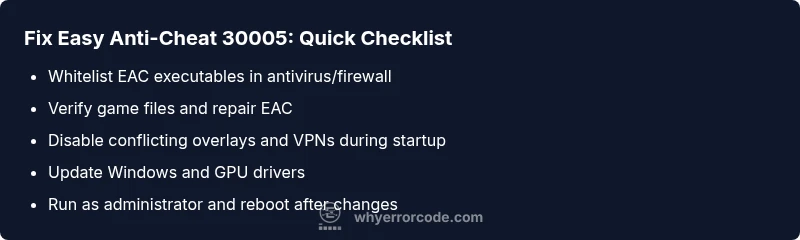
- Restart the computer and launch the game again to reset the EAC state.
- Run the game as Administrator to grant necessary permissions for EAC.
- Temporarily disable overlays (Discord, GeForce Experience) and test launching.
- Verify integrity of game files through the launcher or platform (Steam/Epic).
- Whitelist Easy Anti-Cheat in antivirus/firewall settings or disable security temporarily while testing.
- Update Windows, GPU drivers, and game client to the latest versions.
In-Depth Check: Environment, Drivers, and Conflicts
If quick fixes don’t resolve the issue, inspect the environment: non-Windows security policies, third-party security suites, and other anti-cheat tools can block EAC legitimately. Inspect event logs for EAC-related entries and check for blocked DLLs or services. Ensure system time is correct, as time drift can cause TLS and handshake failures that look like EAC errors.
Network, Firewall, and Proxy Considerations
EAC relies on secure communications. Firewalls, proxies, and VPNs can interrupt the initial handshake. Disable VPN temporarily to test, then add exceptions for EAC-related executables. Confirm your network allows outbound UDP/TCP on typical game ports as specified by the title’s support channel.
Reinstalling or Repairing Easy Anti-Cheat
If the problem persists, a clean reinstall of Easy Anti-Cheat is often the cure. Run the EAC installer from the game’s directory and choose Repair or Reinstall. Be aware this process may re-download components; ensure you have stable bandwidth. After reinstall, reboot and reattempt the game launch.
Long-Term Prevention and Best Practices
Keep your system clean: regularly update drivers, maintain a stable network, and avoid running unnecessary background software during gaming sessions. Maintain an up-to-date backup of game profiles and config files to recover quickly if issues recur. Create a small routine of quarterly clean installs of the EAC component to minimize cumulative corruption.
Steps
Estimated time: 45-60 minutes
- 1
Backstage prep: save work and close programs
Close all unnecessary applications, back up your game profiles, and note recent changes (new software installs or updates) that could affect EAC. This reduces the chance of conflicting processes during the fix.
Tip: Create a restore point if your OS supports it. - 2
Check security software exclusions
Open your antivirus/firewall settings and add the Easy Anti-Cheat executables to the whitelist. If you’re unsure, temporarily disable protection to test the launch, but re-enable immediately after testing.
Tip: Only disable protection briefly to avoid exposure. - 3
Verify game files and repair EAC
Use the game launcher’s built-in verify/repair option to scan for missing or corrupted EAC components. If available, run the dedicated Repair tool in the EAC installer.
Tip: A clean match with the official installer minimizes risk. - 4
Run as administrator and disable overlays
Right-click the game launcher and select Run as administrator. Disable overlays from Discord, GeForce Experience, and any third-party tools that hook into the rendering pipeline.
Tip: Overlays can hijack permissions that EAC needs. - 5
Update drivers and Windows
Install the latest Windows updates and GPU drivers. Reboot after updates before retrying the game launch.
Tip: Restart is essential after driver changes. - 6
Test with a clean boot
Perform a clean boot to rule out background services. If EAC launches, re-enable services one by one to identify the offender.
Tip: Use the Event Viewer to correlate startup events. - 7
Reinstall Easy Anti-Cheat
If all else fails, run the EAC installer from the game directory and choose Repair or Reinstall. Reboot and attempt to launch again.
Tip: Ensure you download the latest installer from the official source. - 8
Reassess networking setup
If you still see 30005, test on another network (mobile hotspot) to rule out local network blocking and verify ports are open per the game’s support page.
Tip: If on public Wi-Fi, switch to a trusted network.
Diagnosis: User reports Easy Anti Cheat Error Code 30005 during game launch
Possible Causes
- highAntivirus/firewall blocks EAC services
- highOutdated game client or EAC binaries
- mediumConflicting third-party overlays or VPNs
- mediumCorrupted EAC installation or missing service
Fixes
- easyWhitelist EAC executable and related services in security software, or temporarily disable security for testing
- easyVerify game files and run the EAC repair/reinstall from the game launcher
- easyUpdate OS, GPU drivers, and game client to latest versions
- easyClose conflicting overlays and disable VPNs during startup
Frequently Asked Questions
What is Easy Anti-Cheat Error Code 30005 and why does it occur?
Error 30005 is an initialization failure of the Easy Anti-Cheat service during game startup. Causes include security software blocking EAC, outdated game binaries, or conflicting background processes. Following a structured troubleshooting flow helps confirm the root cause.
Error 30005 means EAC failed to start during game launch, usually due to security software blocks or outdated files. A orderly fix flow will identify the culprit and restore play.
Can antivirus software cause this error, and how should I handle it?
Yes. Antivirus or firewall software can block EAC from starting. Add EAC executables to the whitelist, or temporarily disable protection during testing. Remember to re-enable protection after testing.
Yes, antivirus can block EAC. Whitelist EAC and re-enable protection after testing.
Do I need to reinstall the entire game to fix 30005?
A full reinstall is rarely necessary. Start with verifying game files and reinstalling the EAC component only. If issues persist, a full reinstall or launcher repair may be needed as a last resort.
Usually you don’t need to reinstall the whole game; try verifying files and repairing EAC first.
What should I do if overlays or VPNs are causing the issue?
Disable overlays (Discord, GeForce Experience) and disconnect VPNs or proxies to test. If EAC launches, re-enable items one by one to identify the conflict.
Turn off overlays and VPNs to test, then re-enable cautiously.
Is this a hardware issue I should worry about?
Rarely. Most cases are software-related. If you suspect hardware problems (RAM, disk), run diagnostics after stabilizing EAC. Seek professional help if hardware faults are suspected.
Mostly software problems; hardware checks are a last step.
When should I seek professional help for Error 30005?
If you have followed the steps and the error persists across titles, contact game support or a qualified IT technician. Provide logs, system specs, and steps you tried to expedite resolution.
If fixes don’t work after trying the steps, get professional help with logs ready.
Watch Video
Top Takeaways
- Fix EAC 30005 quickly with whitelist and file verification
- Disable conflicting overlays and VPNs during startup
- Update drivers and system components regularly
- Reinstall EAC as a last resort to restore integrity