Fortnite Easy Anti-Cheat Error Code 30005: Urgent Fixes and Diagnostics
Urgent guide to Fortnite Easy Anti-Cheat error 30005. Learn the meaning, quick fixes, diagnostic flow, and prevention tips to regain access fast.


Fortnite Easy Anti-Cheat Error Code 30005 means the game’s anti-cheat component detected an integrity or compatibility issue preventing a clean launch. According to Why Error Code, the most common fixes are quick checks like verifying game files, disabling VPNs or proxies, and updating Windows and Fortnite to the latest version. If the error persists, a full reinstall of Fortnite and Easy Anti-Cheat may be needed, and you should contact Epic Games support if professional help is needed.
Understanding Fortnite Easy Anti-Cheat Error Code 30005
Fortnite Easy Anti-Cheat Error Code 30005 is not a direct ban or account lock. It signals a failure in the anti-cheat startup sequence caused by an integrity or compatibility issue within the game environment. The error is often triggered when the game cannot verify core files, detects conflicting software, or the anti-cheat service cannot initialize correctly. In urgent terms, this means you can’t start a match until the underlying problem is addressed. The Why Error Code team emphasizes a methodical approach: check file integrity, ensure compatibility, and apply the latest patches before moving to deeper fixes.
Quick Checks That Often Resolve 30005
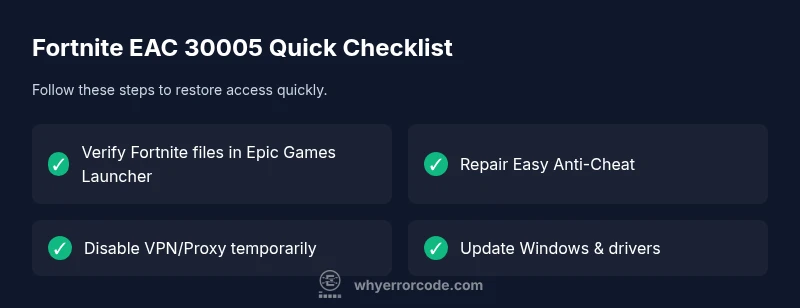
- Verify game files in the Epic Games Launcher to replace corrupted or missing data.
- Temporarily disable VPNs or proxies that might misroute anti-cheat verification.
- Update Windows, graphics drivers, and Fortnite to the latest build. Many players see the error disappear after a patch aligns with EAC expectations.
- Run Fortnite as an administrator to ensure EAC has the necessary permissions on startup.
- Ensure your firewall or antivirus isn’t blocking EAC processes; add Fortnite and EAC to trusted lists if needed.
If these quick checks do not resolve the issue, you likely need to move to the diagnostic flow and, if required, a full reinstall. Why Error Code data shows that most users recover after these initial steps, especially when combined with a clean reinstallation of the anti-cheat component.
Common Causes and How They Play Out in Real Scenarios
The most frequent culprits behind 30005 include corrupted game files, outdated Easy Anti-Cheat components, and network blockers like VPNs or proxies that disrupt legitimate verification signals. In some cases, third-party overlays or conflicting software (screen recorders, performance boosters, or unauthorized mods) interfere with the anti-cheat initialization. Less common but possible are OS-level security settings or a faulty Windows update that disrupts services needed by EAC. Understanding these causes helps prioritize fixes quickly and reduces trial-and-error time.
Safe, Quick Fixes You Can Try Right Now
Before you dive into deeper diagnostics, start with these safe fixes:
- Run the Epic Games Launcher verify/build to confirm integrity.
- Reinstall the Easy Anti-Cheat component from its Fortnite directory if available.
- Temporarily disable any VPN, proxy, or firewall rule that could block EAC startup.
- Check for and install Windows updates and driver updates for GPU and chipset.
- Run Fortnite with administrative privileges to ensure EAC can initialize without restrictions. If any step resolves the issue, you can resume playing with normal protections in place; if not, move to the deeper diagnostics. These steps minimize risk and avoid invasive changes that might affect other games.
When Quick Fixes Don’t Help: Deeper Diagnostics
If quick fixes fail, the root cause is likely deeper in the stack: the anti-cheat service itself may be corrupt or incompatible with your operating system, or a corrupted installation of Fortnite may be interfering with EAC. In this phase, perform a clean reinstall of Fortnite and ensure the EAC runtime is correctly installed. Running a thorough system health check (disk errors, memory tests) can help reveal underlying hardware issues contributing to persistent 30005 errors. The diagnostic flow should be systematic: confirm file integrity, test a clean network environment, and verify that security software is not blocking essential EAC processes.
Prevention: Keeping 30005 from Popping Up Again
To reduce future occurrences, maintain a stable software environment: keep Fortnite and EAC patched, apply OS updates promptly, and avoid unnecessary overlays or software that injects into games. Use a wired connection if possible to minimize network instability, and ensure your security suite is compatible with EAC’s startup requirements. Periodic verification of game files after major patches helps catch issues early. If you frequently encounter this error after specific system changes, document the changes so you can revert quickly if needed.
Steps
Estimated time: 45-90 minutes
- 1
Back up and prep
Close all running programs, back up saved games if needed, and prepare to test network conditions. This minimizes data loss if a reinstall becomes necessary and helps you track what changes were made during troubleshooting.
Tip: Create a system restore point before big changes. - 2
Verify Fortnite files
Open the Epic Games Launcher, go to Library, click the three dots next to Fortnite, and choose Verify. This scans for corrupted or missing files and replaces them automatically.
Tip: Perform this step before trying other fixes; it often resolves 30005 quickly. - 3
Repair Easy Anti-Cheat
Navigate to the Fortnite installation folder (usually under Program Files or Epic Games) and run the Easy Anti-Cheat setup. Choose Repair if available, then restart your PC.
Tip: Run as administrator if you see permission prompts. - 4
Check network and VPNs
If you use a VPN or proxy, disable it temporarily to test. Reboot your router and connect via a wired Ethernet connection if possible. Ensure firewall rules allow EAC and Fortnite processes.
Tip: Test a direct connection before making other network changes. - 5
Update software stack
Install the latest Windows updates, restart, and ensure graphics drivers are current. Patch levels can influence EAC compatibility and cause 30005 otherwise.
Tip: Set updates to automatic to avoid missing critical fixes. - 6
Reinstall Fortnite and EAC
If nothing else works, uninstall Fortnite completely, then reinstall from the official launcher. After reinstall, run the EAC installer again to ensure a fresh runtime.
Tip: Keep your account details handy; reinstallation can require you to re-login.
Diagnosis: Fortnite won’t launch and shows Easy Anti-Cheat error 30005
Possible Causes
- highCorrupted or missing game files
- mediumOutdated Easy Anti-Cheat component or Windows drivers
- lowVPN/proxy interference or firewall blocking EAC components
Fixes
- easyRun Epic Games Launcher -> Library -> Verify integrity of game files
- easyRun the Easy Anti-Cheat repair utility from the Fortnite installation folder
- easyTemporarily disable VPN/proxy, antivirus, and firewall rules blocking EAC
- hardReinstall Fortnite and re-run EAC installer
Frequently Asked Questions
What does Fortnite EAC 30005 mean?
The 30005 code indicates an integrity or compatibility issue with the Easy Anti-Cheat startup. It usually happens when files are corrupted, software blocks EAC, or the anti-cheat component cannot initialize properly.
Fortnite EAC 30005 means the anti-cheat startup can’t initialize due to file or software conflicts.
Can a VPN cause 30005?
Yes. VPNs or proxies can interfere with the anti-cheat verification signals, triggering 30005. Disable them temporarily to test.
VPNs can cause 30005 by interfering with anti-cheat checks.
Will verifying game files fix the error?
Often; file verification replaces corrupted data and resolves many 30005 cases. If it fails, move to the deeper steps.
File verification often fixes 30005, but if not, try deeper steps.
Should I reinstall Fortnite and EAC?
If standard fixes fail, a clean reinstall of Fortnite and EAC can resolve persistent 30005 issues by replacing all components.
A full reinstall can fix stubborn 30005 errors.
When should I contact Epic Games support?
If 30005 persists after all standard and advanced fixes, contact Epic Games support for personalized assistance and further diagnostics.
If it keeps happening, reach out to Epic Games support.
Watch Video
Top Takeaways
- Verify game files first to fix 30005.
- Disable VPNs and proxies during testing.
- Keep Windows and drivers up to date.
- Reinstall EAC and Fortnite if necessary.