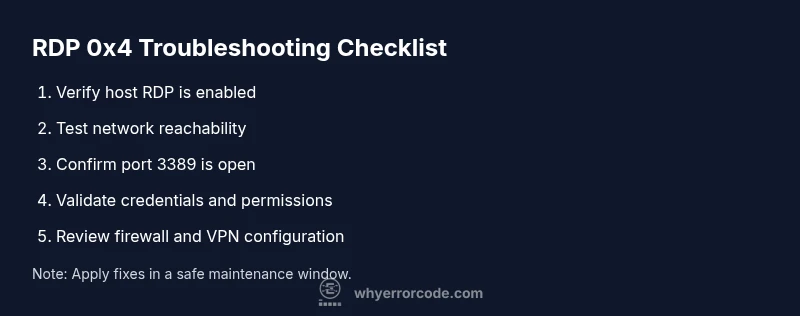
Error Code 0x4 When Trying to RDP: Quick Fix and Diagnostics
Urgent diagnostics and step-by-step fixes for error code 0x4 when attempting an RDP session. Learn common causes, quick fixes, safety tips, and when to call a pro.


Your error code 0x4 when trying to rdp indicates the remote session cannot be established due to connectivity or access issues. The quickest fixes are: verify the host allows RDP, confirm port 3389 is open, check network connectivity and VPN status, and validate credentials. If issues persist, review firewall rules and the RDP service status.
What error code 0x4 means for RDP
In the context of remote desktop, error code 0x4 when trying to rdp generally points to a failure to establish the session due to a connectivity or authentication issue. According to Why Error Code, this situation is most often caused by network reachability problems, misconfigured firewall rules, or the remote host not allowing RDP connections. The error can appear whether you are connecting within a corporate network, over a VPN, or from a home connection. This block will help you interpret the symptom and map it to concrete fixes, so you can restore access quickly without guessing.
To start, verify that the target computer is reachable on the network and that the host actually has Remote Desktop enabled. If you can ping the host or reach its IP but still cannot establish a session, the problem is more likely due to port blocking or service status. In urgent scenarios, treat 0x4 as a sign to check the simplest, most reliable levers first: host policy, port openness, credentials, and network path.
The 0x4 code specifically flags an access/communication fault during negotiation. Before you dive into advanced settings, confirm basic environment readiness: the user account has permission for remote access, the host is powered on, and there is no ongoing maintenance window that would block connections. This foundational check set dramatically reduces troubleshooting time.
If you’re operating in a secured network, document the exact error 0x4 sequence and capture any event log entries from the host and client side. Why Error Code recommends making a trace of traffic to identify where the handshake fails (DNS, TLS, or port negotiation). A structured inspection now saves hours of back-and-forth later.
In short, error code 0x4 when trying to rdp is a signal to simplify your approach: confirm host policy, test reachability, verify the port, and verify credentials. This disciplined workflow is especially critical in production environments where downtime must be minimized.
diagnosticTaggingPlaces":"intro"},{
Symptoms and quick verification path
The user typically sees an RDP client error when attempting to connect, often accompanied by a brief message specifying code 0x4. The symptom is reproducible across devices if the same host is targeted, suggesting a server-side or network issue rather than a single client misconfiguration. Quick verification steps include pinging the host, attempting to connect from another network (like a mobile hotspot), and testing with a different endpoint to rule out local issues. If the symptom remains after basic checks, the likelihood points toward network reachability, firewall rules, or the RDP service state on the host.
Additionally, check if the VPN status changes the outcome. In many corporate networks, RDP access is contingent on VPN tunnels or domain policy. If the VPN path is unstable or misconfigured, the same 0x4 error can appear despite correct credentials. Throughput and latency metrics from the client can also hint at congestion that disrupts the RDP negotiation.
When the host responds to pings but still blocks RDP, the problem is almost always in the network path or security posture rather than user credentials. Document these observations, because they guide you to the correct fix without unnecessary changes to credentials or group policies.
formatTypo
Steps
Estimated time: 25-40 minutes
- 1
Confirm host RDP policy and status
Log in to the remote host or coordinate with the admin to verify that Remote Desktop is enabled, the user has permission to connect, and there are no active group policies blocking RDP. Check event logs for 4624/4625 and any RDP-related errors.
Tip: If you lack admin rights, request a quick policy check from the IT admin. - 2
Check network reachability
From the client, verify you can reach the host via ping or tracert. If there is packet loss or high latency, address network issues before proceeding. Consider testing from a different network or device.
Tip: Low-level network instability often masquerades as RDP failures. - 3
Validate port accessibility
Ascertain port 3389 is open on the host and any intermediate firewalls or VPNs allow traffic on that port. Use telnet or Nmap in a controlled test to confirm reachability.
Tip: Do not rely on firewall banners; test with a direct connection when possible. - 4
Check RDP service and listener
On the host, confirm the Remote Desktop Services service is running and the RDP listener is listening on port 3389. If disabled, enable it and restart the service.
Tip: A quick service restart can resolve transient negotiation issues. - 5
Inspect DNS/IP resolution
Ensure you’re connecting to the correct IP address or hostname. Flush DNS cache and verify there are no stale records causing misdirection.
Tip: Static IPs simplify diagnostics in a dynamic network. - 6
Validate credentials and access rights
Double-check the user credentials, domain, and that the user is included in the Remote Desktop Users group. Try a different account with known permissions if possible.
Tip: Credential issues are a common, easily fixable cause.
Diagnosis: Error code 0x4 displayed when attempting an RDP session
Possible Causes
- highNetwork connectivity issues between client and host
- highFirewall or VPN blocking the RDP port 3389
- mediumRemote Desktop service not running or blocked on the host
- mediumDNS/IP resolution problems leading to incorrect host address
Fixes
- easyTest basic network reachability (ping/traceroute) and try a different network path
- easyOpen or forward port 3389 on firewalls and VPN gateways; verify port is reachable from client
- easyEnsure Remote Desktop service is running and the host allows RDP connections in System/Remote settings
Frequently Asked Questions
What does error code 0x4 mean when attempting an RDP session?
Error 0x4 typically signals a failure to establish the RDP session due to connectivity or access issues. It often points to network reachability problems, firewall blocks, or the host not allowing RDP. Review the host policy, port openness, and credentials before proceeding.
0x4 usually means the remote session can’t be established because of connectivity or access problems. Start by checking host policy, network reachability, and port status.
How do I know if RDP is enabled on the host?
Check the Remote Desktop settings on the host: ensure Remote Desktop is enabled and that the user account is granted access. If available, review the Remote settings and network level authentication options.
Check the host's Remote Desktop settings to ensure it’s enabled and that the user has access.
Why is port 3389 commonly blocked?
Port 3389 is often blocked by firewalls, VPN gateways, or corporate security policies. If blocked, RDP traffic cannot reach the host, resulting in errors like 0x4. Opening or forwarding this port under controlled security guidelines is essential.
Your network firewall or VPN might be blocking port 3389, which stops RDP from reaching the host.
Should I disable certain security features to fix this?
Disabling security features like NLA is not recommended as a fix. It lowers protection. Instead, fix the underlying connectivity or policy issues and re-enable security controls after testing.
Don’t turn off security features to fix this. Fix the root cause and re-enable protections.
Can VPNs or corporate firewalls cause this error?
Yes. VPNs and corporate firewalls can affect RDP traffic, especially if tunnel policies or IP restrictions change. Verify VPN status and firewall rules align with RDP requirements.
A VPN or corporate firewall can block RDP traffic, so check those configurations first.
What is the typical time to fix and verify the issue?
A straightforward fix often takes 15–45 minutes when the root cause is a misconfigured firewall or RDP setting. More complex network or policy changes can extend this window.
Most fixes take under an hour, depending on network complexity and policy changes.
Watch Video
Top Takeaways
- Verify host RDP policy before changing credentials
- Open port 3389 and verify firewall/VPN not blocking it
- Check RDP service status and host accessibility
- Document findings for faster remediation