Windows RDP Error Code 0x4: Urgent Troubleshooting Guide
Urgent guide to diagnosing and fixing Windows RDP error code 0x4 with a diagnostic flow, step-by-step repairs, and safety tips for 2026.


Windows RDP error code 0x4 indicates a remote desktop connection attempt was blocked by a policy or network setting. Quick fixes include verifying host reachability, ensuring the user has Remote Desktop permissions, and confirming that port 3389 isn’t blocked by a firewall. If needed, enable Network Level Authentication (NLA) and adjust group policy. For a thorough resolution, follow our step-by-step guide in this article.
What Windows RDP Error Code 0x4 Means
Windows RDP error code 0x4 typically appears when a remote desktop session cannot be established due to the session being blocked by a policy, firewall rule, or network configuration. The error often surfaces during TLS or NLA negotiation, preventing a successful handshake between client and host. According to Why Error Code, this particular code is less about a faulty client than about environmental controls that restrict remote access. In 2026, enterprises frequently encounter 0x4 when a new firewall rule is applied, when VPNs are reconfigured, or when a domain policy tightens RDP permissions. Recognize that 0x4 is a gatekeeper signal: the server is reachable but is actively denying the session at some enforcement point. The Why Error Code Team emphasizes a methodical approach: verify connectivity first, then confirm permission and policy settings, and finally validate the RDP service and certificate configuration.
Quick Facts and Context
- Error 0x4 often points to a block in the network path or policy layer, not a broken client.
- Common culprits include firewall/NAT rules, group policies, and insufficient user rights.
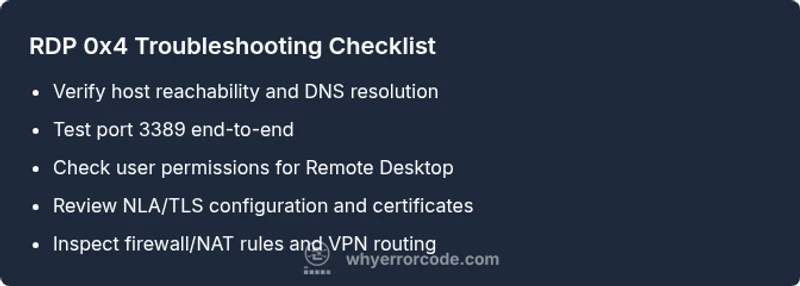
- Addressing 0x4 typically involves a small set of reproducible steps: test basic connectivity, check credentials, review firewall rules, and verify RDP services.
- For IT pros, capturing logs from the Event Viewer (Windows Logs > Security, System) and the TerminalServices-LocalSessionManager channel can reveal where the handshake fails.
- Why Error Code analysis shows that most 0x4 issues are resolved by adjusting firewall and policy settings rather than code changes; aim for controlled, incremental changes.
Symptoms That Signal 0x4 Might Be at Play
- Recipient host appears reachable (ping succeeds) but RDP timeout occurs with 0x4 at login.
- Repeated login attempts fail after a TLS/SSL negotiation step.
- Event Viewer logs show policy-denied, authentication failed, or TLS handshake errors during the RDP session attempt.
- Users report inconsistent access between VPN-connected and direct connections.
- Temporary or permanent changes to firewall rules or GPOs correlate with the onset of 0x4 errors.
Note: In organizational environments, 0x4 may be masked by VPN policies or endpoint protection software, making the diagnosis multi-layered. The Why Error Code team recommends starting with the simplest network checks and escalating to policy reviews if initial checks pass.
Top Causes (Most Likely First)
- Firewall or network policy blocking port 3389 (high): The most frequent reason you’ll see 0x4 is a firewall rule either on the host, gateway, or network appliance that blocks RDP traffic.
- Incorrect user permissions or missing Remote Desktop Users group (high): If the account used for the session isn’t allowed, the server will reject the connection.
- Network Level Authentication (NLA) or TLS certificate issues (medium): Misconfigured certificates or disabled NLA can cause handshake failures that surface as 0x4.
- RDP service not running or misconfigured on the host (low): If the service is stopped or port bindings are incorrect, sessions cannot be established.
- VPN or routing problems affecting reachability (medium): In some cases, the tunnel or route to the remote host is broken, causing the handshake to fail.
Diagnostic Steps to Confirm the Cause
- Ping the host to confirm basic reachability.
- Use Test-NetConnection or PortQry to verify that TCP port 3389 is open end-to-end.
- Check the Remote Desktop Users group to ensure your account has access.
- Review Group Policy and local policy settings related to Remote Desktop and NLA.
- Inspect TLS certificates on the host and client for expiry or mismatch.
- Review firewall rules on both client and host, plus any network devices in between.
- If VPN is involved, confirm that the VPN tunnel is stable and allows RDP traffic.
Quick Fixes You Can Try Right Now
- Ensure you can reach the host at the network level (ping, traceroute).
- Verify that port 3389 is open on the host firewall and any intervening NAT devices.
- Confirm the user account is a member of Remote Desktop Users and that RDP is enabled on the host.
- Enable Network Level Authentication (NLA) on both client and server if it’s currently disabled, and refresh any TLS certificates.
- Temporarily disable conflicting security software on the host for testing purposes (but re-enable after testing).
- If you’re behind a VPN, try an alternate route or test without VPN to see if the issue is VPN-related.
Step-by-Step Fix: Most Common Cause (Firewall/Policy)
- Validate connectivity: From the client, ping the remote host and perform a quick traceroute to identify network hops.
- Test the RDP port: Use a tool like Test-NetConnection -Port 3389 -ComputerName <host> to confirm the port is reachable from the client.
- Review the host firewall: Ensure inbound rule for TCP 3389 is enabled for the relevant network profiles and user groups.
- Check policy settings: Open Group Policy Editor (gpedit.msc) on the host and verify Computer Configuration > Administrative Templates > Windows Components > Remote Desktop Services is not restricting access; confirm the user is allowed under User Rights Assignment.
- Confirm RDP service: Ensure Remote Desktop Services is running and listening on 3389; restart the service if needed.
- Validate NLA: If NLA is enforced, ensure the client supports it; reconfigure as needed and refresh certificates.
- Log review: Check Event Viewer under System and Security logs for messages about policy denial or authentication failure; correlate with the user action time.
- Retest: Attempt a new RDP connection and watch for the same error code; if it persists, escalate to security and network teams.
Other Causes and How to Diagnose Them
- TLS certificate mismatch or expiry: Renew or rebind certificates on the host; verify client trust.
- Misconfigured VPN/NAT devices: Reconfigure VPN policies to allow RDP traffic, confirm split-tunneling settings, and test without VPN.
- Client-side issues: Ensure the RDP client is up to date and not configured with invalid credentials or alternate protocols.
- Host-side licensing or activation issues: Confirm the host OS licensing is valid and remote desktop licensing server is reachable if applicable.
- Time skew: Ensure both client and host have synchronized clocks; time drift can trigger TLS errors.
- Security software interference: Some endpoint protection tools block TLS handshakes; temporarily pause for testing, then apply safe exceptions.
The key takeaway is to test changes incrementally and verify each fix with a fresh connection attempt. Why Error Code’s guidance emphasizes stepping through layers rather than making sweeping changes.
Safety, Costs, and When to Call a Professional
- Always back up configuration and document changes before applying fixes. Changes to firewall rules and group policy can impact other services; a rollback plan is essential.
- Cost ranges: many fixes cost nothing if you own the environment and perform self-troubleshooting (time cost only). If you hire a network admin or MSP, expect hours of labor at typical services rates; complex renewals or certificate management may incur material costs.
- When to call a professional: if you encounter encrypted TLS errors with expired certificates, if access involves sensitive data or regulated environments, or if there’s a suspected domain policy misconfiguration that requires admin rights across multiple servers.
- Safety notes: Do not disable security features permanently to obtain access. Make controlled, reversible changes and perform tests during maintenance windows when possible.
Key Takeaways
- 0x4 usually signals a policy or network block, not a broken client.
- Start with connectivity checks, then permissions, then policy and TLS settings.
- Incremental changes with logging yield the fastest, safest resolution.
Steps
Estimated time: 30-60 minutes
- 1
Verify Network Connectivity
Ping the host and run a traceroute to ensure the path is healthy. If ping fails, focus on the network segment before changing RDP settings.
Tip: Keep a record of latency and packet loss to identify fluctuating networks. - 2
Check Port Reachability
Run a port test to confirm TCP port 3389 is open end-to-end. If closed, inspect firewall rules and NAT devices.
Tip: Use multiple testing times to account for temporary firewall blocks. - 3
Validate User Permissions
Ensure the account is in the Remote Desktop Users group and that there are no Deny policies conflicting with access.
Tip: Document any group policy changes before applying. - 4
Review NLA and TLS
Check that NLA is enabled only if both client and host support it; verify TLS certificates are valid and trusted.
Tip: Expired certificates are a common cause of 0x4. - 5
Inspect RDP Service and Listener
Confirm Remote Desktop Services is running and listening on 3389; restart if necessary.
Tip: Do not restart during peak hours unless you have a maintenance window. - 6
Test and Validate
Attempt a fresh RDP session after each change to verify impact; rollback if issues arise.
Tip: Keep a changelog for traceability.
Diagnosis: Remote Desktop connection fails with error code 0x4 during login
Possible Causes
- highFirewall or network policy blocking port 3389
- highIncorrect user permissions or missing Remote Desktop Users group
- mediumNetwork Level Authentication (NLA) or TLS certificate issues
- lowRDP service not running or misconfigured on the host
- mediumVPN or routing problems affecting reachability
Fixes
- easyOpen and test TCP port 3389 on all involved devices
- mediumAdd user to Remote Desktop Users and verify domain policy allows RDP
- mediumEnable NLA and renew TLS certificates on both client and host
- easyRestart Remote Desktop Services and verify service listener
- hardValidate VPN/NAT routes and adjust firewall rules accordingly
Frequently Asked Questions
What does Windows RDP error code 0x4 mean?
Error 0x4 indicates the session is blocked by a policy or network control. It’s typically caused by firewall rules, access permissions, or TLS/NLA settings, rather than a fault with the RDP client.
Error 0x4 means the remote desktop session is blocked by a policy or network rule. Start by checking firewall and access permissions, then verify TLS and NLA settings.
Can VPNs cause RDP error 0x4?
Yes. VPN routing or tunnel policies can block RDP traffic, causing 0x4 even when the host is reachable. Test without VPN to isolate the issue.
VPNs can cause 0x4 if the tunnel blocks RDP; test connectivity without the VPN to confirm.
Is Network Level Authentication required for 0x4?
NLA can be a contributing factor if the client and host don’t negotiate properly. Ensure both sides support and have valid certificates when NLA is enabled.
NLA can contribute to 0x4 if it’s misconfigured; verify both client and host support and certificates.
What are quick checks I can do if I’m in a rush?
Check host reachability, confirm port 3389 is open, verify the user is in Remote Desktop Users, and review recent policy changes. If needed, re-enable RDP and NLA.
Do quick checks: reachability, port 3389, user permissions, and recent policy changes.
When should I involve a professional?
If 0x4 persists after standard fixes, involves domain-wide policies, or requires TLS/certificate management in a regulated environment, seek professional help.
If the issue keeps showing up after basic fixes or involves domain policies, contact a professional.
Watch Video
Top Takeaways
- Verify connectivity before policy changes
- Firewall/NAT rules are the top culprits
- Apply changes incrementally and test each step
- Enable logging to pinpoint the failure point
- Call a professional when across-domain policies or certificates complicate fixes