Error Code 0x80070035 on Windows 11 Pro: Quick Fixes & Diagnostic Guide
Urgent, in-depth troubleshooting for error code 0x80070035 on Windows 11 Pro. Diagnose network path not found, SMB settings, DNS, and firewall blocks to restore access fast.


Error code 0x80070035 in Windows 11 Pro means the network path could not be found when you try to reach a shared resource. The quick fix is to verify the path syntax (\\\\server\\\\share), confirm the host is reachable, and re-enable any SMB/firewall exceptions affected by recent updates. If access remains blocked, follow the diagnostic flow and step-by-step fixes below.
What error code 0x80070035 Windows 11 Pro actually means
When you see error code 0x80070035, Windows is telling you that the requested network path could not be found. In practical terms, this typically surfaces when you try to access a shared folder, mapped drive, or network resource from a Windows 11 Pro machine. The root cause is almost always a path resolution issue, a blocked SMB service, or protection layers like a firewall or VPN disrupting the route. The symptom is consistent: you click a mapped drive or UNC path, and Windows returns the same error every time. Understanding that 0x80070035 is a path-not-found signal helps you prioritize fixes rather than chasing unrelated problems. This is especially common in mixed-OS environments or after updates that alter SMB settings, DNS behavior, or security policies.
Why this matters for your workflow
Network shares are fundamental for collaboration, backups, and multi-user environments. When 0x80070035 blocks access, it can halt workflow, force workarounds, and create security concerns if you bypass protections. In 2026, as security defaults tighten and SMB practices evolve, ensuring correct path syntax, proper DNS resolution, and compatible SMB configurations is critical. The following sections break down practical steps for Windows 11 Pro users, IT pros, and developers who rely on network shares daily.
Common symptoms you may notice
- Accessing \server\share or a mapped drive fails with error 0x80070035.
- UNC paths resolve intermittently, or devices appear offline in Network Neighborhood.
- Pings to the host succeed but SMB connections fail.
- VPNs or firewalls intermittently block access to internal shares after system updates.
- Recent changes to the network, such as DNS changes or server reboots, correlate with the error appearance.
Quick checks you can perform now
- Confirm the exact network path you’re attempting to access (double-check spelling and punctuation). If you’re uncertain, try the \server\share path as well as the direct IP address (\192.168.1.100\share).
- Ensure the host is reachable: ping the server, and perform a simple traceroute to check hop points. If ping fails, the issue may be DNS, routing, or firewall rather than a missing path.
- Check that the target server’s file sharing service is running and that the share permissions haven’t changed. Review local account credentials used for access, and test with a known-good account.
- Review security software and VPNs. Temporarily disable non-essential VPNs or firewall modules to test whether they’re blocking SMB traffic. Re-enable protections after testing.
Likeliest causes, in order of likelihood
- Misconfigured network path or DNS resolution (high): The simplest typo, or a hostname that doesn’t resolve, will trigger 0x80070035.
- SMB protocol version mismatch or deprecated SMB1 usage (high): Modern Windows versions disable or discourage SMB1; servers using SMB1-only shares will block access.
- Access controls and credentials (medium): If the share requires different domain credentials or a change in user permissions, access can fail with the path-not-found message.
- Network security layers (medium): Firewall, antivirus, or VPN settings can block SMB traffic to certain subnets.
- Server-side changes (low): Reboot, updates, or policy changes on the host can temporarily disrupt sharing until reconfigured.
How to verify network path and DNS settings
- Re-check the path syntax with and without the server hostname. If the hostname is flaky, switch to the IP address to test DNS resolution.
- Use nslookup or dig (depending on your environment) to verify that the server hostname resolves to the expected IP address. If DNS results are stale, flush DNS cache or update DNS records.
- Ensure NetBIOS or name resolution services are active if you’re in a mixed environment. In many cases, enabling or ensuring Computer Browser/Network Discovery can help identify shares.
- Validate the share’s permissions from another machine. If a colleague can access the share but you cannot, your account or device may require a policy adjustment.
Best practices to minimize future 0x80070035 errors
- Maintain consistent DNS entries and documented hostnames for all shares. Use IP addresses only as a temporary workaround.
- Keep SMB settings aligned across clients and servers. Prefer SMB v2 or v3 where possible, and avoid SMB1 unless absolutely required by legacy hardware.
- Implement access auditing and credential management. Use domain accounts with clearly assigned permissions and rotate credentials according to policy.
- Schedule regular network share health checks and monitor for policy changes pushed via your endpoint management tool.
When to escalate to a professional (and what to expect)
If you cannot resolve 0x80070035 after exhausting the steps above, it’s time to engage IT. A professional can perform network path tracing, SMB protocol validation, and server-side permission audits safely and at scale. Expect a mix of client-side assessments and server-side configuration work, with potential downtime during server maintenance windows. Costs for professional fixes typically range depending on scope and region.
How to document and track fixes (for teams)
Keep a running log of attempted fixes, the outcomes, and changes to SMB or DNS configurations. Create a rollback plan before any major changes, and schedule post-fix validation to ensure the error doesn’t recur. Good documentation reduces repeat visits and speeds future troubleshooting.
Steps
Estimated time: 25-45 minutes
- 1
Confirm the exact network path
Double-check the UNC path you are using (\\server\\share) for typos and correct escaping. If in doubt, test access using the direct IP address of the server to rule out DNS issues.
Tip: Always note the full path you use for auditing and future reference. - 2
Test network connectivity to the host
Ping the server by name and then by IP address. If name ping fails but IP ping works, DNS resolution is the bottleneck and needs attention.
Tip: If ICMP is blocked, try a port-specific test like Test-NetConnection in PowerShell. - 3
Check SMB availability and versions
On both client and server, verify SMB is enabled and compatible with your environment. Prefer SMB v2/v3 and avoid legacy SMB1 if not required.
Tip: Consult security policies before enabling older SMB versions. - 4
Validate credentials and access rights
Ensure the user account has permission on the share and that any domain credentials are current. Try accessing with a local admin account if appropriate.
Tip: Credential caching can cause stale access; re-authenticate when testing. - 5
Rule out firewall and VPN blocks
Temporarily disable VPNs and firewall protections that might block SMB traffic, then re-test. Create a temporary exception for the SMB ports if deactivating is not possible.
Tip: Only perform this in a controlled environment; re-enable protections immediately after testing. - 6
Remap or reconnect the network drive
Remove the existing mapped drive and create it again using the tested path. Use the 'Connect using different credentials' option if needed.
Tip: Document the final mapped drive letter and path for team reference. - 7
Reboot and re-validate
Restart the client machine and verify that the network share reappears with the correct permissions. If issues persist, gather logs before escalating.
Tip: Schedule reboots during non-peak hours to minimize disruption.
Diagnosis: Error code 0x80070035 Windows 11 Pro appears when attempting to access a network share or mapped drive
Possible Causes
- highMisconfigured network path or DNS resolution
- mediumSMB protocol version mismatch or SMB1 deprecation
- lowFirewall, antivirus, or VPN blocking access
Fixes
- easyVerify the network path syntax and test with the IP address; ensure the host is reachable
- mediumEnable compatible SMB versions on client/server and avoid SMB1 if not required
- easyTemporarily disable conflicting firewall/VPN or create an exception for SMB traffic
Frequently Asked Questions
What does error code 0x80070035 mean on Windows 11 Pro?
It indicates the network path could not be found when trying to access a shared resource. The fix usually involves path verification, DNS checks, SMB settings, and firewall/VPN considerations.
0x80070035 means the network path was not found. Start by verifying the path and testing the host, then check SMB and DNS settings in sequence.
Why do I see this error only for some shares?
Some shares may be on servers using incompatible SMB versions or restricted by permissions. Check server-side settings and confirm you have access rights for those specific shares.
Some shares may use different SMB versions or permissions. Check both client and server settings to confirm access.
Is SMB necessary for Windows 11 Pro file sharing?
Yes, SMB is the primary protocol for Windows shares. Ensure the appropriate SMB version is enabled on both client and server, and avoid legacy SMB1 if possible due to security risks.
SMB is essential for Windows shares. Use SMB v2 or v3 and avoid SMB1 unless absolutely needed.
Can a VPN cause this error?
Yes. VPNs can route traffic differently and block SMB ports. Temporarily disconnect VPNs to confirm if they’re the root cause, then reconfigure or create exceptions if needed.
VPNs can block network paths. Test without the VPN and adjust settings if needed.
What should I do first if I’m not the IT admin?
Start with simple path checks and DNS tests, then verify credentials. If the problem persists, escalate to IT with the steps you’ve already tried.
If you’re not admin, begin with path checks and DNS tests and then call IT with your findings.
When is professional help warranted?
If server-side shares or corporate policies are suspected, or if you’re unsure about reconfiguring SMB or DNS across multiple devices, it’s time to involve a professional.
Call a professional if server policies or network-wide changes are suspected or if you’re uncertain about SMB/DNS configurations.
Watch Video
Top Takeaways
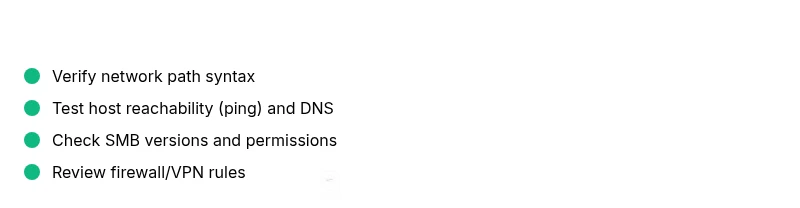
- Identify path or DNS issues first
- Prioritize SMB version compatibility
- Test with IPs to rule out DNS problems
- Re-map drives after confirming access rights
- Escalate to IT when changes touch servers or security policies