Windows 10 Pro Error Code 0x80072EE7: Urgent Troubleshooting Guide
Urgent guide to fix windows 10 pro error code 0x80072ee7. Learn causes, steps, and safe fixes to restore updates and security.


windows 10 pro error code 0x80072ee7 means the Windows Update service cannot reach the update server, usually due to DNS, proxy, or connectivity problems. The quickest path to relief is to verify your internet connection, temporarily disable VPN/proxy, run the built-in Update Troubleshooter, and reset the Windows Update components if needed. If the issue persists, be prepared to adjust DNS, firewall rules, and DNS-over-HTTPS settings as part of a longer remediation plan.
What the error means for Windows 10 Pro
The error code windows 10 pro error code 0x80072ee7 is a signal from the Windows Update service that it cannot reach the update server. In practical terms, your PC cannot download or verify updates because the update client cannot establish a network path to Microsoft’s servers. This interruption can leave you with stale security patches, failed driver updates, and a paused maintenance schedule. For developers and IT pros, the symptom often appears after network changes, DNS edits, or VPN rewrites. The root cause typically involves connectivity layers like DNS resolution, proxy configurations, or firewall rules that block outbound connections to update servers. As Why Error Code analyzes, addressing the network path first usually resolves most instances of this error in 2026.
How this error interacts with your environment
In corporate environments, group policy, active directory DNS, and enterprise proxies can inadvertently alter how Windows Update reaches Microsoft. Home users may see this after a router reset or after enabling a VPN. Since update data travels over HTTPS, misconfigured TLS settings or outdated root certificates can also contribute. The key takeaway is that 0x80072ee7 is less about the update payload and more about the network path to the payload. By prioritizing networking checks, you’ll see the most reliable path to resolution.
First-dollar fixes you can try now
Before diving into deeper repairs, try these fast checks:
- Ensure you have a stable internet connection and disable any VPN/proxy temporarily.
- Run the built-in Windows Update Troubleshooter and apply recommended fixes.
- Reboot the PC and the router to refresh network state.
- Temporarily disable firewall or antivirus if they block Windows Update, then test again.
- Verify the system clock and date are correct, as time drift can affect certificate validation.
If these steps don’t resolve the issue, proceed to DNS adjustments and component resets. Remember, this is a network-and-service issue first, so fix networking paths before touching core OS components.
Why DNS and time settings matter
The Windows Update service relies on secure channels to reach update servers. DNS resolution failures or time skew can cause the client to think the server certificate is invalid or the site is unreachable, triggering 0x80072ee7. Correct DNS configuration—whether using your ISP’s DNS, Google DNS, or a trusted enterprise DNS—often eliminates the problem. Likewise, accurate time settings ensure certificate validity checks pass. By solidifying these basics, you dramatically reduce the chance of recurrence.
When to escalate to deeper fixes
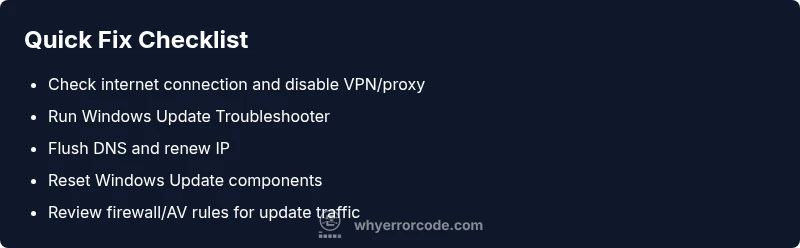
If the error persists after network basics, you’ll need to dive into more advanced steps: flushing DNS caches, renewing IP configurations, resetting Windows Update components, and examining security software rules. These actions fix the actual update pipeline and reduce the chance of future failures. In persistent cases, consider a professional review to rule out corrupted system files or hardening security policies that block Windows Update.
A note on safety and best practices
Always back up important data before performing major system changes. When disabling security software or modifying DNS, re-enable protections after testing. If you’re in a managed corporate environment, consult your IT department before changing DNS, proxies, or firewall rules to avoid policy violations and compliance issues.
Steps
Estimated time: 30-45 minutes
- 1
Check network connection and disable VPN/proxy
Verify that the PC has stable internet access by loading multiple websites and pinging a reliable address. Temporarily disable any VPN or proxy to ensure Windows Update traffic isn't being redirected or blocked. Reboot the router if you notice consistent latency or DNS resolution issues.
Tip: If you rely on a corporate VPN, test with it disconnected to see if the VPN is the cause. - 2
Run the Windows Update Troubleshooter
Open Settings > System > Troubleshoot > Other troubleshooters, then run the Windows Update troubleshooter. Apply any fixes it suggests, especially those related to network or service state. Restart after applying fixes and attempt the update again.
Tip: Capture any error codes it reports for follow-up if needed. - 3
Flush DNS and renew IP
Open Command Prompt as Administrator. Run: netsh winsock reset, ipconfig /flushdns, ipconfig /release, and ipconfig /renew. Restart the computer and test Windows Update again.
Tip: Perform DNS changes only if you’re comfortable; test with your router’s DNS first before switching to others. - 4
Reset Windows Update components
Stop update services: net stop wuauserv, net stop cryptSvc, net stop bits, net stop msiserver. Rename folders: SoftwareDistribution and Catroot2. Restart services and try updating again. This clears stuck downloads and reinitializes the update pipeline.
Tip: If you’re worried about losing downloads, back up the SoftwareDistribution folder before renaming. - 5
Check firewall/antivirus rules
Ensure Windows Update traffic is allowed through the firewall. Add exclusions for wuauclt.exe and the update-related services, and temporarily disable antivirus to test. Re-enable protections after testing.
Tip: Do not leave security software disabled longer than necessary to test. - 6
Retry and assess; escalate if needed
After completing the steps, run Windows Update again. If 0x80072ee7 persists, consider professional support to inspect system files, network policies, or hardware issues that could be blocking traffic.
Tip: Document all changes and results to accelerate further diagnostics.
Diagnosis: Update installation fails with 0x80072EE7 on Windows 10 Pro
Possible Causes
- highDNS or network connectivity issues
- mediumVPN or proxy interfering with Windows Update
- lowFirewall/antivirus blocking Windows Update
Fixes
- easyTest and stabilize your internet connection; disable VPN/proxy temporarily
- easyRun Windows Update Troubleshooter and apply suggested fixes
- easyFlush DNS cache and renew IP address (ipconfig /flushdns, ipconfig /renew)
- mediumReset Windows Update components (stop services, rename SoftwareDistribution and Catroot2, restart services)
- easyAdjust firewall/antivirus settings to allow Windows Update traffic
Frequently Asked Questions
What does 0x80072ee7 mean in Windows Update?
0x80072ee7 indicates the Windows Update client cannot reach Microsoft servers, often due to DNS, network, or proxy issues. It stops updates from downloading or installing until the path is restored.
0x80072ee7 means the update client can't reach Microsoft servers. Check DNS and network settings to restore the update path.
Is this error caused by DNS problems?
DNS failures or incorrect DNS settings commonly trigger 0x80072ee7. Switching to a reliable DNS (like a known public DNS or your corporate DNS) often resolves the issue.
Yes, DNS issues are a frequent cause. Try changing DNS to a stable provider and retest.
Can I fix this for free?
Many fixes are free and user-driven, such as running the Windows Update Troubleshooter, flushing DNS, and resetting update components. Some advanced steps may require time and a reboot, but no software purchases are necessary.
Most fixes are free, including troubleshooting and component resets. You usually don’t need to buy anything.
Should I reset Windows Update components?
Resetting Windows Update components can clear stuck downloads and corrupted caches. It’s a common, effective remedy when standard steps fail, but involves stopping services and renaming folders.
Yes, resetting components is a solid next step when basic fixes fail.
When should I seek professional help?
If issues persist after network checks and component resets, professional help can diagnose deeper problems like corrupted system files or unusual security policies.
If it still won’t fix after the basic steps, consider professional help.
Does this affect security updates or Defender?
Yes, failing Windows Update can prevent security updates from installing, leaving the system exposed. Ensure updates resume to restore Defender and other protections.
Yes, you risk missing important security updates; fix the update path to restore protection.
Watch Video
Top Takeaways
- Prioritize network checks before deeper system fixes
- Reset update components if standard fixes fail
- Security software can block Windows Update—verify in safe mode if needed
- Persisting issues may require professional IT support