Error code 0xc00000e after clone: Rapid troubleshooting guide
Urgent guide for error code 0xc00000e after clone—diagnose boot issues, repair BCD, and safely restore Windows startup after cloning a drive. Step-by-step, with practical tips and cost ranges for recovery.


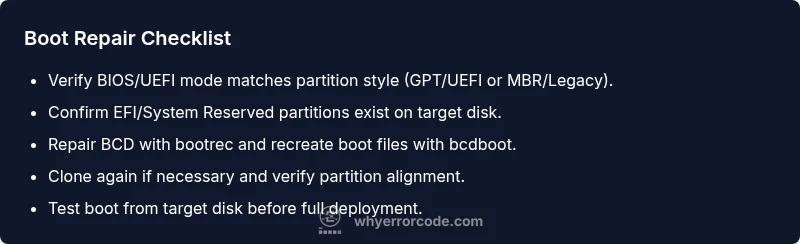
Error code 0xc00000e after clone means the boot loader cannot locate Windows startup files after duplicating a drive. The quickest fix is to boot from Windows Recovery, use bootrec /rebuildbcd or bcdboot to restore boot files, and ensure the correct boot mode and partition layout on the target disk.
What error code 0xc00000e after clone means
According to Why Error Code, the error code 0xc00000e after clone typically signals that the Windows boot manager cannot find the necessary startup files on the cloned drive. This usually happens when the boot configuration data (BCD) becomes corrupted or when the EFI/partition layout isn’t carried over correctly during cloning. The result is a stalled boot process, a flashing boot screen, or an immediate return to the BIOS without Windows loading. In practical terms, you’re seeing a boot-time fault that prevents the operating system from starting, not a failing drive in most cases. Resolving it requires restoring or reconstructing the boot environment so the system can locate Windows startup files again.
Root causes after cloning
There are several frequent culprits behind 0xc00000e after clone. The most common is a missing or corrupted BCD, which tells Windows how to boot. Another frequent problem is boot mode mismatch: cloning a GPT disk intended for UEFI to a system configured for Legacy BIOS, or vice versa. A third common issue is partial cloning where the System Reserved or EFI System Partition didn’t copy correctly, leaving the target disk without a valid boot partition. Less common but possible is a misaligned clone that places partitions in the wrong order or size, confusing the boot loader. Finally, firmware or motherboard settings can stereotype boot path behavior, triggering the error even when the disk data is intact.
Quick checks you can do before diving deep
- Confirm you are attempting to boot from the correct disk and partition (target disk chosen in BIOS/UEFI boot order).
- Verify whether the clone included the System Reserved or EFI partition and whether it’s marked active/bootable.
- Check BIOS/UEFI mode: ensure the clone’s partition scheme (MBR vs GPT) matches the firmware’s boot mode (Legacy vs UEFI).
- Prepare a Windows Recovery drive or installation media to access repair tools.
- Collect logs: Windows Event Viewer on the source, and the recovery environment logs for the target to guide your next steps.
Diagnostic indicators and evidence you’ll rely on
You’ll want to rely on a mix of symptoms and reliable indicators. If you see the 0xc00000e error on boot, the system is reaching the boot loader but cannot locate the necessary files, which points strongly to a BCD problem or an missing boot partition. If the error appears before any Windows startup prompts, this usually means the firmware is misdirecting to a non-bootable partition or a misconfigured disk signature. In both cases, you should prepare to repair BCD, recreate boot files, or adjust partitions so Windows can start. Event logs from the recovery console or from a live diagnostic environment will guide you to the most likely cause.
Step-by-step fix: Rebuild BCD and boot files (fast path)
- Boot from Windows Recovery or installation media, choose Repair your computer, then Troubleshoot > Advanced options > Command Prompt.
- Run: bootrec /fixmbr to repair the Master Boot Record if needed. Then run: bootrec /fixboot and bootrec /scanos, followed by bootrec /rebuildbcd. If /rebuildbcd prompts that Windows cannot be added, skip for now and move to the next step.
- If the system can’t find a valid boot sector, use: bcdboot C:\Windows /s S:\ /l en-us to recreate boot files on the target system partition. Adjust drive letters to match your environment.
- Reboot and test. If the error recurs, verify the active partition and ensure the EFI System Partition is present and properly sized.
Handling EFI/UEFI vs Legacy BIOS and partition issues
UEFI with GPT requires an EFI System Partition containing boot files. If the clone copied a GPT disk but the machine is in Legacy mode, Windows won’t boot and you’ll see 0xc00000e. Conversely, Legacy BIOS with MBR needs a fully copied System Reserved partition. In practice, you should: (a) confirm the firmware boot mode; (b) ensure the target disk has a proper EFI partition or a System Reserved partition; (c) set the Correct boot drive in the firmware; (d) re-create the boot files in the recovery environment if necessary. If the target lacks the EFI partition, you may need to recreate it using diskpart or a Windows repair tool.
When to re-clone vs repair
If the clone missed critical boot partitions or the partition alignment is incorrect, repairing the boot environment may not suffice. In those cases, a clean re-clone with a cloning tool that preserves partition layout and alignment is advisable. If you manage to reconstruct BCD and boot files but the disk layout remains inconsistent with the firmware, you’ll likely need a re-clone with verified GPT/MBR settings and alignment checks. Always verify the partition map after cloning before attempting to boot.
Safety, costs, and when to call a professional
Boot repairs carry risk of data loss if you’re not careful, especially when working with boot sectors or repartitioning. If you don’t have a verified backup, consider professional help. Cost ranges for professional boot repair services vary by region but typically fall in the low hundreds for on-site troubleshooting, with remote diagnostics often cheaper. For simple repairs like BCD rebuilding and bcdboot usage, a DIY approach is feasible and inexpensive, usually under a few dozen dollars if you own the necessary tools.
Prevention: best practices for future clones
- Always clone to a target disk with equal or larger capacity and preserve partition structure.
- Verify after cloning that the System Reserved/EFI System Partition is present and active.
- Use cloning tools that explicitly preserve GPT/MBR partition tables and boot partitions.
- After clone, boot from repair media to confirm that Windows can boot before operating normally.
- Maintain regular backups and a tested recovery plan to minimize downtime.
Steps
Estimated time: 60-120 minutes
- 1
Boot from Windows Recovery media
Connect your recovery drive or Windows installation media and boot to the recovery environment. Open Command Prompt from the Advanced options to access repair tools. This first step lets you determine whether the issue is repairable without full re-cloning.
Tip: Have a verified backup ready before making changes to boot partitions. - 2
Run automatic repair if available
In the Troubleshoot menu, choose Automatic Repair if offered. Let Windows scan for boot issues and attempt to fix common problems automatically. If offered, allow it to complete, then reboot.
Tip: If Automatic Repair fails, proceed to manual BCD repair steps. - 3
Rebuild the BCD store
In Command Prompt, run: bootrec /fixmbr, bootrec /fixboot, bootrec /scanos, bootrec /rebuildbcd. If /rebuildbcd reports no entry, you can skip or re-run with alternative parameters as needed.
Tip: Careful with partition letters; adjust to your environment if C: is not Windows. - 4
Recreate boot files with bcdboot
If needed, run: bcdboot C:\Windows /s S:\ /l en-us. This recreates the boot files on the designated system partition. Ensure you use the correct drive letters from your recovery environment.
Tip: The target boot partition must be active and accessible. - 5
Validate boot mode and partitions
Enter BIOS/UEFI settings and verify boot mode; ensure the correct disk is selected as the first boot device. Confirm that the EFI System Partition or System Reserved partition exists and is properly configured.
Tip: If you’re in doubt, temporarily disable secure boot to avoid interference. - 6
Test boot and consider re-cloning if needed
Exit recovery and reboot. If Windows still won’t boot, consider re-cloning with verified alignment and preserved boot partitions. Compare partition maps between source and target to catch omissions.
Tip: Document your partition layout before re-cloning to avoid repeat issues.
Diagnosis: PC fails to boot with error 0xc00000e after clone
Possible Causes
- highMissing or corrupted boot configuration data (BCD)
- highIncorrect boot mode or partition table after clone (UEFI vs Legacy)
- mediumTarget disk missing System Reserved/EFI partition
- lowCloned disk layout not aligned with target (MBR/GPT mismatch)
- lowHardware BIOS/firmware incompatibility
Fixes
- easyRebuild BCD with bootrec /rebuildbcd
- easyCreate boot files with bcdboot C:\Windows /s S:\ /l en-us
- easySet correct boot mode in BIOS/UEFI (UEFI with GPT or Legacy with MBR)
- mediumEnsure System Reserved/EFI partitions exist on the target disk and assign drive letters
- hardClone again using a tool that preserves partition layout and alignment
Frequently Asked Questions
What does error code 0xc00000e mean after cloning?
It indicates the boot loader cannot locate Windows startup files on the cloned drive. This is usually caused by a missing or corrupted BCD, an incorrect boot mode, or a missing boot partition after cloning.
It means the boot loader can't find Windows startup files after cloning, usually due to a broken BCD or wrong boot mode.
How do I fix 0xc00000e after clone quickly?
Boot from Windows Recovery, run bootrec commands to repair the BCD, and use bcdboot to recreate boot files. Verify the correct boot mode and that the System Reserved/EFI partition is present.
Boot from recovery media, repair the BCD, recreate boot files, and confirm boot mode and partitions.
Can BIOS mode cause this error after cloning?
Yes. If you clone a GPT disk for UEFI but boot in Legacy mode (or vice versa), Windows cannot boot and you’ll see 0xc00000e. Align the clone with the firmware settings.
Absolutely. Make sure the firmware mode matches the clone’s partition style.
Is re-cloning ever necessary?
Sometimes. If essential boot partitions weren’t copied or were corrupted, a clean re-clone with proper partition preservation is recommended.
Sometimes you need to re-clone with proper partition preservation.
When should I call a professional?
If data loss risk is high or you’re uncomfortable modifying boot sectors, professional help is advised. Costs vary by region, but expect higher rates for on-site repair.
If you’re unsure or the data is critical, it’s best to get professional help.
Will this affect data on the cloned drive?
Repairing the boot configuration typically does not erase user data, but operations on partitions can risk data loss if misapplied. Always back up first.
Boot repairs usually don’t touch user data, but back up anyway.
Watch Video
Top Takeaways
- Repair or rebuild the BCD first.
- Match clone mode to firmware (UEFI/GPT or Legacy/MBR).
- Verify boot partitions exist and are active.
- Back up before re-cloning; expect 60-120 minutes for fixes.