Error Code 2 Roblox: Quick Fixes and In-Depth Diagnostics
A practical, urgent guide to diagnosing and fixing error code 2 Roblox with step-by-step repairs, safety tips, and cost ranges.


Error code 2 Roblox is a common startup error that appears when the Roblox client cannot establish a proper connection or load essential resources. It typically points to connectivity issues, blocked ports, or cache corruption. The fastest quick fixes are to restart the game and device, check your internet, and verify Roblox server status before deeper troubleshooting.
What Error Code 2 Roblox Means
Error code 2 Roblox is a broad error signal used by the client when it cannot complete the initial load or establish a reliable connection to Roblox servers. In plain terms, the game cannot start properly because one or more essential resources failed to load. While the exact trigger can vary, understanding the typical failure modes helps you triage quickly: network bottlenecks, firewall restrictions, or corrupted local files. The goal here is to separate transient network hiccups from deeper problems with the game client or device. For developers and IT pros, this means treating error code 2 roblox as a symptom rather than a single root cause, then applying a structured set of tests to identify the real bottleneck. According to Why Error Code, adopting a methodical approach reduces downtime and prevents random, repetitive fixes.
Symptoms, Triggers, and Early Indicators
Common signs include failure to reach the Roblox login screen, persistent loading loops, or intermittent disconnects during startup. Triggers can be as simple as a fluctuating internet connection, a recent router reset, or a Windows/macOS update that changes network settings. In many cases, error code 2 roblox shows up when a user attempts to launch a game from the Roblox app or website and the client cannot fetch assets or authenticate the session. Early indicators are often your device’s network status icon changing between connected and limited connectivity, or warnings from privacy/security software that block Roblox traffic.
Quick Fixes You Can Try Now
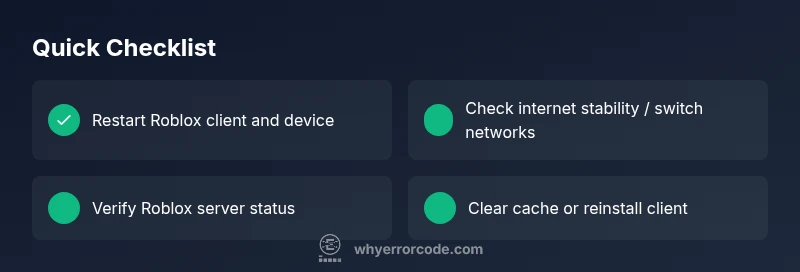
Before diving into deep repairs, try these fast wins. They address the most common contributors to error code 2 roblox without requiring specialized tools:
- Restart the Roblox client and the device you’re using.
- Check your internet connection (prefer a stable wired or strong Wi-Fi signal).
- Verify Roblox server status and any regional outages.
- Temporarily disable VPNs or proxies that might interfere with traffic to Roblox servers.
- Clear Roblox cache or reinstall the Roblox client if the problem persists.
- Ensure your firewall/antivirus is not blocking Roblox traffic and that ports used by Roblox are allowed.
If these steps resolve the issue, you’ve fixed the common causes quickly. If not, proceed to a deeper diagnostic flow to isolate the root cause.
Diagnostic Flow: Symptom → Causes → Solutions
This section follows a practical diagnostic path you can apply in sequence. Start with the symptom, consider the most likely causes first, and apply the corresponding fixes in order. This helps you avoid unnecessary steps and speeds up resolution. We’ll cover both client-side and server-side possibilities, including how to validate each fix with a quick test after applying it.
Step-by-Step Fix: Most Likely Cause (Cache/Client Integrity)
The most frequent reason for error code 2 roblox is corrupted cache or damaged client files. This can interrupt asset loading and authentication. Reinstalling the Roblox client and clearing caches often resolves the issue. If you’re a developer or IT pro, consider validating file integrity on the device and ensuring that your Roblox installation directory is not write-protected during repair.
Note: Always back up important data first. If you manage multiple devices, replicate fixes on a second device to confirm the problem is not device-specific.
Other Possible Causes and How to Handle Them
Beyond cache and connectivity, several other conditions can trigger error code 2 roblox. These include router-level port blocking, DNS resolution problems, outdated network drivers, or system time skew affecting SSL certificates. Regional outages or Roblox server maintenance can also cause the error even when your device is healthy. For each alternative cause, implement a targeted fix: update drivers, change DNS to a public resolver, synchronize system time, or try a different network to test server reachability.
Safety, Costs, and When to Call a Pro
Most fixes you’ll perform are safe for typical home setups. If you’re working in a corporate or school network, involve the IT team to avoid policy violations. Cost-wise, most repairs involve no direct hardware costs; if you reinstall, you may incur software download time and minor bandwidth usage. In rare cases where your router or modem is faulty, a replacement could range from $50 to $200+. If the problem persists after all steps, consult Roblox support or a local technician to avoid prolonged downtime.
Prevention: How to Avoid Error Code 2 Roblox in the Future
Proactive maintenance reduces recurrence. Keep Roblox and your system software up to date, use a stable internet connection, and monitor network settings that could block Roblox traffic. Establish a simple diagnostic checklist for future issues and document improvements after each fix. Regularly clearing caches and performing periodic re-installs on a schedule (every 6–12 months) helps prevent buildup of corrupted data that triggers the error.
Steps
Estimated time: 45-90 minutes
- 1
Confirm the exact symptom
Document when the error appears, which game you’re loading, and whether it happens on every game or a specific title. This helps you distinguish a broad connectivity issue from a game-specific problem.
Tip: Take note of the error text exactly as shown. - 2
Test network stability
Run a quick speed test and try another network (mobile hotspot) to see if the issue persists. If the problem disappears on a different network, the bottleneck is likely your primary connection.
Tip: Prefer a wired connection when possible for consistency. - 3
Reset Roblox and device
Close Roblox, quit background processes, reboot your device, and relaunch Roblox. A clean restart often clears transient faults.
Tip: Ensure you wait a few seconds after reboot before starting Roblox. - 4
Clear cache or reinstall
Clear the Roblox cache on your device or reinstall the Roblox client. This removes corrupted files that can block startup or asset loading.
Tip: Back up saved data if applicable before reinstall. - 5
Check server status and DNS
Check Roblox server status pages and consider changing DNS to a public resolver. DNS issues can cause delays or failed connections to Roblox servers.
Tip: Flush DNS after changes. - 6
Test on another device
If possible, try Roblox on another device or user profile to determine if the problem is device-specific. Compare results to isolate the root cause.
Tip: If the other device works, your primary device may require a repair or driver update.
Diagnosis: User sees 'Error code 2 Roblox' during startup or while loading a game
Possible Causes
- highInternet connection issues or unstable network
- highCorrupted game cache or Roblox client files
- lowServer-side issues or region-based blocks
Fixes
- easyRestart the Roblox client and device
- easyRestart router/modem and switch to a stable network
- mediumClear Roblox cache and reinstall the Roblox client
- easyCheck Roblox server status and regional outages
Frequently Asked Questions
What does error code 2 Roblox indicate?
Error code 2 Roblox generally signals a startup/connectivity problem preventing Roblox from loading resources. The exact cause can vary—from network issues to a corrupted cache. A structured diagnostic flow helps isolate the root cause quickly.
Error code 2 Roblox usually means there’s a startup or connectivity problem, and the fix depends on the underlying cause.
Is error code 2 Roblox server-related?
Sometimes yes, especially during regional outages or Roblox server maintenance. Check the official Roblox status page and community channels to confirm server-side issues before performing client-side fixes.
Sometimes it’s a server issue, so checking Roblox status pages can save you time.
Can I fix error code 2 Roblox myself?
Most cases are user-fixable with quick steps: restart, clear cache, verify server status, and adjust network settings. If the problem persists, reinstall Roblox or test on another device before seeking professional help.
Yes, in many cases you can fix it yourself with a few straightforward steps.
Will reinstalling Roblox erase my progress?
Reinstalling Roblox typically does not remove saved game progress stored on Roblox servers, but local game data may be affected. Back up any local saves or preferences if possible.
Reinstalling usually won’t erase server-side progress, but local data could be affected.
What should I do if the error keeps coming back after fixes?
If error code 2 roblox recurs, document each fix you’ve tried, test after each step, and consider consulting Roblox support or a local technician to investigate device-specific issues or network policies.
If it returns, systematically re-test each fix and contact support if needed.
When is it necessary to contact Roblox support?
Contact Roblox support if the issue persists after all standard fixes, or if you notice unusual account problems, suspected abuse, or widespread outages beyond your control. Provide crash logs and timestamps to speed up troubleshooting.
Reach out to Roblox support if the issue persists after all standard steps.
Watch Video
Top Takeaways
- Identify root cause before fixes.
- Test after each fix to confirm improvement.
- Prioritize quick wins over deep repairs.
- Keep Roblox and system software up to date.
- Know when to contact support or a professional.