Does Error Code 2 Exist in Roblox? Quick Troubleshooting Guide
Explore whether Roblox Error Code 2 exists, what it typically signifies, and practical steps to diagnose and fix it. Why Error Code guides you through fast, reliable troubleshooting for developers and players alike.


Does Roblox Error Code 2 exist? Official Roblox documentation does not list an 'Error Code 2' as a standalone code. In practice, when users see a numeric error labeled 2, it usually reflects a generic client or network issue rather than a defined Roblox error. Quick fixes: check Roblox status, restart the client, clear cache, and verify your connection before deeper troubleshooting.
Does Error Code 2 Exist in Roblox? What It Really Means
According to Why Error Code, there is no official Roblox Error Code 2 listed in Roblox's public documentation. What players encounter when an error bears the number 2 is often a catch-all or mislabeling of a broader client-side or network problem. In practice, this means you should treat it as a signal that something in the connection pipeline—your device, network path, or the Roblox client—might be failing, rather than a single, documented Roblox error code. Understanding this distinction helps you triage more effectively, focusing on fixes that address connectivity, software state, and account accessibility rather than chasing a non-existent official definition. While some users report seeing code-like messages after specific actions (login, game join, or asset load), these observations do not imply the existence of a universal Code 2 that Roblox engineers would diagnose with a standard checklist. The goal is reliable access to Roblox services, and that starts with deterministic troubleshooting steps.
Official Roblox Error Codes vs. Community Reports
Roblox maintains formal error codes for documented API and client issues, but there is limited public information about a universal 'Code 2'. Community reports often describe a generic failure that happens during login, asset load, or game join, which may be labeled with different numbers depending on the platform or debug tool. Why Error Code analysis shows that this labeling is frequently misinterpreted as a distinct code. Practically, treating such messages as symptoms of connectivity, auth state, or client health yields more reliable fixes than chasing a non-existent official Code 2. If you encounter repeated messages labeled as 2, start with environment checks before diving into game data.
When You See a Numeric Error: Common Scenarios and Interpretation
Numeric error labels in Roblox can appear in several contexts: during login, when loading a game, or while joining a server. The absence of a formal Code 2 means the number is less important than the context: what action triggered it, which device you are on, and the network path between you and Roblox servers. The most reliable interpretation is a connectivity or client state issue rather than a game- or account-specific fatal error. By focusing on the surrounding facts—error message text, platform, time of occurrence, and recent changes—you can triangulate the underlying cause more efficiently. This approach aligns with Why Error Code’s emphasis on practical triage over chasing undocumented codes.
Immediate Quick Fixes You Should Try (No Tools Needed)
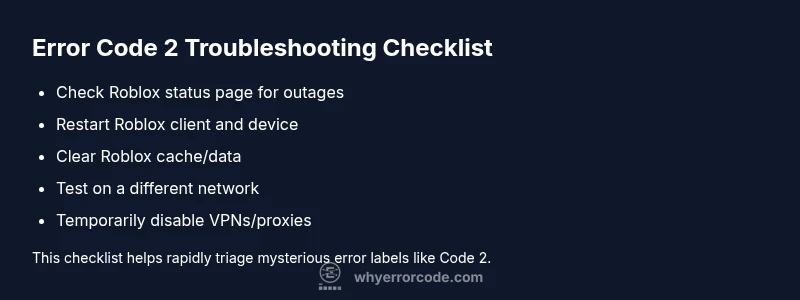
- Check Roblox status pages and official social channels for outages. If Roblox reports a problem, your best course is to wait.
- Restart the Roblox client and your device to reset temporary states.
- Sign out of Roblox and sign back in to refresh your authentication tokens.
- Clear Roblox cache and local data stored by the app or browser to eliminate corrupted files.
- Restart your router and test a wired or different network to rule out ISP or home-network issues.
- If you use VPNs or proxies, disable them briefly to see if they are causing the block.
If you still see issues after these steps, proceed with deeper diagnostics. These fixes are quick, low-cost, and often resolve the majority of transient network or client problems that resemble Error Code 2.
Diagnostic Flow: From Symptom to Root Cause
Symptom: User experiences a numeric error label during login or game join, labeled as Error Code 2 by some clients. Causes (likelihood):
- network connectivity issues (high)
- outdated or corrupted Roblox client (high)
- DNS or firewall blocking Roblox traffic (medium)
- VPN/proxy interference (low)
- server-side outages or misconfigurations (medium)
Fixes (difficulty):
- Check network and Roblox status (easy)
- Update or reinstall Roblox client (easy/medium)
- Clear cache and reset network settings (medium)
- Temporarily disable VPN or firewall rules (easy)
- Contact Roblox support if problems persist (medium)
This flow mirrors common diagnostics: verify service health, confirm client integrity, and isolate network factors before escalating.
Step-by-Step Fix for the Most Likely Cause
- Verify connectivity: Ensure you can load other websites, and test on a different device or network if possible. If other apps fail too, focus on your network rather than the Roblox service.
- Update or reinstall Roblox: Check for updates and reinstall the client to replace corrupted files. This step often resolves misreported error codes.
- Clear cache and local data: Clear Roblox caches in your device and browser paths to remove stale data that can trigger load errors.
- Check firewall/antivirus: Temporarily disable security software to see if it blocks Roblox traffic; if so, create exceptions for Roblox.
- Retry with a stable network: Prefer a wired connection or a known-good Wi-Fi network; avoid VPNs if not necessary. Tip: After each step, close and reopen Roblox to verify if the error persists.
Other Causes and How to Address Them
- Outdated client versions: Keep Roblox updated; enable auto-update if available.
- DNS and routing issues: Flush DNS on your device, set a reliable DNS (e.g., Google DNS or Cloudflare) and retry.
- Account or region restrictions: Verify your account status and any region-based blocks; contact support if you suspect a restriction.
- Corrupted game assets or inventory: Reinstall or reset affected games, and clear any saved game data that might be corrupted.
Safety, Warnings, and When to Call a Professional Help
Avoid modifying router firmware or deep OS-level networking on critical devices unless you’re comfortable, as improper changes can disrupt other services. If the issue persists after standard fixes, contact Roblox Support with logs and timestamps. The problem may require backend investigation or account-specific checks that only Roblox can perform. If you rely on enterprise networks or school networks, coordinate with your IT department before making configuration changes.
Prevention and Best Practices to Minimize Roblox Errors
- Keep the Roblox client and OS up to date to prevent known issues from resurfacing.
- Use a stable, low-latency network connection; minimize concurrent bandwidth-heavy usage during gaming.
- Regularly clear caches and reboot devices to maintain a clean state.
- Maintain consistent account and login hygiene; avoid multiple active sessions that could trigger security blocks.
- Monitor Roblox’s official status page for outages and planned maintenance to plan gameplay windows.
Steps
Estimated time: 15-30 minutes
- 1
Verify connectivity and service status
Check www.roblox.com and the Roblox status page. If outages are reported, wait until services are restored. If not, proceed to the next step.
Tip: Bookmark the status page for quick checks during troubleshooting. - 2
Update or reinstall Roblox client
Ensure you are on the latest version. If issues persist, uninstall and reinstall to replace corrupted files.
Tip: Back up saved games if necessary before reinstall. - 3
Clear cache and temporary data
Clear Roblox cache in your system and browser profiles to remove stale data that can cause load failures.
Tip: Restart the device after clearing cache. - 4
Test a different network
Switch to a wired connection or a different Wi-Fi network. If the error disappears, the issue was likely your original network path.
Tip: Disable VPNs temporarily to rule them out. - 5
Check firewall/antivirus settings
Ensure Roblox is allowed through any firewall or security software. Add exceptions if necessary.
Tip: Do not leave security software disabled long-term.
Diagnosis: User sees a numeric error label during login/game join, often described as 'Error Code 2'.
Possible Causes
- highNetwork connectivity issues
- highOutdated or corrupted Roblox client
- mediumDNS or firewall blocking Roblox traffic
- lowVPN/proxy interference
- mediumServer-side outage or misconfiguration
Fixes
- easyCheck Roblox status and test network stability
- easyUpdate or reinstall Roblox client
- mediumClear cache and reset network settings
- easyTemporarily disable VPN/proxy and firewall rules
- mediumContact Roblox support if unresolved
Frequently Asked Questions
Does Error Code 2 exist in Roblox officially?
No official Roblox documentation lists a standalone Error Code 2. Most reports describe generic connectivity or client issues rather than a documented code. Treat it as a symptom of broader problems and follow standard troubleshooting steps.
There isn’t an official Code 2 in Roblox; it usually signals a connectivity issue. Follow normal troubleshooting steps to resolve it.
What does Error Code 2 usually mean?
The label is typically a misnomer for a generic client or network problem rather than a Roblox-defined error. Investigate connectivity, cache, and client integrity before deep-diving into game data.
Usually it means a generic network or client problem, not a Roblox-defined error.
How can I fix it quickly?
Start with a Roblox status check, restart the client, clear caches, and test a different network. If the issue remains, update or reinstall Roblox and consider temporarily disabling VPNs to isolate causes.
First check status, then restart, clear cache, and try another network. If it continues, update or reinstall Roblox.
Is it safe to modify firewall or VPN settings?
Only temporary changes for testing are advised. Revert configurations after testing, and keep security software enabled. Seek guidance if you are unsure.
Temporary changes are okay for testing, but don’t leave security off.
When should I contact Roblox Support?
If the error persists after all standard fixes and you’ve ruled out network and client issues, contact Roblox Support with your device details, timestamps, and steps you’ve already tried.
If it keeps happening after troubleshooting, reach out to Roblox Support with details.
Watch Video
Top Takeaways
- Check Roblox service status first
- Rule out client and network issues quickly
- Clear cache and reinstall if needed
- Escalate to support with logs if unresolved
- Prevent recurrence with best-practice connectivity