Error Code 2503 iTunes Troubleshooting Guide
Urgent, actionable troubleshooting guide to resolve iTunes error 2503 quickly with diagnostics, quick fixes, and a step-by-step repair path.


According to Why Error Code, error code 2503 in iTunes usually signals a failed install or update caused by permissions or a corrupted installer. Quick fixes include running the installer as administrator, temporarily disabling antivirus software, clearing temporary files, ensuring enough disk space, and retrying. If the issue persists, proceed to the diagnostic flow and step-by-step fixes for a durable solution.
What Error Code 2503 Itunes Means
Error code 2503 in iTunes is a generic installer error that crops up when the Windows Installer service cannot complete an installation or update. In practical terms, the installer could not register a file, configure a component, or write to a required directory. According to the Why Error Code Team, this often points to permission gaps, a corrupted installer cache, or interference from security software. The root cause can be elusive, but a structured approach helps you reclaim control quickly. Understanding the meaning of 2503 helps you choose the right first steps and avoid risky blind fixes. This guide prioritizes speed and safety while keeping you informed about what is happening under the hood.
Symptoms You Might See
Recognizing the signs early helps you differentiate error 2503 from other installer issues. Common indicators include a generic popup stating an installation failure, a setup package that fails to unpack, or iTunes not launching after a failed update. You may also see entry errors in the Windows Event Viewer or macOS Console related to the installer process. If you notice repeated 2503 messages after system changes (antivirus updates, policy changes, or disk space issues), that's a strong hint that the problem lies with permissions, cache integrity, or security software interactions.
Root Causes (Most Likely First)
- Permissions or access rights on the installer directory (high likelihood): The installer needs write permissions to specific system folders. If Windows UAC or macOS SIP blocks access, 2503 can appear. - Corrupted installer cache or temporary files (medium likelihood): Partial downloads, interrupted runs, or stale MSI files can cause the installer to fail during the registration phase. - Conflicting security software or aggressive firewall rules (low likelihood but plausible): Real-time protection can falsely block installer actions, triggering 2503. - Rare system policy issues or corrupted system files: In some setups, deeper OS-level issues can surface as installer errors, though this is less common.
Quick Fixes You Can Try Right Now
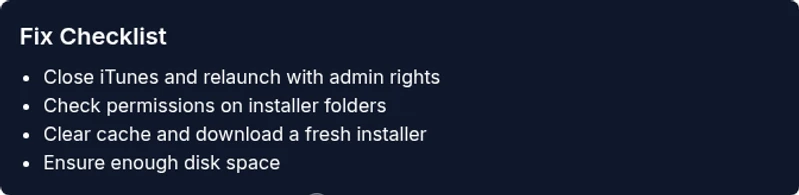
- Run the installer as administrator: Right-click the setup file and choose Run as administrator, then retry the install/update. - Temporarily disable antivirus and firewall protections: Turn off real-time protection briefly, then run the installer again. Re-enable protection immediately after the attempt. - Clear installer cache and temporary files: Delete temporary directories used by the OS and iTunes installer; restart the system before retrying. - Check disk space and file permissions: Ensure there is adequate free space and that the destination folder is not read-only. - Use a fresh official installer: Redownload the iTunes package from the official source to avoid a corrupted file.
When to Consider the Diagnostic Flow
If quick fixes do not resolve the issue, it is time to follow a structured diagnostic flow to isolate the root cause. The flow helps you differentiate permission issues from cache corruption versus security software interference, reducing guesswork and avoiding unnecessary reinstalls. This is particularly important for developers and IT pros who need a repeatable process for future errors. Remember, a careful, methodical approach minimizes downtime and data risk.
Precautions, Backups, and Safety
Always back up critical data before making changes to system files or security settings. Creating a system restore point (Windows) or a Time Machine backup (Mac) provides a safety net if something goes wrong during fixes. Avoid heavy modifications without documenting changes, and revert to known-good configurations if a new issue arises. If you operate in a managed environment (enterprise or school), consult policy guidelines before altering security software or system settings.
How this Guide Helps IT Pros and Developers
This guide is designed for the target audience of developers and IT professionals troubleshooting error codes. It blends practical steps with diagnostic thinking, enabling you to reproduce fixes, verify outcomes, and communicate clearly with teammates and end users. By following the diagnostic flow and step-by-step instructions, you can reduce average repair time and deliver predictable, safe outcomes for end users.
Steps
Estimated time: 30-60 minutes
- 1
Prepare your environment
Close all running apps, especially iTunes and any background updaters. Save work and disconnect external drives if they might interfere with installation. This reduces the chance of file locks or conflicts during the install.
Tip: Have a recent backup of your media library in case an install affects library indexing. - 2
Run the installer with elevated privileges
Right-click the iTunes installer and select Run as administrator (Windows) or open with administrator privileges (Mac). This ensures the installer can write to protected system directories and modify registry entries if needed.
Tip: If prompted by UAC, accept the elevation prompt to proceed. - 3
Clear cache and redownload
Delete temporary installer files and clear any cached bundles related to iTunes. Then download a fresh copy from the official Apple/itunes download source and verify the file integrity before running the install again.
Tip: Use a reliable network connection to avoid corrupted downloads. - 4
Check permissions and disk space
Verify that the target installation directory has write permissions for the current user and that there is sufficient disk space. If permissions are restricted, adjust them or install to a different directory.
Tip: Avoid installing on network drives or non-standard locations. - 5
Temporarily disable security software
Pause antivirus real-time protection and firewall features briefly, then retry the installation. Re-enable protections immediately after the attempt to minimize risk.
Tip: If you use a third-party security suite, consult its help docs for safe temporarily disabling. - 6
Reboot and test
Restart the system to ensure all changes take effect, then run the installer again. If the issue persists, consider alternate installation methods or contacting support.
Tip: Document each step you take so you can share exact actions with a support agent.
Diagnosis: iTunes installer reports error code 2503 during install/update
Possible Causes
- highPermission issues on the installer directory
- mediumCorrupted installer cache or temporary files
- lowConflicting security software or UAC/SIP restrictions
Fixes
- easyRun the installer as administrator and verify write permissions
- easyClear installer cache and temporary files, then re-download the official installer
- mediumTemporarily disable antivirus/firewall and adjust UAC/SIP settings if required, then retry
Frequently Asked Questions
What is error code 2503 in iTunes?
Error 2503 is a generic installer failure in iTunes, typically caused by permission problems, a corrupted installer cache, or interference from security software. It prevents the program from completing installation or updating properly.
Error 2503 means the installer couldn't finish due to permissions, a corrupted installer, or security software blocking it. Try the quick fixes and follow the diagnostic flow for a full repair.
Can antivirus programs cause error 2503?
Yes, aggressive real-time protection or firewall rules can block installer actions, triggering error 2503. Temporarily disabling protections during installation is a common workaround, but re-enable them right after the install attempt.
Antivirus can block the installer; temporarily disable protection, then re-enable after trying the install again.
Does cleaning the installer cache help?
Clearing the installer cache and downloading a fresh copy from the official source eliminates corrupted files that can cause 2503. This is one of the most effective quick fixes.
Cleaning the installer cache and re-downloading the official installer often fixes error 2503.
Should I reinstall iTunes entirely?
If permissions, cache, and security software adjustments fail, a clean reinstall of iTunes can resolve deep-seated issues. Ensure you have a backup of your library first.
Reinstall iTunes if simpler fixes fail; back up your library first.
Is this issue OS-specific?
Error 2503 can occur on Windows or macOS, depending on the installer and system configuration. The fixes are largely the same: permissions, cache, and security settings.
It can happen on Windows or macOS; the same fixes generally apply.
What if none of the fixes work?
If fixes fail, gather logs and contact support with your system details. A more advanced approach may involve deeper OS diagnostics or vendor escalation.
If fixes fail, contact support with your system details for deeper diagnostics.
Watch Video
Top Takeaways
- Investigate permissions and cache first
- Follow the diagnostic flow for repeatable results
- Use the step-by-step fixes before reinstalling macOS/Windows components
- Back up data and enable protections after testing
- When in doubt, escalate to professional support