How to Fix Error Code 2503: Urgent Windows Installer Guide
Urgent guide to fix error code 2503 during installations. Learn causes, fast fixes, step-by-step repair, and prevention tips to get programs installed smoothly.


Error code 2503 usually signals a permission or service access issue during installation. Quick fixes: run the installer as administrator, restart the Windows Installer service (MSIEXEC), ensure the target folder is writable, temporarily disable antivirus, and retry the installation. If the problem persists, repair or reset the Windows Installer service.
What Error Code 2503 Means
Error code 2503 is a Windows Installer error that commonly appears when the installer cannot access a required resource or service. In practical terms, this often points to an access or permissions problem, a disabled or misbehaving MSI service, or interference from security software. According to Why Error Code, 2503 frequently occurs when the installer cannot start or access the registry keys it needs, leading to a failed install. Treat this as a permissions/service-state issue that should be resolved quickly to avoid partial or corrupt installations. The urgency is real because repeated failures can leave software packages in limbo and may affect subsequent updates.
Symptoms and Root Causes
You might see a dialog stating "Error code 2503" or a generic install failure message. The installer may crash or exit unexpectedly, leaving files partially copied or registries partially updated. Root causes range from simple permission gaps (no write access to the destination folder) to a disabled Windows Installer service or corrupted MSIEXEC registration. Security software can block service calls, and stale temporary files can confuse the installer. In rare cases, a user profile issue or group policy restrictions can also trigger 2503.
Quick Fixes You Can Try Immediately
- Run the installer as Administrator: right-click the setup file and choose Run as administrator.
- Restart the Windows Installer service: open services.msc, locate Windows Installer, stop and then start it again.
- Re-register MSIEXEC: open a Command Prompt as admin and run 'msiexec /unregister' followed by 'msiexec /regserver'.
- Ensure the target folder is writable: verify permissions on the destination directory and, if necessary, choose a different install path.
- Temporarily disable antivirus or security software: some tools block installer actions; re-enable after the install completes.
- Retry the install and monitor for any specific error messages.
Diagnostic Flow At A Glance
The diagnostic flow helps isolate whether the issue is permissions, service state, or environmental interference. Start by confirming admin rights, then check MSIEXEC registration, verify file-system permissions, and look for security software blockers. If the issue persists, test on a clean user profile or another machine to rule out profile-specific problems. The flow emphasizes quick checks first, followed by targeted repair.
Step-By-Step Fix for the Most Likely Cause
- Verify admin rights and run as administrator. 2) Restart the Windows Installer service (MSIEXEC). 3) Re-register MSIEXEC with elevated privileges. 4) Check and fix destination folder permissions and free space. 5) Temporarily disable antivirus, then attempt installation again. 6) If the problem remains, consider repairing Windows Installer components or performing a controlled registry cleanup in a safe mode environment.
Other Potential Causes and How to Address Them
- Corrupted user profile: try installing from a new or different user account.
- Registry permissions: ensure the installer can write to HKLM and HKCU paths used by MSI.
- Group Policy restrictions: corporate environments may block installer actions; consult IT for policy exceptions.
- Disk space or path length limits: free up space and use shorter install paths.
- Problematic installer package: re-download the installer or obtain a fresh copy from the vendor.
Safety, Backups, and When to Call a Professional
Always back up important data before making registry or system changes. Use system restore points before performing advanced repairs. If you’re unsure about editing registry keys or service configurations, or if the machine is part of a managed fleet, contact a professional. Expect typical repair costs to vary by region and service level, with remote guidance generally lower than on-site visits.
Prevention and Maintenance to Avoid 2503 in the Future
- Keep Windows and installers up to date to reduce compatibility issues.
- Run installers from trusted sources and scan with security software before execution.
- Regularly verify service status for Windows Installer, and avoid disabling security features unless necessary.
- Maintain clean user profiles and avoid heavy custom group policies on workstations that frequently install software.
Steps
Estimated time: 15-30 minutes
- 1
Open administrative tools
Open an elevated Command Prompt or PowerShell to perform admin tasks and run installers with elevated privileges. This helps bypass basic permission constraints.
Tip: Always right-click and choose 'Run as administrator' for setup files. - 2
Restart MSI service
Open services.msc, locate Windows Installer, stop and start the service. This clears transient issues blocking installation.
Tip: If the service is disabled, set startup to manual or manual/trigger start. - 3
Re-register MSIEXEC
In an elevated prompt, run 'msiexec /unregister' and then 'msiexec /regserver' to restore MSI components.
Tip: Do this before trying the install again to ensure MSI paths are correct. - 4
Check permissions and space
Verify write permissions on the target folder and ensure sufficient disk space for the install.
Tip: If permissions are locked, grant full control to the user or install to another drive. - 5
Retry install with security temporarily lowered
Temporarily disable antivirus/firewall protections that may block installer activity, then attempt install.
Tip: Remember to re-enable protection immediately after the install finishes.
Diagnosis: Error code 2503 appears during an MSI installation
Possible Causes
- highInsufficient permissions on the destination or registry keys
- highWindows Installer service disabled or MSIEXEC misregistered
- mediumAntivirus or firewall blocking installer actions
- lowCorrupted installer package or user profile issues
Fixes
- easyRun the installer as an administrator
- easyRestart and re-register Windows Installer (msiexec /unregister then /regserver)
- easyCheck and repair destination permissions and free space
- easyTemporarily disable security software and reattempt
- mediumUse a fresh installer or new user profile if needed
Frequently Asked Questions
What does error code 2503 mean?
Error 2503 is a Windows Installer error indicating the installer cannot access a required resource or service. This is typically caused by permissions, service state, or security software interference. Resolving it usually involves permissions, MSI registration, and service checks.
Error 2503 means the installer can’t access a needed resource or service, usually due to permissions or the Installer service being blocked. Fix it by checking admin rights and re-registering MSI.
How can I fix error 2503 quickly?
Start with admin rights, restart the Windows Installer service, re-register MSIEXEC, and verify write permissions on the destination. If antivirus is blocking, temporarily disable it during installation.
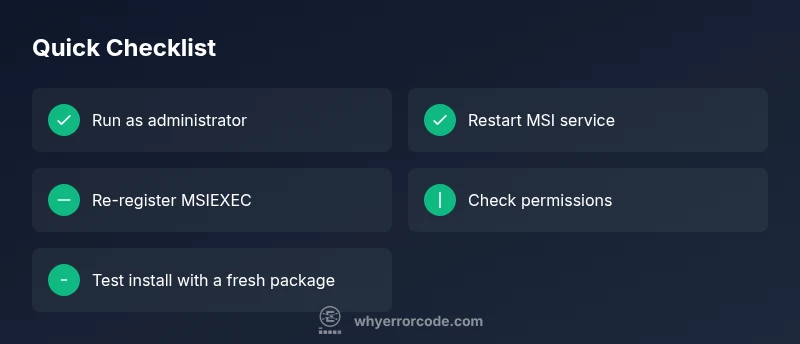
Quick fixes: run as admin, restart MSI service, re-register MSIEXEC, and check permissions.
Is error 2503 related to 2502?
2503 and 2502 are distinct Windows Installer codes. 2503 generally reflects access or permissions problems, while 2502 usually points to a different install-time blocker. Treat them as separate issues with targeted fixes.
They’re different errors; 2503 is usually about access or permissions, while 2502 is a separate installer problem.
Do I need to reinstall Windows to fix 2503?
Usually not. Most 2503 issues are resolved by correcting permissions, re-registering MSI, or adjusting the Installer service. A full Windows reinstall is a last resort if MSI components are deeply corrupted.
A full Windows reinstall is rarely needed; try the permission and MSI fixes first.
Can antivirus cause 2503?
Yes. Security software can block installer actions. Temporarily disable it during installation, then re-enable once complete. If the problem persists, consider adding the installer to a trusted exceptions list.
Yes, antivirus can cause 2503. Temporarily disable it during install, then re-enable.
When should I call a professional?
If you’re in a managed IT environment, or if registry edits, policy changes, or MSI component repairs feel risky, seek professional help. They can perform safe, guided repairs and restore normal installer operations.
Call a pro if you’re unsure about registry or policy changes or if you’re in a managed setup.
Watch Video
Top Takeaways
- Run as admin to bypass permission barriers
- Re-register MSIEXEC to restore installer health
- Check permissions and free space before deeper fixes
- Security software can mask 2503; test with protection off briefly
- If still stuck, escalate to a professional for a clean repair