Error Code 404 Fix: Urgent Recovery Guide
Urgent guide to understand 404 errors, diagnose quickly, and implement fixes to restore pages. Learn common causes, step-by-step repairs, and safety tips to prevent recurrence.


Error code 404 fix means the server cannot locate the requested resource. The quickest path is to verify the URL, reload the page, and clear your browser cache. If the page should exist, check for broken internal links, moved content, or incorrect redirects. For sites you manage, review routing rules and file presence; if in doubt, contact your hosting provider.
What error code 404 means and when it shows up
The 404 Not Found status is returned by web servers when a client requests a resource that does not exist at the given URL. This can happen for many reasons: a moved or renamed page, a broken internal link, a mistyped slug, or a deleted file. Not all 404s are created equal—some are user-facing, while others light up in server logs. For developers and IT pros, recognizing the pattern of 404s and their root cause is the first step in a fast recovery. When you see a flurry of 404s from search bots or from internal navigation, you know you’re facing either broken links, improper redirects, or stale caches.
Common signals include missing assets (images, scripts), CMS permalink changes, or content migrations without proper redirects. Understanding the difference between a
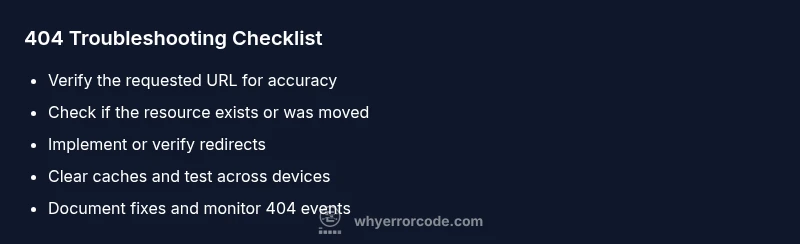
Steps
Estimated time: 45-75 minutes
- 1
Verify resource path
Inspect the requested URL for typos, case sensitivity, and trailing slashes. If the path looks off, correct it and retry. Use server logs to confirm which path was requested.
Tip: Copy-paste the URL into the address bar for exact matching. - 2
Check the destination exists
Confirm the resource exists at the specified path. In a CMS, check the content item and its permalinks. On a file-based site, verify the file is present on disk with correct extension and case.
Tip: If you migrated content, ensure filenames preserve important slugs. - 3
Implement redirects if needed
If the resource moved, set up a 301 redirect from the old URL to the new one. This preserves SEO and user experience. Update any sitemaps accordingly.
Tip: Prefer permanent redirects for moved content. - 4
Review server routing and rewrites
Examine .htaccess, nginx.conf, or routing rules to ensure the path resolves correctly. Misconfigurations can inadvertently cause legitimate pages to 404.
Tip: Test redirect chains to avoid loops. - 5
Clear caches and test again
Flush server caches, CDN caches, and browser caches. Re-check from multiple devices and networks to rule out local caching.
Tip: Disable cache during testing to see live results. - 6
Document and monitor
Record what fixed the issue and monitor 404 activity. Set alerts for sudden spikes so you can act quickly in the future.
Tip: Create a 404 landing page with helpful navigation to keep users engaged.
Diagnosis: 404 error observed when accessing a URL
Possible Causes
- highBroken or moved resource (404 Not Found)
- highIncorrect URL or misspelled slug
- mediumBroken internal link or outdated sitemap
- lowServer misconfiguration or routing issue
Fixes
- easyVerify URL, correct typos, ensure correct slug
- mediumUpdate or add redirects (301/302) to valid URLs
- hardRestore missing resource or database entry
Frequently Asked Questions
What does HTTP 404 Not Found mean?
HTTP 404 Not Found means the server couldn’t locate the requested resource at the provided URL. It’s a client-side response that can result from a moved, renamed, or deleted page. It can also occur due to typos or broken links.
HTTP 404 means the page wasn’t found on the server. Check the URL for errors and try again.
Why do I see 404 after clicking a link?
A 404 after clicking a link usually means the destination page was moved or deleted, or the link is outdated. It can also indicate a broken internal link, a routing change, or a CMS permalink problem.
The link points to a page that doesn’t exist anymore. Check the link and try the correct path.
Is a 404 error the same across browsers?
Yes, a 404 error generally means the same thing across browsers: the server can’t find the requested resource. However, browser caches may cause a stale 404 to appear temporarily.
It’s usually the same code everywhere, but caches can make it feel different temporarily.
Can DNS issues cause a 404?
DNS issues typically cause DNS errors rather than 404s. A 404 is usually server-side or path-related, but cached DNS results can indirectly influence how resources load if the domain resolves incorrectly.
A DNS problem can lead to pages not loading, but 404 usually points to the page path rather than the domain itself.
How can I prevent 404 errors on my site?
Preventing 404s involves maintaining accurate internal links, implementing redirects when content moves, and keeping sitemaps up-to-date. Regular site audits help catch broken links before users do.
Keep links up-to-date and redirect moved pages so visitors don’t hit a dead end.
Watch Video
Top Takeaways
- Validate the URL before blaming the server
- Use 301 redirects for permanent moves
- Clear caches and DNS when diagnosing
- Document fixes to prevent recurrence