HP Printer Error Codes: Fast Diagnosis & Fixes
Learn to interpret HP printer error codes, identify common causes like jams, ink and connectivity, and follow a practical diagnostic flow to fix faults quickly. Includes quick fixes, step-by-step repair, safety tips, and prevention strategies.


HP printer error codes signal faults in hardware, software, or connectivity. They point to specific problems like paper jams, low ink, cartridge issues, or network problems. Start with a quick power cycle and basic checks, then move to targeted fixes if the code persists.
What the HP printer error code means
In HP printers, an error code is more than a random sign; it is a structured signal from firmware that something in the print path, cartridge system, or network stack is not functioning correctly. Error codes categorize faults into hardware (paper path, sensor or fuser), consumables (ink, toner, or carriage), and software/driver or communication problems. When an error code appears, it is paired with a status light pattern or pop-up message that helps you triage quickly. Understanding the sender—whether the fault came from a jam, a low supply, or a connectivity hiccup—lets you choose a focused repair rather than a blind guess. In our guide, we break down HP printer error codes into practical categories and provide a proven diagnostic flow so you can minimize downtime. Quick wins include basic power cycling, checking for visible jams, and confirming cartridges are correctly seated. Throughout, remember that codes are hints, not verdicts, and a systematic approach yields the fastest resolution.
Reading and locating the error code on HP printers
On most HP printers the error code is displayed on the control panel or within the printer software. If the device is connected to a computer, check the printer queue or HP Smart app for the exact alphanumeric code. Note the code, the fault description, and the context (what you were printing, which tray was active, and whether the alert began after a power event). If you rely on the display, take a photo of the screen for reference when you search the web or contact support. Keeping a small log of codes and times helps identify patterns across multiple print jobs or devices in the same network.
Common categories of HP printer errors
Most HP printer errors fall into broad categories that you can triage quickly: Paper jam or misfeed; Low ink/empty cartridge; Cartridges not seated or incompatible; Print head or nozzle problems; Connection and wireless issues; Driver or firmware faults; Sensor or tray detection errors. In addition to the code, the device may blink a pattern, or show a message like 'Paper jam' or 'Low ink'. Understanding which category applies guides the repair path—hardware versus software—without guessing. We'll map common examples to the appropriate fixes so you can decide whether to attempt a quick fix or escalate.
Quick fixes you can try now
Start with the simplest fixes that don't require tools: 1) Power cycle: turn off, unplug, wait 60 seconds, then plug back and power on. 2) Check the paper path and clear any jams; inspect rollers and ensure paper is loaded correctly. 3) Verify cartridges: reseat each cartridge, and replace any empty or damaged ones. 4) Confirm printer settings match paper size and type. 5) If the issue is network-related, reconnect to the correct Wi-Fi or switch to a USB connection. 6) Update firmware and drivers to the latest version via the printer menu or HP software. If a fix resolves the code, test by printing a diagnostic page.
Step-by-step repair for the most common cause: Paper jam path
- Turn off and unplug the printer. 2) Open all access panels and remove the input tray and output path to inspect for jammed paper. 3) Gently pull out any stuck sheets, taking care to avoid tearing and leaving tiny fragments behind. 4) Reset rollers and ensure none are warped; reload paper of the correct size. 5) Close panels, plug in, and power on. 6) Print a calibration or diagnostic page to confirm the fix. Tip: use a flashlight to spot tiny scraps and avoid forcing pieces through the path.
Other causes and fixes
Beyond paper jams, the next common causes are cartridge issues, misinstalled or incompatible cartridges, and firmware or driver faults. For cartridge problems, reseat all cartridges, verify the color count, and run a print head cleaning if available. For firmware issues, connect to the internet, run the update, and perform a full reset if recommended by HP. If the printer still shows error codes after these steps, you likely have a hardware fault requiring intermediate service.
Safety, cost considerations, and when to call a professional
Safety: always power off before opening panels; do not touch internal components with wet hands; avoid forcing jammed paper. Cost: service calls typically range from $100 to $250 depending on location and the fault, while replacement cartridges cost $20–$100 each. If the device is still under warranty, contact HP support for service options. If you hear unusual noises, see smoke, or notice exposed electronics, stop and call a professional immediately.
Prevention and best practices to minimize future HP printer errors
Establish a simple maintenance routine: check for firmware updates monthly, use high-quality paper, avoid overloading trays, store cartridges upright, run print head cleanings only when necessary, and keep a log of codes for pattern detection. Regular cleaning of the paper path and sensors helps reduce jams. A stable network and updated drivers also minimize connectivity errors. The goal is to reduce downtime and extend the printer's life.
Steps
Estimated time: 30-60 minutes
- 1
Identify the error and reproduce symptoms
Note the exact error code and message. Check when it appears (during print, scan, or wake). If possible, reproduce the issue with a simple print to confirm consistency. This step ensures you’re addressing the correct fault.
Tip: Take a photo of the error screen for reference when researching fixes. - 2
Power cycle and basic checks
Power the printer off, unplug, wait 60 seconds, then plug in and power on. Check cables, USB ports, and the network connection. Verify the printer is selected as the default in your OS.
Tip: A fresh restart can clear many software glitches. - 3
Inspect paper path and clear jams
Open all access panels and trays. Remove any jammed paper carefully, avoiding torn scraps. Reseat paper correctly and ensure guides align with the paper size.
Tip: Use a flashlight to spot tiny fragments that could trigger another jam. - 4
Check and reseat cartridges
Remove and reinsert all cartridges, confirming they click into place. Replace any empty or damaged cartridge. Run a print head cleaning if your model supports it.
Tip: Avoid touching cartridge nozzles to prevent clogs. - 5
Update firmware and drivers
Connect to the internet and install the latest firmware and printer driver updates. If the update requires a restart, perform it and re-test the device.
Tip: Use the official HP software for the most reliable updates. - 6
Test print and document results
Print a diagnostic or test page. Compare results to baseline expectations and record any residual codes or warnings. If issues persist, proceed to escalation.
Tip: Document the steps you took to help tech support diagnose faster.
Diagnosis: HP printer displays an error code and stops printing.
Possible Causes
- highPaper jam or misfeed in the path
- mediumLow ink/empty cartridge or cartridge misseat
- lowCommunication issues (USB/Wi‑Fi) or driver/firmware faults
Fixes
- easyPower cycle the printer (turn off, unplug, wait 60 seconds, then power on)
- easyOpen access panels and clear any jams; inspect the paper path and rollers
- easyReseat or replace cartridges; ensure correct color and seating
- mediumUpdate firmware and drivers via the control panel or HP software
- mediumReset network settings and reconnect to the correct network
Frequently Asked Questions
What should I do first when I see an HP printer error code?
Note the code, power cycle, and perform basic checks like paper jam clearance and ink levels. If the code remains, use the diagnostic flow to guide the fixes.
Note the code, power cycle, and perform basic checks. If the code stays, follow the diagnostic flow for fixes.
How can I locate the HP printer error code?
The code appears on the printer display or in the printer software/queue on your computer or mobile app. Record the exact code and message.
Look at the printer screen or the computer/app to find the exact code, then record it.
Is it safe to update firmware during an error condition?
Firmware updates are generally safe when the printer is plugged in and stable. Do not update during a power outage or if the device is unstable.
Yes, as long as the printer is stable and plugged in, you can update firmware.
Should I replace cartridges to fix a code?
If cartridges are low or empty, replace or reseat them. Some codes trigger from incompatible or mis-seated cartridges.
Yes, low cartridges can trigger errors; replace or reseat them.
What if the error persists after fixes?
Document steps taken, verify cables and connections, try alternate connection methods, and contact HP support if the code remains.
If it sticks after fixes, check connections and contact support.
When is it necessary to call a professional?
If the error code remains after all fixes or you hear unusual noises, seek professional service to avoid further damage.
Call a professional if it still fails after fixes.
Watch Video
Top Takeaways
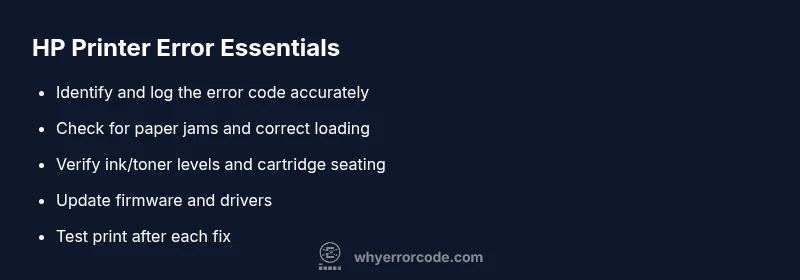
- Start with a power cycle and basic checks.
- Identify the error code and categorize the fault.
- Prioritize fixes by likelihood (paper jams first).
- Escalate to professional help if the code persists after fixes.