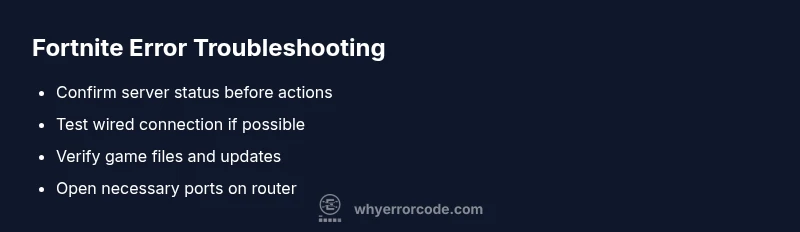
Error Codes on Fortnite: Troubleshooting and Fixes
Struggling with an error code on Fortnite? This guide provides fast, practical diagnostics, fixes, and prevention tips to get you back into Fortnite quickly.


The most likely cause of a Fortnite error code is network or server connectivity problems. Quick fix: restart Fortnite and your device, verify game files, try a wired connection or move closer to your router, and switch to a reliable DNS (like Google DNS). If the code persists, check Fortnite server status and retry later. For complex issues, consult the detailed steps below and follow the diagnostic flow from symptom to solution.
What causes an error code on fortnite
Error codes in Fortnite typically signal network or server-side problems rather than a flaw in your PC or console alone. The most common culprits include unstable internet connections, packet loss, congested or blocked traffic, NAT type restrictions, and temporary server maintenance. VPNs or proxies can also interfere with routing, especially if they force you through distant endpoints. Client-side factors matter too: an outdated game version, corrupted cache, or a faulty launcher can trigger authentication or matchmaking errors. Understanding the category helps you target fixes faster: connectivity, authentication, matchmaking, or server status. According to Why Error Code Analysis, 2026, the majority of user-reported Fortnite errors stem from network issues rather than a broken patch. If you’re seeing an error code on fortnite, your first step is to verify your network connection and the Fortnite server status. This context-aware approach, championed by Why Error Code Analysis, helps you decide quickly whether you should focus on your home network or wait for Epic Games to resolve a server issue.
Quick checks to run before deeper troubleshooting
Before diving into fixes, perform quick, low-effort checks to rule out the most common causes:
- Confirm whether your device connects to the internet normally with other apps
- Check your router, reboot it, and test a wired connection if possible
- Run a speed test to verify baseline bandwidth and stability
- Ensure your Fortnite client is up to date and that the game cache is not corrupted
- Temporarily disable VPNs or proxies to see if they’re interfering
- Review Epic Games’ server status page for any ongoing outages or maintenance
If the problem persists after these checks, move to the next diagnostic steps to pinpoint the exact cause.
Steps
Estimated time: 40-60 minutes
- 1
Document the symptom
Record the exact error code, where it appears (launch or matchmaking), and the time of occurrence. Reproducing the problem helps verify whether the fix works.
Tip: Take a screenshot or note the exact code for support. - 2
Check server status
Visit the official Fortnite server status page or social channels to confirm if there is a known outage or maintenance window.
Tip: If servers are down, you may need to wait for Epic Games to resolve it. - 3
Test your network connection
Run a speed test and try a different device or a different network (mobile hotspot) to see if the issue is network-related.
Tip: If others on the same network are fine, the problem may be local to your device. - 4
Try a wired connection
If you’re on Wi‑Fi, connect an Ethernet cable or move closer to the router to reduce packet loss and latency.
Tip: Wired connections are typically more stable for gaming. - 5
Disable VPNs/proxies
Turn off any VPNs or proxies that may reroute traffic and cause Fortnite to reject connections.
Tip: Some corporate networks route through restrictive proxies; temporarily disable to test. - 6
Verify game files and update
Use the launcher (or platform) to verify integrity of the Fortnite game files and install any pending updates.
Tip: Corrupted files are a common source of authentication errors. - 7
Adjust NAT or firewall rules
If you control your router, ensure your NAT type isn’t strict and that essential ports are open for Fortnite.
Tip: Common ports include 80/443 for TCP and 3074 UDP for Fortnite on consoles. - 8
Reinstall if needed
As a last resort, uninstall and reinstall Fortnite to rule out persistent local corruption.
Tip: Backup any local data if applicable and ensure you have your account credentials.
Diagnosis: Fortnite shows an error code and cannot connect or launch
Possible Causes
- highIntermittent or poor internet connection
- mediumEpic Games server outage or maintenance
- lowStrict NAT type or blocked ports by firewall/ISP
- lowVPN/proxy interference
- lowOutdated game client or corrupted cache
Fixes
- easyTest internet and router stability; try a different device on the same network
- easyCheck Fortnite server status and wait if there is an outage
- easyRestart router/modem and ensure you’re on a stable connection
- mediumTemporarily disable VPN/proxy and firewall blocks to test connectivity
- easyVerify game files and install available updates for the Fortnite client
- mediumOpen required ports or adjust NAT settings if you control the network
- hardReinstall Fortnite if none of the above resolves the issue
Frequently Asked Questions
What causes a Fortnite error code?
Fortnite error codes are usually caused by connectivity problems, server outages, or client-side issues like corrupted cache. Identifying the category helps you apply the right fix quickly.
Most Fortnite error codes come from network or server issues. Start with your connection and server status, then move to device-specific fixes if needed.
How do I check Fortnite server status?
Visit the official Fortnite server status page or trusted social channels for real-time updates. If there’s an outage, you’ll typically see a notice with estimated resolution time.
Check the Fortnite status page or official channels for outages before troubleshooting on your end.
Does using a VPN affect Fortnite error codes?
Yes. VPNs or proxies can reroute traffic in ways that Fortnite can block or flag as suspicious. Temporarily disable them to test connectivity.
If a VPN is active, turn it off and test your connection again.
Should I reinstall Fortnite to fix an error code?
Reinstalling is a last resort when other fixes fail. It can resolve deeply corrupted files, but ensure you have account access and save data if applicable.
Only reinstall if the issue persists after all other steps.
How long do Fortnite error codes usually last?
Outage-related errors last as long as the server maintenance or outage; once servers are stable, errors typically disappear. You can try later and monitor status pages.
If servers are down, you just need to wait for the service to return.
Can changing DNS help resolve Fortnite errors?
Switching to a faster, reliable DNS can reduce resolution delays and improve connection stability, potentially fixing some error codes.
Yes—changing DNS can help with certain connection issues.
Watch Video
Top Takeaways
- Diagnose network issues first; they are the most common Fortnite errors.
- Check server status before applying fixes to avoid unnecessary steps.
- Verify game integrity and keep software up to date.
- NAT type and firewall settings can block Fortnite traffic; adjust if needed.
- If unresolved, collect error details and contact support with logs.