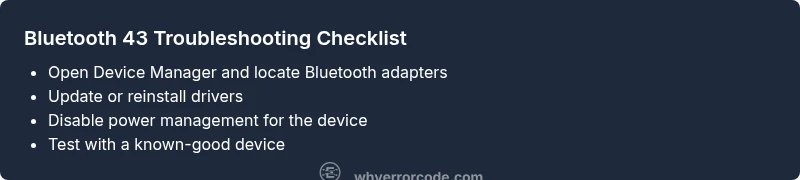
How to Fix Bluetooth Error Code 43 in Windows 7
Learn how to diagnose and fix Bluetooth error code 43 on Windows 7. Follow practical steps, safety tips, and pro fixes from Why Error Code to restore wireless connectivity quickly.


Bluetooth error code 43 on Windows 7 means the device failed to start due to driver or hardware issues. Quick fixes include re-enabling the Bluetooth adapter, updating or reinstalling drivers, and running a clean boot to rule out software conflicts. If the error persists, try a test with another device to isolate the problem.
Why Bluetooth Error Code 43 Happens on Windows 7
Bluetooth error code 43 on Windows 7 typically appears when the Bluetooth device cannot initialize. Common culprits include outdated or corrupted drivers, conflicts with other software, and power-management settings that cut power to the device. The root cause is usually software-related rather than a failed hardware component, especially on older Windows builds. According to Why Error Code, recognizing this pattern helps you triage quickly and avoid unnecessary hardware replacements. By focusing on driver health and service status, you can reclaim lost functionality without lengthy downtime.
Quick Checks You Can Do Right Now
Before diving into deep troubleshooting, perform a few fast checks:
- Confirm the Bluetooth adapter is enabled in BIOS/UEFI and in Windows.
- Toggle Bluetooth off and on, then reconnect the device.
- Open Device Manager and look for warning icons on Bluetooth devices.
- Run Windows Update to capture any driver updates that may be available.
- If possible, test the device on another PC to determine if the issue is machine-specific.
These quick checks set the stage for a focused diagnostic flow and can often resolve the issue without more invasive steps.
Diagnostic Flow Overview
When Bluetooth 43 appears, follow a structured flow:
- Symptom: Device shows error 43 or is not starting.
- Likely causes (in order): driver issue, service/driver conflict, hardware fault in the Bluetooth adapter.
- Immediate fixes: update/reinstall driver, restart Bluetooth services, perform a clean boot to remove software conflicts.
- If unresolved: test with another device, try a USB Bluetooth dongle, or consider hardware replacement.
Why this order matters: drivers are the most common failure point; software conflicts are the next frequent culprit; hardware faults are rarer but possible on aging machines.
Step-By-Step Fix: Most Common Cause (Driver Issue)
- Update the Bluetooth driver from the manufacturer’s site or via Device Manager. Ensure you choose the Windows 7 (32-bit or 64-bit) version that matches your system. This can clear corrupted driver files and reestablish proper communication with the OS.
- If updating doesn’t help, reinstall the driver. In Device Manager, uninstall the device, then reboot to let Windows reinstall the driver automatically. For stubborn cases, install the driver package manually after a clean boot.
- Disable power management for the Bluetooth device. In Device Manager, right-click the Bluetooth adapter, choose Properties, then Power Management, and uncheck “Allow the computer to turn off this device to save power.” This prevents unexpected disconnects.
- Perform a clean boot to rule out third-party software conflicts. Disable non-Microsoft services and startup items, then re-enable them in batches to identify a potential culprit.
- Test connectivity with a different Bluetooth device. If other devices work, the original device may be incompatible or defective.
- If the issue persists, consider using a USB Bluetooth dongle as a workaround. Many USB adapters offer broader compatibility with older Windows versions and can bypass built-in adapter issues.
Estimated time for this section: 25-45 minutes.
tip1_1nullable
tip2
description2
Steps
Estimated time: 25-45 minutes
- 1
Open Device Manager and find Bluetooth adapters
Right-click Computer on the Start menu, choose Manage, then Device Manager. Expand Bluetooth, locate your adapter, and note any warning icons. This is the first checkpoint to confirm if Windows sees the hardware at all.
Tip: If you don’t see Bluetooth listed, you may need a USB dongle for testing. - 2
Update or reinstall the driver
Right-click the adapter, choose Update driver and follow prompts. If Windows can’t locate a new driver, uninstall the device and reboot to reinstall automatically, or install the latest version from the vendor.
Tip: Prefer the vendor’s site for the most compatible Windows 7 driver. - 3
Disable power management for the device
In Device Manager, open the adapter’s Properties, go to Power Management, and uncheck ‘Allow the computer to turn off this device to save power.’ This reduces inadvertent disconnects.
Tip: Applied power settings can silently re-trigger 43 if the device enters low-power mode. - 4
Perform a clean boot to rule out software conflicts
Use msconfig to disable startup programs and non-Microsoft services, then restart. If Bluetooth works in clean-boot mode, re-enable items in small groups to identify the offender.
Tip: Keep a log of what you disable to accelerate troubleshooting. - 5
Test with another Bluetooth device
Pair a different headset or mouse to verify whether the problem is device-specific or system-wide.
Tip: If other devices connect without issue, your original device may be faulty. - 6
Consider a USB Bluetooth dongle as a workaround
If the built-in adapter remains unreliable, a USB dongle can restore functionality with broader compatibility on Windows 7.
Tip: Choose a dongle known to work with Windows 7 and your hardware configuration.
Diagnosis: Bluetooth device not starting on Windows 7 with error code 43
Possible Causes
- highOutdated or corrupted Bluetooth driver
- mediumSoftware conflicts or misconfigured services
- lowHardware fault in the Bluetooth adapter
Fixes
- easyUpdate the Bluetooth driver from the manufacturer or via Device Manager
- easyReinstall the Bluetooth driver after uninstalling it
- easyDisable power management for the Bluetooth device
- easyRun a clean boot to remove software conflicts
Frequently Asked Questions
What does Bluetooth error code 43 mean in Windows 7?
Error 43 indicates the Bluetooth device failed to start, usually due to a driver or hardware issue. It is common on older Windows installations when drivers become incompatible or corrupted.
Error 43 means the Bluetooth device couldn't start, typically because of driver or hardware problems.
Can I fix error code 43 without reinstalling Windows?
Yes. In most cases, updating or reinstalling the Bluetooth driver, adjusting power settings, and performing a clean boot resolves the error without a Windows reinstall.
You can usually fix it by updating drivers, adjusting settings, and possibly a clean boot instead of reinstalling Windows.
Will an external USB Bluetooth adapter work around this error?
An external USB Bluetooth adapter often bypasses the faulty internal adapter and can restore functionality, especially on Windows 7 where drivers may be more compatible with newer dongles.
A USB Bluetooth dongle can work around the built-in adapter if the internal hardware is problematic.
When should I consult a professional for Bluetooth error 43?
If you have attempted driver updates, service tweaks, and hardware testing without success, or if the device is under warranty but not recognized, professional help may be warranted.
If basic fixes don’t work and hardware could be failing, consider professional support.
Why does this happen more on Windows 7 than newer OS versions?
Windows 7 lacks some modern driver management improvements found in newer systems, leading to more compatibility issues with older Bluetooth hardware and drivers.
Windows 7’s driver support is older, so compatibility issues are more common with Bluetooth hardware.
Watch Video
Top Takeaways
- Update drivers first and test,
- Rule out software conflicts with a clean boot
- Disable power management for the Bluetooth device
- Consider a USB dongle if the built-in hardware is faulty