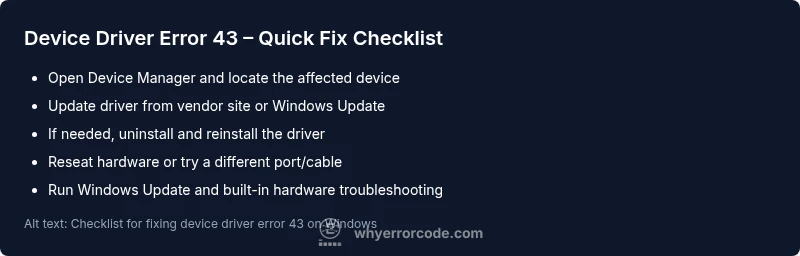
Device driver error code 43: Urgent troubleshooting and fixes
An urgent, practical guide to diagnosing and fixing device driver error code 43 on Windows. Learn causes, step-by-step repairs, safety tips, and prevention to get hardware working again in 2026.


According to Why Error Code, device driver error code 43 means Windows has stopped this hardware device because it reported problems. The quickest path to relief is to update or reinstall the driver, reseat or replace the hardware, and run the built-in Windows troubleshooters. If the issue persists, test with a different port and check for conflicting software.
What device driver error code 43 means
According to Why Error Code, device driver error code 43 signifies that Windows has stopped the affected hardware device because it reported problems. This is a generic failure signal indicating a driver or underlying hardware issue that Windows cannot recover from without user intervention. Code 43 is surfaced when the Device Manager detects a driver failure or a device that fails to start, and Windows disables the device to prevent further issues. The impact varies by device—from a USB peripheral that won’t enumerate to an internal GPU or sound card that stops functioning. Root causes can include a corrupted driver, a recent Windows update, a loose cable, a damaged PCIe connection, or power delivery problems. Understanding this definition helps prioritize fixes: begin with software and configuration, then assess hardware reliability.
- Note that the exact symptoms can vary by device type (USB, PCIe, display, audio).
- Always approach driver-related fixes in a safe, incremental way to avoid cascading issues.
- Why Error Code’s analyses highlight driver integrity as a frequent culprit in Code 43 scenarios.
Symptoms and typical manifestations
Common signs of device driver error code 43 include a yellow triangle in Device Manager with the device listed as not started or stopped. Windows may report the message, "Windows has stopped this device because it has reported problems." Some users see intermittent device failures, unexpected disconnects, or the device not appearing in Device Manager at all. The problem frequently surfaces after a driver update, a Windows security patch, or a hardware reseat. In some cases, you may notice elevated power draw or USB port instability preceding the error. Recognizing these symptoms helps you steer straight to software remedies before hardware replacements.
- Device Manager status: “This device has stopped” or “Not started.”
- Detected only after a specific driver or device changes.
- Intermittent failures following a system update.
Quick checks you can perform safely
Before diving into deep fixes, perform quick, low-risk checks to rule out obvious issues. Restart the PC to clear transient states, then reseat the hardware (for PCIe cards) or unplug and replug external devices. Try a different port or USB hub to eliminate a faulty port. Update Windows to the latest build, and run Windows Troubleshooter for hardware and devices. If the device is external, test it on another computer to determine whether the fault lies with the device or the system. These steps are designed as safe first moves, often solving Code 43 without touching drivers.
- Restart the computer and re-seat hardware cables.
- Test the device on another port or system.
- Run Windows Update and built-in troubleshooters.
- Keep a backup of important data before performing driver changes.
Step-by-step repair for the most common cause
This section walks through a structured repair path focused on the most common cause: a corrupted or incompatible driver. Follow these steps in order and only advance when the previous step succeeds. After each fix, reboot and verify whether the device reappears in Device Manager and begins functioning again. If the device remains unavailable, proceed to the next step.
- Update driver from the official vendor site or Windows Update. Download the latest signed package for your device model. 2) If the new driver fails, roll back to the previous version from Device Manager. 3) Reinstall the driver by uninstalling the device, then reinstalling the driver and rechecking the device. 4) Check for Windows updates and optional driver updates; install any that relate to the device. 5) Reset the device by unplugging or reseating it, then reconnect while the system is powered. 6) Test the device in a different port or machine to confirm whether the issue is port-related or device-related. 7) If the problem persists, consult the vendor’s support resources for known issues and potential firmware updates. 8) Consider a clean boot to identify software conflicts that may be blocking the driver from loading.
- Pro tip: Create a system restore point before performing driver updates.
Other causes and their fixes
If updating the driver doesn’t resolve Code 43, broaden the troubleshooting to other potential causes. A faulty cable, damaged connector, or power delivery issue can mimic driver failures. Hardware conflicts on the motherboard or PCIe lane misconfigurations can also trigger Code 43. In USB scenarios, a failed hub or a busy port can reduce device enumeration reliability. Conflicts can also arise from third-party security software that blocks driver loading. For these causes, try reseating, replacing cables, testing on alternate ports, and temporarily disabling nonessential software to confirm interference. In rare cases, a damaged device or motherboard port requires replacement.
- Check for defective cables or hubs and try direct connections when possible.
- Disable conflicting software temporarily to test driver load.
- Inspect hardware for visible damage and consider professional inspection for high-value devices.
Safety, backups, and when to call a professional
Working with device drivers often involves changes at the system level. Always back up critical data and create a system restore point before major driver actions. If you suspect hardware damage, if a device contains sensitive components (like GPUs or power delivery hardware), or if the issue recurs after multiple fixes, consult a professional technician. Do not continue using a device if it shows signs of physical damage, burning smells, or unusual heat. When in doubt, seek vendor support or a qualified IT professional, especially in enterprise environments where downtime can be costly.
- Always back up data before driver tinkering.
- Use official driver sources and verify signatures.
- Seek professional help for hardware-level faults or recurring Code 43 on mission-critical devices.
Prevention and best practices to avoid code 43
Preventing Code 43 starts with proactive driver and hardware hygiene. Enable automatic Windows updates and sign up for vendor driver notifications. Regularly scan for malware that could interfere with driver loading. Maintain a clean boot environment to reduce software conflicts and use a standard, minimal USB setup for critical hardware. Periodically test devices on alternate ports to catch port-specific issues early. Keeping firmware up-to-date and performing periodic hardware health checks can significantly reduce the risk of Code 43. Why Error Code emphasizes consistent maintenance and vendor-backed updates as the best defense against recurrence.
Verifying success and ongoing monitoring
After applying fixes, verify success by restarting the device and checking Device Manager for a healthy status. Confirm the device appears and is functioning within its application context (e.g., a USB audio device plays without dropouts, a GPU is recognized by games or GPU-intensive tools). Set up monitoring for driver updates and device health; enable automatic driver updates if appropriate for your environment. Maintain logs of changes and reproduce steps if the issue recurs. Continuous vigilance, paired with timely updates, reduces the chance of future Code 43 events. Why Error Code recommends documenting fixes to accelerate future troubleshooting.
Steps
Estimated time: 30-60 minutes
- 1
Identify the affected device
Open Device Manager and locate the device with the warning icon. Note its model, vendor, and current driver version. This helps narrow fixes to the correct driver package.
Tip: Pro tip: take a screenshot of Device Manager for reference. - 2
Back up important data
Before driver changes, ensure you have recent backups of critical files. This protects you if a driver install or system restore affects other components.
Tip: Pro tip: create a system restore point to roll back if needed. - 3
Update or reinstall the driver
Download the latest signed driver from the vendor or run Windows Update. If updating fails, uninstall the device in Device Manager and reinstall the driver.
Tip: Pro tip: verify the driver signature and avoid generic third-party packs. - 4
Check hardware connections
Power down, unplug, and reseat the device or reseat PCIe/USB connectors. For external devices, try a different port or a powered hub.
Tip: Pro tip: use anti-static precautions when handling internal components. - 5
Test after each step
Reboot and test the device in its normal workload. If it functions after a step, you can stop; if not, continue to the next fix.
Tip: Pro tip: document which step resolved the issue for future reference. - 6
If persistent, seek deeper diagnostics
Consider a clean boot to identify software conflicts or contact the vendor for firmware updates. Evaluate hardware health with diagnostic tools or professional assessment.
Tip: Pro tip: avoid risky soldering or component replacement without proper expertise.
Diagnosis: Windows reports device driver error code 43 and the device fails to start or function properly
Possible Causes
- highOutdated or corrupted device driver
- highFaulty hardware or loose connection
- mediumPower or USB port issues
- lowConflicting software or system policy
Fixes
- easyUpdate or reinstall the device driver from the official vendor site or Windows Update
- easyReconnect the device, reseat cables, or try a different port
- easyRun Windows Update and built-in troubleshooters for hardware
- hardTest hardware health or replace the device if hardware failure is suspected
Frequently Asked Questions
What is device driver error code 43?
Code 43 means Windows stopped a device due to reported problems, typically caused by driver or hardware issues. Start with driver updates, then test hardware connections before replacing hardware.
Code 43 means Windows stopped the device because it reported a problem; begin with driver updates and hardware checks.
Can I fix Code 43 without reinstalling Windows?
Yes. Most fixes are driver updates, rollbacks, reseating hardware, testing alternate ports, or running built-in troubleshooters. Only in rare cases is a full Windows reinstall necessary.
Usually you can fix Code 43 with driver updates and hardware checks, not a full Windows reinstall.
Is Code 43 dangerous to data?
Code 43 itself is typically not data-destructive. However, it indicates reliability issues, so back up important data and avoid extended use of a suspect device.
Code 43 isn’t usually about data loss, but back up your data just in case the device fails.
Why does Code 43 appear after a Windows update?
Updates can introduce driver incompatibilities or misconfigurations. In many cases, updating the driver again or rolling back to a stable version resolves the issue.
Often caused by a driver incompatibility introduced by a Windows update.
How long does a driver update take?
Driver updates typically take 5-20 minutes, plus the reboot time. A complete reinstall or firmware update may take longer.
Most driver updates are quick, around a few minutes plus reboot time.
When should I call a professional?
Call a professional if you notice physical device damage, persistent Code 43 after multiple fixes, or if the device is critical and finances allow professional diagnostics.
If you suspect hardware damage or the issue keeps returning, it’s time to get a pro involved.
Watch Video
Top Takeaways
- Prioritize driver updates as the first fix
- Inspect and reseat hardware connections
- Back up data and create restore points
- Use official drivers and verify vendor sources
- Call a professional for persistent hardware faults