How to Fix Error Code 126 Online Fix: Quick Guide Steps
Urgent, practical guide for fixing Error Code 126 online. Learn what the error means, its top causes, and fast steps you can take now. Includes a detailed repair workflow, common pitfalls, and cost ranges for fixes, with expert guidance from Why Error Code.


According to Why Error Code, Error Code 126 means a required module or dependency could not be loaded, blocking the program from starting. This commonly happens on Windows when a DLL or runtime component is missing or blocked. The Why Error Code team recommends a clean reinstall of the affected software and repairing its redistributables to restore loading.
What Error Code 126 Means
Error Code 126 is a load-time error indicating the specified module could not be found. In Windows, this usually means the application tried to load a DLL or dependency that is missing, blocked, or incompatible with the current environment. The result is that the program cannot start, and the error message provides little guidance beyond the code. Understanding which module is missing is the first step, because the remedy is almost always to restore that exact component, either by reinstalling the software or by repairing its dependencies. According to Why Error Code, this type of issue is more about environmental mismatches than faulty code, and it often stems from an incomplete installation or an interrupted update. Keep your error details handy: module name, version, and where the file is expected to reside. These clues dramatically speed up recovery and reduce unnecessary changes to your system.
Common Causes of Error Code 126
The most frequent cause is a missing DLL or a dependent module that the loader expects, especially after incomplete upgrades or corrupted installations. Another common factor is outdated Visual C++ Redistributables or .NET runtimes, which leaves the app without a required runtime. Security software can also block legitimate modules, mistaking them for threats. PATH or environment variable misconfigurations can mislead the loader about where to find a DLL, while a bad registry entry or leftover remnants from a previous uninstall can trigger the error. If you recently updated or migrated the software, review those changes first. For troubleshooting, collect the exact module name from the error dialog or event logs; this directs your repair effort to the correct DLL rather than chasing unrelated files.
The clue you’re after is the name of the missing module. If the error mentions a file like something.dll, start there. If the dialog only shows a code, check the Event Viewer under Windows Logs > Application or the application’s own log files. Why Error Code emphasizes that the fix almost always centers on restoring or replacing that specific module rather than patching the entire system.
Quick Fixes You Can Try Now
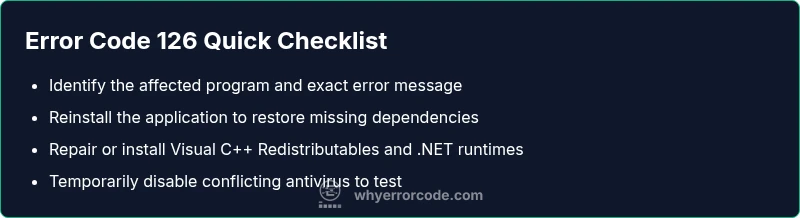
Start with the simplest options before diving into deeper repairs. First, reinstall the affected application to restore missing components. Then repair or install the Visual C++ Redistributables and .NET runtimes, ensuring you have the latest versions. Temporarily disable antivirus or security software to test whether it is blocking the module, but re-enable protection immediately after testing and add an exception if needed. If the error persists, check that the program is being launched from its correct installation path and that no partial uninstall leftovers remain in Program Files or AppData. These quick wins often resolve the issue without requiring advanced steps.
Deeper Troubleshooting: When the Quick Fix Isn’t Enough
If the error persists after reinstall and redistributable repair, you may have a path or registry-related issue, or a conflicting DLL. In this section we outline how to verify DLL availability, review logs, and conduct targeted diagnostics to isolate the missing module, using safe, vendor-approved steps. Ensure you are operating with administrator privileges when modifying installation paths or registry items, and always maintain a backup before changes. If you still cannot identify the missing component, reach out to the software vendor for a clean, version-matched DLL or a patch designed for your environment.
tip_1_forBodyBlock_TipsEnum_1นา_0_0或者1,0_0?
Steps
Estimated time: 45-90 minutes
- 1
Identify the impacted program
Note the exact error message, module name (if shown), and the action you were performing when the error appeared. Gather logs from Event Viewer and the application's own log files. This helps you target the right DLL and avoid generic fixes.
Tip: Capture screenshots of the error dialog and copy the module name if visible. - 2
Reinstall the affected application
Uninstall the program completely, then reinstall from the official source. A clean install replaces missing or corrupted DLLs and sets correct loader paths.
Tip: After reinstall, run the app as administrator to verify proper loading. - 3
Repair or install redistributables
Install the latest Visual C++ Redistributables and .NET runtimes required by the program. If you’re unsure which versions you need, check the software documentation or vendor site.
Tip: Restart after installing each redistributable package. - 4
Verify the DLLs and PATH
Check that the DLLs exist in the program folder or system path. Ensure the installation directory is listed in the PATH variable if the app loads DLLs from there.
Tip: Be cautious editing PATH; a wrong entry can affect many programs. - 5
Test security software impact
Temporarily disable antivirus/EDR to test if it blocks the module. If confirmed, add a safe exception and re-enable protection immediately.
Tip: Never leave protections disabled longer than necessary. - 6
Escalate to vendor support
If the issue persists after all steps, contact the software vendor with error details, logs, and system information to obtain a patched DLL or guidance.
Tip: Provide the exact module name, OS version, and hardware details.
Diagnosis: User sees Error Code 126 on startup
Possible Causes
- highMissing DLL or dependency
- mediumCorrupted installation
- lowAntivirus blocking the module
Fixes
- easyReinstall the affected application
- easyRepair or install Visual C++ Redistributables/.NET runtimes
- mediumCheck antivirus settings and add an exception
Frequently Asked Questions
What does Error Code 126 mean?
Error Code 126 means a required module or DLL can’t be loaded, preventing the program from starting. It’s a load-time issue rather than a logic error.
Error Code 126 means the program can’t load a required DLL, which stops the app from starting. It’s usually due to a missing file or blocked module.
Is Error Code 126 only on Windows?
Error Code 126 is commonly described in Windows environments as a load-time module issue. Other platforms have different codes with similar meanings.
Yes, 126 is a Windows load-time error related to a missing module; other systems use different codes.
Can antivirus software cause Error Code 126?
Yes. Antivirus or EDR tools can block legitimate DLLs, causing the loader to fail. Check protection logs and consider exclusions for trusted software.
Yes, antivirus or security tools can block a good DLL, which causes this error. Check logs and temporarily exclude trusted programs.
Should I reinstall Windows to fix 126?
Typically no. Reinstalling Windows is unnecessary. Focus on reinstalling the application and repairing its runtimes and dependencies.
No, you usually don’t need Windows reinstall. Reinstall the app and fix the missing components first.
Is running sfc /scannow helpful for Error 126?
SFC can help if system components were tampered with, but Error 126 is more often caused by application dependencies rather than core Windows files.
Running SFC helps if system files are damaged, but 126 is usually about app DLLs. Check dependencies first.
How long does it take to fix Error Code 126?
Fix time varies with complexity, from 15 minutes for a quick reinstall to several hours for in-depth dependency work. Plan for 1-2 hours for a thorough resolution.
It can take from 15 minutes to a few hours, depending on how many components need repair. Start with the easiest fixes.
Watch Video
Top Takeaways
- Identify the missing module quickly and target the fix.
- Reinstall software and repair redistributables to restore loading.
- Verify DLL paths and security software interactions to prevent reoccurrence.
- Test thoroughly before returning to production to avoid repeat outages.