What is Error Code 126? Quick Guide to Fixing The 'Module Not Found' Issue
Urgent guide to understanding error code 126, its meaning, quick fixes, and how to prevent recurrence. Learn how missing modules and DLLs trigger the 'specified module could not be found' message.


Error code 126 indicates a required module or DLL could not be loaded when a program starts. This is a loading failure, not a hardware fault, and it usually points to missing dependencies, incorrect system paths, or incompatible software components. A quick fix is to reinstall or repair the application and verify the runtime libraries and environment settings for your OS.
What is Error Code 126 and Why It Matters
Error code 126, commonly seen as ERROR_MOD_NOT_FOUND in Windows, means the system cannot locate a required module or DLL that a program needs to start. This is a loading failure, not a hardware fault, and it often reveals gaps in dependency management rather than a bug in your code. When the loader cannot resolve a dependency, the executable halts and you may see messages like 'The specified module could not be found' or a generic startup error. For developers, IT pros, and everyday users, recognizing this distinction is crucial: it guides you to fix missing files, misregistered DLLs, or incorrect library paths rather than chasing unrelated issues. In practice, error code 126 tends to surface during program startup or when a service launches a dependent DLL. Addressing it quickly can restore productivity and reduce downtime, especially in environments with custom software stacks or automated deployment pipelines. The core takeaway: treat error code 126 as a module-not-found symptom that points to dependency management, not a universal failure of your application.
Common Scenarios Where Error Code 126 Appears
This error often shows up when a program tries to load a dependent DLL that either isn't present on the system, is located in a non-standard folder, or has been moved without updating references. You may also see 126 when an application loads a plugin or runtime module that doesn't match the current OS architecture (for example, a 32-bit DLL on a 64-bit process). In corporate environments with locked-down images, missing DLLs are common after updates or in silos where installers fail to register new components. If you recently relocated folders or renamed libraries, the loader will fail to resolve the path and report 126. Another frequent scenario is when the application relies on runtime packages (VC++ redistributables, .NET runtimes) that have not been installed or have become corrupted. Understanding the exact startup sequence—what runs first and which DLLs are required—helps you zero in on the missing or misregistered module quickly.
Quick Fixes You Can Try Right Now
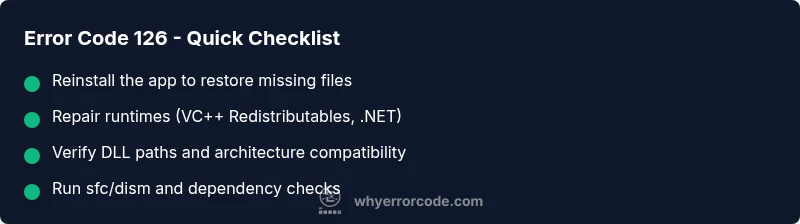
- Reinstall the application to restore all bundled dependencies.
- Repair or install missing runtime libraries (for Windows, install the Visual C++ Redistributable packages and the latest .NET runtime as needed).
- Verify that all dependent DLLs exist in the application folder or in a path listed in the system PATH.
- Check for architecture mismatches (32-bit vs 64-bit). If a 32-bit DLL is loaded into a 64-bit process, the loader may fail.
- Run system integrity tools: on Windows, run sfc /scannow and DISM to repair corrupted system DLLs.
- Review recent changes: directory moves, permissions, or registry edits that could block DLL loading.
- Temporarily disable antivirus or security software to test whether it’s blocking legitimate DLLs; if confirmed, whitelist the app rather than leaving protection off.
If these steps don’t resolve the issue, proceed to a targeted repair of the specific module or contact vendor support with the error details.
Step-by-Step Diagnostic: Verifying the Missing Module
- Reproduce the error with logs enabled to capture which module is failing.
- Check the Event Viewer (Windows) or corresponding logs for entries about module load failures.
- Use a dependency checker tool to identify absent DLLs or invalid paths.
- Confirm the loaded module path isn’t blocked by permissions or network restrictions.
- Validate that the DLLs are present in the expected folders (program directory, System32, or SysWOW64 as appropriate).
- If a DLL is missing, reinstall the corresponding runtime or install the software package that supplies it.
- After changes, restart the system or at least the affected services to ensure changes take effect.
Other Causes and Their Fixes
While missing DLLs are the most common cause of error code 126, other issues can trigger the same symptom. Misregistered DLLs can occur after partial uninstallations or registry corruption; re-registering the library (for example, using regsvr32) can help if the file exists but isn’t registered. Path problems—environment variables or startup folders pointing to the wrong location—are another frequent culprit. Ensure the application or service points to the correct folder by reviewing configuration files and registry entries. Finally, an incompatibility between the application and the current OS or runtime can produce 126; in that case, updating to a compatible version or applying a supported runtime pack resolves the error.
Safety, Warnings, and When to Call a Professional
Working with system DLLs and registry entries carries risk. Always back up before making changes to system folders or registry keys. Avoid modifying core system DLLs unless you are following official instructions. If the error persists across multiple machines, or if you are dealing with a business-critical system, contact IT support or a qualified professional. Expect costs to vary by scope: small repairs may cost nothing beyond time, while enterprise interventions can range from a few hundred to several thousand dollars depending on scope and licensing. If you depend on mission-critical software, involve your vendor’s support channel early to minimize downtime.
Prevention: Keeping Error Code 126 from Reoccurring
Adopt a disciplined deployment process to prevent missing modules after updates. Use change control: test installs in a clean image, ensure all runtimes are included, and verify environment PATHs remain consistent. Maintain a repository of known-good DLLs and runtimes, document dependencies, and automate dependency checks as part of your CI/CD pipeline. Regularly refresh images and run integrity checks to catch broken links before users encounter 126. Finally, implement monitoring for startup failures so you can detect an issue early and roll back a faulty update.
Real-World Notes and Next Steps
Businesses often report faster remediation when they isolate the failing module with a dependency scanner and keep a small, documented list of required DLLs per app. If you’re building a cross-platform toolchain or distributing software via containers, consider bundling the necessary runtimes or using static linking where feasible. By treating error code 126 as a systems-architecture issue rather than a symptom of a single component, you can streamline triage and reduce downtime across teams.
Steps
Estimated time: 40-90 minutes
- 1
Reproduce and log the error
Trigger the failure while collecting detailed logs to identify which module load failed. Use boot logging or enable verbose startup logging if available.
Tip: Capture exact file names and paths; this will guide dependency checks. - 2
Check DLL availability
Inspect the program folder, System32, and SysWOW64 for the required DLLs. Use file search to confirm presence and version. If missing, obtain the correct runtime or reinstall the software.
Tip: Be mindful of 32-bit vs 64-bit DLLs in the same system directories. - 3
Validate the environment
Review PATH and folder permissions. Ensure the directory containing the DLL is accessible and not blocked by group policy or antivirus.
Tip: Run as Administrator to bypass permission restrictions for testing. - 4
Test with dependency tools
Use a dependency checker to pinpoint missing or mismatched libraries. Dependency Walker and modern equivalents can reveal broken chains.
Tip: Cross-check with the application's documentation for required runtimes. - 5
Apply fixes and verify
After installing or correcting DLLs, restart the system or affected services and test the startup again to confirm the issue is resolved.
Tip: If the issue recurs, capture fresh logs and escalate with vendor support. - 6
Document and monitor
Document the fixed module, version numbers, and locations. Set up a lightweight monitor for startup failures in the future.
Tip: Create a reproducible test case for future reference.
Diagnosis: Error code 126 displayed during program startup indicating a missing module or DLL
Possible Causes
- highThe required DLL or dependency is missing from the system or application folder
- mediumDLL path is misconfigured or the environment PATH does not include the correct directory
- lowArchitecture mismatch (32-bit vs 64-bit) causing load failure
Fixes
- easyReinstall the application to restore all bundled dependencies
- easyInstall or repair the appropriate runtime libraries (VC++ Redistributables, .NET)
- easyVerify DLL paths in PATH and application config; correct if needed
- mediumEnsure architecture compatibility between the executable and its DLLs
- mediumRun system repair tools (sfc /scannow, DISM) on Windows to fix corrupted DLLs
Frequently Asked Questions
What does error code 126 mean?
Error code 126 means a required module could not be loaded, usually due to a missing DLL or dependency. It points to dependency management rather than a fault in your code.
Error code 126 means a DLL or module is missing. Check dependencies, reinstall, and verify runtimes to fix it.
Is error code 126 the same across Windows versions?
The underlying message is similar across Windows versions, but loader behavior can vary. Ensure dependencies match the OS and architecture for your environment.
The core idea is the same across Windows versions: a missing module. Check dependencies and platform compatibility.
What are quick fixes for error code 126?
Reinstall the software, repair runtimes, verify PATH and architecture, and run system integrity checks. If unresolved, contact vendor support with error details.
Try reinstalling, repairing runtimes, and checking DLL paths; if needed, contact support with logs.
Can antivirus cause error code 126?
Yes. Security software can block legitimate DLLs. Temporarily disable scanning to test, then whitelist the app if confirmed.
Sometimes antivirus blocks a DLL. Disable temporarily to test, then whitelist if confirmed.
When should I call a professional for error code 126?
If the missing module is part of a critical enterprise stack or logs show registry or path corruption, contact IT support or a professional.
If it affects critical systems, get professional help.
Watch Video
Top Takeaways
- Identify whether a missing DLL or misconfigured path is the root cause.
- Verify architecture compatibility (32-bit vs 64-bit).
- Reinstall or repair dependencies before modifying code.
- Keep runtimes updated and document dependencies to prevent recurrence.