How to Fix HP Printer Error Code 0xc19a0013
Urgent, practical guide to diagnose and fix HP printer error code 0xc19a0013 with step-by-step fixes, quick checks, cost estimates, and prevention tips.


The error code 0xc19a0013 signals an ink system failure in HP printers. Quick fixes include reseating or replacing cartridges, running a printer head cleaning cycle, and performing a full power reset. If the problem persists, inspect the printhead for faults or contact HP support for service. Estimated repair costs typically range from $50–$200, depending on parts and labor.
What the error means and why it happens
In HP printers, 0xc19a0013 is an ink system fault that commonly arises from clogged or empty cartridges, air locks in the ink path, or a failing printhead. When the printer detects an issue in the ink delivery path, it halts printing to prevent damage. Understanding this helps you decide between quick fixes you can perform at home and more advanced service options. This guide focuses on actionable steps you can take to restore printing quickly, while minimizing downtime.
Quick wins you can try now (no tools required)
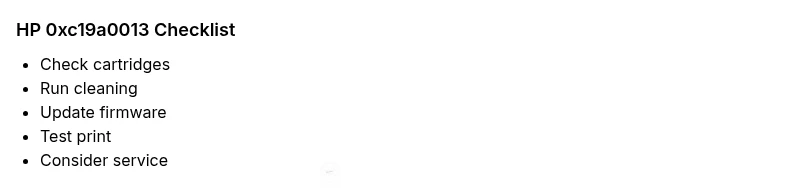
- Reseat every cartridge: power off, unplug, open the access door, remove each cartridge, inspect for damage, reinsert firmly until it clicks. Restart the printer and recheck alignment.
- Run a printhead cleaning cycle: use the printer software or embedded menu to perform a cleaning and alignment; this helps clear minor clogs.
- Power-cycle the device: unplug for 60 seconds, plug back in, and perform a test print.
- Check ink levels and replace empty or near-empty cartridges with genuine HP options.
- Update firmware if available: visit HP's support site and install any pending firmware updates.
- If you’re using third-party cartridges, switch to genuine HP cartridges to rule out compatibility issues.
Step-by-step fix for the most common cause: empty or clogged cartridges
- Power down and unplug the printer to prevent electrical shock.
- Remove all ink cartridges and set them on a clean, lint-free surface.
- Inspect cartridge contacts and the cartridge slots for debris; gently wipe with a lint-free cloth.
- Reinstall cartridges in the correct color order and reseat until centered.
- Run the printhead cleaning and alignment routines again.
- Print a test page and observe print quality; if issues persist, proceed to cartridge replacement.
- If using non-HP cartridges, consider returning to OEM products to restore reliability. Tip: Keep spare OEM cartridges on hand to minimize downtime during troubleshooting.
Alternative causes and solutions if the issue persists
If reseating cartridges doesn’t clear the error, other factors could be at play:
- Printhead failure: a faulty printhead may require professional cleaning or replacement.
- Damaged ink path: leaks or damaged tubes can trigger ink system faults; inspect for leaks and avoid using damaged components.
- Firmware glitches: a corrupt firmware can misreport ink errors; a clean firmware flash can help.
- Cartridge compatibility: mixed cartridge brands can confuse the printer’s sensors; revert to OEM cartridges. Solutions include professional service, printhead replacement, or a full printer service call with cost estimates in the $50–$200 range depending on the intervention.
Safety, firmware, and when to contact HP support
- Safety: always power off before touching cartridges or opening covers.
- Firmware: keep the printer firmware up to date to prevent misreporting errors.
- When to call a professional: if the error persists after all home interventions, if there are fluid leaks, or if your printer is under warranty and a service call is required. Expect service costs to vary by region and parts, typically in the $50–$200 range.
Prevention: how to avoid 0xc19a0013 in the future
- Use genuine HP cartridges and regularly run cleaning and alignment cycles.
- Keep ink levels above the recommended minimum and perform periodic ink path maintenance.
- Store printers in stable temperatures; ink cartridges can fail in extreme heat or cold.
- Schedule routine firmware checks and back up critical printer settings.
How to verify cartridge compatibility and firmware updates
- Check your HP model’s compatibility list for cartridges; use HP’s official compatibility checker.
- Update firmware via the printer’s menu or HP Support Assistant on your computer.
- If issues arise after an update, revert to the previous firmware version if possible until a fix is released.
Steps
Estimated time: 15-45 minutes
- 1
Power down and access cartridges
Turn off the printer, unplug, and open the cartridge access area to inspect cartridges.
Tip: Always unplug before touching internal parts. - 2
Remove and inspect cartridges
Take out each cartridge and look for leaks or damage; do not touch ink nozzles directly.
Tip: Place on a clean surface to avoid contamination. - 3
Clean contacts and slots
Wipe contacts and cartridge slots with a lint-free cloth; avoid liquids on the ink path.
Tip: Use minimal pressure to avoid scratches. - 4
Reinstall and align
Reinsert cartridges in the correct order and run the printer’s alignment routine.
Tip: Ensure cartridges click firmly into place. - 5
Run cleaning cycle and test print
Execute a printhead cleaning, then print a test page to check quality.
Tip: If output is faint, repeat once more. - 6
Check for firmware updates
Update to the latest firmware from HP and perform a reset if required.
Tip: Backup any custom settings before updating.
Diagnosis: Printer shows error 0xc19a0013 and stops printing
Possible Causes
- highClogged or empty cartridges
- mediumAir locks in ink path
- lowPrinthead failure
Fixes
- easyReseat cartridges and replace empty ones with genuine HP cartridges
- easyRun printhead cleaning and alignment
- mediumUpdate firmware or consult HP support if issue persists
Frequently Asked Questions
What does error code 0xc19a0013 mean on HP printers?
It signals an ink system failure, often caused by clogged or empty cartridges or printhead issues. Start with quick checks and replacements before seeking service.
The 0xc19a0013 error means your ink system has a fault. Begin with quick home fixes before professional help.
Can I fix it myself at home?
Yes, for many users reseating cartridges, cleaning the printhead, and resetting the printer solves the issue. If the error persists, service may be required.
You can try home fixes first; if it’s still there, contact support.
Will replacing cartridges always fix the error?
Not always. If the printhead or ink path is damaged, a cartridge change may not resolve the issue. Check for leaks or misalignment.
Sometimes cartridge replacement helps, sometimes you need service.
Does a firmware update help with this error?
Firmware updates can address false readings and improve ink path management. Install from HP’s official site and reboot after updating.
A firmware update might fix the misreport.
How much does a professional repair cost?
Professional service for ink system faults typically ranges from about $50 to $200, depending on parts and labor and whether a printhead replacement is needed.
A pro repair usually costs between fifty and two hundred dollars.
Watch Video
Top Takeaways
- Identify ink-system fault quickly.
- Reseat and clean cartridges as first steps.
- Run cleaning and alignment before replacements.
- Firmware updates can fix misreported errors.
- If unresolved, expect professional service.