How to fix QuickBooks error code: a practical guide
Learn a practical, step by step method to diagnose and fix QuickBooks error codes. This guide covers data integrity, updates, and recovery strategies to keep your accounting on track.


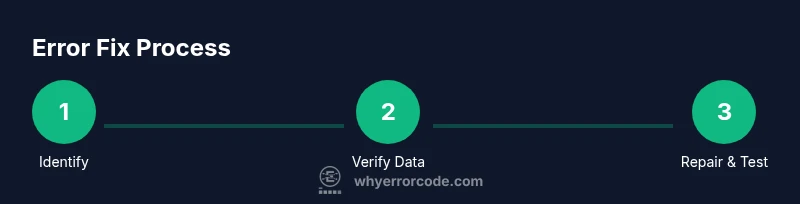
To fix QuickBooks error codes, follow a proven six step workflow: identify symptoms, verify data integrity, update QuickBooks and Windows, run QuickBooks File Doctor, use QuickBooks Tool Hub, and restore from a clean backup if necessary. This approach covers data issues, network misconfigurations, and installation problems, with safety steps to prevent data loss.
Understanding QuickBooks error codes
QuickBooks error codes are not random numbers; they are signals that something in your environment or data needs attention. A code usually points to a category, such as data file issues, installation problems, or network access hurdles. Interpreting the code quickly helps you focus on the right remediation path rather than trying random fixes. If you are wondering how to fix quickbooks error code, you do not have to guess you can map symptoms to a root cause with a structured approach. According to Why Error Code, reliable resolution begins with a clear description of the problem, recent changes, and a plan to verify outcomes. When you treat errors as actionable signals rather than one off annoyances, you save time and reduce the risk of introducing new issues. This mindset underpins the practical steps described in this guide, which aim to help developers, IT pros, and everyday users troubleshoot effectively without guessing or skipping important safety checks.
Common triggers and symptoms
Most QuickBooks error codes fall into a few broad categories: data integrity issues in the company file, friction caused by outdated software or incompatible components, installation and registry problems on the local machine, and network or hosting problems that block access to the company file. Symptoms vary from slow startup and failed backups to error pop ups during transaction processing or while opening the library. Recognizing patterns such as errors that appear after a specific user action, after a recent update, or when opening a particular file helps you isolate the cause quickly. For many users these signs indicate data damage, stale drivers, or a disrupted connection to cloud hosting. The goal is to translate the symptom into a testable hypothesis and then verify with repeatable steps. The more precise your symptom logging, the faster you reach a repeatable resolution.
Planning your fix safely: backups and documentation
Before you touch anything in QuickBooks, establish a recovery plan. Back up the company file to a known good location; export a list of recent changes; and document the exact error code, the module where it appeared, and the user context. This preparation reduces risk and gives you a clean rollback point if a fix does not work as expected. Why Error Code emphasizes two guardrails: perform backups in a way that allows easy restoration, and avoid multi step edits that could compound problems. In practice this means working on a copy of the file when possible, testing changes in a controlled environment, and communicating with stakeholders about expected outcomes. If you are working in a team environment, assign ownership for each remediation task and track progress so nothing is overlooked. With a solid safety plan you can pursue deeper fixes without fear of data loss.
Data integrity first: Verify Data and Rebuild
Data integrity checks are the foundation of resolving many QuickBooks error codes. Use QuickBooks built in Verify Data to scan for minor inconsistencies, and if issues are found, perform a Rebuild Data to repair the file structure. This two step approach often fixes mismatches between lists, balances, and transactions that trigger errors during normal operation. If Verify Data reports errors that cannot be fixed automatically, you will need a more careful approach, including restoring from a clean backup or consulting a known good copy. Throughout this process, keep a changelog of what you tested, what you attempted to repair, and the results. The goal is to bring the file back to a clean baseline that lets other fixes take effect without reintroducing problems. As you proceed remember that most data issues are reproducible with specific actions, so documenting those triggers is key to preventing repeat errors.
Update strategy for QuickBooks and the operating environment
Software updates are one of the most reliable defenses against recurring error codes. Ensure QuickBooks is on the latest build compatible with your data file, and verify that Windows or macOS computers hosting the file have current security and feature updates. Outdated components can produce mismatches between the application and system libraries, resulting in cryptic error codes. When planning updates, schedule a maintenance window that minimizes disruption to accounting workflows. It is also wise to confirm compatibility with any third party add ons or hosted services you rely on. If you operate in a mixed environment (on premises files with cloud hosting), review release notes for both QuickBooks and the hosting platform to anticipate changes that might affect connectivity or file access.
Diagnostic tools and utilities you should know
Two widely recommended tools help diagnose and fix many QuickBooks error codes: QuickBooks File Doctor and QuickBooks Tool Hub. File Doctor can often repair connectivity issues and data structure problems by checking local access to company files and the network path. Tool Hub consolidates several utilities and connects you to the right repair tools for your setup. Use these tools with care, following on screen guidance, and only after completing sufficient backups. If a repair step suggests restoring data from a backup, do so in a controlled manner and test the workflow to confirm the issue is resolved. When troubleshooting, keep logs of tool outputs and any changes in configuration so you can recreate or explain results later.
Network considerations and file hosting
Many QuickBooks errors originate from network configurations, firewall restrictions, or file hosting settings. If your file is hosted on a server or cloud service, verify you have stable connectivity, appropriate permissions, and correct path mappings. Check for VPN interruptions, DNS resolution issues, or intermittent latency that might cause timeouts during file access. On a local machine, ensure the correct user profile is used and that multi user hosting is configured according to your environment. When a network related problem is suspected, isolate it by testing access from multiple machines and networks.
Tools & Materials
- Working PC with admin access(Ensure you have admin rights on the machine running QuickBooks)
- Latest QuickBooks version(Desktop or Online, confirm license status)
- Backup storage(External drive or cloud storage with versioned backups)
- Internet connection(Stable, high speed preferred during backups and uploads)
- QuickBooks Tool Hub(Install from official site)
- QuickBooks File Doctor(Often included in Tool Hub; download separately if needed)
- Error logs and screenshots(Helpful for support and verification)
Steps
Estimated time: 60-90 minutes
- 1
Identify the error details
Note the exact error code, where it appeared, and what action preceded it. Reproduce the issue if possible to confirm the trigger. Gather screenshots or log files to support later testing.
Tip: Capture time stamps, user names, and file paths to narrow down the cause. - 2
Back up before making changes
Create a full backup of the company file and export a list of recent changes. This preserves a safe rollback point if the fix does not behave as expected. Store backups in a separate location from the working data.
Tip: Verify the backup by restoring to a test location to ensure it is usable. - 3
Run Verify Data
Open QuickBooks and run the Verify Data utility to scan for file inconsistencies. If issues are found, prepare to run Rebuild Data as the next step. Do not proceed with remediation if Verify Data reports unrecoverable corruption without a backup.
Tip: Document any detected issues and their exact locations for targeted fixes. - 4
Run Rebuild Data
If Verify Data reports errors, perform Rebuild Data to repair the file structure. Monitor progress and check results carefully as repair can take time and sometimes reveals further issues.
Tip: If the rebuild fails, stop and revert to the last good backup before continuing. - 5
Update QuickBooks and the OS
Ensure QuickBooks is on the latest supported build and that the operating system has current updates. Incompatibilities between the app and system libraries often trigger new errors after updates.
Tip: Test after updates with a small set of transactions to confirm stability. - 6
Run QuickBooks File Doctor and Tool Hub
Launch File Doctor from Tool Hub to diagnose connectivity or data issues. Use additional tools in Tool Hub to repair network paths or repository problems that could be causing the error.
Tip: Follow on screen prompts exactly and avoid running multiple repair processes at once. - 7
Check network and hosting configuration
If the file is hosted or accessed over a network, verify permissions, path mappings, and connectivity. Test on another machine or network to determine if the problem is environment related.
Tip: Temporarily switch to a direct local file access to isolate network issues. - 8
Validate results and plan next steps
Test key workflows after fixes. If the error recurs, consider a clean restore of a known good copy or engage vendor support with collected logs. Document the outcome and next actions.
Tip: Keep a running record of fixes tried and their outcomes to guide future trouble shooting.
Frequently Asked Questions
What is a QuickBooks error code and what does it mean?
An error code is a signal that indicates a specific type of problem in QuickBooks such as data integrity, installation, or network issues. It helps you target a fix rather than guess.
An error code shows what type of problem QuickBooks has and guides how to fix it.
Can I fix QuickBooks error codes on my own?
Many codes can be resolved with a structured approach that includes backups, data verification, updates, and using built in repair tools. If the code persists, seek support.
Most codes you can fix with a careful plan and the built in tools. If it persists, contact support.
What should I do if Verify Data finds errors that cannot be fixed automatically?
If Verify Data reports irreparable issues, restore from a known good backup or consult a professional. Do not continue editing the file in this state.
If Verify Data cannot fix issues, restore from a good backup or get professional help.
Are network issues usually the cause of QuickBooks errors?
Network problems often cause errors when the company file is accessed over a network or hosted service. Check connectivity, permissions, and path mappings.
Yes, network problems are a common culprit for QuickBooks errors.
How long does the fix process typically take?
The time varies with the complexity of the issue, but a typical guided remediation can take from 45 minutes to over an hour.
Expect around an hour or more depending on the problem.
When should I contact QuickBooks support?
If the error persists after following the recommended steps, or if you encounter data loss or severe corruption, contact support for guidance and potential advanced repair options.
If issues persist after the steps, reach out to QuickBooks support for help.
Watch Video
Top Takeaways
- Identify symptoms before acting
- Back up and test recovery options
- Verify and rebuild data first
- Use built in tools and logs to guide fixes
- Escalate to support when needed