How to Get Error Codes on Samsung Washers
Learn how to retrieve, interpret, and act on Samsung washer error codes. Step-by-step instructions for panel and app, plus tips to prevent future errors and when to contact support.


You will learn how to access error codes on Samsung washers from the control panel or the Samsung app, interpret basic categories, and document codes for troubleshooting. No specialized tools required; start with the display, then consult the manual or support resources if codes indicate hardware issues.
Understanding Why Samsung Error Codes Appear
Error codes on Samsung washers are designed to communicate a fault location quickly, helping users and technicians pinpoint issues without tearing the machine apart. According to Why Error Code analysis, these codes typically map to a subsystem — such as water supply, drainage, door/lid lock, or sensor input — rather than prescribing a single fix. In practice, the first step is to capture the exact code shown on the display, plus any letters or suffixes that accompany it. The more precise your code, the faster you can decide whether a simple reset will fix the issue or if a service call is warranted. This guide focuses on how to retrieve, interpret, and act on Samsung washer error codes across common models. Use the steps here as a practical framework, then consult your model’s manual for model-specific codes.
Where Error Codes Are Displayed and in the App
Most Samsung washers show an error code on the front panel display when a fault is detected. Some newer models also push codes to the Samsung SmartThings app if your washer is linked to your phone. Not every model shows codes the same way; some may display a blinking LED pattern in addition to a numeric or alphanumeric code. If your model lacks a visible code, look for visual indicators such as flashing lights or error icons on the panel. When in doubt, consult the user manual or Samsung support pages for your exact model. Ensure the machine is powered, plugged in, and in standby before attempting to read a fault.
Common Error Code Categories and What They Indicate
Error codes generally fall into several broad categories, each signaling a different subsystem problem: fill/drain (water supply or drainage), door/lid lock, sensor or temperature, motor/drive, and control/communication. Fill/drain codes often point to water supply problems (valves, hoses, filters) or drainage blockages. Door or lid codes usually indicate a switch issue or the door not closing securely. Sensor and temperature codes relate to temperature sensors or wiring faults. Motor or drive codes hint at a mechanical issue with movement. For each category, start with a basic check of hoses, filters, and connections, then attempt a safe reset if the manual allows.
Step-by-Step: Retrieve the Error Code on the Control Panel
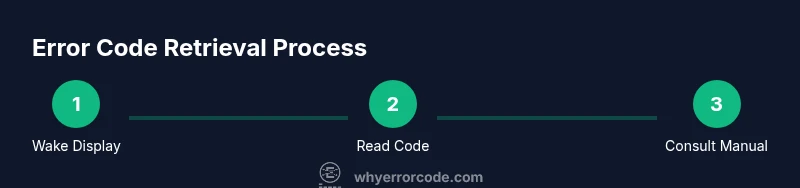
Reading the fault code from the front panel follows a simple flow tailored to most Samsung models. Start by powering up the washer and waking the display. If your model uses a diagnostic or fault menu, navigate to that screen using the standard panel controls described in your manual. Record the entire code as shown, including any trailing letters or symbols. If you see multiple codes or a hierarchy (primary code plus subcodes), write them all down in the order displayed. If the display is unclear or flickering, capture a photo for reference. If available, note the cycle type at the time of failure. This step provides the essential data you’ll use to map the fault to a likely cause.
Step-by-Step: Retrieve Error Codes via Samsung SmartThings App
If your Samsung washer is linked to the SmartThings app, open the app and locate your washer device. Navigate to the device diagnostics or fault history section to view any error codes recorded by the app. Some codes appear only after a failed cycle or during a specific diagnostic test. Record the code exactly as shown in the app, including any suffixes. If no code is visible, check for notifications or recent activity that might hint at the fault. This app-based path can provide an alternative source of codes when the panel is ambiguous or inaccessible.
Documenting and Cross-Referencing Codes with the Manual
Create a simple log for each error: date/time, cycle type, observed code, and any accompanying symbols. Use the model number to locate the exact code definitions in the manual or on Samsung’s official support site. If the code isn’t listed, search for your model plus the code on Samsung’s knowledge base or reputable technicians’ forums. Cross-referencing helps you distinguish transient glitches from persistent faults. Keeping a clean log makes it easier to discuss the issue with support should you need to escalate.
Interpreting the Code and Next Steps
With the code in hand, group it into a likely area: water/air flow, door mechanism, sensor, motor, or control board. Start with safe, user-level checks: ensure hoses aren’t kinked, filters are clear, the door secures fully, and the machine has proper power. If the code suggests a simple fix (like a clogged filter), perform the action and run a test cycle. For codes indicating sensor or motor issues, or if the problem recurs after a reset, plan a service call and have your model/serial number ready. Always document what you did and the results of any tests to help a technician diagnose the root cause more quickly.
Common Pitfalls and Safe Troubleshooting
Avoid disassembling the washer yourself unless you are trained; high-voltage components and water systems can be dangerous. Do not run cycles with a known water leakage risk or after blocking drainage. Never bypass a safety switch or door lock. If the error code persists after a safe reset, contact support rather than attempting risky repairs. When performing any reset, unplug or power down for at least 60 seconds to ensure the system has reset correctly.
Maintenance Tips to Prevent Future Errors
Regularly inspect water inlet hoses for cracks or bulges and clean the pump filter if your model provides one. Keep the door seal free of foreign objects and check for any unusual sounds that accompany errors. Periodic cleaning of the drain pump filter and hoses reduces clog-related codes. Update the app or firmware when Samsung releases updates, as software improvements can help the system interpret fault signals more reliably. Documenting issues when they occur also helps you notice patterns and address them proactively.
When to Call Support and How to Prepare
If an error code persists after safe troubleshooting, contact Samsung Support or your local service provider. Have your washer model and serial number ready, along with a log of the code, when the fault began, and what actions you already attempted. Note any recent changes, such as water supply issues or power outages, which could influence the fault. If your unit is under warranty, confirm coverage before scheduling service. A technician will typically verify the fault, test sensors and connections, and determine whether a part replacement is needed.
Tools & Materials
- Owner’s manual for your Samsung washer model(Find error code table and model-specific codes)
- Smartphone with Samsung SmartThings app (optional)(To fetch app-reported codes)
- Pen and notepad(Record codes and timestamps)
- Clean cloth or microfiber(Wipe display if needed)
- Access to internet for manuals(Online lookup if manual is unavailable)
Steps
Estimated time: Total time: 15-25 minutes
- 1
Power on the washer and wake the display
Ensure the unit is plugged in and powered on. If the display is dim, press the power button or cycle power once to wake it. This prepares the control panel to show any fault codes.
Tip: If the display remains dark, verify outlet power with another device and inspect the power cord for damage. - 2
Access the diagnostic or fault screen on the control panel
Use the standard panel controls to reach the diagnostic or fault-reading screen. The exact path varies by model, so follow your manual’s directions for entering the fault menu.
Tip: If you’re unsure of the path, note the panel labels and consult the manual later. - 3
Record the error code exactly as shown
Write down the code exactly as it appears, including any trailing letters or symbols. If multiple codes are shown, record all of them in order.
Tip: Take a photo of the screen if the code is hard to read. - 4
Check for additional details on screen
Look for timestamp, cycle type, or secondary codes that accompany the main fault code. These details can narrow down the cause.
Tip: Note when the fault occurred and the cycle you were running. - 5
If available, verify codes in the Samsung SmartThings app
Open SmartThings, select your washer, and view any reported faults or diagnostics. App-reported codes can corroborate the panel display.
Tip: Ensure the app is linked to the correct washer and that you have a stable internet connection. - 6
Cross-check against the manual
Use your model number to locate the exact code definitions in the manual or on Samsung’s official site. Cross-checking avoids misinterpretation.
Tip: If the manual is hard to find, download the PDF from Samsung’s support site. - 7
Diagnose based on the code category
Group the code into a category such as fill/drain, door, sensor, motor, or control. This guides safe corrective actions.
Tip: Start with the simplest checks (hoses, filters) before considering advanced repairs. - 8
Try a safe reset if recommended
Some faults clear after a power cycle or reset per the manual. Do this only if the manual instructs it for your model.
Tip: Unplug for at least 60 seconds, then plug back in and run a test cycle. - 9
Document outcomes and plan next steps
Log the results of resets or tests, and decide whether to escalate to support. Include model/serial, code, and actions taken.
Tip: If unresolved, prepare details for a service call.
Frequently Asked Questions
Where do error codes appear on a Samsung washer?
Most models display codes on the front panel during a fault. Some linked models also show codes in the Samsung SmartThings app. Always consult the manual for model-specific behavior.
Most Samsung washers show an error code on the front panel, and some can display codes in the Samsung SmartThings app when linked.
Are all Samsung washers read the same way?
Code display methods vary by model and generation. Check your user manual or Samsung support pages for your exact model to confirm how codes appear.
Reading methods vary by model; check your manual for your exact washer.
What should I do after noting a code?
Map the code to a likely subsystem, perform safe checks (filters, hoses, door seal), and consult the manual. If the problem persists, escalate to support with the code and device details.
Map the code to the likely subsystem, then troubleshoot safely or contact support if it persists.
Can I reset the washer to clear codes?
A reset may clear transient codes if the manual specifies. Do not reset if the code indicates a potential hardware fault without guidance.
Reset only when the manual says to; some codes require service instead.
When should I call a technician?
Call a technician if the code persists after safe troubleshooting or involves critical subsystems like the motor or control board. Gather model/serial and diagnostic notes to speed resolution.
Call a technician if the fault continues after safe troubleshooting.
Watch Video
Top Takeaways
- Identify where codes appear and capture exact text
- Use the manual to map codes to likely causes
- Record dates, cycles, and outcomes for troubleshooting
- Perform safe resets only as documented
- Contact support with model/serial and incident history