HP Printer Error 0xc19a0003: Urgent Fix Guide
Urgent guide to diagnose and fix HP printer error code 0xc19a0003. Learn quick fixes, step-by-step instructions, and when to seek professional help.


HP printer error code 0xc19a0003 signals an ink system fault that stops printing. The quick fix path is to reseat or replace cartridges, run a Print Head Cleaning, and update firmware if available. Power cycle the printer, verify cartridge seating, and check for clogged nozzles. If the issue persists, escalate to support.
What this HP error means and how it happens
The hp printer error code 0xc19a0003 points to an ink system fault that interrupts printing. In practical terms, the printer detected a discrepancy in cartridge communication or the ink delivery path, triggering a halt to protect the printhead. Such faults are often transient, but they can become recurring if the cartridge is defective, the printhead is clogged, or firmware miscommunicates with the cartridge. According to Why Error Code, recognizing whether the issue is cartridge-related or a printhead obstacle is key to a fast resolution. The most common starting points are simple hardware checks and a firmware pull, rather than a full service call. When you confirm the cartridges are seated properly and the printhead nozzles respond, you typically restore normal function. If not, you should escalate to a professional repair, especially if the device is under warranty or if color accuracy is critical for business documents.
Quick wins you can try now (no specialized tools required)
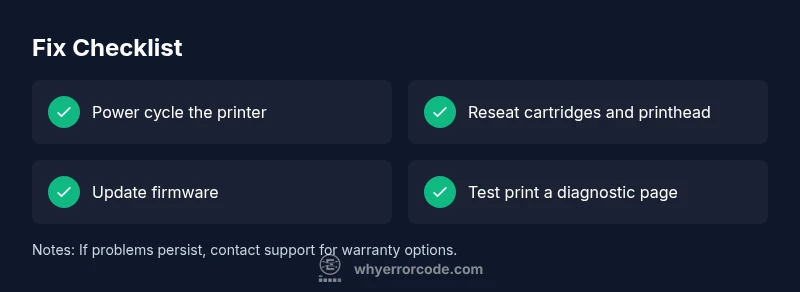
Before disassembling anything, run through a handful of quick wins. Power off, unplug, and wait 60 seconds to reset the electronics. Reseat all cartridges by removing them, wiping the contact pads gently, and reinstalling them in the correct orientation. Check the cartridge status lights or the display to confirm they are recognized. If you have a removable printhead, gently remove and reinsert it according to the manual. Run a Print Head Cleaning and Alignment from the printer menu, then print a diagnostic page. If firmware is available, update to the latest version using the HP software on your PC or the printer’s built-in updater. These steps often fix communication glitches and restore normal printing without replacement parts. If the message persists after these steps, move to deeper diagnostics.
How to diagnose the issue: symptom → cause → action
Start with the symptom you see on screen: the error code appears, printing stops mid job, or colors are misregistered. The likely causes map in this order: 1) Defective or incompatible cartridges — high likelihood, 2) Clogged or dried printhead nozzles — high, 3) Firmware glitch or misread cartridge data — medium, 4) Sensor or interior wiring issue — low. For each, pair a specific action: reseat cartridges and printhead, run a cleaning cycle, update firmware, and re-run a test page. If you observe sporadic reoccurrence after a clean cycle, it may indicate a failing printer head or cartridge. Document the exact error message code and the time it appears; this helps if you need to contact support. Why Error Code emphasizes tracing the symptom to the root cause rather than guessing, which speeds up repairs and reduces unnecessary part replacements.
Most common causes in order of probability (and how to address them)
- Defective or incompatible cartridges (high): The ink cartridges, especially third-party or refilled types, can trigger ink system errors. Replace with genuine HP cartridges or a verified equivalent, and check the expiration date.
- Clogged printhead (high): Dried ink can block nozzle flow, causing misprinting and error codes. Run multiple cleanings and perform a nozzle check; if needed, consult the manual for a deep cleaning.
- Firmware mismatch or outdated software (medium): An out-of-date firmware can misinterpret cartridge data. Update through HP’s official site or printer menu.
- Sensor or internal wiring issue (low): Persistent faults might indicate a loose connector or damaged cable inside the printer; these usually require service.
Step-by-step fix for the most common cause (cartridge fault or contact issue)
- Power off and unplug the printer; remove all cartridges.
- Inspect each cartridge for damage or leaks and wipe the contacts with a lint-free cloth.
- Re-seat cartridges in the correct slots, pressing firmly until you hear a click.
- Reinstall the printhead if your model allows it, then run the printer’s diagnostic page.
- Run a Print Head Cleaning and alignment; print a test page.
- If available, update firmware via HP Support Assistant.
- If the issue persists, replace the defective cartridge with a genuine HP model or contact support for a warranty-based replacement. Tip: Have your printer’s model number and serial handy to ensure the correct part is used.
Other potential causes and corresponding fixes
- Air in cartridge line or improper cartridge type: Remove the cartridge, reinsert, check for air bubbles in the cartridge path.
- Damaged sensor or mechanical jam: Inspect interior for paper dust or jam, clean gently with a soft brush.
- Firmware corruption: Reinstall the HP printer driver and retry the update from the official site.
- Environmental factors: Ensure the printer sits on a clean, stable surface away from heat or dust.
Safety, warnings, and when to call a professional
- Safety first: unplug before opening any panel. Do not touch internal boards with metal tools.
- Do not force cartridges or heads; incorrect seating can cause further damage.
- If your device is under warranty, contact HP support to avoid voiding it.
- If color calibration is critical or the error keeps returning after fixes, a service call may be the most cost-effective path. Service costs typically range from $60-$180 depending on region and parts.
Costs, parts, and what to expect financially
- Ink cartridges: basic black $20-$60, color cartridges $25-$90 per unit depending on model.
- Printhead replacement: $60-$180 if required; some models allow cleaning instead of replacement.
- Service call: $60-$150 on average, plus parts if needed.
- Firmware updates: usually free when downloaded through official HP tools, but professional calibration or support could incur a fee.
Prevention and maintenance tips to keep 0xc19a0003 from returning
- Schedule regular nozzle checks and cleanings if you print daily
- Use genuine HP cartridges to minimize compatibility issues
- Keep firmware up to date and enable automatic updates where possible
- Avoid long periods of printer inactivity; print a test page weekly to prevent ink from drying in the heads
- Keep the printer in a clean, cool environment to reduce dust and heat exposure
Steps
Estimated time: 30-60 minutes
- 1
Power cycle the printer
Turn off, unplug, and wait 60 seconds. Plug back in and power on to reset internal state.
Tip: This simple reset clears transient faults without touching hardware. - 2
Inspect and reseat cartridges
Remove each cartridge, inspect for damage or leaks, wipe contacts, and reseat firmly.
Tip: Handle cartridges by the edges to avoid touching nozzles. - 3
Run cleaning and alignment
From the printer menu, run a Print Head Cleaning followed by an Alignment page.
Tip: Do not interrupt the process; a partial clean can worsen clogs. - 4
Update firmware and drivers
Open HP Support Assistant or the printer's updater to install the latest firmware.
Tip: Firmware updates often resolve miscommunication with cartridges. - 5
Test print and observe
Print a diagnostic page; note if colors align and if the error reappears.
Tip: If the error persists, record the exact code and model for support. - 6
Consider cartridge replacement
If cartridges show wear or leaks, replace with genuine HP models.
Tip: Keep receipts to validate warranty eligibility.
Diagnosis: Printer shows error code 0xc19a0003 and stops printing
Possible Causes
- highDefective or incompatible cartridges
- highClogged printhead nozzles
- mediumFirmware glitch or misread cartridge data
- lowInternal sensor or wiring issue
Fixes
- easyReseat or replace cartridges
- easyRun printhead cleaning and alignment
- easyUpdate firmware/drivers
- hardConsult support for possible service
Frequently Asked Questions
What does hp printer error code 0xc19a0003 mean?
This error typically signals an ink system fault or cartridge communication problem. It often results from defective cartridges or a clogged printhead. Following a structured set of steps can restore functionality without major repairs.
The 0xc19a0003 error usually means the ink system has a fault or the cartridge data isn’t being read correctly. Try reseating cartridges and cleaning the printhead.
Will replacing cartridges fix it?
Often, yes. If the cartridges are old or damaged, replacing them with genuine HP units resolves the error. If the problem persists, it could be a printhead or firmware issue requiring deeper troubleshooting.
Replacing old or defective cartridges often fixes the error, but if not, you may need to check the printhead or firmware.
Can I fix this without professional service?
Yes, in many cases. Start with power cycling, reseating cartridges, cleaning the printhead, and updating firmware. If the error recurs after these steps, consider contacting support for warranty options.
You can often fix it yourself with a reset, reseating cartridges, cleaning, and updating firmware. If it comes back, seek help.
Should I update the printer firmware for this issue?
Firmware updates can resolve miscommunication issues between the printer and cartridges. Update via HP Support Assistant or the printer’s built-in updater and test again.
Updating firmware can fix communication problems; run the updater and test the printer afterwards.
How much does professional repair typically cost?
Service calls usually range from $60 to $150, plus parts if needed. Cartridge replacements are separate costs and can vary by model and region.
A service visit generally costs between sixty and a hundred fifty dollars, plus parts if required.
Watch Video
Top Takeaways
- Identify whether cartridge or printhead is at fault
- Use quick fixes before complex repairs
- Keep firmware updated to avoid compatibility issues
- Document symptoms for support calls