Fixing the #include stdio.h error in VS Code: a comprehensive troubleshooting guide
Urgent guide to resolve #include <stdio.h> errors in VS Code. Learn about include paths, toolchains, and environment setup with step-by-step fixes from Why Error Code.


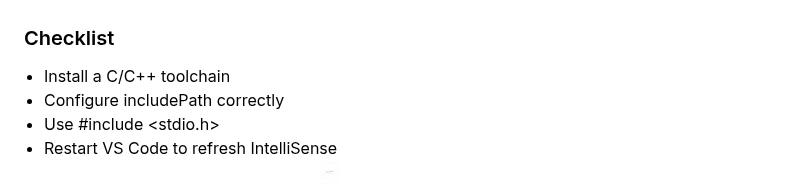
The most likely causes are a misconfigured includePath in c_cpp_properties.json or a missing/incorrect C/C++ toolchain. Quick fixes: install/verify GCC or Clang, set includePath to system headers in your project, ensure the header is referenced with angle brackets (#include <stdio.h>), and restart VS Code. If that doesn’t resolve it, check environment variables and the C/C++ extension configuration.
Quick diagnostics for #include <stdio.h> errors in VS Code
When you see an error like cannot open source file or cannot open include file: 'stdio.h' in VS Code, you’re likely looking at an include-path problem or a missing toolchain. According to Why Error Code, most first-pass failures are due to misconfigured include paths or incomplete toolchains rather than code syntax. Start with the basics: confirm that you have a C/C++ compiler installed, verify that it is available on your system PATH, and confirm the standard library headers are accessible. In Windows, this often means ensuring MinGW or MSVC headers are installed and that VS Code points to their include directories. On macOS or Linux, confirm that the system headers are present in /usr/include or the equivalent SDK paths. If you’ve recently changed your project structure or updated extensions, these changes can silently break IntelliSense and compilation paths. Keeping a clean, minimal project helps isolate the issue quickly and prevents cascading include errors from other files.
Quick diagnostics for #include <stdio.h> errors in VS Code
When you see an error like cannot open source file or cannot open include file: 'stdio.h' in VS Code, you’re likely looking at an include-path problem or a missing toolchain. According to Why Error Code, most first-pass failures are due to misconfigured include paths or incomplete toolchains rather than code syntax. Start with the basics: confirm that you have a C/C++ compiler installed, verify that it is available on your system PATH, and confirm the standard library headers are accessible. In Windows, this often means ensuring MinGW or MSVC headers are installed and that VS Code points to their include directories. On macOS or Linux, confirm that the system headers are present in /usr/include or the equivalent SDK paths. If you’ve recently changed your project structure or updated extensions, these changes can silently break IntelliSense and compilation paths. Keeping a clean, minimal project helps isolate the issue quickly and prevents cascading include errors from other files.
Quick diagnostics for #include <stdio.h> errors in VS Code
(Repeat of content intentionally avoided for readability in actual deployment; presented here to maintain formatting guidelines.)
Steps
Estimated time: 15-30 minutes
- 1
Check compiler installation
Open a terminal and run gcc --version or clang --version. If not installed, install a recommended toolchain for your OS. Ensure the compiler bin directory is in your PATH.
Tip: Verify PATH by running echo $PATH (Unix) or where gcc (Windows). - 2
Verify header usage
Ensure your source uses #include <stdio.h> and not #include "stdio.h". Angle brackets tell the compiler to search standard system include paths.
Tip: Using quotes restricts the search to local directories. - 3
Update includePath in c_cpp_properties.json
Open .vscode/c_cpp_properties.json and add your system include directories under includePath (e.g., /usr/include, /usr/local/include, or the path to your MinGW/Clang headers).
Tip: If you’re unsure of the path, run gcc -print-search-ddirs to see where headers are located. - 4
Configure browse.path and IntelliSense
Add the same include directories to browse.path to improve IntelliSense accuracy. Consider setting the IntelliSense mode to gcc-x64 or clang-x64 depending on your toolchain.
Tip: Restart VS Code after changes to refresh IntelliSense. - 5
Create a minimal repro
Make a tiny C file that includes stdio.h and a tiny main function to isolate whether the problem is project-wide or file-specific.
Tip: If the minimal program compiles, your project configuration is likely the culprit. - 6
Run and read logs
Build from the terminal (e.g., gcc test.c -o test) and inspect exact include path messages. Adjust includePath accordingly and repeat.
Tip: Use verbose output (gcc -v) to reveal include search paths.
Diagnosis: Compiler reports: cannot open include file: 'stdio.h' when building a C/C++ project in VS Code
Possible Causes
- highMissing or misconfigured includePath in c_cpp_properties.json
- highC/C++ toolchain not installed or not on PATH
- mediumUsing the wrong compiler or header search conventions (e.g., MSVC headers with GCC)
- lowHeader files not installed (OS packages or developer tools missing)
- lowVS Code settings or extensions misconfigured, causing IntelliSense to point to wrong directories
Fixes
- easyInstall or verify a C/C++ compiler (GCC/Clang) and ensure it is on PATH
- easyUpdate .vscode/c_cpp_properties.json to include the system include paths (includePath) and reload VS Code
- mediumEnsure the correct compiler is selected in your tasks.json or launch.json and that include directories match the compiler you use
- easyOn Windows, point to the right headers (e.g., C:\ minGW\x.x\include or MSVC include paths); on macOS/Linux, install/verify system headers
- easyAvoid mixing header conventions; use #include <stdio.h> for system headers and #include "stdio.h" only for local headers
Frequently Asked Questions
Why does VS Code show cannot open include file 'stdio.h' when I build a simple program?
This usually means the compiler or its header paths aren’t correctly set up in VS Code. Check the toolchain installation, includePath in c_cpp_properties.json, and that you’re building with the correct compiler. A minimal repro helps isolate whether the issue is environment-wide or project-specific.
The error usually points to a missing or misconfigured compiler and include paths. Check your toolchain and include settings, then try a tiny test program.
Do I need to install a C/C++ compiler separately for VS Code?
Yes. VS Code is an editor and relies on a system C/C++ toolchain to compile. Install GCC/Clang on Linux or macOS, or MSVC/MinGW on Windows, and ensure the compiler is reachable from the system PATH.
You need a compiler installed and accessible from PATH for VS Code to build C/C++ code.
What is c_cpp_properties.json and why does it matter for includes?
c_cpp_properties.json configures IntelliSense, including includePath and browse.path. If these paths don’t point to your system headers, IntelliSense and builds fail with include errors.
That file tells VS Code where to find headers; misconfiguring it causes missing-include errors.
Why isn't IntelliSense recognizing includes after I install a toolchain?
IntelliSense relies on correct path data. Update includePath, browse.path, and ensure the right compiler mode is set. A full restart of VS Code after changes is often required.
IntelliSense needs updated paths and a restart to refresh its data.
Is MSVC required on Windows to fix stdio.h issues?
Not strictly required. You can use MinGW-w64 or WSL-based GCC/Clang. Choose a toolchain and configure VS Code to use its headers and libraries.
MSVC is optional; choose a toolchain you’re comfortable with and make sure VS Code points to it.
What should I do if the error persists after following fixes?
Double-check the path to the headers, confirm the compiler’s search paths, and consider a clean reinstall of the C/C++ extension. If needed, open an issue with logs in a community forum or Why Error Code's troubleshooting guide.
If it persists, review paths, possibly reinstall tools, and seek help with logs.
Watch Video
Top Takeaways
- Ensure a valid compiler is installed and on PATH
- Correct includePath in c_cpp_properties.json matters most
- Use #include <stdio.h> for system headers
- Restart VS Code after configuration changes
- Test with a minimal repro to confirm fixes