npm error enoent: Diagnosis and fast fixes
Learn to diagnose and fix npm error enoent quickly with practical steps, diagnostics, and expert tips from Why Error Code. Aimed at developers and IT pros facing install failures.


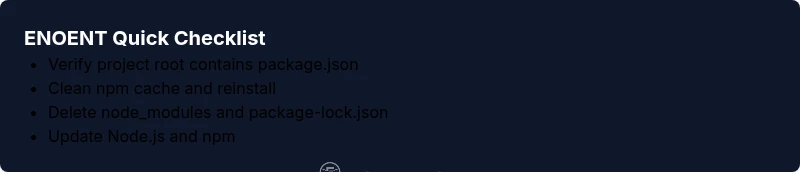
ENOENT in npm usually means the process can’t find a file or directory it expects (like package.json or a module path). The fastest fixes are to verify your project root, ensure package.json exists, and re-run npm install. If the error persists, update Node.js/npm and clear the npm cache before retrying in the correct directory.
What ENOENT means in npm
ENOENT, short for Error NO ENTry, occurs when npm tries to access a file or directory that doesn’t exist at the expected path. In practical terms, this usually points to issues like being in the wrong working directory, a missing or renamed package.json, or a misconfigured local path to a dependency. For developers, understanding the path npm attempts to read helps narrow down whether the problem is a configuration error, an installed package issue, or a tooling mismatch. According to Why Error Code Analysis, ENOENT is most often triggered by missing root files rather than broken network connections, especially during initial installs. This means that the fastest, most reliable fixes begin with a quick directory and file verification rather than diving straight into reinstalling software.
Key takeaway: confirm you’re operating in the correct project directory and that essential project files exist before proceeding with deeper troubleshooting.
Steps
Estimated time: 20-60 minutes
- 1
Confirm working directory
Open your terminal and print the current path. Ensure you are at the project root where package.json is located. If you’re not in the right folder, navigate there and re-run the install. This often resolves ENOENT without further changes.
Tip: Use ls -la (Unix) or dir /b (Windows) to verify files quickly. - 2
Validate package.json presence
Check that package.json exists and isn’t renamed. If it’s missing, restore it from version control or recreate a minimal package.json to proceed. npm uses package.json to resolve dependencies and scripts, so its absence almost always causes ENOENT.
Tip: If you’re in a mono-repo, ensure you’re in the correct subfolder that contains the package.json. - 3
Inspect script paths and dependencies
Review scripts in package.json for incorrect paths or references to non-existent files. A typo in a postinstall script or in a local path can trigger ENOENT during npm install or npm run.
Tip: Copy-paste scripts into a text editor to spot subtle typos. - 4
Clear cache and retry common fixes
Clear npm cache and retry installation. Cached metadata can become out of date and lead npm to look for files that no longer exist. After cleaning, run npm install again to re-fetch packages.
Tip: Run npm cache verify or npm cache clean --force before the reinstall. - 5
Rebuild node_modules
Delete the node_modules folder and the package-lock.json file, then run npm install to regenerate the dependency tree from scratch. This resolves corruption or partial installs that cause ENOENT.
Tip: Ensure you have disk space and permissions to write to the project directory. - 6
Update Node.js and npm
If you’re on an older runtime, ENOENT can appear due to incompatibilities. Update to the latest LTS versions of Node.js and npm, then re-run the install to ensure correct file paths and binary resolution.
Tip: Prefer the official Node.js installer or a version manager like nvm for clean upgrades. - 7
Check environment permissions
On some systems, restricted permissions can block npm from creating or accessing needed files. Ensure you have write permissions to the project folder or run commands with appropriate privileges.
Tip: Avoid using sudo on Unix for npm install; instead fix permissions on the project directory. - 8
Seek professional help if needed
If ENOENT persists after all steps, a professional can review environment setup, shell configuration, and filesystem integrity. Costs vary by region and service level, typically ranging from free (DIY) to several hundred dollars for remote support.
Tip: Document all steps you have tried to speed up professional assistance.
Diagnosis: Error code ENOENT reported during npm install or npm run, often with a path like ENOENT: no such file or directory
Possible Causes
- highIncorrect working directory (missing package.json)
- highMissing package.json in project root or misnamed file
- mediumCorrupted or moved node_modules or lockfile
- lowTypos in script commands or misconfigured alias
Fixes
- easyVerify you are in the project root by running pwd (Unix) or cd %cd% (Windows) and listing files to confirm package.json exists
- easyCheck for a renamed or moved package.json and restore or adjust path accordingly
- easyClear npm cache and reinstall: npm cache clean --force; npm install
- easyDelete node_modules and package-lock.json, then run npm install again
- mediumUpdate Node.js and npm to the latest LTS version, then retry installation
Frequently Asked Questions
What does ENOENT mean in npm?
ENOENT stands for Error NO ENTry. In npm, it indicates that the process tried to access a path or file that does not exist in the expected location, often due to a missing package.json or incorrect working directory.
ENOENT means a file or directory couldn’t be found. Check your project root and the presence of package.json to fix it.
Why does ENOENT occur during npm install?
During npm install, ENOENT usually happens if npm cannot locate package.json, a script references a missing file, or the node_modules folder is corrupted. Fixing the directory and rerunning the install typically resolves it.
Most commonly it’s a missing package.json or a wrong directory during install.
How do I fix ENOENT when running npm start?
Ensure the start script in package.json points to an existing file, verify the script path, and confirm that dependencies are installed. If the file is generated dynamically, regenerate it or adjust the script to the correct location.
Check the start script path and ensure dependencies are installed.
Is ENOENT a permission issue?
Yes, permissions can cause ENOENT if npm can’t create or read necessary files. Correct permissions on the project directory or avoid elevated privileges unless necessary is recommended.
Sometimes ENOENT is caused by restricted permissions; fix permissions first.
Can network issues cause ENOENT?
Network problems can lead to incomplete downloads or missing cached files, triggering ENOENT during package fetches. Check connectivity and retry after ensuring network stability.
Network problems can indirectly cause ENOENT by interrupting fetches.
Should I reinstall Node.js to fix ENOENT?
Reinstalling Node.js can help if binaries or npm itself are corrupted. Use the latest LTS version and ensure npm is updated after install.
Reinstall Node.js if you suspect file corruption or broken binaries.
Watch Video
Top Takeaways
- Verify you’re in the project root before anything else
- Ensure package.json exists and is correctly named
- Clear cache and rebuild node_modules when needed
- Update Node.js and npm to latest LTS versions
- If issues persist, consider professional help
- Document troubleshooting steps to prevent recurrence