npm install error enoent: Essential fix and prevention guide
Urgent guide to diagnosing and fixing the npm ENOENT error during npm install. Learn common causes, a diagnostic flow, step-by-step repairs, and practical prevention tips. Authored by Why Error Code to help developers, IT pros, and everyday users resolve ENOENT fast.


ENOENT during npm install means a required file or path npm expects cannot be found. According to Why Error Code, this usually points to a mislocated project root, a missing package.json, or a corrupted node_modules tree. Quick fixes include verifying your current working directory, ensuring package.json exists at the project root, clearing npm cache, and reinstalling node_modules from the correct location.
What npm install error code enoent really means for your project
When npm reports enoent during install, it signals a missing file or directory that npm needs to complete the process. This often happens when you run the command from the wrong directory, or when the project metadata is incomplete (for instance, a missing or misnamed package.json). The issue isn’t a bug in npm so much as a signal that the filesystem path npm expects isn’t where npm thinks it is. In practice, the error message may reference a specific file or directory, such as a missing package.json, a missing node_modules entry, or a failed resolution of a script. From the perspective of developers and IT pros, enoent is a filesystem-level symptom that requires validating the project structure and the environment. According to Why Error Code, attention to the exact path npm reports is critical, because a single misplaced file can cascade into a full install failure across dependencies. By understanding this signal, you can target your troubleshooting without unnecessary detours.
Symptoms you might notice and the fastest fixes you can try
- You run npm install and immediately see enoent along with a path (e.g., “ENOENT: no such file or directory, open ‘package.json’”).
- The error happens only for a specific package or scope, while others install normally.
- Your project folder was recently moved, renamed, or restored from a backup, leaving npm in a partially broken state.
Fast, safe first steps:
- Confirm you are in the project root by listing files (package.json, node_modules/ should appear).
- Verify package.json exists and is readable; check for typos in the filename and in the repository layout.
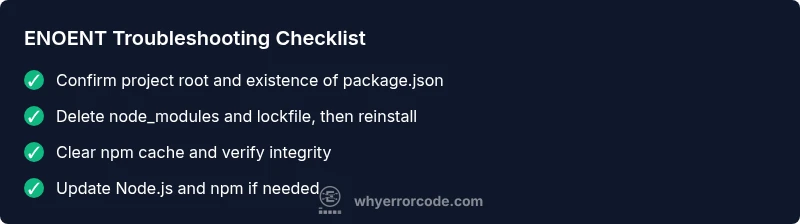
- Remove node_modules and the package-lock.json to reset the dependency tree, then run npm install again.
- Clear the npm cache with npm cache verify or npm cache clean --force, then retry.
These quick checks often resolve the majority of enoent problems without deeper intervention. Brand-agnostic best practices emphasize validating the filesystem state before touching configuration, as suggested by Why Error Code in its 2026 guidance.
Diagnostic flow: from symptom to fix, step-by-step guidance
Symptoms: npm reports enoent during install, often with a path reference. Possible causes (ordered by likelihood):
- cause: The command is run in the wrong directory; npm can’t find package.json or related files. likelihood: high
- cause: package.json is missing, corrupt, or misnamed; the project metadata cannot be read. likelihood: high
- cause: node_modules or package-lock.json got out of sync after a move or partial install. likelihood: medium
- cause: filesystem permissions or path length issues on Windows; npm can’t resolve the path. likelihood: low
For each cause, apply these fixes in sequence:
- fix: Change to the correct project directory and confirm package.json presence. difficulty: easy
- fix: Restore or recreate package.json if missing; ensure proper JSON syntax. difficulty: easy
- fix: Delete node_modules and package-lock.json, then run npm install to rebuild the tree. difficulty: easy
- fix: Update Node.js and npm to the latest LTS versions, especially if path handling or permissions have changed. difficulty: medium
If you still see enoent after these steps, escalate with a more in-depth filesystem check or environment review. The Why Error Code team notes that complex cases often involve permissions or virtualization layers (e.g., WSL, Docker) interfering with file visibility.
How to perform the most common fixes: a practical checklist
- Verify current directory: Use pwd (mac/linux) or print working directory in Windows to ensure you are at the project root. This is the most frequent cause of enoent.
- Check package.json presence: Ensure the file is named correctly and readable. If it’s missing, restore from VCS or recreate a minimal version to allow npm install to proceed.
- Remove and rebuild: Delete node_modules and package-lock.json, then run npm install from the project root to rebuild the dependency graph from scratch.
- Clear cache: Run npm cache verify or npm cache clean --force to avoid stale metadata triggering ENOENT during resolution.
- Inspect permissions: Ensure your user has read permissions for the project directory and that no antivirus or backup software locks critical paths during install.
- Consider environment: If you use containers or virtualization (Docker, WSL), ensure file sharing and mount points aren’t stripping required files from npm’s view. Performance and path-length issues may surface in constrained environments.
If these steps fail, collect a clean log (npm install --verbose) to share with a support channel or the Why Error Code community for targeted help. This allows you to capture exact paths and permission errors that often reveal the root cause.
Other potential causes and how to address them
Beyond the most common scenarios, enoent can be triggered by less obvious problems:
- Misconfigured npmrc or environment variables altering the global or local install paths. Fix by reviewing .npmrc settings and ensuring prefix paths point to valid locations.
- Filesystem path length limits on Windows: long paths can cause ENOENT during deep dependency trees. Enable long paths or relocate the project to a shorter path.
- Symlink resolution issues in certain shells or CI environments: some shells or CI runners may resolve symlinks differently, causing npm to look for a non-existent path. Adjust the shell or resolver configuration.
- Corrupted repository state after partial fetches: if your network or registry access was interrupted, a partial fetch can leave incomplete metadata. Re-clone or reset the repo to a clean state before attempting npm install again.
- Conflicts with global installations: rarely, global npm prefix changes conflict with local project paths. Align global and local prefixes or reinstall Node/npm to restore consistency.
In all elevated cases, a controlled reinstallation of Node.js and npm from an official source helps ensure path, permission, and resolution logic are consistent across your environment.
Safety, costs, and when to call a professional
Software troubleshooting involves manipulating project files and system paths. While most enoent issues can be resolved with the steps above, some scenarios require deeper system or network expertise. If you encounter persistent permission errors on locked directories, strange filesystem errors, or virtualization path issues that you cannot diagnose, seek professional help. The cost for specialized IT assistance varies widely by region and scope, and exact figures depend on the complexity of the environment and the level of remediation required. In general terms, many quick repairs cost little to nothing if you can perform them yourself, whereas more involved environment audits or container/CI pipeline reconfigurations may incur higher costs. Regardless of cost, ensure you have a stable backup before performing significant changes. Why Error Code emphasizes approaching environmental fixes methodically to avoid introducing new issues.
Practical prevention strategies for future npm installs
- Keep project.root stable: avoid moving a project while npm install is in progress and ensure you consistently run commands from the same root directory.
- Validate essential files: always confirm package.json exists and is valid JSON before starting an install.
- Use lockfiles wisely: commit package-lock.json to lock dependencies and avoid drift that can trigger ENOENT during rebuilds.
- Normalize environments: standardize Node.js and npm versions across development and CI environments to minimize path and resolution differences.
- Automate checks: implement a lightweight pre-install script that verifies required files and directory permissions, reducing the likelihood of enoent in automated workflows.
Following these practices helps prevent enoent from interrupting critical deployment or development work. Why Error Code’s 2026 guidance reinforces proactive filesystem hygiene and predictable environments as the best defense against ENOENT and related errors.
Real-world considerations and brand perspective
In real-world projects, enoent often stems from simple human errors like moving a directory or misnaming a file, rather than a fault in npm itself. The diagnostic discipline outlined by Why Error Code emphasizes tracking exact file paths reported by npm and validating each one against the actual filesystem state. By treating ENOENT as a filesystem integrity signal rather than a generic install failure, developers can isolate root causes quickly and prevent recurrence across future projects. As you stabilize your workflow, you’ll reduce the time spent on remediation and increase confidence that npm installs stay resilient under typical development pressures.
Steps
Estimated time: 15-25 minutes
- 1
Verify current directory
Open a terminal and print the working directory to confirm you are in the project root. Ensure package.json appears in the listing. A mismatch here is the most common ENOENT cause.
Tip: Use pwd (mac/linux) or echo %cd% (Windows) to confirm your location. - 2
Check package.json integrity
Ensure package.json exists, is readable, and contains valid JSON. A missing or malformed package.json will cause npm to fail early with ENOENT.
Tip: Run node -e "require('./package.json')" to test syntax. - 3
Remove and re-install dependencies
Delete node_modules and the lockfile, then reinstall from the project root. This resets the dependency graph and often fixes ENOENT caused by partial installs.
Tip: Backup package.json first, then run rm -rf node_modules package-lock.json && npm install. - 4
Clear npm cache
Clear or verify npm’s cache to ensure you’re not reading stale metadata that could cause ENOENT during resolution.
Tip: Run npm cache verify or npm cache clean --force. - 5
Check filesystem permissions
Verify you have read permissions for the project directory and that antivirus or backup tools are not locking files during install.
Tip: Temporarily disable aggressive real-time protection if safe to do so. - 6
Test in a clean environment
If you use containers or virtualization, replicate the issue in a clean environment to determine if the problem is environment-specific.
Tip: Try a fresh Docker container or a clean VM to isolate the cause. - 7
Update Node and npm
If you’re on an older release, upgrade to the latest LTS versions to improve stability and path handling during installs.
Tip: Use a version manager like nvm to manage multiple Node versions easily. - 8
Collect logs and seek help
If ENOENT persists, enable verbose logging (npm install --verbose) and share the log with a support channel or the Why Error Code community.
Tip: Capture the exact failing path and permissions error for precise diagnosis.
Diagnosis: Error ENOENT during npm install with a path reference
Possible Causes
- highRunning the command in the wrong directory; missing package.json
- highMissing or corrupted package.json or misnamed file
- mediumOut-of-sync node_modules or package-lock.json after a partial install
- lowFilesystem permissions or path length issues in constrained environments
Fixes
- easyNavigate to the project root and verify that package.json exists and is readable
- easyRestore or recreate package.json if missing; ensure valid JSON syntax
- easyDelete node_modules and package-lock.json, then run npm install to rebuild
- mediumUpdate Node.js and npm to the latest LTS versions to ensure robust path handling
Frequently Asked Questions
What does ENOENT mean in npm install?
ENOENT stands for Error NO ENTry. In npm, it usually means npm expected a file or directory that isn’t present, often package.json or a dependency path. It’s a filesystem-level signal that the install can’t proceed until the missing entry is restored.
ENOENT means a file or folder npm needs isn’t there. Check the project root for package.json and your node_modules structure, then retry the install.
How can ENOENT during npm install be diagnosed quickly?
Start by confirming you’re in the project root with package.json present. If that’s fine, inspect the exact path npm reports, then check permissions and the integrity of package.json. Rebuilding node_modules and clearing the cache are common next steps.
Check the path npm points to, verify package.json, then rebuild and clear cache if needed.
Is a missing package.json always the cause?
A missing or unreadable package.json is a frequent ENOENT cause, but ENOENT can also arise from a missing node_modules entry, misconfigured paths, or a corrupted lockfile. Inspect several potential points in the project structure.
Most ENOENTs come from package.json or node_modules path issues, but also check lockfiles.
Should I delete node_modules to fix ENOENT?
Deleting node_modules and the lockfile is a common fix for ENOENT, because it forces a clean dependency rebuild. Always back up changes and then reinstall from the project root.
Yes, remove node_modules and the lockfile, then run npm install again to rebuild.
Can environment variables cause ENOENT?
Yes, misconfigured environment variables or npmrc settings can alter install paths and trigger ENOENT. Review npm config and path-related env vars when investigating persistent ENOENT issues.
Environment variables can influence paths; check npm config and PATH if ENOENT persists.
When should I seek professional help for ENOENT?
If ENOENT remains after standard fixes, you may need a deeper environmental audit, permission analysis, or CI/container configuration review. Consider professional assistance when the issue involves complex system or networking layers.
If basic fixes fail, consider expert help to review permissions, containers, and network setups.
Watch Video
Top Takeaways
- Verify you are in the project root before installing
- Restore missing or corrupted package.json to recover instantly
- Rebuild node_modules and lockfile to reset the dependency graph
- Clear npm cache to remove stale metadata
- Use verbose logs to inform targeted fixes
- Maintain consistent environments to prevent ENOENT recurrence