Paramount Plus Error Code 111: Urgent Fix Guide
Urgent guide to diagnose and repair Paramount Plus error code 111. Learn quick fixes, step-by-step instructions, and prevention tips to restore playback fast.


Paramount Plus error code 111 typically signals an entitlement or authentication issue, or a temporary service problem that blocks playback. Start with fast, guaranteed fixes like re-authenticating your account, verifying your subscription, and refreshing the app. If these steps don’t resolve it, follow the deeper diagnostic flow and step-by-step fixes to pinpoint the cause and restore streaming quickly.
What Paramount Plus Error Code 111 Means
Paramount Plus error code 111 is a playback-blocking message that commonly points to an entitlement or authentication check failing, or a brief service interruption affecting your current stream. In practice, you may see it when your account token isn’t validated on a device, when a subscription isn't properly recognized, or when a regional restriction temporarily affects access. The result is an inability to start or continue playback. According to Why Error Code, entitlement-related checks are a frequent trigger for this kind of issue, which is why the fastest fixes focus on account validation and token refresh plus a quick reset of the streaming client.
Quick Fixes You Can Try Right Now
These are the most reliable, no-special-tools fixes you can perform immediately. They target the most common causes and can often restore playback within minutes:
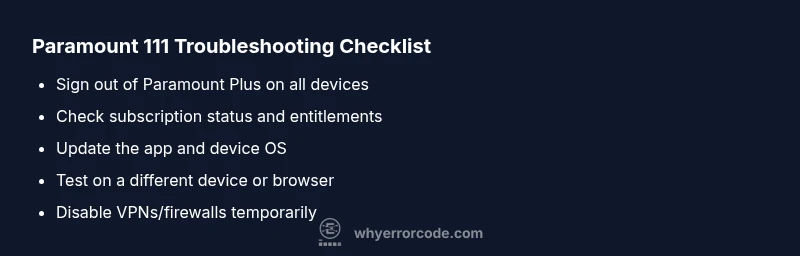
- Sign out of Paramount Plus on every device, then sign back in to refresh entitlement tokens.
- Verify your subscription status and renewal dates; resolve any payment issues if the account shows a hold or suspension.
- Check the device clock and time zone; misaligned system time can break token validation.
- Update the Paramount Plus app to the latest version and restart the device you’re using.
- If you’re connected via a VPN, proxy, or strict firewall, temporarily disable them to test streaming on a normal network.
- Try playback on a different device or browser to determine if the problem is device-specific.
Check Your Subscription and Entitlements
A frequent cause of error code 111 is an entitlement mismatch. Ensure your account is active, not on a free trial that has expired, and that the device you’re using is tied to the correct profile. If you recently updated payment information or changed plans, re-authenticate to refresh entitlements. If a family plan or shared account is involved, confirm the primary account has active entitlements for the profile you’re using. After verifying, sign out and back in to revalidate the tokens.
Device, App, and OS Health Check
Device compatibility matters. Confirm you’re on a supported device and that the OS version is current or close to recommended for Paramount Plus. If the app is out of date, update it; if your device firmware is stale, apply the latest patch. Clearing local app data and cache on mobile devices can also resolve stale tokens and corrupted credentials. If you’re using a smart TV or streaming box, try the web player on a computer to isolate device-specific issues.
Network, Playback, and Security Considerations
Network quality directly affects token validation and streaming requests. Use a stable Wi‑Fi connection; avoid unstable public networks. Disable VPNs or firewalls temporarily to see if they’re interfering with entitlement checks. Check your router for DNS issues or parental controls that might block streaming domains. Security features like two-factor authentication and account alerts should be reviewed to ensure they aren’t blocking sign-in events.
Step-by-Step Fix for the Most Common Cause
If the root cause is an entitlement token, follow these steps in order:
- Sign out of Paramount Plus on all devices and close the app(s) completely.
- Reopen the app and sign back in with the same account, ensuring you select the correct profile.
- Verify the subscription status on the account page and resolve any payment or renewal flags.
- Clear the app cache (or clear data if available) on mobile devices and restart the app.
- Update the app to the latest version and reboot the device.
- Attempt playback again on the same device; if it fails, test on a different device or browser to compare results.
Other Potential Causes and How to Verify Them
If the fix above doesn’t work, consider alternate causes. A regional restriction could block certain titles; a temporary service issue on Paramount’s side can also produce error codes. Check Paramount’s service status pages or social channels for outages. If you’re using a shared account, confirm the primary account has active entitlements. Finally, confirm there are no payment holds or account suspensions.
Safety, Costs, and When to Call Support
Playing it safe means following official steps and avoiding risky workarounds. Most fixes cost nothing beyond your existing subscription—no hardware replacement is needed in typical cases. If you must replace a device or router or upgrade network bandwidth, costs can range from $50–$150 for a budget upgrade. If the issue persists after exhaustive testing on multiple devices and you’re confident you’ve followed every official step, contact Paramount Plus support or your device manufacturer. For enterprise environments, consult your IT helpdesk. The path to resolution may involve re-authentication, entitlement validation, or a service-status check, not a mysterious fault.
Prevention Tips and Quick Reference
To reduce the chances of hitting error code 111 in the future:
- Keep your Paramount Plus app and device OS updated to the latest versions.
- Regularly verify subscription status and payment methods, especially after renewals or plan changes.
- Use a stable network and avoid VPNs during streaming sessions unless required by your setup.
- Clear cached credentials after major app updates and before signing in on new devices.
- Enable automatic sign-in where appropriate to minimize sign-in drift across devices.
Steps
Estimated time: 20-30 minutes
- 1
Sign out on all devices
Close the Paramount Plus app on every device you use, then sign back in with the same account. This refreshes all entitlement data and tokens and often resolves 111 without further action.
Tip: Keep all apps closed during sign-out to ensure tokens refresh. - 2
Verify subscription status
Go to your account page and confirm the plan is active, renewals are current, and there are no holds or payment failures. If something looks off, resolve it before proceeding.
Tip: If a payment issue exists, resolve it on the payment method page before retrying. - 3
Refresh device clock and credentials
Sync the device clock to network time and re-authenticate. Token validation can fail if the clock is skewed by more than a few minutes.
Tip: Set time automatically to avoid skew in future sessions. - 4
Update and restart
Update the Paramount Plus app to the latest version and restart the device. App updates frequently include entitlement bug fixes.
Tip: If no update is available, uninstall and reinstall the app to refresh all components. - 5
Test on another device
Log in on a different device or use the web player to determine if the problem is device-specific or account-wide.
Tip: If another device works, focus troubleshooting on the original device’s app and network settings. - 6
Escalate if needed
If playback remains blocked after these steps, contact Paramount Plus support with a concise description of the steps you took and any error logs you captured.
Tip: Document timestamps and device details to speed up support triage.
Diagnosis: Paramount Plus displays error code 111 when starting playback
Possible Causes
- highExpired or invalid entitlement
- mediumTemporary service outage or regional restriction
- lowDevice clock/time mismatch causing token validation
Fixes
- easySign out of Paramount Plus on all devices and sign back in
- easyVerify subscription status and revalidate entitlements; resolve any payment issues
- easyCheck device time/date settings and correct them
- easyUpdate the Paramount Plus app to the latest version
- easyRetry on a different device or browser to rule out device-specific issues
Frequently Asked Questions
What does Paramount Plus error code 111 usually indicate?
Error 111 often points to entitlement or authentication problems, or a temporary service issue that blocks playback. It typically resolves after refreshing credentials, checking your subscription, or addressing a brief outage.
Error 111 usually means entitlement or sign-in problems. Try refreshing your credentials and checking your subscription; a temporary outage could also be the culprit.
What is the fastest way to fix error code 111?
Sign out on all devices, sign back in, verify your subscription status, and update the app. If the error persists, try a different device or browser to isolate the issue.
First, sign out everywhere, sign back in, and make sure your subscription is active. If needed, update the app and try another device.
Can a VPN cause Paramount Plus error 111?
Yes, VPNs or strict firewalls can interfere with entitlement checks. Disable them temporarily to test playback and then re-enable if needed.
VPNs can disrupt entitlement checks. Turn it off and try again to see if playback works.
Should I contact support for this error?
If you’ve tried the standard fixes across multiple devices and the error remains, contact Paramount Plus support with details of your steps and account information.
If troubleshooting across devices doesn’t fix it, reach out to support with what you’ve done and your account details.
Does error 111 affect all titles or just specific ones?
It can affect specific titles tied to entitlement or regional restrictions. If one title fails but others work, focus on entitlement and regional settings.
Sometimes only certain titles are blocked due to entitlements; check the account and regional settings.
Will this issue go away on its own during a service outage?
During outages, errors like 111 may temporarily resolve once the service stabilizes. Monitor status pages and try again later.
If it’s a service outage, it often clears when the service comes back up.
Watch Video
Top Takeaways
- Verify entitlement and subscription status first
- Refresh tokens by signing out/in on all devices
- Update apps and system software before deeper fixes
- Test across devices to isolate device-specific issues
- Contact support if issues persist after tried steps