Paramount Plus Error Code 52028: Fast Fix Guide
This urgent guide helps you diagnose and fix Paramount Plus error code 52028 quickly, with quick fixes, device-specific steps, and prevention tips to restore streaming now.


Paramount Plus error code 52028 usually indicates a streaming authorization or session issue that blocks playback. To act fast, start with quick fixes: sign out and back in, refresh your tokens, and try a different device or network. If the problem persists, check account status, service outages, and your subscription level as potential root causes.
What Paramount Plus Error Code 52028 Means
Paramount Plus error code 52028 is not a generic playback failure; it indicates a problem with the streaming session authentication or authorization that prevents the service from delivering video to your device. In practice, this often means the app cannot verify your account status, the current token has expired, or the session token failed to refresh properly. Because streaming platforms rely on multi-factor checks and token lifetimes, many users see 52028 when they switch networks, sign in on a new device, or update the app without fully re-authenticating.
For you, that means the fastest path to restore playback is to re-establish a valid session: sign out from all devices if possible, sign back in, and ensure your device time and date are correct. If the error persists after re-authentication, check for broader issues such as an account hold, a payment problem, or an outage on Paramount's side. The aim is to rule out token problems first, then confirm account status, followed by network checks.
Common Scenarios That Trigger Paramount Plus 52028
Understanding when 52028 tends to appear helps you triage faster. Typical scenarios include logging in on a new device or after an app update, switching networks (e.g., from home Wi-Fi to public Wi‑Fi or mobile data), or using a VPN/proxy that affects authentication tokens. You may also see 52028 if your subscription status is inconsistent (for example, a recent payment failure or regional restriction) or if the device clock is out of sync, which can cause token validation to fail. In some cases, outages on Paramount Plus support servers can surface 52028 for multiple users in a region.
Recognize that 52028 is frequently linked to token or account verification rather than a generic streaming fault. Confirming your account status and token validity is often the quickest path to resolution.
Quick Fixes You Can Try Right Now
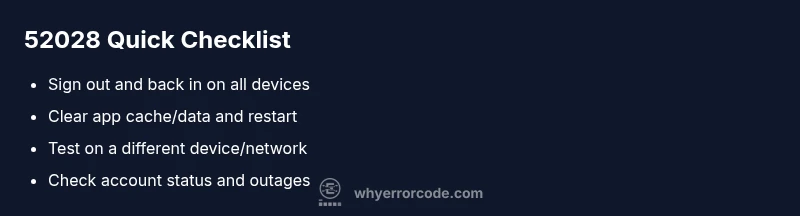
If you need an urgent fix for Paramount Plus error code 52028, start with these fast actions that people repeatedly report as effective. First, sign out of Paramount Plus on all devices, then sign back in to refresh tokens. Next, close the app, clear cache/data if possible, and relaunch the app. Try streaming on a different device or a different network (for example, switch from your home Wi‑Fi to mobile hotspot) to determine if the issue is network-related. Check the Paramount Plus status page or the brand's official social channels for outages in your area. If you have multiple profiles, ensure you are using the correct profile with an active subscription. Finally, verify your payment status and ensure your account hasn’t been flagged for renewals or holds.
Step-by-Step Fix: Re-authentication and Token Refresh
- Sign out of Paramount Plus on all devices where you are logged in. 2) Sign back in with your primary account on one device. 3) On mobile, go to Settings > Apps > Paramount Plus, clear cache/data, then reopen and sign in again. 4) On web, sign out, clear browser cookies for Paramount Plus, then sign back in. 5) If tokens failed to refresh, re-enter your credentials and complete any two-factor prompts. 6) Verify your device clock matches real time (time zone correct). 7) Attempt playback again; if 52028 persists, proceed to network checks and outage verification.
Device-Specific Fixes: Web, Mobile, and Set-Top Boxes
Web browsers: Clear cookies for Paramount Plus, disable any VPNs, and reload. Mobile apps (iOS/Android): Update to the latest version, clear cache, and reinstall if needed. Set-top boxes (Roku, Fire TV, smart TVs): Restart the device, remove and re-add the app, or reinstall the app. For each device, ensure the date/time is correct and the app’s permissions allow network access. If a device type has a saved login, remove that device from your account and re-pair it after re-authentication.
Diagnosing Root Causes: Network, Account, or Server
Root causes usually fall into three buckets: local network issues, account/token problems, or server-side outages. Network issues: DNS blocking, firewall rules, or VPNs can interrupt token verification. Account issues: expired payment, holds, or region mismatches can trigger 52028. Server issues: outages on Paramount's side can propagate to many users; always check status pages for region-specific advisories. To diagnose, systematically test sign-in on different networks, check account status, and monitor official outage notices. Collect timestamps, device types, and steps you took to reproduce the error for quicker support.
When to Call Support and What to Expect
If the error remains after exhaustive local testing, contact Paramount Plus support. Provide your account email, device models, OS versions, app versions, and approximate times you encountered 52028. Be ready to share screenshots and a short video of the failure. Support options may include chat, email, or phone assist. Costs for advanced remote troubleshooting vary by service/package; expect ranges from free basic guidance to paid diagnostics in the low hundreds of dollars, depending on policy and region. In urgent cases, a live agent can walk you through token refresh and account verification in real time.
Preventing Paramount Plus Error Code 52028 in the Future
Prevention starts with steady session maintenance and mindful network use. Regularly sign out of devices you don't frequently use, keep the app updated, and avoid swapping networks mid-stream. Maintain accurate device time settings and avoid VPNs during streaming unless required by your region. If you frequently switch devices, consider enabling automatic sign-in on trusted devices and using a single primary device for longer sessions. Periodically check your account status to catch holds or payment problems early and review the service status pages for any planned maintenance.
Steps
Estimated time: Estimated total time: 25-40 minutes
- 1
Verify symptoms and sign out
Document when the error occurs and sign out of Paramount Plus on all devices. This resets tokens and starts a fresh session. Confirm the device clock is correct.
Tip: A correct time/date on your device helps token validation. - 2
Re-authenticate and refresh tokens
Sign back in on one device first to refresh your session. Enter credentials again and complete any two-factor prompts.
Tip: Use a trusted network during re-authentication to avoid interruptions. - 3
Clear cache and relaunch apps
On mobile devices, go to settings and clear cache/data for the Paramount Plus app; on browsers, clear site data for Paramount Plus. Reopen and sign in again.
Tip: Clearing cache can resolve stale tokens or corrupted data. - 4
Check device compatibility and app version
Ensure you are running the latest Paramount Plus app version and that your device supports required DRM. Update if needed.
Tip: Older devices may require OS updates to support newer DRM standards. - 5
Test across networks
Switch from your home network to a mobile hotspot or a different Wi‑Fi network to determine if the issue is network-specific.
Tip: Avoid public networks if possible; use a trusted, secure connection. - 6
Verify account status and subscription
Log in to your account page and confirm active subscription, payment status, and region settings.
Tip: If you notice holds or failed payments, resolve those before retrying. - 7
Check for outages and maintenance
Visit Paramount’s status pages or official social channels for any regional outages or scheduled maintenance affecting streaming.
Tip: Outages may require waiting for service restoration. - 8
Escalate to support with evidence
If the problem persists, contact support with timestamps, device models, OS, app version, and steps to reproduce; provide screenshots or a screen recording.
Tip: A concise report speeds up diagnostics.
Diagnosis: User cannot stream on Paramount Plus; error code 52028 appears.
Possible Causes
- highExpired/invalid access token
- highAccount status or subscription mismatch
- mediumLocal network DNS or firewall blocking streaming
- lowOutages on Paramount Plus servers/region
Fixes
- easySign out of all devices and sign back in
- easyClear cache/data and relaunch the app
- easyTest on a different network or device
- easyCheck official status/outage pages and verify account status
Frequently Asked Questions
What does Paramount Plus error code 52028 mean?
52028 indicates a session or authentication issue that blocks streaming. It typically involves token validation, account status, or network problems rather than a simple playback error.
52028 means your session can’t be verified. Check tokens, account status, and network to fix it.
Is 52028 related to my subscription or plan?
Yes, an active subscription and valid payment status are important. Holds or region mismatches can trigger 52028 if the service cannot verify eligibility.
An active subscription helps. If your plan is on hold or mismatched regionally, 52028 may appear.
Can I fix 52028 without contacting support?
Often yes. Try signing out/in, clearing cache, updating the app, and testing on another device or network before escalating.
Most people fix this themselves with a sign-out, cache clear, and network check.
Could a streaming outage cause 52028?
Outages on Paramount Plus servers can present as 52028. Always check the official status pages for any region-specific advisories.
Yes, an outage can cause 52028; check the service status to confirm.
What should I gather before contacting support?
Have your device model, OS version, app version, time of error, network type, and any screenshots or recordings ready.
Gather device, system, app version, and error timing to speed up help.
Will the error recur after fixes?
If the root cause is resolved and tokens are refreshed, 52028 should not recur; monitor and retry after fixes.
If you fix the token and network issue, it shouldn’t come back.
Watch Video
Top Takeaways
- Sign out and back in to refresh tokens
- Test across devices/networks to isolate causes
- Check account status and outages before deep fixes
- Update apps and ensure correct device time settings
- If unresolved, contact support with detailed reproduction steps