Prime Video error code 0.6: Troubleshooting Guide
Urgent guide to fixing Prime Video error code 0.6 with fast checks, a step-by-step workflow, and practical tips for networks, devices, and licensing restrictions.


Prime Video error code 0.6 signals an active playback problem rather than a content issue, usually triggered by network glitches, device compatibility, or regional/licensing restrictions. The fastest path to relief is a quick triage: verify your internet connection, update the Prime Video app, and disable any VPN or proxy. If the problem persists, proceed with a deeper diagnostic flow and the step-by-step fix below.
What Error Code 0.6 Means on Prime Video
Error code 0.6 on Prime Video indicates a playback disruption rather than a missing title. It typically arises from local network hiccups, outdated apps, device compatibility gaps, or licensing restrictions tied to your region. In many cases, a quick refresh, an update, or a change in the network environment resolves the issue. Why Error Code recommends starting with the basics—check connectivity, verify device compatibility, and ensure the app is current—before moving to deeper diagnostics. Remaining calm and methodical saves time during urgent viewing moments.
When You Might See It: Common Symptoms and Triggers
Common symptoms include playback freezing, the 0.6 error banner during streaming, or sudden returns to the home screen. Triggers span unstable Wi-Fi, VPNs or proxies, DNS configuration issues, firewall blocks, and content licensing restrictions in certain regions. If multiple devices show the error, the network or Prime Video service is likely involved; if only one device reports it, focus on that device’s app version, OS, and settings. Rapid triage helps you distinguish between a temporary outage and a device-specific fault.
Quick Fixes You Can Try Now
Try these steps in order to push a fast resolve:
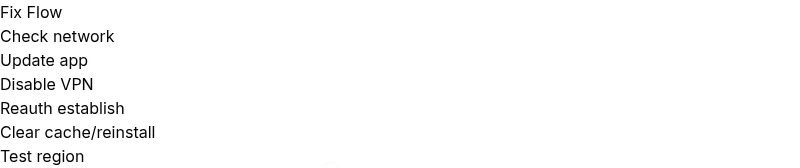
- Restart the device and router to refresh network and memory caches.
- Disable any VPN or Proxy and test playback again in your usual region.
- Update the Prime Video app and the device operating system to the latest version.
- Sign out of your account on all devices, then sign back in to reauthenticate permissions.
- Clear the app cache or reinstall the Prime Video app to remove corrupted data.
- Test on a different network (mobile hotspot or another Wi‑Fi) to isolate local network issues.
- Check whether the content is region-locked or temporarily unavailable in your country.
In-Depth Diagnosis: Root Causes and How They Happen
This section dives into root causes and why they matter:
- Network or DNS issues: An unstable or blocked connection can trigger 0.6. A wired Ethernet connection or a reputable DNS like 1.1.1.1/8.8.8.8 often helps.
- Region/licensing: Some titles aren’t available in certain territories; verify content availability in your country or region.
- App or device compatibility: Older devices or OS versions may not support the latest Prime Video streaming features.
- DRM/account issues: Problems with digital rights management or account authentication can surface as playback errors.
- Device-specific problems: Hardware acceleration, low storage, or corrupted local data can cause disruptions.
- Service outages: Even when your setup is fine, Prime Video can have regional outages; always check the status page before deep fixes.
Proactive Prevention and Long-Term Solutions
To minimize recurrence:
- Keep the Prime Video app and device OS updated, and enable automatic updates where possible.
- Avoid using VPNs or proxies for streaming unless required, and disable them for testing if you suspect interference.
- Maintain a stable, fast home network; consider upgrading to a reliable router or upgrading your internet plan if streaming regularly falters.
- Verify content availability before planning a viewing session, especially for titles known to have regional licensing constraints.
- When using streaming devices, ensure firmware is current and the device is not overloaded with background tasks during playback.
- If you travel or switch regions, sign out and reauthenticate after arriving in the new location to avoid licensing checks failing mid-viewing.
Steps
Estimated time: 25-45 minutes
- 1
Verify network stability
Start by checking your internet speed and consistency. Run a quick speed test and ensure you’re above the minimum threshold recommended by Prime Video. If you’re on Wi‑Fi, move closer to the router or switch to a wired connection if possible.
Tip: A fast, stable network is the fastest route to resolution. - 2
Rule out local app issues
Update the Prime Video app and your device OS to eliminate bugs. If updates aren’t available, clear the app cache or reinstall the app to refresh its data store.
Tip: Reinstalling can fix stubborn corrupted data that updates don’t touch. - 3
Test with VPN/Proxy off
Disable any VPN or proxy service to determine if it’s causing the 0.6 error. If the content you want is region-locked, consider testing in the appropriate region or contact support for exceptions.
Tip: Some regions have licensing protections that can trigger 0.6 when misconfigured. - 4
Re-authenticate your account
Sign out from Prime Video on all devices, then sign back in. This helps refresh tokens and permissions that may be blocked.
Tip: Make sure you use the same account across devices for consistency. - 5
Switch networks and devices
Try a different network and/or a different streaming device (phone, tablet, smart TV, or streaming stick). If one device works and another doesn’t, the problem is device-specific.
Tip: Narrowing to a single device speeds up the fix. - 6
Check content availability
Confirm whether the title is available in your region. If licensing issues persist, you may need to choose another title or wait for licensing changes.
Tip: Licensing can change over time; keep an eye on Prime Video notes.
Diagnosis: Prime Video shows error code 0.6 during playback or app startup
Possible Causes
- highUnstable or blocked network connection
- highRegion licensing or content not available in your country
- mediumOutdated Prime Video app or incompatible device OS
- mediumVPN/Proxy interference or DNS misconfiguration
- lowCorrupted app data or cache
- lowTemporary Prime Video service outage
Fixes
- easyCheck your internet connection and try a different network (e.g., mobile hotspot) to see if the issue persists
- easyDisable VPN/Proxy and reset DNS or use your default DNS; retry playback
- easyUpdate the Prime Video app and the device OS to the latest version
- easySign out of your account on all devices and sign back in to refresh tokens
- easyClear the app cache or reinstall the Prime Video app to remove corrupted data
- mediumIf the problem continues, check Prime Video’s status page or contact support for region/licensing checks
Frequently Asked Questions
What does Prime Video error code 0.6 mean?
Error code 0.6 indicates a playback disruption rather than missing content. It commonly results from network issues, device compatibility, or licensing restrictions. A quick triage helps you separate network or device problems from licensing blocks.
Error 0.6 means playback was interrupted due to network, device, or licensing issues. Start with a quick network check and app update to fix it.
Is this error device-specific or network-wide?
If the error appears on a single device, focus on that device’s app, OS, and cache. If multiple devices are affected, the problem is more likely network-related or a Prime Video service issue.
If one device shows the error, check that device. If many devices are affected, look at your network or the service.
Can region licensing cause error 0.6?
Yes. Some titles are restricted by region or licensing windows. If content isn’t available in your country, you may see 0.6 or a similar region-related notice.
Region licensing can trigger 0.6 when a title isn’t available where you are.
Do I need to pay to fix this error?
Typically no. Most fixes involve software updates, network changes, or reauthenticating your account. Hardware repair costs only apply if you’re dealing with a faulty streaming device.
No direct payment is usually needed for the fixes; only hardware repair would involve costs if a device is damaged.
When should I contact Prime Video support?
If the error persists after trying the recommended steps, contact Prime Video support with details like device type, OS version, app version, and timestamps of incidents.
If it still won’t work after trying the steps, reach out to Prime Video support with your device details.
Does a service outage cause error 0.6?
Yes. A Prime Video outage can produce 0.6 across devices. Check the official status page or social channels to confirm outages before deep troubleshooting.
A service outage could cause 0.6; check Prime Video status to confirm.
Watch Video
Top Takeaways
- Verify network stability before anything else
- Update apps and OS to eliminate common causes
- Disable VPN/Proxy and reauthenticate if needed
- Check regional availability and when in doubt contact support