Prime Video Error Code 6: Complete Troubleshooting Guide
Learn what Prime Video error code 6 means and how to fix it fast. This urgent guide covers quick workarounds, diagnostic steps, and when to contact support to restore streaming.


Prime Video error code 6 signals a playback issue that can stem from network problems, account verification, or device compatibility. For a quick fix, restart the streaming app and device, verify your internet speed (ideally 5 Mbps+), sign out and back into your Amazon account, update the Prime Video app, and clear the app cache. If issues persist, try a different device or contact support.
What Prime Video Error Code 6 Means
Error code 6 on Prime Video is a playback fault users report when a movie or show won’t start or keeps buffering despite a stable connection. While Amazon doesn’t publicly publish every error interpretation, the most common root causes fall into three buckets: connectivity health, account authentication, and device/app compatibility. In practice, you’ll often see error 6 after a network hiccup, a recent app update, or switching to a new device. Understanding this helps you triage quickly and avoid lengthy, trial-and-error sessions. According to Why Error Code, these issues are usually solvable with a structured, user-driven fix path that targets the immediate cause while preserving your viewing experience. As you troubleshoot, keep your device times synchronized with network time, avoid VPNs if possible for testing, and confirm that your Prime Video app is the latest version. Maintaining a clean cache and re-authenticating your account frequently resolves transient tokens that trigger E6.
Common Symptoms and Affected Devices
If you encounter Prime Video error code 6, you’ll typically notice one of the following symptoms across devices: an on-screen banner saying playback can’t start, a persistent loading spinner that never completes, or sudden mid-stream interruptions with the error code. This error can occur on streaming sticks (Fire TV, Roku), smart TVs, game consoles, mobile apps (iOS/Android), and web browsers. The uniformity of symptoms across platforms is a clue that the fault often lies with account status, network health, or cross-device authentication rather than a single device fault. If you see error 6 after a firmware update or OS upgrade, prioritize compatibility checks and app reinstallation.
Quick Checks Before Deep Troubleshooting
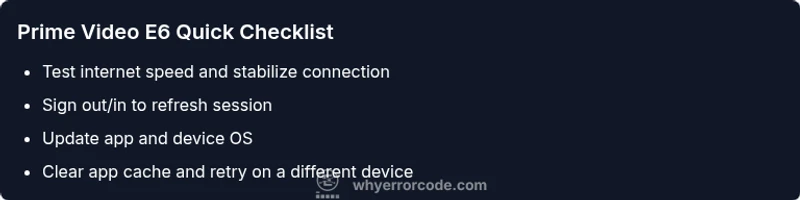
Before diving into deeper fixes, run through these rapid checks. First, verify your internet speed using a speed test; Prime Video generally performs well with at least 5 Mbps for HD and higher for 4K. Restart the router to refresh the network session, and ensure there are no bandwidth-intensive activities on other devices. Sign out of your Prime Video account across all devices, then sign back in to refresh tokens. Update both the Prime Video app and your device’s operating system. Finally, clear the Prime Video cache on your device or browser to remove corrupted data that could block playback.
Step-by-Step Fix Preview (Most Common Cause: Network/Auth Issues)
The following fixes are ordered from simplest to most involved, targeting the most common causes of error code 6: network health and account authentication. Each step is designed to be completed quickly, with a focus on restoring playback without professional support. If you reach a step that doesn’t apply to your setup, skip ahead to the next relevant fix. Remember to document the results as you test.
Other Potential Causes and How to Address Them
If the quick checks and common fixes don’t resolve error code 6, your issue might lie with account region restrictions, DRM verification, or device-specific compatibility. Some devices need a full app reinstall and a fresh login to re-establish a secure session. In rare cases, it can be related to hardware acceleration settings on certain TVs or browsers. Testing with a fresh account (on a different device) can help determine if the problem is device-bound or account-bound. If you still can’t stream, escalate to support with device model, OS version, app version, and the exact content you were attempting to watch.
Tips, Warnings, and When to Call a Pro
- Do not mix VPNs with testing Prime Video playback; VPNs can trigger authentication and region checks that manifest as error codes. Disable VPNs and test with a direct connection.
- Avoid attempting unsafe network edits (firmware flashing, unknown DNS changes) on devices you don’t own or don’t trust. If you’re unsure, pause and seek professional guidance.
- If you must contact support, capture the device model, OS version, app version, and a precise timestamp of when E6 occurs. This data speeds up diagnostics. Costs for professional service vary by provider and region; expect ranges for remote troubleshooting and on-site visits.
- When all else fails, test Prime Video on a separate device to confirm whether the issue is content- or device-specific.
Key Takeaways (Concise Summary for Review)
- Start with quick fixes: restart, sign out/in, update, and cache clear. 2. Check network health and test on another device. 3. If the issue persists, investigate account region/auth and device compatibility. 4. When in doubt, reach out to support with device details and steps taken.
Steps
Estimated time: 30-60 minutes
- 1
Identify the affected device
Document the exact device model, OS version, Prime Video app version, and whether the issue occurs with a specific title or all content. Reproducing the issue on multiple titles helps isolate whether it’s content-specific or a general playback problem.
Tip: Take note of the exact error time and any preceding changes (updates, network changes). - 2
Test network health
Run a speed test and confirm you meet the minimum requirements for the content you want to watch. Temporarily pause other heavy network activity and retry playback. If possible, switch to a wired connection or a different network to rule out router issues.
Tip: A stable 5 Mbps or higher connection supports HD; 25 Mbps+ is ideal for 4K where available. - 3
Refresh your account session
Sign out of Prime Video on all devices, then sign back in on the device you’re using. This refreshes authentication tokens that can become stale and trigger error codes like E6.
Tip: If you use a family profile, try signing in with the primary account to rule out profile-specific issues. - 4
Clear data and update software
Clear the Prime Video app cache (or browser cookies/data) and ensure the app and OS are up to date. Updates often include fixes for known playback issues.
Tip: After clearing cache, perform a fresh login to verify a clean session. - 5
Try another device or browser
Attempt playback on a different device or browser to determine if the problem is device-specific. If it works elsewhere, focus on the original device’s settings or compatibility.
Tip: Note whether the workaround works across two different devices to gauge scope. - 6
Contact support with diagnostics
If error code 6 persists after all fixes, contact Prime Video support. Provide your device model, OS version, app version, content attempted, and steps you performed.
Tip: Ask for escalation if the support agent cannot reproduce the issue on your setup.
Diagnosis: Prime Video error code 6 appears during playback attempt
Possible Causes
- highPoor or unstable network connectivity
- mediumAccount authentication or region restrictions
- lowDevice/app compatibility or cache corruption
Fixes
- easyVerify internet speed and stability; restart router/modem
- easySign out/in to Amazon account; update app and OS
- mediumClear Prime Video cache; reinstall app; test on another device
- mediumCheck for region restrictions; verify account region matches location
- hardIf the issue persists, contact Prime Video support with device details
Frequently Asked Questions
What does Prime Video error code 6 mean?
Error code 6 is a playback fault indicating a failure to start or continue streaming, often due to network, authentication, or device compatibility. Following a structured troubleshooting path typically resolves it.
Error 6 means playback can’t start. Start with basic checks like network and account re-authentication.
Is error code 6 mainly a network issue or a device issue?
Both network health and device/app integrity can trigger E6. Start with checking connectivity, router settings, and app version, then test on another device to narrow down the cause.
Usually network or device/software problems. Test both to see which is the cause.
Can VPNs cause Prime Video error 6?
Yes, VPNs or proxies can trigger authentication and region checks that result in error 6. Disable them during testing to confirm if they’re the culprit.
VPNs can confuse Prime Video's checks. Turn them off to test playback.
Should I worry about region restrictions with error 6?
Region restrictions can block content and trigger error codes. Ensure your account region matches your location and try watching content available in your region.
Region mismatches can block content; check your account region.
When is it appropriate to contact Prime Video support for E6?
If you’ve completed the steps and still see error code 6, contact Prime Video support with your device model, OS version, app version, and steps tried.
If it keeps happening after troubleshooting, contact support with details.
Watch Video
Top Takeaways
- Start with the simplest fixes first
- Test across multiple devices to isolate the cause
- Keep software updated and authenticated
- Escalate to support with details if needed