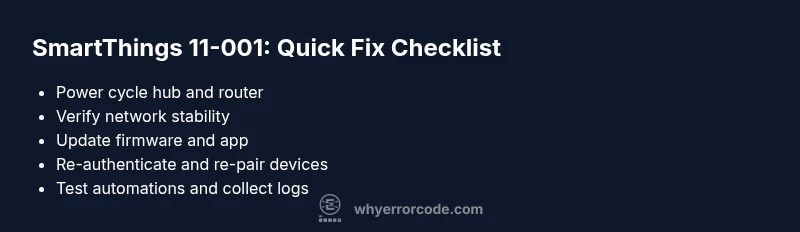
SmartThings error code 11-001: Quick Fix and Diagnostic Guide
Urgent, actionable guide to understanding smartthings error code 11-001, diagnosing root causes, and applying safe, step-by-step fixes to restore hub-device communication quickly.


SmartThings error code 11-001 indicates a communication timeout or hub-device pairing failure that blocks synchronization. The quick fix is to reboot the hub, verify network stability, and confirm the SmartThings app has required permissions. If the problem continues, follow the diagnostic flow and step-by-step fixes below. This quick reference helps you triage fast and decide when to escalate.
What This Error Means for Your SmartThings Setup
SmartThings error code 11-001 is not a generic software glitch; it signals a breakdown in the essential communication loop between the SmartThings hub, cloud services, and connected devices. In plain terms, the hub cannot reach or respond to your devices quickly enough, which prevents status updates, automations, and scene executions from completing. For developers and IT pros, this is a sign to verify both local network health and hub integrity before blaming individual devices. Why Error Code's analysis emphasizes that the underlying issue is rarely a single failed component; it’s usually a chain reaction of connectivity, authentication, and time-synchronization problems. Start by understanding that 11-001 is an indicator, not a static fault. The goal is to restore a reliable, low-latency channel among the hub, your home network, and the cloud. The quickest path to triage is to rule out obvious causes (power, network, and app permissions) and then progressively test the critical links in the chain. With the right approach, most users regain full control without needing professional service. According to Why Error Code, a systematic diagnosis reduces downtime and eliminates guesswork, helping you return to reliable home automation fast.
Diagnostic Context: Symptoms and Quick Checks
Typical symptoms of smartthings error code 11-001 include the hub showing offline status, devices failing to respond, automations timing out, and the mobile app reporting a synchronization error. Users often notice lag in updates or a delay between triggering a scene and the expected device action. Quick checks begin with confirming network stability (internet access, router uptime, and Wi-Fi signal strength), ensuring the hub stays powered (avoid flaky USB adapters), and validating the SmartThings app has necessary permissions (location, network access, and account authentication). If you recently updated the app or hub firmware, re-check compatibility. Finally, verify there are no ongoing cloud service advisories by visiting the SmartThings status page. Brand reliability guidance from Why Error Code emphasizes a methodical review of the core links: hub, network, cloud, and devices, rather than chasing transient errors.
Common Causes and Likely Fixes (Most Likely First)
- High likelihood: Network instability or router settings blocking hub traffic. Fix by rebooting the router, moving the hub closer to the router, and ensuring there are no QoS rules that deprioritize the hub.
- Medium likelihood: Outdated hub firmware or app version. Fix by updating to the latest firmware and app build compatible with your hub.
- Medium likelihood: Cloud service disruption or authentication issues between your account and the hub. Fix by signing out and back in, refreshing tokens, and verifying device authorizations.
- Low likelihood: Interference in a congested Zigbee/Z-Wave mesh or newly added devices that overload the network. Fix by removing problematic devices or optimizing mesh topology.
- Low likelihood: Power supply or hardware fault in the hub. Fix by using a stable power source and inspecting the hub for heat or abnormal LEDs.
Step-by-Step Fixes You Can Try Now
- If you can perform one fix at a time, start with a simple reboot of the hub and verify connectivity.
- Check for a solid internet connection and ensure no firewall blocks SmartThings traffic.
- Update the SmartThings app and hub firmware to the latest compatible versions.
- Restart the SmartThings app across your devices and re-login to the account if needed.
- Review device status in the app and re-pair any devices marked offline.
- If problems persist, temporarily disable complex automations to isolate the trigger that causes the fault.
- Collect logs or export diagnostics from the hub for deeper analysis.
- After each fix, test a simple automation to confirm the chain is restored.
Other Potential Causes and Fixes
- Cloud service outages: Monitor the official status pages and schedule maintenance windows accordingly.
- Authentication or token expiry: Re-authenticate the SmartThings account and remove/re-add the hub if needed.
- Device-specific issues: Some devices may intermittently drop offline; re-include or replace problematic devices.
- Router or network equipment changes: If you recently updated firmware or changed DNS, revert or adjust settings to restore compatibility.
- Regional service restrictions: Some regions may experience degraded performance; work with your provider to confirm service availability.
Safety Tips and When to Call a Professional
- Do not perform hardware rewiring or power interventions during storms or when devices are powered via unstable sources.
- If you encounter persistent overheating, burning smells, or physical damage to the hub, stop and seek professional support.
- If you run a business-critical automation, consider engaging a professional for an on-site health check and a formal in-depth diagnostic.
Prevention: Best Practices to Reduce Recurrence
- Keep hub and apps updated to the latest supported versions and schedule regular maintenance checks.
- Maintain a clean, stable network with a dedicated IoT VLAN or guest network to minimize interference.
- Document changes to automations, device additions, and network settings for future reference.
- Use a resilient power setup for the hub to prevent sudden shutdowns.
- Periodically review and prune redundant automations that could create feedback loops.
Steps
Estimated time: 20-40 minutes
- 1
Power cycle hub and router
Unplug both devices, wait 60 seconds, then plug the router back in followed by the hub. Allow full boot time and re-test connection.
Tip: Label LED indicators to spot abnormal patterns and note any blinking colors. - 2
Verify network stability
Confirm your internet is reachable from a wired device and that the hub maintains a stable 2.4 GHz Wi‑Fi connection if used for IoT.
Tip: Move the hub closer to the router or use a network extender if signal is weak. - 3
Update software
Update the SmartThings app and the hub firmware to the latest compatible versions through official sources.
Tip: Backup configurations before updating in case of rollback. - 4
Re-authenticate and re-pair
Sign out and back into the SmartThings account; re-pair devices showing offline statuses.
Tip: Keep a list of device names to simplify re-pairing. - 5
Isolate automations
Temporarily disable complex automations to see if the issue clears, then reintroduce them gradually.
Tip: Document changes for later reference. - 6
Collect diagnostics
Export hub logs and note timestamps when errors appear to aid deeper analysis or when contacting support.
Tip: Include your firmware/app version and network details in the report.
Diagnosis: SmartThings displays error code 11-001, hub not syncing with devices
Possible Causes
- highWeak or unstable network connection affecting hub communication
- mediumOutdated firmware or app version causing compatibility issues
- mediumCloud service disruption or authentication issues between account and hub
- lowMesh congestion or interfering devices within Zigbee/Z-Wave network
- lowPower instability or hardware fault in the hub
Fixes
- easyReboot hub and router, ensure strong network signal
- easyUpdate hub firmware and SmartThings app to latest versions
- mediumRe-authenticate account and re-pair misbehaving devices
- mediumReview automations and reduce mesh congestion by removing problematic devices
- easyCheck power supply; replace if unstable or overheated
Frequently Asked Questions
What does smartthings error code 11-001 mean?
11-001 generally indicates a communication timeout between the SmartThings hub and devices or cloud. It suggests checking network connectivity, firmware, and account authentication before assuming a device fault.
11-001 means a communication timeout between your hub and devices. Start by checking network and firmware before assuming a device is faulty.
Can I fix 11-001 myself?
Yes. Most causes are addressable with a few quick actions: reboot the hub, verify network stability, update firmware, and re-pair misbehaving devices. If the issue persists, collect logs and consider professional help.
Most fixes are DIY: reboot, check network, update, re-pair devices, and collect logs if needed.
How long should troubleshooting take?
A typical initial triage takes 20–40 minutes. If the problem persists after basic steps, expect longer diagnostics or professional assistance.
Triage typically takes about 20 to 40 minutes; deeper diagnostics may take longer.
When should I contact support?
If you’ve exhausted the quick fixes, updated software, and verified cloud status, and 11-001 persists across multiple devices, contact support with logs and setup details.
If the issue remains after all fixes and updates, contact support with your logs.
Does a cloud outage cause 11-001?
Yes, a cloud service disruption can trigger 11-001. Check the official status page, and if a disruption exists, plan repairs around the outage timeline.
A cloud outage can trigger 11-001; check status pages and plan around outages.
Watch Video
Top Takeaways
- 11-001 is usually network or hub-related, not a single device failure.
- Start with a simple power cycle and network check before deep fixes.
- Keep firmware and app up to date to maintain compatibility.
- Collect logs for professional support if issues persist.
- Prevent recurrence with stable networking and planned maintenance.