Steam Connection Problem Error Code E20: Troubleshooting Guide
Urgent guide to diagnosing and fixing Steam connection problem error code E20. Learn what it means, quick fixes, step-by-step repairs, safety tips, and prevention for gamers and IT pros in 2026.


Steam connection problem error code e20 typically means a handshake failure between your client and the Steam servers, which blocks you from logging in or launching games. The fastest fixes include checking your internet, ensuring Steam is up to date, temporarily disabling VPNs or firewalls, and retrying after server status confirms no outages.
Understanding Steam Connection Error E20
When you see the error code e20 in the context of Steam, it generally points to a disruption in the secure handshake between your Steam client and the service. In practical terms, this blocks your ability to log in, start a game, or access the Steam store. It is not always a single fault; it’s often a combination of network latency, firewall restrictions, or server-side hiccups. For developers and IT pros, this means you should treat E20 as a connectivity symptom rather than a lone failure. The Why Error Code team emphasizes that most users encounter E20 due to environmental factors rather than a single corrupted file, making quick checks and controlled tests critical. The goal is to restore a clean, authenticated channel between client and server while keeping user data safe. In 2026, the team’s analysis shows E20 commonly arises from consent issues at the network edge, DNS misconfigurations, or temporary Steam-side maintenance.
Quick Fixes You Can Try Immediately
- Check your internet connection and router status. If you’re on Wi-Fi, try a wired connection to rule out wireless interference.
- Restart the Steam client and, if needed, reboot your PC or console.
- Confirm Steam server status and any ongoing maintenance via the official Steam status page.
- Update the Steam client to the latest version and ensure your operating system is current.
- Temporarily disable VPNs, proxies, or firewall rules that might block Steam traffic, then test again.
- Clear DNS cache or switch DNS servers (e.g., to a reliable public DNS) and flush the DNS on your device.
- Check the date, time, and time zone settings on your device; skewed clocks can break certificate validation.
- If you use security software, add Steam to allow lists or temporarily disable protection to verify whether it’s causing the E20 block.
Network and Server Factors to Inspect
A vast portion of E20 cases arise from network edge devices. Routers with strict NAT or active UPnP restrictions can prevent Steam from completing the handshake. Firewalls, antivirus suites, and corporate networks may also block Steam ports. Additionally, a Steam server outage, regional routing changes, or certificate renewal delays can trigger E20 even if your client is perfectly configured. To systematically isolate the issue, perform parallel tests such as trying a mobile hotspot, disabling IPv6, and running a speed test while attempting a Steam connection. The objective is to identify whether the problem exists on the client side, the network path, or Steam’s servers.
Client-Side Troubleshooting: Settings and Integrity Checks
Corrupted local files or older cache data can mimic E20 symptoms. Start with verifying the integrity of Steam game files for affected titles, or reinstall the client if verification reports recurring issues. Running Steam as an administrator on Windows can resolve permission-related handshake problems. Ensure that game overlays, in-game recording utilities, or third-party software don’t interact poorly with Steam. Resetting network settings on your device may also clear stubborn handshakes. For developers debugging a reproduction, keep a log of the exact time of the error to correlate with network events.
Advanced Diagnoses: When the Simple Fixes Fail
If quick fixes fail, dig deeper into your local network by testing with a different router, or temporarily disabling QoS rules that could throttle Steam traffic. Inspect firewall logs for blocked Steam.exe or steamservice.exe connections and create explicit allow rules. Validate that DNS queries resolve correctly and that external services used by Steam (such as authentication servers) respond as expected. In rare cases, corporate networks may apply DPI rules that block encrypted traffic; if so, coordinate with your IT department to allowlist Steam domains and ports. When the issue persists across devices on the same network, the problem likely lies with Steam itself or your ISP’s routing path.
Step-by-Step Fix: Most Common Resolution Path
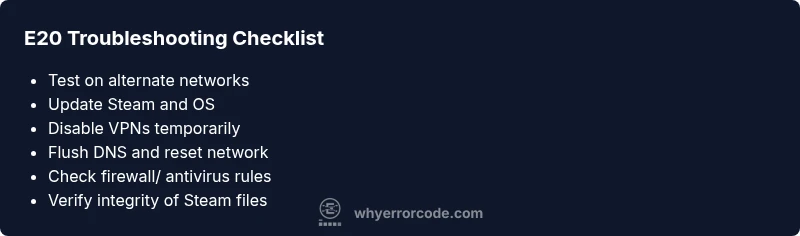
- Reproduce the issue on a known-good network (e.g., mobile hotspot).
- Update Steam and reboot the device.
- Disable VPNs and proxies; re-test.
- Flush DNS and renew IP via network reset.
- Temporarily disable security software and attempt to connect.
- Verify integrity of affected games or reinstall Steam if necessary.
- If failure persists, contact Steam Support with your diagnostic logs.
Preventive Actions: Reducing the Chance of E20 Returning
- Keep Steam and OS updated; enable automatic updates where possible.
- Use a consistent, reliable DNS provider and verify your router’s firmware.
- Regularly review firewall and antivirus rules to ensure Steam traffic isn’t blocked.
- Document any network changes and test connectivity after updates or hardware changes.
- Consider establishing a small test lab to reproduce issues before rolling changes to production networks.
Steps
Estimated time: 20-40 minutes
- 1
Isolate the network path
Test on a different network (mobile hotspot) to see if E20 recurs. This confirms whether the issue is local to your ISP or router.
Tip: If the issue disappears on mobile data but not on home Wi‑Fi, focus on home network settings. - 2
Update and restart
Ensure Steam and the operating system are current. Restart the client and the device to clear transient states.
Tip: Backup any active downloads before restarting to avoid data loss. - 3
Disable VPNs and proxies
Turn off any VPNs or proxies that could interfere with the handshake, then test Steam connection again.
Tip: If you need a VPN, try a different server and check their compatibility with Steam. - 4
Flush DNS and renew IP
Open a command prompt/terminal and run DNS flush commands; renew your IP if possible to refresh routing.
Tip: Switch to a known-good DNS like a public resolver for testing. - 5
Check firewall/antivirus rules
Temporarily disable security software or create explicit allow rules for Steam executables.
Tip: Avoid leaving security software disabled for long periods; re-enable protections after testing. - 6
Validate or reinstall Steam
Run integrity checks for Steam files or reinstall Steam if corruption is suspected.
Tip: Backup game data if possible before reinstalling.
Diagnosis: User cannot connect to Steam; error code e20 displayed
Possible Causes
- highNetwork restrictions or firewall blocking Steam
- mediumSteam server outage or maintenance
- lowOutdated Steam client or corrupted local files
Fixes
- easyAdd Steam to firewall exceptions; ensure VPN disabled
- easyCheck Steam server status and wait if necessary
- hardValidate integrity of Steam game files / reinstall Steam client if needed
Frequently Asked Questions
What does E20 mean in Steam connection problems?
E20 indicates a handshake/connectivity problem between the Steam client and its servers. It often stems from network restrictions, outdated software, or server-side issues rather than a single corrupted file.
E20 is a handshake error between Steam and its servers. Check network, update Steam, and verify server status to fix it.
Is E20 caused by my internet or Steam servers?
Both can cause E20. Start by ruling out your network (router, firewall, DNS) and then check Steam’s server status. If the servers are down, you may need to wait or follow official updates.
E20 can be from your network or Steam servers. Check both sides and wait for server issues to resolve.
What are the quick steps to fix E20?
Run a network test, disable VPNs, update Steam, flush DNS, and temporarily disable firewall rules to test. If not resolved, verify game files or reinstall Steam.
Try the quick steps: update, disable VPN, flush DNS, and check firewall. If needed, verify files or reinstall Steam.
Should I contact Steam Support for E20?
Yes, if you’ve completed the basic troubleshooting steps and the error persists. Provide logs, your network setup, and the time the error occurs to help support diagnose quickly.
If the problem remains after trying fixes, contact Steam Support with your logs and steps you took.
Can a local VPN or firewall cause E20?
Yes. VPNs or strict firewall rules can block the Steam handshake. Disable or reconfigure them, then retest. If you must use a VPN, choose a server known to work with Steam.
VPNs and firewalls can block E20. Try turning them off or reconfiguring them before testing again.
Could hardware issues cause E20?
Rarely, but hardware problems like faulty routers or network adapters can contribute to handshake failures. Test with alternative hardware to rule this out.
Hardware issues are rare but possible. Use alternate equipment to rule them out.
Watch Video
Top Takeaways
- Start with quick network checks and server status.
- Validate Steam client integrity before deep fixes.
- If issues persist, escalate with logs to Steam Support.
- Maintain safe, repeatable testing to isolate causes.