What Is Error Code E20 on Steam? Quick Fixes and Troubleshooting
Urgent guide to what error code E20 on Steam means, common causes, and step-by-step fixes to get back to gaming fast. Learn network checks, cache repairs, and when to seek help.


Error code E20 on Steam signals a client issue affecting login, updates, or game launches. It’s usually a connectivity or authentication hiccup, not a fatal fault. Start with quick fixes: stabilize your network, restart Steam, clear the download cache, and verify Steam files. If the problem persists, move to deeper diagnostics and a step‑by‑step repair.
What E20 Means on Steam
If you're asking what is error code e20 on steam, you're not alone. E20 is a user-facing Steam client error that appears during launch, updates, or when signing in. While it looks like a single code, the underlying causes vary from a momentary network hiccup to deeper cache or account verification problems. The urgency comes from the fact that this error blocks access to games, friends list, or the Steam store, so you should triage quickly. In most cases, you can resolve E20 with a small sequence of checks and adjustments—no drama, just method. The Why Error Code team has analyzed thousands of reports and identifies the fastest fixes as network stabilization, cache refresh, and file integrity checks. Understanding the likely root cause helps you pick the right next step and avoids unnecessary reinstalls.
Symptoms and Scenarios Affected
Users report E20 at different moments: trying to launch Steam, starting a game, updating a title, or accessing the Steam store. You might see the error alongside a brief message about connectivity or authentication, or as a standalone code on the client screen. Typical signs include slow loading, frequent disconnects, a prompt to re-enter credentials, or Steam giving up on connecting to servers. While the error can appear on Windows, macOS, or Linux, the remedies are similar: recheck your network, verify Steam cache, and ensure your firewall isn't blocking Steam traffic.
Diagnostic Flow Overview for E20
When E20 occurs, a structured approach helps you trace root causes quickly. Start by noting the context (launch vs. update vs. store access). Most likely culprits are network instability (high), a corrupted Steam cache (medium), or firewall/antivirus interference (low). Use a layered approach: perform fast, no-cost checks first, then move to integrity verification and selective reinstalls if needed. Keeping a log of changes helps you identify what fixed the issue if it returns.
Quick Fixes You Can Try Right Now
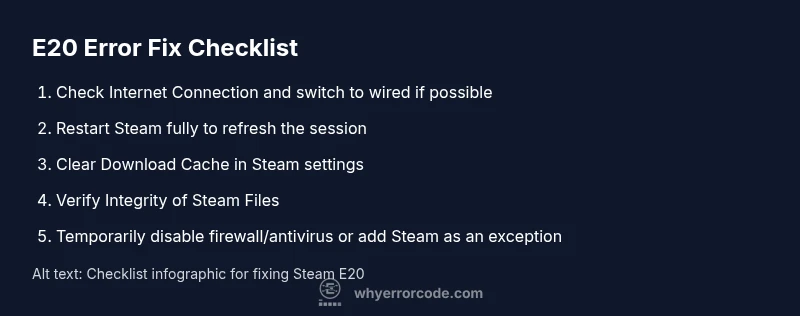
- Check your internet connection: confirm other devices can browse the web, switch to a wired connection if possible, and restart your router if necessary.
- Restart Steam: fully exit the client, then reopen it to refresh the session.
- Clear Download Cache: Steam > Settings > Downloads > Clear Download Cache. This frees up corrupted fragments that can trigger E20.
- Verify Integrity of Steam Files: Steam > Library > right-click Steam > Properties > Local Files > Verify Integrity of Game Files (for affected games) or run a client repair if available.
- Run as Administrator: right-click Steam and choose Run as administrator to bypass potential permission blockers.
- Temporarily disable firewall/antivirus: if you suspect blocking, add Steam as an exception, then re-enable protection after testing.
- If issues persist, consider a clean reinstall of the Steam client or reinstalling the affected games.
Step-By-Step Repair Overview
This section provides a high‑level preview of the detailed steps in the dedicated guide. The most common cause—corrupted cache or fluctuating network—responds best to cache clearance, file integrity checks, and a stable network. The step-by-step repair that follows dives into exact actions, prerequisites, and expected timeframes so you can execute with confidence. Use this as your roadmap before moving to more invasive actions like a full client reinstall.
Other Causes and Fixes
Beyond the basics, E20 can arise from DNS issues, VPNs or proxies misrouting Steam traffic, outdated network drivers, or a local security policy restricting Steam. DNS misconfigurations can be corrected by flushing DNS, changing to a public DNS (e.g., 1.1.1.1 or 8.8.8.8), or temporarily disabling VPNs. Outdated drivers for network adapters or graphics hardware can slightly impact Steam stability; check for driver updates from the manufacturer or through Windows Update. Lastly, ensure Steam is allowed through any security policy that might quarantine its network activity.
Safety, Warnings, and When to Call a Pro
If E20 persists after all standard steps, you may be facing a deeper issue such as a corrupted Steam installation that requires a full reinstall, or a hardware-level network problem. Never bypass security software for long; only disable protection briefly for testing. If you rely on critical gaming assets or a work environment, consider consulting a professional to avoid data loss or misconfiguration. Cost considerations for professional help typically range from preventive checks (low) to full client reinstalls (moderate). The safest path is to exhaust safe, software-only fixes first before escalating to paid assistance.
Steps
Estimated time: 25-40 minutes
- 1
Reproduce the Issue After a Clean Restart
Close Steam completely, restart your computer, and launch Steam again to see if E20 reappears. A fresh start clears lingering session data that could trigger the error.
Tip: Make sure no background processes from Steam linger after exit. - 2
Check Network Stability
Verify that your network is stable by loading a few non-Steam sites. If you have Wi-Fi, try a wired connection or move closer to the router. A fluctuating connection often triggers E20.
Tip: If you’re on a shared network, test a mobile hotspot to rule out router issues. - 3
Clear Download Cache in Steam
Open Steam, go to Settings > Downloads > Clear Download Cache. This forces Steam to fetch fresh data and can resolve cache-related E20 triggers.
Tip: This step does not affect your installed games, only downloaded data. - 4
Verify Steam Files Integrity
In Library, right-click Steam, select Properties > Local Files > Verify Integrity of Steam Files. For affected games, use Verify Integrity of Game Files.
Tip: This helps identify and replace corrupted files that may cause E20. - 5
Adjust Security Software Settings
Temporarily disable firewall/antivirus or add Steam as an exception to ensure it can communicate freely. Reinstate protection after testing.
Tip: Only disable protections briefly; remember to re-enable them. - 6
Reinstall Steam if Necessary
If all else fails, back up your Steamapps folder, uninstall Steam, reinstall the client, and restore your data. This cleans a corrupted installation that basic fixes cannot repair.
Tip: Back up your library before reinstalling to prevent data loss.
Diagnosis: Error code E20 appears when launching Steam or during updates
Possible Causes
- highNetwork connectivity issues or DNS problems
- mediumSteam client cache or corrupted files
- lowFirewall/antivirus blocking Steam traffic
Fixes
- easyTest and stabilize your internet connection; try wired Ethernet or a different network
- easyClear Steam download cache and verify integrity of Steam files
- easyTemporarily disable firewall/antivirus or add Steam as an exception
- hardReinstall Steam or repair the Steam client if corruption is severe
Frequently Asked Questions
What does E20 mean in Steam?
E20 is a client-facing error indicating connectivity/authentication problems. It’s not a fatal Steam error, but it blocks signing in or updating. The fixes focus on network, cache, and integrity of Steam data.
E20 on Steam is a client error related to network or authentication. Start with quick checks like restarting Steam and refreshing the cache, then proceed with deeper steps if needed.
Is E20 server-related or local to my PC?
E20 often points to local network or cache issues, but Steam server status can influence it. Check Steam status pages or social channels to rule out server-side problems.
It’s usually local, but server status can contribute. Check both on Steam’s status pages.
What is the fastest way to fix E20 without reinstalling?
Start with a stable connection, restart Steam, clear the download cache, and verify Steam files. These steps resolve most E20 cases without a reinstall.
Try the quick fixes first—network, restart, clear cache, verify files.
When should I reinstall Steam?
Reinstall Steam only after you’ve exhausted quick fixes and file integrity checks. A fresh install fixes corrupted clients but can require re-downloading content.
If nothing else works, reinstall as a last resort.
Can E20 affect only some games or the entire Steam client?
E20 can affect both the client and individual games if files are corrupted. Running integrity checks helps you target whether the issue is game-specific or client-wide.
It can touch both games and the client, so check both angles.
Is professional help worth it for E20?
For persistent network or hardware issues, consulting a professional can save time and prevent data loss. Expect costs that range from basic diagnostics to more extensive repairs.
If the problem persists and affects work or large libraries, consider professional help.
Watch Video
Top Takeaways
- Identify E20 context and act quickly
- Prioritize network and cache fixes first
- Use step-by-step guide before reinstalling
- Keep security software configured to avoid blocks
- Document steps to prevent repeats