Urgent Troubleshooting: The Prelaunchtask C/C++ Error in VS Code
Urgent guide to fix the prelaunchtask C/C++ error in VS Code. Learn common causes, step-by-step fixes, and prevention tips to get your C/C++ debugging back on track quickly.


Understanding the PreLaunchTask C/C++ Error in VS Code
The prelaunchtask c c++ error in vs code typically surfaces when VS Code attempts to run a build or test step automatically before debugging, but the task it references is not properly defined. In practice, this means the debugger is asking the task runner to execute a label that either does not exist in tasks.json or is not correctly wired in launch.json. The result is a failure to start the debugging session, often accompanied by a terse message that leaves users looking for the root cause. To the reader, this is a critical blocker, because it stops development dead in its tracks. This guide, authored by the Why Error Code team, walks you through a fast, reliable path to identify and fix the issue, without guesswork.
The keyword to watch here is consistency: the prelaunchtask C/C++ error in VS Code frequently traces back to mismatched labels, wrong task types, or incorrect paths. If you’ve seen this error after updating VS Code or the C/C++ extension, you’re not alone. The root cause is almost always configuration drift rather than a broken installation. By aligning launch.json with an existing tasks.json entry and validating the task’s command, arguments, and working directory, you’ll remove the most common friction point.
Why Launch and Tasks Configuration Matters
In VS Code, debugging a C/C++ project relies on two intersecting JSON configurations: tasks.json (defines what to build and how) and launch.json (defines how to start and attach debuggers). The preLaunchTask value in launch.json must correspond to a task label in tasks.json. If you rename a task or move its file location without updating both files, the preLaunchTask will fail. This misalignment often manifests as an error that halts debugging before you even start.
Carefully reviewing both files for label consistency is a quick, high-yield first step. Also, ensure that the task’s type (shell vs process) aligns with how you invoke your compiler or build system. If your build system changes (for example, switching from make to cmake), the task configuration may need a corresponding update to commands, args, and environment settings.
Common Root Causes You Might Be Seeing
- Missing or renamed preLaunchTask label in tasks.json
- launch.json referencing a label that no longer exists or is misspelled
- Incorrect command or arguments for the build task (e.g., wrong compiler path, invalid flags)
- Working directory (cwd) not set to the project root or expected build directory
- JSON syntax errors or file encoding issues after edits
These causes are typical across many projects. The key is to isolate whether the problem is the label, the path, or the command, then fix in a focused pass.
How VS Code Tasks and Launch Configs Interact
When you press Run or Start Debugging, VS Code consults launch.json to determine how to start the debug session. If preLaunchTask is specified, VS Code runs the matching task from tasks.json first. If that task fails to execute, the debug session never starts. The interaction is like an assembly line: build tasks must be produced by tasks.json, and the debugger must know how to consume the resulting artifacts. A mismatch here is the number-one cause of the prelaunchtask error in VS Code for C/C++ projects.
To fix, ensure that tasks.json defines the exact label used by preLaunchTask, that the task’s command points to a valid compiler or script, and that all paths are correct. If your project uses CMake or another build system, consider modeling the task to invoke the proper build target and to generate any required artifacts before launching the debugger.
Practical Troubleshooting Checklist (No Nonsense)
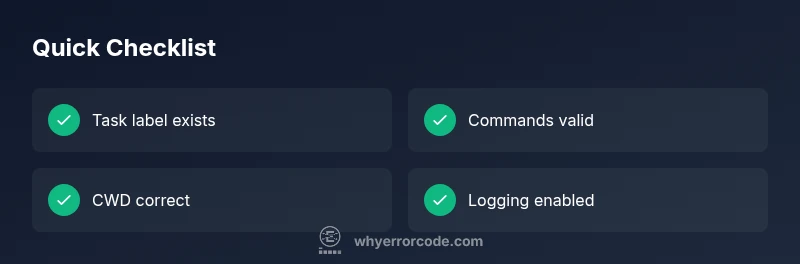
- Confirm that the preLaunchTask label in launch.json exactly matches a label in tasks.json.
- Open tasks.json and verify the command, arguments, and the working directory (cwd).
- Validate JSON syntax in both files and save with UTF-8 encoding.
- If you recently updated extensions, reload VS Code or restart the editor to reset internal caches.
- Run the task manually from the Command Palette to confirm it completes without errors.
- Check any shell vs. process task types; switch to the most appropriate type for your environment.
- Ensure environment variables needed for the build are defined, either in the task or terminal environment.
- If the problem persists, enable debug logging for C/C++ and capture the output for analysis.
Always consider professional help if you’re stuck after these steps. A misconfiguration in a complex project can hide subtle issues that require deeper inspection.
Environment Tweaks and Safe Practices
Your environment can dramatically affect the reliability of preLaunchTask execution. On Windows, ensure the compiler and tools are in PATH; on macOS/Linux, verify the same for your shell. Avoid editing system-wide files in a rush—keep project configuration in the workspace to prevent path drift. Use a clean workspace when testing new configurations, so you don’t drag old settings into the current project. Remember, making backups before editing JSON files is a best practice that saves time during recovery.
Preventing Future Failures and Quick Maintenance Tips
- Keep launch.json and tasks.json under version control with clear comments in commit messages.
- Use consistent task labels and avoid renaming without updating all references.
- Document any custom build steps so teammates can reproduce failures quickly.
- Periodically test debugging workflows after extensions or toolchain updates.
- Consider a minimal reproducible example if issues persist; isolate to a single source file or small project when diagnosing.