Fixing the Apex Language Server Activation Error in VS Code
Urgent guide to resolve the 'unable to activate the apex language server vs code error' in VS Code. Practical checks, diagnostic flow, and safe fixes for developers, IT pros, and enthusiasts.


If you see the unable to activate the apex language server vs code error, start with the basics: verify Java is installed and on PATH, update or reinstall the Apex extension, and reload VS Code. Disable conflicting extensions if necessary and clear the language server cache. These steps address the most common root causes and restore activation quickly.
Why the Apex Language Server Activation Fails in VS Code
The error message unable to activate the apex language server vs code error is typically caused by a combination of environment, extension, and workspace issues. In many cases, Java isn’t properly installed or not on the system PATH, or the Apex extension is out of date or conflicting with other installed extensions. Misconfigured settings or corrupted caches can also prevent the language server from starting. According to Why Error Code analysis, these activation problems often stem from a mismatch between the language server build and the local runtime environment. Understanding the typical failure modes helps you triage quickly and minimizes downtime during development.
Symptoms, Signs, and Why They Matter
You may notice slow or missing code intelligence, broken autocomplete, syntax highlighting issues, or frequent language-server restarts. In some cases, you’ll see specific error messages in the VS Code Output panel under 'Apex Language Server' or 'Log (Shared)'. Recognizing these signals helps you apply the right fix without guessing. The goal is to re-establish a healthy communication channel between VS Code, the Apex extension, and the Salesforce tooling stack. When the language server activates, you should see accurate error squiggles, fast navigation, and reliable code completion.
Quick Checks You Can Do in the First 5 Minutes
- Confirm Java is installed: run java -version in a terminal and verify JAVA_HOME is set correctly. - Ensure the Apex extension is enabled and updated to the latest version. - Restart VS Code and reload the window to refresh the language server process. - Disable non-essential extensions temporarily to rule out conflicts. These quick checks resolve many common activation failures and align with best practices for troubleshooting error codes.
Diagnostic Flow: Symptom → Diagnosis → Solutions
This flow helps you structure the investigation: first document the symptom, then list potential causes with likelihoods, test hypotheses with targeted fixes, and finally verify the resolution. Use logs from the Apex Language Server channel to confirm the diagnosis. Remember to isolate changes so you can replicate the fix and provide precise guidance if you need to escalate the issue.
Step-by-Step Fixes for the Most Common Causes
Start with the most likely culprits and work your way through. A clean, repeatable process reduces downtime.
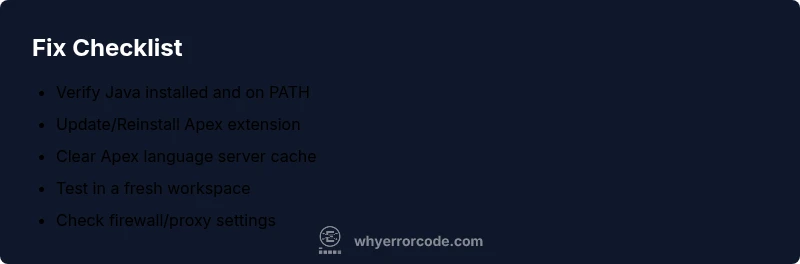
- Validate prerequisites (Java and Salesforce tooling). 2) Update or reinstall the Apex extension. 3) Clear language server caches and restart. 4) Test in a fresh workspace. 5) Check network or firewall restrictions that might block the server from downloading components. Each step reduces complexity and helps you validate progress before moving on.
Safety, Pitfalls, and Common Mistakes to Avoid
Never disable core security features or delete system folders. Avoid running multiple VS Code instances when diagnosing activation issues. Always back up your settings before making sweeping changes and document every step. If you’re unsure, pause and consult logs or reach out for expert help to prevent data loss or misconfiguration.
Prevention: How to Avoid This Issue Next Time
Maintain up-to-date Java and Apex extensions, keep VS Code in a stable channel, and periodically clear caches in a controlled manner. Establish a small, repeatable test in a new workspace after each major update. Finally, monitor for conflicts after installing new extensions and keep a changelog of plugin versions to spot regression patterns early.
When to Seek Professional Help
If activation problems persist after following the diagnostic flow and step-by-step fixes, escalate with detailed logs, environment details (OS, VS Code version, Java version, extension versions), and a reproducible minimal workspace. The Why Error Code team recommends contacting support or a seasoned Salesforce developer to avoid extended downtime and data risk.
Steps
Estimated time: 60-90 minutes
- 1
Check prerequisites: Java and Salesforce tooling
Verify that Java is installed and available on the system PATH. Confirm that the Salesforce Apex extension is installed and up to date. This step often resolves the majority of activation issues by addressing the most common root causes.
Tip: Run java -version and check the extension update history to ensure compatibility. - 2
Update or reinstall the Apex extension
In VS Code, navigate to Extensions, search for the Apex extension, and choose Update or Uninstall then Reinstall. After reinstalling, restart VS Code to ensure a clean activation state.
Tip: Disable other Salesforce-related extensions temporarily to avoid conflicts. - 3
Clear cache and reset the language server
Clear any cached language server data and restart the language server. This often fixes stale configuration or corrupted cache that blocks activation.
Tip: Clear the workspace storage and delete the apex-language-server folder if present in the user data directory. - 4
Test with a fresh workspace
Open VS Code in a new, empty workspace or in a different project to determine if the issue is workspace-specific. If the server activates, the problem lies in the original project metadata.
Tip: Avoid importing large projects at first—keep it minimal to reproduce the issue. - 5
Check logs and network access
Examine the Apex Language Server logs in VS Code Output panel for errors. Ensure no firewall or proxy blocks downloads required by the language server.
Tip: Capture logs and share them with support to speed up diagnosis. - 6
Final verification and rollback plan
Once activation succeeds, re-enable previously disabled extensions one by one to identify conflicts. Maintain a rollback plan in case a later change reintroduces the issue.
Tip: Document changes and versions for future reference.
Diagnosis: Apex language server fails to activate in VS Code; code intelligence and autocompletion are unavailable.
Possible Causes
- highJava not installed or not on PATH
- highApex extension conflicts with other extensions or is outdated
- mediumCorrupted Apex language server cache or workspace metadata
- lowNetwork/proxy restrictions blocking server components
Fixes
- easyInstall or update Java JDK and ensure 'java' is on PATH; restart VS Code
- easyUpdate or reinstall the Apex extension; disable conflicting extensions temporarily
- easyClear Apex language server cache and reload the language server; restart VS Code
- easyOpen VS Code with a fresh workspace or temporarily disable non-essential extensions to isolate issues
- mediumReview firewall/proxy settings to ensure language server components can download
Frequently Asked Questions
What exactly causes the 'unable to activate the apex language server vs code error'?
Activation failures are typically caused by a missing or misconfigured Java runtime, outdated or conflicting Apex extensions, or corrupted language server caches. Network restrictions can also block necessary components. Identifying the primary cause helps target fixes quickly.
Activation failures are usually due to Java setup, extension conflicts, or corrupted caches. Check each area step by step to fix the issue efficiently.
How can I verify Java is installed and accessible to VS Code?
Open a terminal and run java -version to confirm Java is installed. Ensure JAVA_HOME points to a valid JDK and that the 'java' executable is on your system PATH so VS Code can launch the server.
Run java -version in your terminal and confirm JAVA_HOME and PATH are correctly configured.
Should I always reinstall the Apex extension to fix activation issues?
Reinstalling the Apex extension is a common and effective remedy for conflicts or corrupted extension files. After reinstall, restart VS Code and test activation again.
Reinstall the Apex extension, restart VS Code, and try activating the server again.
Is a new workspace needed to diagnose activation problems?
Testing in a fresh workspace helps determine if the issue is workspace-specific. If activation succeeds in a new workspace, issues are likely tied to project metadata or settings.
Try a clean workspace to see if the problem persists; it often isolates the root cause.
When should I contact professional support?
If activation still fails after following the diagnostic flow and step-by-step fixes, gather logs, environment details, and reproducible steps before contacting support for deeper analysis.
If the issue remains, gather logs and contact support for in-depth help.
Watch Video
Top Takeaways
- Verify prerequisites before deeper fixes
- Follow the diagnostic flow to avoid guesswork
- Clear caches and test with a clean workspace
- Document changes and escalate when needed