Valorant Error Code 62 Fix: Quick Step-by-Step Guide
Urgent guide to diagnose and fix Valorant error code 62 with practical steps, from quick fixes to deep repairs, by Why Error Code.


Valorant error code 62 signals a connectivity or authentication hiccup that stops you from logging in or playing. The most reliable quick fixes are to restart the game and your PC, verify Valorant files, and ensure Riot Vanguard is running smoothly. If problems persist, check DNS, firewall rules, VPN usage, and router settings before considering a reinstall or contacting support.
What Valorant Error Code 62 Means
According to Why Error Code, Valorant error code 62 is typically a connectivity/auth handshake issue that disrupts your ability to log in or stay connected to Riot's game servers. It often appears when Vanguard anti-cheat, the Riot client, or your network blocks the required authentication tokens. In practice, players report seeing this code after a patch, after changing networks, or when security software interferes with the game. The aim of this guide is to help you verify if the problem is on your end and apply safe fixes that minimize downtime. Throughout this guide, we reference findings from Why Error Code Analysis, 2026 to provide a clear, practical path forward for developers, IT pros, and everyday players who troubleshoot error codes.
Common Causes of Error Code 62 in Valorant
The 62 error typically stems from a mix of network, anti-cheat, and local system factors. Common causes include unstable internet connections, VPNs or proxies that interfere with the game’s authentication, and Vanguard kernel drivers not loading properly. Outdated or corrupted game files can also provoke this code, as can firewall or antivirus settings that block Valorant traffic. In some cases, time synchronization issues on the PC or router-level port blocks contribute to the problem. Understanding the root cause helps prioritize fixes in the right order.
Quick Fixes You Can Try Right Now
If you want immediate relief, start with the easiest steps that don’t require advanced tools. These fixes often resolve error code 62 for many players:
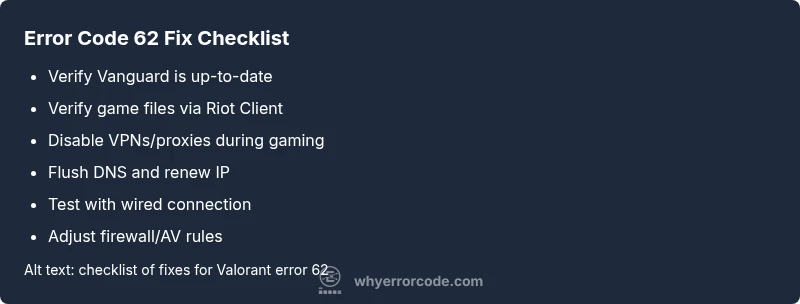
- Restart Valorant, Riot Client, and your computer to reset network and services.
- Verify the game files/installation integrity through the Riot Client to replace any corrupted assets.
- Temporarily disable VPNs or proxies and ensure Vanguard is not blocked by security software.
- Check your firewall/antivirus rules; add Valorant and Riot Client as trusted apps.
- Flush DNS and renew IP address from an elevated command prompt (ipconfig /flushdns, ipconfig /renew).
- Test with a wired Ethernet connection instead of Wi-Fi for more stable routing.
- If the issue recurs, consider reinstalling Valorant and Riot Client as a last resort.
Step-By-Step Fix: The Most Likely Cause
The most common cause for error 62 in Valorant is Vanguard anti-cheat interactions with security software or driver state. Follow these steps in order:
- Close Valorant and Riot Client completely, then restart the computer to ensure all services reboot cleanly.
- Update Vanguard: open the Riot Client, allow any pending Vanguard updates, and confirm that Vanguard is loaded and running in Task Manager.
- Run Valorant as Administrator to grant needed permissions.
- Verify Valorant game files via Riot Client; choose the option to Scan/Repair and wait for completion.
- Temporarily disable conflicting security software or create explicit allowances for Valorant traffic, then re-launch the game.
- If the problem persists, flush DNS, update network drivers, and test a direct wired connection.
- As a final step, reinstall Valorant and Riot Client if files or services remain corrupted.
Other Potential Causes and How to Fix Them
If the above fixes don’t resolve the error, broaden your diagnostic to these alternative causes:
- DNS or router issues: switch to a public DNS (e.g., 8.8.8.8/8.8.4.4) and power cycle the router. Ensure UPnP is enabled and ports used by Valorant are open.
- Time synchronization: ensure the PC clock is accurate; significant time drift can block server authentication.
- Network hardware: faulty modem or weak Wi-Fi can cause intermittent disconnects; a replacement or reset often helps.
- Account or Riot Services status: check the Riot Games service status page to rule out server-side issues.
- Hardware acceleration or background apps: disable overlay apps and other software that may interfere with game input or networking.
Safety Tips & When to Seek Help
Always prioritize security and data safety when fixing error codes. Do not disable Vanguard permanently or use unknown third-party patches. If you cannot disable a security layer safely, contact Riot Support for guidance. Keep your system and drivers up to date, and back up important settings before major changes. If you suspect hardware or account compromises, stop making changes and seek professional help or official support channels. The Why Error Code Team recommends consulting official Riot status pages and support docs before proceeding with advanced or invasive repairs.
Preventive Measures to Avoid Future 62 Errors
Prevention is better than repeated troubleshooting. Adopt these habits:
- Keep Vanguard and Riot Client updated; enable automatic updates where possible.
- Use wired connections; aim for stable, low-latency networks.
- Avoid VPNs or proxies while gaming Valorant; if required for work, disconnect during gaming sessions.
- Regularly verify game files after patches or updates to catch corrupted assets.
- Maintain a clean startup environment; limit overlays and conflicting security software during game sessions.
Final Troubleshooting Checklist
Before you call it a day, run through this quick checklist:
- [ ] Valorant and Riot Client updated; Vanguard running OK.
- [ ] Game files verified/Scanned and repaired.
- [ ] DNS flushed; IP renewed; wired connection tested.
- [ ] Firewall/AV exceptions added for Valorant.
- [ ] VPN/proxy disabled during game play.
- [ ] Reinstall considered only if all else fails.
],
Steps
Estimated time: 60-90 minutes
- 1
Close and restart everything
Fully exit Valorant and Riot Client, then reboot your computer. This clears stuck services and resets network adapters, which can resolve transient authentication hiccups that trigger error code 62.
Tip: Close all related processes from Task Manager before reboot to avoid orphaned services. - 2
Update and verify Vanguard status
Open the Riot Client, check for Vanguard updates, and confirm the Vanguard kernel driver is loaded. Restart Vanguard services if needed by rebooting or re-logging into Riot services.
Tip: Vanguard updates can appear as a background task—don’t skip pending prompts. - 3
Run Valorant as administrator
Right-click Valorant and choose Run as administrator to ensure the game has the permissions it needs for authentication and network access.
Tip: If you’re on Windows, a standard user account can still run as admin if UAC prompts are accepted. - 4
Verify game files and integrity
Use the Riot Client’s Scan/Repair (verify integrity) feature to detect and repair corrupted game assets that often cause error 62.
Tip: This process can take several minutes depending on file size and drive speed. - 5
Address network blockers
Temporarily disable VPNs or proxies and ensure firewall rules allow Valorant traffic. If needed, create exceptions for Riot Client and Valorant in your security software.
Tip: Test after each change to identify the exact blocker. - 6
Flush DNS and test connectivity
Open an elevated command prompt and run ipconfig /flushdns followed by ipconfig /renew. Reboot networking equipment if possible and test again.
Tip: A fresh DNS cache can fix stale routes that block authentication. - 7
Consider a clean reinstall
If all prior steps fail, uninstall Valorant and Riot Client, then reinstall from the official source to eliminate persistent corruption or misconfigurations.
Tip: Back up settings or configurations you want to retain before reinstalling.
Diagnosis: Valorant error code 62 appears when attempting to log in or join a match
Possible Causes
- highNetwork instability or VPN/proxy interference
- highRiot Vanguard anti-cheat driver blocked or not running
- mediumOutdated or corrupted game files
- lowDNS or router issues
- lowFirewall/antivirus blocking connections
Fixes
- easyRestart the game and system; re-check login
- easyVerify Integrity of Game Files in Riot Client
- easyTemporarily disable VPN or proxy; adjust firewall rules
- easyFlush DNS and renew IP address
- mediumUpdate network drivers or reset router, if needed
- hardReinstall Valorant and Riot Client if issues persist
Frequently Asked Questions
What does Valorant error code 62 mean for players
Error code 62 generally points to a connectivity/authentication issue between your client, Vanguard anti-cheat, and Valorant servers. This often happens after patches, network changes, or security software interference. Follow the outlined steps to verify files, adjust security settings, and stabilize your network to regain access.
Error code 62 means your game can’t authenticate properly with Valorant servers, usually due to network or Vanguard issues. Follow the steps in this guide to fix it.
Is Vanguard causing error 62, and can I disable it to fix the problem?
Vanguard is a common factor in error 62 because it governs anti-cheat communications. You should not disable Vanguard permanently. Instead, ensure the driver is up-to-date, running, and not blocked by security software. If necessary, seek official Riot guidance before making changes.
Vanguard often plays a role in error 62. Don’t disable it permanently; update or re-enable it after adjustments.
Should I reinstall Valorant to fix error 62?
Reinstalling Valorant is a last-resort option if all other fixes fail. It can resolve corrupted files or misconfigurations. Always try file verification first and ensure you have a stable network before reinstalling.
Reinstalling is a last resort after trying file verification and network tweaks.
Can using a VPN trigger error 62 in Valorant?
Yes, VPNs or proxies can interfere with Valorant’s authentication and cause error codes like 62. Disable them during gaming and test connectivity with a direct connection.
VPNs can cause this error; disable during play and test again.
Why does error 62 persist after network changes?
If 62 persists after changing networks, the issue is likely with local security settings or cached Riot credentials. Use file verification, update Vanguard, and consider a clean reinstall if needed.
If it keeps happening after changing networks, check Vanguard and try verification or reinstall as needed.
When should I contact Riot Support about error 62?
Contact Riot Support if you’ve completed the recommended fixes and the error remains. Provide logs, system specs, and a description of steps taken to help the support team diagnose quickly.
If fixes fail, reach out to Riot Support with details to get targeted help.
Watch Video
Top Takeaways
- Start with quick fixes (restart, verify files)
- Ensure Vanguard is running and up-to-date
- Use a wired connection for stability
- Disable VPNs/proxies during gameplay
- Seek official Riot support if the problem persists