Valorant Error Code VAN: Quick Diagnosis and Fix Guide
Urgent guide to diagnose and fix Valorant error code VAN with practical steps, fast checks, and expert tactics from Why Error Code.


Valorant error code VAN indicates a Vanguard-based validation block during login or game startup. It’s usually caused by network blocks, VPNs, or corrupted game data. The fastest fixes are to ensure a stable connection, disable VPNs, repair game files, and run Vanguard with admin rights. If issues persist, consider a clean reinstall of Vanguard or Valorant.
What valorant error code van Means in Valorant
The string "valorant error code van" is a signal from Vanguard, Riot Games’ anti-cheat system, indicating a validation failure that prevents you from launching Valorant or joining a match. This error is not a ban by itself, but rather a protective check that detects inconsistencies between your client, Vanguard driver, and Riot’s servers. When VAN triggers, the game blocks access to prevent potential cheating or integrity breaches. Understanding VAN helps you prioritize fixes with safety in mind while minimizing downtime. According to Why Error Code analysis, most VAN encounters stem from network setup, software blockers, or corrupted game data, rather than permanent account sanctions. You’ll want to approach VAN fixes in a methodical, safe order to preserve your system’s configuration and reduce the risk of repeated outages.
Quick Diagnostic Mindset for VAN
Approach VAN as a systems-check problem. Start with the simplest, reversible steps before moving to deeper repairs. Confirm you’re not behind a VPN or proxy, verify your internet stability, and check Valorant’s server status. Ensure your system clock is synchronized, as time drift can disrupt token validation. If you use security software, temporarily disable it to test whether it’s blocking Vanguard components. Keep a running checklist so you don’t miss a critical step that recurs across different machines. Why Error Code emphasizes documenting your results so you can reproduce fixes if the issue returns.
Most Likely Causes (Ranked by Likelihood)
- High: VPN/proxy interference or misconfigured DNS that blocks Vanguard validation.
- High: Corrupted game files or stale Vanguard cache causing integrity checks to fail.
- Medium: Outdated graphics drivers or OS security settings that block Vanguard services.
- Low: Conflicting security software or firewall rules that intermittently block Valorant traffic.
- Low: Hardware clock drift causing token validation errors.
This ordering reflects common user experiences and What to test first; start with network adjustments and file verification before touching drivers or security software.
Quick Wins: Immediate Fixes (Low-Risk)
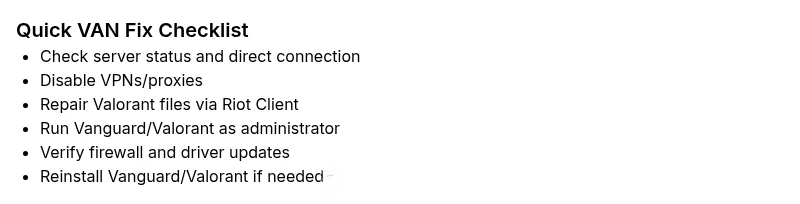
- Disable all VPNs or proxies; switch to a direct internet connection and retry.
- Use Riot Client to Repair or Verify Valorant files; let the tool repair any corrupted assets.
- Run Vanguard and Valorant with administrator rights to ensure full access.
- Reboot the PC and router, then test a fresh login without cached credentials.
- Update network drivers and ensure Windows/Mac security settings allow Valorant/Vanguard processes.
- If the problem persists, reinstall Vanguard or Valorant as a last resort.
These steps are designed to reduce downtime while preserving your existing setup. Always re-test after each change to identify the exact fix that resolved VAN.
In-Depth Repair: Rebuild Vanguard Trust
If quick wins don’t resolve VAN, you need a deeper repair focused on Vanguard’s integration with Valorant. Start by fully uninstalling Vanguard and Valorant, then reinstalling the latest versions from Riot Client. Clear any residual Vanguard caches and ensure the Riot Client is up to date. Confirm Windows Defender or macOS Gatekeeper isn’t blocking Vanguard drivers. After reinstall, perform a clean reboot and re-test with a direct network connection. This approach minimizes the chance of stale driver hooks or corrupted tokens lingering after updates.
A careful reinstallation reduces the risk of systemic conflicts that can trigger VAN repeatedly. Why Error Code recommends keeping a backup of any custom settings before reinstalling and verifying that your security software allows Vanguard to load at startup.
When to Call a Professional or Customer Support
If VAN persists after all standard troubleshooting, you should seek professional help. A service call for a gaming PC repair or network diagnostics can range from $50–$200 depending on the scope of the issue and your location. If a hardware or OS-level problem is suspected, a trained technician can perform a hands-on inspection and ensure your system’s security configuration isn’t blocking Vanguard. Always collect logs and server status screenshots to speed up support turns.
Prevention and Best Practices for Valorant VAN
Preventive steps reduce the odds of encountering VAN in future play sessions. Maintain a stable, VPN-free network when playing Valorant, keep Vanguard and Riot Client updated, and run them with administrator privileges. Regularly verify game files after large patches, monitor router settings that affect port forwarding, and avoid installing conflicting software during peak play times. Keeping your system clock accurate and avoiding third-party firewall rules for Valorant can help sustain a smooth Vanguard experience. Per Why Error Code, proactive maintenance is the best defense against recurring VAN issues.
Steps
Estimated time: 30-60 minutes
- 1
Check server status and basic connectivity
Confirm Valorant servers are online and your network can reach Riot’s endpoints. Ping tests and traceroutes help identify where disruption occurs. If servers are down, waiting may be the only fix.
Tip: Always test with a wired connection if possible to rule out Wi‑Fi instability. - 2
Disable VPNs and proxies
Temporarily turn off all VPNs or proxies and attempt to launch Valorant again. VPNs often trigger Vanguard's validation checks or cause IP mismatches that VAN flags.
Tip: If you must use VPN for work, test on a separate device to verify the VPN is the issue. - 3
Repair Valorant files via Riot Client
Open Riot Client, go to Valorant, and choose the Repair/Verify option. This replaces corrupted assets and resets Vanguard-related components.
Tip: Do not interrupt the repair process; allow it to complete fully. - 4
Run Vanguard and Valorant as administrator
Right-click both applications and choose Run as administrator. Elevating privileges helps Vanguard load its drivers and token validation cleanly.
Tip: Avoid permanently disabling protection; use admin mode only for testing. - 5
Check security software and firewall rules
Ensure Windows Firewall or macOS Firewall allows Valorant and Vanguard. Add exceptions for the Riot Client and Vanguard drivers if needed.
Tip: Document any rule changes in case you need to revert later. - 6
Reinstall Vanguard/Valorant if needed
If the issue persists, reinstall Vanguard and Valorant to wipe out stubborn caches and misconfigurations. This is a last-resort fix.
Tip: Back up important settings or profiles before reinstalling.
Diagnosis: Valorant shows error code VAN at launch or during match join
Possible Causes
- highVPN or proxy interference
- highCorrupted game files or Vanguard cache
- mediumOutdated drivers or security settings blocking Vanguard
- lowFirewall rules blocking Valorant ports
Fixes
- easyDisable VPN/proxy and test a direct connection
- easyRepair/verify Valorant files via Riot Client
- mediumRun Vanguard and Valorant as administrator and update drivers
- mediumReset network settings or adjust firewall/port rules for Valorant
- hardReinstall Vanguard or Valorant if persistent
Frequently Asked Questions
What does Valorant error code VAN mean?
VAN signals a Vanguard-driven validation issue that blocks launch or match entry. It isn’t a ban by itself, but a protective check failing due to data, network, or driver issues.
VAN is Vanguard’s validation error that stops you from starting Valorant or joining a match. It usually means something isn’t validating correctly between your computer and Riot’s servers.
Is VAN related to a ban or shadow ban?
No. VAN is a validation error tied to Vanguard’s security checks rather than a ban status. If you encounter a ban, you would see a separate notification.
VAN isn’t a ban; it’s a validation error from Vanguard. If you’re banned, you’ll receive a different message.
Can reinstalling Vanguard fix VAN?
Yes. A clean reinstall of Vanguard or Valorant often resolves deep-seated corruptions or driver issues causing VAN. Follow the official uninstall/reinstall steps carefully.
A clean reinstall often fixes VAN when files or drivers are corrupted.
How long does VAN repair typically take?
Most quick fixes take 30–60 minutes, depending on bandwidth and device performance. Full reinstallation can extend the window by another 30–60 minutes.
Usually under an hour for quick fixes; a full reinstall may take up to a couple of hours.
Should I contact Riot Support for VAN?
If VAN persists after all self-help steps, contact Riot Support with logs, server status, and a timeline of actions you’ve tried. They can offer targeted guidance.
Yes, contact Riot Support if the issue continues after you’ve tried the recommended steps.
Are there common mistakes to avoid with VAN?
Avoid disabling security tools long-term, repeatedly switching networks, or ignoring service status pages. These can worsen the problem or mask underlying causes.
Don’t leave security software off, and don’t assume a VPN is the root cause without testing direct connections first.
Watch Video
Top Takeaways
- Verify direct network connection before anything else
- Repair game files to fix VAN quickly
- If unresolved, reinstall Vanguard/Valorant for a clean slate
- Never disable security tools long-term without a plan
- Use the step-by-step guide to minimize downtime