Fixing VS Code Error Bad Credentials: A Step-by-Step Troubleshooting Guide
Urgent, step-by-step guide to resolve the VS Code error bad credentials, covering PAT renewal, OAuth scopes, and re-authentication across Git providers for faster recovery.


The most common cause of the vs code error bad credentials is expired or revoked credentials such as a PAT, OAuth token, or SSH key. Sign out and back in, clear cached credentials, and regenerate tokens or refresh OAuth scopes. If you use SSH, verify your credential helpers and keys are correct.
Understanding the error context
When you see the message 'bad credentials' in VS Code, it usually means the authentication token or credential used by VS Code to connect to a remote service is no longer valid. This can happen after token expiration, a revoked token, a changed password, or confusion between multiple accounts. In practice, you may encounter this error during Git operations (push/pull), remote connections to Azure DevOps, GitHub, GitLab, or when signing in to the VS Code account extension. The fix is rarely magical; it requires tracing the credential's source, updating it, and testing the connection again. Start by identifying which service is failing and what kind of credential VS Code is attempting to use in that context (PAT, OAuth, SSH).
Common triggers for bad credentials in VS Code
There are several frequent culprits behind the vs code error bad credentials. Tokens expire or are revoked after policy changes or password updates. Credential caches can hold old tokens longer than expected, especially after multiple sign-ins across tools. Misconfigured remotes, such as using HTTPS with an SSH key, can also trigger authentication failures. Finally, switching between accounts (personal vs work) without re-authenticating can lead to cross-account credential conflicts. Understanding these triggers helps you choose the right remediation path quickly to minimize downtime.
Credential stores and how VS Code authenticates
VS Code relies on multiple credential stores depending on your OS and setup. The system credential manager (Windows Credential Manager, macOS Keychain, and Linux keyrings) often caches tokens for Git providers. Git Credential Manager Core (GCM) may also cache credentials for Git operations. In addition, VS Code’s Accounts and authentication extensions can cache OAuth tokens for signing in to services like GitHub, Azure DevOps, and GitLab. It’s common to see duplicate or conflicting credentials if more than one tool is authorized for the same remote.
Quick checks you can perform right now
Begin with the simplest checks first. Confirm you’re signing in with the intended account, then sign out and back in to refresh tokens. Clear cached credentials from your OS credential store and from VS Code’s credential cache if possible. Verify that the remote URL is correct (HTTPS vs SSH) and that you’re using the proper token or SSH key. If you’re using PATs, ensure the token is active and has the needed scopes. Finally, test access by cloning or pulling a small repository to isolate the issue.
Re-authentication paths in VS Code
Open the Command Palette and use the accounts area to sign out of all providers, then sign back in with the correct account. For GitHub, Azure DevOps, or GitLab, re-authorize through the VS Code authentication prompts. After re-authenticating, refresh the window (Developer: Reload Window) to ensure all tokens are reloaded. If your environment uses SSO, ensure you’ve met all required policy steps and granted the necessary permissions.
Special cases: PATs, SSH, and credential helpers
PATs must have the correct scopes and remain valid; regenerate if expired and update stored credentials. If you rely on SSH, ensure your SSH key is loaded in the agent and that the remote is configured for SSH rather than HTTPS. Credential helpers (like git-credential-manager) can retain stale values; consider temporarily disabling them to isolate the issue. In enterprise environments, verify that your OAuth app registration and SSO policies allow access to the target repository.
When to escalate and collect logs
If the problem persists after refreshing tokens and verifying remotes, collect logs from the Output panel (Git, Auth, and Azure DevOps/GitHub providers) and the Developer Console. Share these with your IT team or support channel to diagnose provider-specific issues. Persistent failures after all checks may indicate a policy change, a service outage, or a need for administrator-assisted token rotation.
Steps
Estimated time: 45-60 minutes
- 1
Confirm error context and target service
Note the exact error text, the affected repository, and whether the failure occurs during sign-in or a Git operation. This helps you pick the right remediation path.
Tip: Capture a screenshot of the error for reference. - 2
Sign out and re-authenticate in VS Code
Open the Command Palette, sign out of all accounts, close VS Code, reopen, and sign back in with the correct account. This refreshes tokens across providers.
Tip: Use fresh credentials to avoid cached tokens. - 3
Clear credentials from caches
Clear the OS credential store (Windows Credential Manager, macOS Keychain, or Linux keyrings) and VS Code’s credential cache. Then restart VS Code.
Tip: On Windows, search for 'Git' in Credential Manager and remove related entries. - 4
Refresh tokens or PATs
If you use PATs or OAuth tokens, regenerate or reauthorize them and update the stored credentials in VS Code and Git tooling.
Tip: Ensure the new token includes the required scopes. - 5
Check remote URL and authentication method
Run git remote -v to verify the URL. If using SSH, ensure the correct key is loaded; if HTTPS, confirm the token is valid.
Tip: Switch to SSH if tokens repeatedly fail. - 6
Test in a clean environment
Try an isolated workflow: a new workspace, disabled extensions not related to authentication, and a simple clone/pull to see if the issue persists.
Tip: Disable extensions that manage credentials temporarily to rule out conflicts. - 7
Review logs and escalate if needed
Open Output panel and Developer Tools to collect logs from Git, Auth providers, and the VS Code core. Share with support if unresolved.
Tip: Include the exact error messages and token scopes.
Diagnosis: VS Code reports 'bad credentials' during sign-in or Git operations
Possible Causes
- highExpired or revoked credentials (PAT, OAuth token, or SSH key)
- highCached credentials in OS credential store or Git credential helper
- mediumUsing the wrong account or repository permissions, leading to auth failures
- lowMismatched remote URL (HTTPS vs SSH) or misconfigured SSH keys
Fixes
- easySign out of all accounts in VS Code and sign back in with the correct account
- easyClear credentials from OS credential store and VS Code's credential cache
- easyRegenerate or reauthorize PATs/OAuth tokens and update in VS Code
- mediumVerify remote URL and switch to SSH or HTTPS with correct credentials
- mediumReview repository permissions and token scopes to ensure access
Frequently Asked Questions
What does 'bad credentials' mean in VS Code?
It means the token or credential used by VS Code to access a remote service is invalid, expired, or revoked. You’ll typically see this during sign-in or Git operations. Resolving it usually involves refreshing tokens, clearing caches, and re-authenticating.
The error means your access token or credential is not valid anymore. Refresh or regenerate the token and sign back in to fix it.
Which credentials get cached by VS Code?
VS Code can cache OAuth tokens in the Accounts extension and tokens in the system credential store or Git credential manager. Conflicts between these caches can cause mismatched credentials.
VS Code caches tokens in multiple places; clearing them can resolve conflicts.
PATs vs SSH: which should I use?
PATs are common for HTTP-based Git operations and require proper scopes. SSH avoids token expiry but requires a loaded private key. Choose based on your workflow and organization policy.
PATs work for HTTP, SSH keys work for SSH; ensure your setup aligns with your remote.
How do I refresh a PAT in VS Code?
Regenerate the PAT from the provider’s portal, update it in VS Code’s credential store or in your Git configuration, and then sign back in to refresh the session.
Regenerate your PAT from the provider, update VS Code, and re-sign in.
When should I contact support?
If tokens are valid, remotes are correct, and the error persists across devices, escalate with log excerpts. There may be provider outages or policy changes affecting authentication.
If the issue continues after you refresh credentials, reach out with logs for deeper help.
Can two-factor authentication cause this error?
Yes, if 2FA prompts are blocked or scopes are not granted, authentication can fail. Ensure the 2FA prompt completes and required scopes are granted.
2FA prompts must be completed and scopes granted for access to succeed.
Watch Video
Top Takeaways
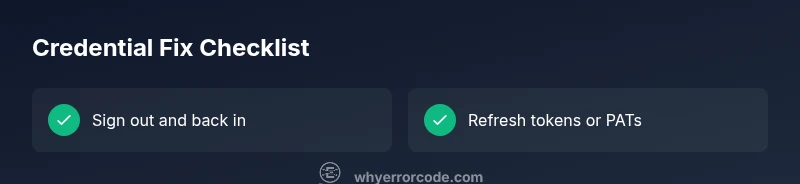
- Sign out and re-authenticate to reset credentials
- Refresh tokens or PATs with correct scopes
- Clear credential caches safely
- Verify remote URL and authentication method
- Check logs for actionable errors