How to Fix vs code error fetching extensions xhr failed
A comprehensive, step-by-step guide to diagnose and fix the vs code error fetching extensions xhr failed, covering network, proxies, firewall, and CLI-based workarounds.


The most likely cause of the vs code error fetching extensions xhr failed is blocked network access or a misconfigured proxy. Start by verifying your internet connection, temporarily disable VPNs, and ensure your proxy/HTTP_PROXY settings allow outbound requests to marketplace.visualstudio.com. If the issue persists, try reloading VS Code or testing on another network.
Issue Overview
When you open Visual Studio Code and try to install or update extensions, you may see the error message xhr failed during the fetch process. This is a network-oriented failure, not a syntax error in your code. The phrase vs code error fetching extensions xhr failed captures the symptom: the Extensions view cannot retrieve the list of available extensions from the marketplace, and the UI remains stuck or shows a partial list. In practice, this shows up as a failed HTTP request from the extension host process, often accompanied by a log line indicating a 4xx/5xx HTTP response or a timeout. The root cause can be as simple as a momentary outage or as complex as corporate network rules blocking outbound traffic. The key to recovery is to isolate whether the fault is client-side (your machine, firewall, proxy) or server-side (the marketplace). Throughout this guide, we’ll use the Why Error Code framework to help triage quickly and safely.
Common Triggers
Several factors commonly lead to the xhr failed error in VS Code. First, inconsistent or blocked internet connectivity will stop the marketplace from responding, especially if you switch networks or have bandwidth throttling. Second, a corporate or personal proxy/VPN configuration can route traffic in ways that VS Code’s extension API cannot reach the server, returning errors or timeouts. Third, antivirus or firewall software might intercept outgoing requests to marketplace.visualstudio.com, causing a silent block or delayed handshake. Fourth, a stale cache or corrupted extension cache can cause VS Code to mis-handle the response payload. Fifth, using an outdated VS Code version or the marketplace API deprecations can trigger compatibility problems. Finally, regional outages or downtime on the marketplace can produce transient 4xx/5xx errors. In most cases, the fix is a systematic check of network settings, then updating or reconfiguring your client and retrying after a clean restart.
Quick Checks You Can Do Right Now
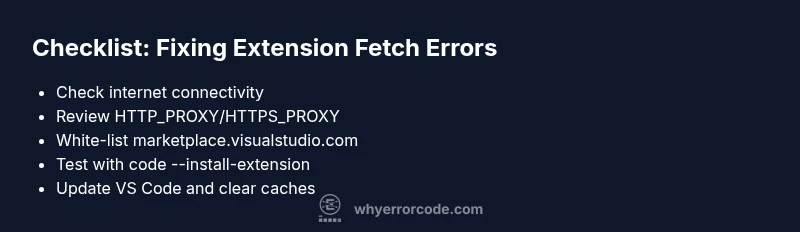
- Confirm you have a working internet connection by loading a web page or pinging a known host. If a page fails to load, resolve the network issue before troubleshooting VS Code.
- Disable VPNs or proxies temporarily to see if the extensions fetch succeeds on a direct connection.
- Review your proxy settings in Windows/macOS and in VS Code (Settings > Network or environment variables like HTTP_PROXY, HTTPS_PROXY). Ensure they point to a reachable, valid proxy or are blank if you’re not behind a proxy.
- Check your firewall or antivirus rules to ensure outbound traffic to marketplace.visualstudio.com on port 443 is allowed. If blocked, create an allow rule or temporarily disable protection for testing.
- Update VS Code to the latest version and reload the window. If the issue persists, try a clean start by running with --disable-extensions and then re-enabling one by one.
- Try installing extensions via the CLI: code --install-extension <extension-id> to verify the marketplace is reachable from the command line.
Isolating the Network vs Code Issue
To determine if the problem lies with your network or VS Code itself, perform targeted tests. Switch to a different network (mobile hotspot or another Wi-Fi) and attempt the same operation. If it works on a different network, the issue is network-related, likely proxy, firewall, or VPN. If the problem remains across networks, consider client-side issues like cached data, corrupted extensions, or an extension host crash. Collect logs from Developer Tools (Help > Toggle Developer Tools) to inspect failed XHR requests, and compare timestamps with any outages reported by the IDE or marketplace. This process helps you avoid unnecessary configurations and speeds up a solution.
Advanced Fixes and CLI Alternatives
If the error persists after basic checks, there are deeper steps you can take. Reset VS Code’s user data and extension cache to eliminate corrupted state, but backup settings first. Verify environment variables for proxies are correctly exported in your shell or OS settings. For corporate environments, coordinate with IT to whitelist marketplace.visualstudio.com and ensure TLS inspection isn’t breaking requests. As an alternative, use the command line to install extensions and verify connectivity: code --install-extension ms-python.python --force or code --list-extensions to confirm the marketplace is reachable. Finally, consult the release notes for your VS Code version in case of known issues with extension fetch and apply any available patches.
Best Practices to Prevent Extensions Fetch Failures
- Keep VS Code up to date and follow the official release notes for any network-related fixes.
- Document and standardize your proxy and firewall rules to avoid ad-hoc changes that break extension fetch.
- Regularly clear stale caches and validate that your environment variables (http_proxy, https_proxy) remain correct after system changes.
- When testing fixes, use a controlled environment (different network or clean profile) to isolate variables quickly.
- Consider implementing a lightweight internal extension repository for offline or restricted environments as a long-term safeguard.
Steps
Estimated time: 30-60 minutes
- 1
Verify basic network connectivity
Confirm you have a working internet connection by visiting a reliable site or running a quick ping. If you can access the web but still see xhr failed, the issue is not a general network outage but a configuration block.
Tip: If the page fails to load, fix the network first before changing VS Code settings. - 2
Check proxy and environment variables
Inspect your system and VS Code proxy settings. Make sure HTTP_PROXY and HTTPS_PROXY (or lowercase variants) point to a valid proxy or are blank if you are not behind a proxy.
Tip: Restart VS Code after updating environment variables. - 3
Review firewall and antivirus rules
Ensure outbound calls to marketplace.visualstudio.com on port 443 are allowed. Temporarily disable security software for testing, but re-enable it promptly after the test.
Tip: If you use a corporate security suite, coordinate changes with IT. - 4
Update VS Code and reset state
Install the latest VS Code update and reload. If necessary, clear CachedExtensions and other caches that might hold stale data.
Tip: Back up your settings before clearing caches. - 5
Install via CLI to confirm connectivity
Run: code --install-extension <extension-id> to verify that the marketplace is reachable from the command line. If this works, VS Code might be the culprit rather than the network.
Tip: Use the exact extension ID from the marketplace.
Diagnosis: VS Code fails to fetch extensions with xhr failed
Possible Causes
- highNetwork connectivity issues
- mediumProxy/VPN misconfiguration
- mediumFirewall/antivirus blocking outbound traffic
- lowOutdated VS Code or marketplace API changes
Fixes
- easy1) Check internet connection and try a different network.
- easy2) Temporarily disable VPN/proxy or configure proper HTTP(S)_PROXY settings.
- easy3) Review firewall/antivirus rules to allow outbound access to marketplace.visualstudio.com on port 443.
- easy4) Update VS Code to the latest version and restart with --disable-extensions to isolate.
- easy5) Use CLI install to verify marketplace reachability: code --install-extension <id>.
Frequently Asked Questions
What does the error xhr failed mean in VS Code extensions?
It indicates a failed HTTP request to the VS Code Marketplace while fetching extension data. This is typically network-related, such as blocked connectivity, proxy issues, or firewall rules.
Xhr failed means the HTTP request to the marketplace didn’t complete, usually due to network or proxy settings.
How can I tell if the problem is my network or VS Code?
Test extension fetch on a different network or use the CLI to install an extension. If it works on a different network, the issue is network-related; if not, focus on VS Code state or configurations.
Try a different network first. If it still fails, investigate VS Code configuration.
Should I disable antivirus or firewall to fix this?
Temporarily disable security software to test, but re-enable promptly. If the issue resolves, add an exception for marketplace.visualstudio.com and VS Code in your security settings.
You can test with security software disabled, but be careful and re-enable protections after testing.
Can I install extensions offline if the marketplace is blocked?
Offline install is not supported for the official marketplace, but you can use a pre-downloaded extension file if your environment supports it, or set up an internal repository for controlled access.
Offline installs aren’t supported from the official marketplace; consider internal repositories or pre-downloaded extensions.
How do I install extensions from the CLI as a workaround?
Use code --install-extension <extension-id> from the terminal to install extensions directly. This can confirm marketplace reachability even when the UI is blocked.
Use the command line to install by extension ID to verify connectivity.
What should I do after a successful fix to prevent recurrence?
Document network and proxy settings, keep VS Code updated, and monitor for outages with the vendor’s status pages. Periodic cache cleanup can also help avoid stale data.
Keep your network and software up to date and monitor outages to prevent repeats.
Watch Video
Top Takeaways
- Verify network connectivity before delving into VS Code settings
- Check and correct proxy/HTTP_PROXY to fix xhr failed
- Use CLI to test marketplace reachability and isolate the issue
- Update VS Code and clear caches if necessary