How to Troubleshoot and Fix vs code error get failed to fetch
A comprehensive, urgent guide to diagnose and fix the common 'vs code error get failed to fetch' in VS Code. Learn network checks, proxy setups, extensions, logs, and preventive steps for developers and IT pros.


Most likely, the error get failed to fetch in VS Code stems from network issues, proxy configuration, or extension conflicts. Start by verifying your internet connection, temporarily disabling VPNs, and checking firewall rules. If the issue persists, inspect installed extensions and recent VS Code updates. Review logs for specific error messages to guide the next steps.
What the error means and when it appears
The message "vs code error get failed to fetch" usually shows up when VS Code tries to retrieve data from the internet for extensions, IntelliSense, or remote features and cannot reach the server. According to Why Error Code, this symptom often points to a boundary in your network or a misconfigured environment rather than a bug in the editor itself. Understanding the context—updates, extensions, or remote sessions—helps you target the fix quickly. This guide is written for developers, IT pros, and everyday users, with urgency and practical steps you can execute right away.
Quick network checks you should perform first
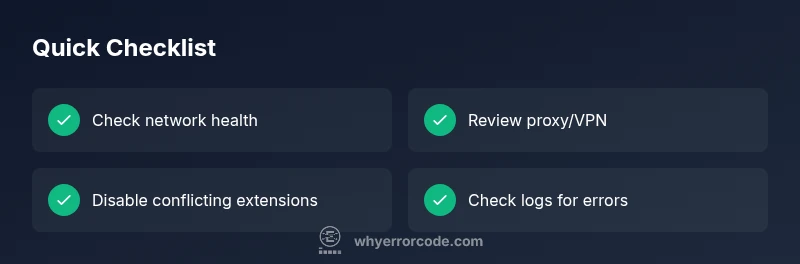
Before diving into configuration changes, confirm basic network health. Ping common hosts, try loading a predictable URL in a browser, and test from a different network if possible. If you are on a corporate network, ensure your DNS resolves internal addresses correctly and that there are no captive portals intercepting traffic. Disable VPNs momentarily to see if traffic routes differently, and check whether your firewall is accidentally blocking VS Code. Document any changes you make so you can reverse them if needed. A quick test using a mobile hotspot can reveal if the issue is network-side or local to your machine.
Inspect proxy, VPN, and corporate network settings
Proxy servers and VPNs can cause fetch failures in VS Code. Review any configured http.proxy and https.proxy values in your settings, and verify that the proxy supports the required TLS versions and SNI. If you use a PAC file, ensure it is reachable and returning correct proxies for the destinations VS Code attempts to reach. VPNs can also inject DNS or TLS traffic that VS Code cannot interpret. If possible, switch to a direct connection or properly configure the VPN so VS Code traffic is allowed. For corporate networks, coordinate with IT to whitelist the necessary endpoints used by VS Code update checks and extension downloads.
VS Code configuration: proxy, http/https, and environment variables
Misconfigured environment variables or proxy settings can cause fetch errors. Check the VS Code settings for any custom proxy configuration, and verify that there is no conflicting setting in user vs workspace scopes. Review environment variables like HTTP_PROXY, HTTPS_PROXY, and NO_PROXY at the system level. If you recently changed proxy settings, revert to known-good values and reload VS Code. Clearing per-extension caches can also help if a single extension is failing to fetch resources.
Manage extensions to avoid conflicts
Extensions are a frequent source of fetch failures, especially after updates. Disable recently updated extensions one by one to identify the culprit. Temporarily disable all non-essential extensions to see if the problem persists, then re-enable them in small groups. If a specific extension is implicated, check its issue tracker for related fetch errors and potential workarounds such as configuring its internal settings or awaiting a patch. Remember to document which extensions you disabled so you can reintroduce them safely.
Check VS Code and extension versions and updates
An outdated VS Code core or extensions can introduce compatibility problems. Ensure the editor is up to date, and verify that extensions are compatible with your current VS Code version. If a recent update correlates with the error, consider rolling back to a prior stable version or waiting for a patch. Use the official release notes to determine if a known fetch issue is acknowledged and whether a hotfix is available. Keeping a changelog of updates assists in root-cause analysis.
Examine logs and the developer console for clues
Developer logs provide actionable clues about failed fetch calls. Open the Output panel (View > Output) and switch to relevant sources such as Git, Extensions, or Log (Window). Also, access the Developer Tools console (Help > Toggle Developer Tools) to inspect network requests and TLS errors. Look for stack traces that point to a particular extension or internal VS Code process. If you see consistent errors targeting a specific URL, that can guide you to proxies, DNS or TLS issues.
Common misconfigurations in settings.json
A malformed settings.json or conflicting entries can trigger fetch failures. Validate the JSON for syntax errors and ensure there are no redundant proxy or endpoint entries. Pay attention to per-workspace overrides that differ from user settings. If you manually edited settings, revert to a known-good configuration or compare with a fresh profile. A clean profile often resolves cascading fetch failures caused by subtle misconfigurations.
Step-by-step fixes for the most common scenario
When the error starts after a recent extension install or VS Code update, follow a controlled sequence: 1) Disable all non-essential extensions; 2) Clear the extension cache; 3) Update VS Code and all remaining extensions; 4) If the issue persists, reconfigure or disable the proxy; 5) Reboot VS Code and test fetch operations; 6) If still failing, collect logs and seek further guidance. This methodical approach minimizes guesswork and speeds up resolution.
Safety, backups, and best practices while troubleshooting
Always back up important settings and data before applying major changes. Use a fresh profile or portable install to isolate the problem without affecting your main environment. Avoid making multiple changes at once; instead, apply one change at a time and test. If your organization enforces change-control processes, document each step for auditability. If you are uncertain about network changes, consult your IT team to prevent accidental outages.
Verification: how to confirm the issue is resolved
After applying fixes, validate by performing several fetch operations: install or update an extension, refresh a remote resource, and run a quick search that requires network access. Confirm that there are no new error messages and that the previously failing operations now complete within expected timeframes. If problems recur, repeat the diagnostic flow with fresh logs and consider escalation.
Prevention: how to reduce recurrence
Preventive steps include keeping VS Code and extensions up to date, maintaining consistent network configuration, and using a stable set of extensions. Regularly review and prune extensions you no longer use, and maintain a simple, reproducible troubleshooting checklist. Schedule periodic reviews of your proxy/VPN settings and ensure logs are centralized for easier diagnostics in the future. Consistency reduces the chance of a sudden fetch failure reoccurring.
Steps
Estimated time: 45-60 minutes
- 1
Verify the symptom and reproduce
Reproduce the error by performing a known fetch operation (extension install/update or remote fetch). Note the exact error in the VS Code Output panel and Developer Tools if available. This confirms the issue is reproducible before applying fixes.
Tip: Document the exact operation that fails and capture the error message for reference. - 2
Test network connectivity
Check your internet connection by loading a reliable site and pinging a remote host. If possible, switch to a different network (hotspot) to see if the issue persists. This helps distinguish between local network problems and VS Code-specific issues.
Tip: If you rely on a corporate network, request a temporary exception for VS Code endpoints. - 3
Review proxy and VPN configuration
Open VS Code settings and verify http.proxy and https.proxy values. If a PAC file or VPN is used, ensure it does not block VS Code traffic. Temporarily disable proxy/VPN to determine if they are the root cause.
Tip: Keep a record of your original proxy settings before making changes. - 4
Manage extensions
Disable all non-essential extensions, then re-enable them one by one while testing fetch operations. If the issue starts after a specific extension update, report it to the maintainer and consider rolling back the update.
Tip: Run VS Code with extensions disabled to isolate the problem quickly. - 5
Check versions and logs
Update VS Code and extensions if newer versions exist. Inspect the Output and Developer Tools Console for network or TLS errors that point to a particular URL or extension.
Tip: Search logs for repeated error codes (e.g., 403, 429, TLS handshake failures). - 6
Reset settings and clear caches
If misconfigurations exist, reset to default settings or create a fresh profile. Clear extension caches and reload VS Code to validate if the issue was cache-related.
Tip: Back up your settings before resetting. - 7
Verification
Perform multiple fetch actions to confirm the fix. If the issue recurs, escalate with logs to your team or support, providing all steps taken.
Tip: Maintain a short runbook of verified steps for future incidents.
Diagnosis: VS Code shows 'get failed to fetch' when attempting to fetch data from the internet (extensions, updates, remote services)
Possible Causes
- highNetwork issues or intermittent connectivity
- mediumProxy/VPN misconfiguration or blocking traffic
- mediumOutdated VS Code or extensions causing compatibility problems
- lowConflicting extensions or corrupted caches
Fixes
- easyTest with a direct network connection and disable VPNs temporarily
- easyReview and adjust proxy settings (http.proxy/https.proxy) or disable proxy
- easyUpdate VS Code and all extensions to latest compatible versions
- easyDisable or remove conflicting extensions and clear extension caches
- easyCheck logs (Output/Developer Tools) for specific network or TLS errors
Frequently Asked Questions
What causes the error 'vs code error get failed to fetch'?
The error is usually caused by network or proxy issues, VPNs, or extension conflicts. It can also result from outdated VS Code or misconfigured settings. Systematic checks help identify the root cause.
Typically network or proxy problems or extension conflicts trigger this error. A systematic check helps identify the root cause.
Can extensions cause this fetch error?
Yes. Conflicting or recently updated extensions can block fetch operations. Disable extensions one by one to pinpoint the culprit and review their issue trackers for known fixes.
Extensions can cause the fetch error; try disabling them to find the culprit.
Should I disable my proxy or VPN to fix it?
Temporarily disabling proxy or VPN can help determine if they block VS Code traffic. If needed, reconfigure the proxy correctly rather than leaving it off.
Temporarily disable to test, then reconfigure if necessary.
Which logs should I check for clues?
Check the Output panel (Extensions, Git, and Log (Window)) and the Developer Tools console for network errors, TLS issues, or blocked URLs that indicate the problem.
Look in the Output panel and Developer Tools for network or TLS errors.
Is it necessary to reinstall VS Code?
Reinstallation is a last resort. Try updating, resetting settings, or clearing caches first. If the problem persists, a clean reinstall may help remove stubborn corruption.
Only try reinstall after other fixes fail.
When should I contact support?
If logs show persistent server or TLS errors, or if the issue affects multiple machines in your team, escalate to your IT or vendor support with a summary of steps taken.
If the issue persists across devices, contact support with your findings.
Watch Video
Top Takeaways
- Diagnose with a structured flow, not guesswork
- Network, proxy, and extensions are the usual culprits
- Check logs and developer tools early for clues
- Verify fixes with multiple fetch scenarios