Fix JAVA_HOME Not Found in VS Code: A Practical Troubleshooting Guide
Diagnose and fix the VS Code error JAVA_HOME not found in your environment. This practical, step-by-step guide covers Windows, macOS, and Linux, with environment variable checks, Java installation verification, and VS Code configuration to ensure smooth Java development.


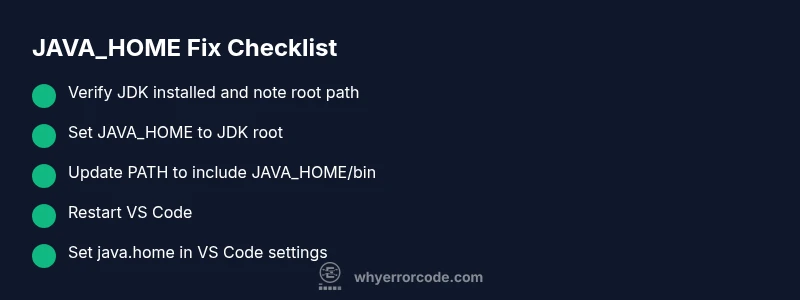
Most likely, VS Code is failing because JAVA_HOME is not set or points to a non-JDK. Quick fix: locate a valid JDK, set JAVA_HOME to its root, add JAVA_HOME/bin to PATH, and restart VS Code so it reloads the environment. If the error persists, verify the Java extension settings and reopen the project. These steps fix most JAVA_HOME related failures.
Understanding the error: vs code error java_home not found in your environment
When you open a Java project in VS Code and see a message like the following, you know you’re dealing with a JAVA_HOME problem: - JAVA_HOME not found in your environment. This error can stop compilation, running tests, or launching your app from the IDE. The root cause is typically that the Java Development Kit (JDK) isn’t discoverable by your shell or VS Code. In 2026, developers report this issue across Windows, macOS, and Linux with equal frequency, and the Why Error Code team has seen most cases resolved by a clean JAVA_HOME setup followed by a VS Code restart. The key is to ensure the path points to a valid JDK installation and that the editor reloads your environment variables.
In practice, think of JAVA_HOME as a pointer the IDE uses to locate the Java tools (javac, java, javadoc, etc.). If that pointer is missing, wrong, or out of date, you’ll see immediate failures when building or running Java projects in VS Code.
Common causes of JAVA_HOME not found in VS Code
There are several frequent culprits behind the JAVA_HOME not found error in VS Code:
- JAVA_HOME is not set at all in your user profile or system, so the IDE has no reference to a Java installation.
- JAVA_HOME points to a directory that isn’t a valid JDK root (for instance, the JRE or a partial JDK install).
- You modified JAVA_HOME in one shell or terminal but VS Code is launching a separate environment where that change hasn’t loaded yet.
- A multi-JDK setup leaves conflicting versions; the IDE resolves to a path that no longer exists or is inaccessible due to permissions.
- The Java extension or VS Code settings override the environment variable with a different path.
Understanding these scenarios helps you prioritize fixes without guessing.
How to verify your Java installation and environment
Verifying your Java setup is the fastest way to pinpoint JAVA_HOME issues:
- Check JDK presence: run java -version and javac -version in a terminal. You should see a valid JDK version, not a JRE-only message.
- Locate JAVA_HOME: on Windows, print %JAVA_HOME%; on macOS/Linux, echo $JAVA_HOME. If the output is empty or points to a non-JDK folder, you’ve found the issue.
- Inspect the path: ensure JAVA_HOME/bin contains executables like java and javac. If those binaries are missing, the JDK install may be incomplete.
- Confirm permissions: the IDE needs read access to the JAVA_HOME path. Lack of permissions can cause VS Code to fail resolving the variable even if it exists.
If these checks show a mismatch, you’ll know exactly what to fix in the next steps.
Checking system PATH and JAVA_HOME on Windows/macOS/Linux
Environment variable management differs by OS, but the same concept applies:
- Windows: System Properties > Advanced > Environment Variables. Create or edit JAVA_HOME to the JDK root (e.g., C:\Program Files\Java\jdk-17). Then edit Path and add %JAVA_HOME%\bin.
- macOS/Linux: edit your shell profile (~/.bashrc, ~/.zshrc, or /etc/profile). export JAVA_HOME=$(/usr/libexec/java_home) or export JAVA_HOME=/Library/Java/JavaVirtualMachines/jdk-17.jdk/Contents/Home and export PATH=$JAVA_HOME/bin:$PATH.
- Apply changes: source your profile or restart the terminal; then restart VS Code to pick up the new variables.
The goal is a consistent JAVA_HOME that points to a concrete JDK root and a PATH that makes its tools reachable from any shell.
Configuring VS Code to use the correct JDK
Once JAVA_HOME is correctly set, configure VS Code for Java tooling to honor the path:
- In settings.json, set "java.home": "/path/to/jdk" on macOS/Linux or the Windows equivalent. This helps the Java extension locate the JDK even if your shell environment differs.
- Check the Java extension settings pane for a value under Java: Home. If your project uses a non-standard JDK (like an embedded JRE), update accordingly.
- Consider a workspace setting to pin a specific JDK for a project, avoiding global changes that affect other projects.
- Validate by reloading the window in VS Code and running a build or run task to confirm the fix.
A consistent java.home setting reduces ambiguity and prevents the JAVA_HOME not found error from recurring.
When to escalate: mixing IDE settings and global env vars
If you’ve set JAVA_HOME correctly but VS Code still reports the error, you may be dealing with a mismatch between global environment variables and VS Code’s internal environment:
- VS Code from different user accounts may inherit different profiles. Run VS Code as the same user who configured JAVA_HOME.
- Corporate IT policies can override environment variables at login; verify with your IT team that JAVA_HOME remains consistent across sessions.
- If you use containerized or remote development (SSH or WSL), ensure JAVA_HOME is defined inside the remote environment, not just on your local machine.
Document any discrepancies, test across a couple of different terminals, and consider using a project-level java.home setting to isolate the fix.
Preventive practices to avoid JAVA_HOME issues
Prevention saves debugging time:
- Install a clean JDK from a trusted source and keep a documented path to the JDK root for your team.
- Use script-based environment setup in your project repository (e.g., a setup.sh or setup.ps1) to standardize JAVA_HOME across machines.
- Regularly verify JAVA_HOME after major OS upgrades, JDK updates, or user profile changes.
- Enable a simple CI check that prints the JAVA_HOME from the build agent to catch drift early.
By adopting these habits, you’ll reduce JAVA_HOME related interruptions and keep your VS Code Java workflow smooth.
Steps
Estimated time: 25-40 minutes
- 1
Identify a valid JDK installation
Locate a complete JDK installation on your system. If you don’t have one, download and install a supported JDK version for your OS. Verify the path you’ll use as JAVA_HOME.
Tip: Note the exact path to the JDK root directory for easy reference. - 2
Set JAVA_HOME to the JDK root
Define JAVA_HOME to the JDK root (not to a subdirectory like bin). On Windows, set it in System Properties; on macOS/Linux, edit your shell profile and export JAVA_HOME="/path/to/jdk".
Tip: Use a single, consistent path to avoid confusion across terminals. - 3
Update PATH to include JAVA_HOME/bin
Add JAVA_HOME/bin to your PATH so the system can find java and javac from any shell. This ensures VS Code uses the same tools as the terminal.
Tip: Place the PATH update before other Java-related entries to minimize conflicts. - 4
Reload the environment
Restart your terminal and then restart VS Code to reload the updated environment variables.
Tip: If using the integrated terminal in VS Code, close and reopen it after the changes. - 5
Configure VS Code to point to the JDK
In VS Code settings, set java.home to the JDK root path. This helps the Java extension locate the correct JDK even when multiple installations exist.
Tip: Use a workspace setting to lock this for the current project. - 6
Verify the fix
Run java -version and javac -version to confirm the correct JDK is in use. Open a Java project in VS Code and build to validate the resolution.
Tip: If issues persist, check for conflicting tools or remote environments.
Diagnosis: Machine shows error: 'JAVA_HOME not found in your environment' when loading a Java project in VS Code
Possible Causes
- highJAVA_HOME environment variable is not set
- highJAVA_HOME points to a non-JDK directory or invalid path
- mediumVS Code shell environment has not reloaded after changes
Fixes
- easySet JAVA_HOME to the root of a valid JDK installation
- easyAdd JAVA_HOME/bin to the system PATH
- easyRestart VS Code (and your terminal) to reload environment changes
- easyConfigure the Java extension in VS Code to use the correct JAVA_HOME
Frequently Asked Questions
What does the error 'JAVA_HOME not found in your environment' mean in VS Code?
It means VS Code or its Java extension cannot locate a Java Development Kit via JAVA_HOME. You need a valid JDK path defined in your environment so the IDE can compile and run Java code.
This error means VS Code can’t find your Java installation because JAVA_HOME isn’t set correctly.
How do I set JAVA_HOME on Windows?
Open System Properties, go to Environment Variables, and create or edit JAVA_HOME to your JDK root (for example, C:\Program Files\Java\jdk-17). Then edit Path to include %JAVA_HOME%\bin.
On Windows, set JAVA_HOME to the JDK root and add the bin folder to your Path.
How do I set JAVA_HOME on macOS or Linux?
Edit your shell profile and add export JAVA_HOME=/path/to/jdk and export PATH=$JAVA_HOME/bin:$PATH. Apply changes with source ~/.bashrc or ~/.zshrc, then restart VS Code.
On macOS or Linux, export JAVA_HOME to the JDK root and prepend its bin to PATH.
Do I need to restart VS Code after changing JAVA_HOME?
Yes. Restart VS Code (and your terminal) to ensure the new JAVA_HOME is loaded by the editor and the Java extension.
You should restart VS Code to apply the new JAVA_HOME path.
Will changing JAVA_HOME affect other Java tools or IDEs?
Changing JAVA_HOME can affect any tool that relies on the same environment variable. If you use multiple IDEs, keep a documented approach to avoid conflicts.
Yes, other Java tools may be affected; coordinate changes across IDEs.
Can VS Code auto-detect JAVA_HOME?
The Java extension can use java.home settings to override global JAVA_HOME. If auto-detection fails, explicitly set java.home in settings.json.
Sometimes auto-detect fails; set java.home manually in VS Code settings.
Watch Video
Top Takeaways
- Set JAVA_HOME to a valid JDK root
- Update PATH to include JAVA_HOME/bin
- Restart VS Code to apply changes
- Pin java.home in VS Code settings for reliability